
HXSJ A867
HXSJ A867 Wired E-sport Gaming Mouse
User Manual
Introduction
Thank you for choosing the HXSJ A867 Wired E-sport Gaming Mouse. This manual provides essential information for setting up, operating, maintaining, and troubleshooting your new gaming mouse. Please read this manual thoroughly to ensure optimal performance and longevity of your device.

Figure 1: Front view of the HXSJ A867 Gaming Mouse, showcasing its ergonomic design and vibrant RGB illumination.
The HXSJ A867 is designed for e-sport enthusiasts, featuring a high-performance program control decoder chip for smooth and precise control. It offers adjustable DPI settings, customizable RGB lighting, and a comfortable design for extended gaming sessions.
Setup
Unpacking: Carefully remove the HXSJ A867 Gaming Mouse and its accessories from the packaging. Ensure all components are present: 1 x HXSJ A867 Mouse, 1 x English Manual.

Figure 2: The HXSJ A867 Gaming Mouse, its USB cable, and the included English manual, as found in the product packaging.
Connection: The HXSJ A867 is a wired mouse. Connect the USB 2.0 plug of the mouse cable to an available USB port on your computer (PC, laptop, or Macbook).

Figure 3: Bottom view of the HXSJ A867 Gaming Mouse, displaying the optical sensor and product labeling including the model number.
- Driver Installation: No specific driver installation is required. The mouse is plug-and-play compatible with Windows 7 / 8 / 10 / 2000 / XP / Vista, Mac OS, or later operating systems. Your computer will automatically detect and configure the device.
Operating Instructions
Button Functions
The HXSJ A867 mouse features multiple programmable buttons to enhance your gaming experience:
- Left Click: Standard primary button.
- Right Click: Standard secondary button.
- Scroll Wheel: For scrolling and middle-click function.
- DPI + Button: Increases DPI sensitivity.
- DPI - Button: Decreases DPI sensitivity.
- Advance Button: Typically used for 'forward' navigation in browsers or games.
- Retreat Button: Typically used for 'back' navigation in browsers or games.

Figure 4: Detailed view highlighting key features such as the game non-slip wheel, DPI adjustment, multi-color backlight, switch life, and bump anti-slip flank.
DPI Adjustment
The HXSJ A867 offers four adjustable DPI levels, allowing you to customize mouse sensitivity on the fly. Each DPI setting is indicated by a specific LED light color:
- 1000 DPI: Green LED light
- 1600 DPI: Purple LED light
- 3200 DPI: Blue LED light
- 6400 DPI: Red LED light
Use the DPI + and DPI - buttons located behind the scroll wheel to cycle through these settings.

Figure 5: Visual representation of the four DPI settings (1000, 1600, 3200, 6400) and their corresponding LED light colors (Green, Purple, Blue, Red).
RGB Illumination Modes
The mouse features 7 RGB backlit modes to enhance your gaming atmosphere. You can control the lighting effects using specific button combinations:
- Turn On/Off Light: Press the Middle key (Scroll Wheel Click) + DPI+ simultaneously.
- Switch Light Mode: Press the Left button + DPI- simultaneously.
The available RGB modes include Wave, Full Lighted, Go Without Trace, Flash, Rainbow, Breathing, and Reactive.
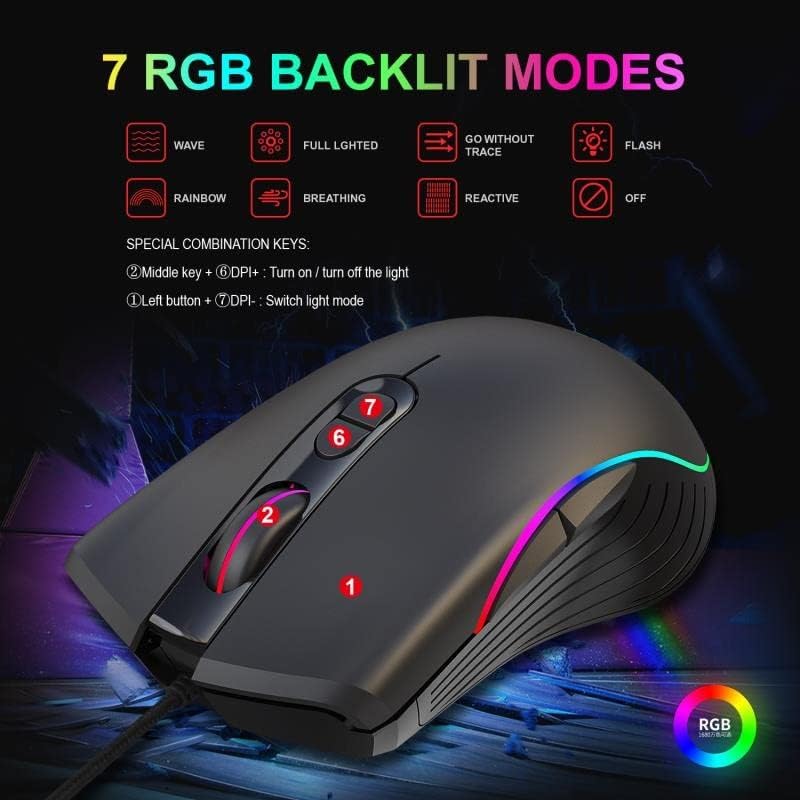
Figure 6: Illustration of the 7 RGB backlit modes and the specific key combinations for controlling the lighting effects.
Maintenance
- Cleaning: To clean the mouse, gently wipe its surface with a soft, dry, or slightly damp cloth. Avoid using harsh chemicals, abrasive cleaners, or excessive moisture, as these can damage the mouse's finish or internal components.
- Sensor Care: Keep the optical sensor on the bottom of the mouse clean and free from dust or debris to ensure accurate tracking.
- Storage: When not in use for extended periods, store the mouse in a clean, dry environment away from direct sunlight and extreme temperatures.
Troubleshooting
- Mouse Not Responding:
- Ensure the USB cable is securely plugged into a working USB port on your computer.
- Try plugging the mouse into a different USB port.
- Restart your computer.
- DPI Not Changing:
- Ensure you are pressing the correct DPI + or DPI - buttons.
- Check if the LED light changes color, indicating a DPI switch.
- RGB Lights Not Working or Stuck:
- Ensure the mouse is properly connected.
- Try the key combination (Middle key + DPI+) to turn the lights on/off.
- Try the key combination (Left button + DPI-) to cycle through light modes.
- Inaccurate Tracking:
- Clean the optical sensor on the bottom of the mouse.
- Ensure you are using the mouse on a clean, non-reflective, and uniform surface (e.g., a mouse pad).
Specifications
| Brand | HXSJ |
| Model | A867 |
| Connection Type | USB Wired (USB 2.0) |
| Cable Length | 1.5 m |
| DPI Resolution | 1000 / 1600 / 3200 / 6400 DPI (Adjustable) |
| Buttons | Left, Right, Scroll Wheel, DPI+, DPI-, Advance, Retreat |
| Lighting | RGB Illumination (7 modes) |
| Switch Life | 20 million cycles (approx.) |
| Material | ABS |
| Product Dimensions (L x W x H) | 12.80 x 7.10 x 4.50 cm (5.04 x 2.8 x 1.77 inches) |
| Product Weight | 0.1320 kg (132 grams) |
| Compatible Operating Systems | Windows 7 / 8 / 10 / 2000 / XP / Vista, Mac OS or latest |

Figure 7: An internal view highlighting the high-performance optical mouse system single chip (SUNPLUSIT CP190) that powers the HXSJ A867.
Warranty and Support
Warranty information for the HXSJ A867 Gaming Mouse is typically provided with your purchase documentation or on the product packaging. Please refer to these resources for details regarding warranty coverage and terms.
For technical support, troubleshooting assistance beyond this manual, or warranty claims, please contact HXSJ customer service through their official website or the retailer from whom you purchased the product. Keep your proof of purchase handy when contacting support.
Ask a question about this manual
Ask about setup, troubleshooting, compatibility, parts, safety, or missing instructions. Manuals+ will review the question and use this page’s manual context to help answer it.