1. Introduction
Thank you for choosing the RobertDTesta 180mm PC Case Cooling Fan. This manual provides essential information for the proper installation, operation, and maintenance of your new cooling fan. Please read this manual thoroughly before installation to ensure optimal performance and longevity of the product.
2. Safety Information
- Always disconnect power from your computer before installing or removing the fan.
- Handle the fan by its frame to avoid damaging the blades or internal components.
- Ensure proper ventilation during installation.
- Keep the fan away from liquids and excessive moisture.
- Do not attempt to modify the fan or its wiring. Unauthorized modifications can lead to malfunction or electrical hazards.
- Keep out of reach of children.
3. Package Contents
Verify that all components are present and in good condition:
- 1 x RobertDTesta 180mm PC Case Cooling Fan (Model: RL4Z S1803212L-3M)
- (Mounting screws may be included with your PC case or sold separately)
4. Specifications
| Feature | Specification |
|---|---|
| Model | RL4Z S1803212L-3M |
| Fan Size | 180 x 180 x 32 mm |
| Mounting Pitch | 165 mm |
| Voltage | 12V |
| Current | 0.15A |
| Rotational Speed | 750 RPM |
| Interface | Main board 3-Pin connector |
| Life Expectancy | 16,000 hours |
| Weight | 441.35g (approx. 15.57 oz) |
| Material | Polycarbonate |
| Compatible Devices | Desktop Computers |
| Country of Origin | China |
5. Setup and Installation
Follow these steps to properly install your cooling fan:
- Prepare your PC: Power off your computer and disconnect it from the power outlet. Open your PC case to access the fan mounting locations.
- Identify Mounting Location: Locate an available 180mm fan mounting point in your PC case. Common locations include the front, top, or rear of the case.
- Determine Airflow Direction: Most fans have an arrow on the side indicating the direction of airflow. Install the fan to ensure it either draws cool air into the case (intake) or expels hot air out of the case (exhaust), depending on your system's cooling strategy.
- Mount the Fan: Position the fan against the mounting holes. Secure the fan to the PC case using appropriate fan screws (not included). Do not overtighten the screws.
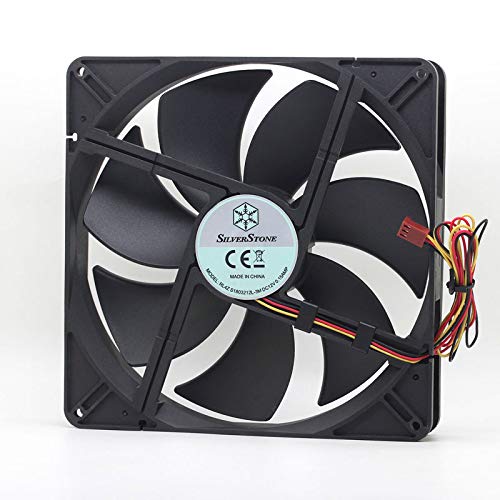
Image 1: The RobertDTesta 180mm PC Case Cooling Fan, showing its 7-blade design and the attached 3-pin power connector wires.
- Connect Power: Connect the fan's 3-pin connector to an available 3-pin fan header on your motherboard. Refer to your motherboard manual for fan header locations.
- Close Case and Power On: Once the fan is securely mounted and connected, close your PC case, reconnect the power, and power on your computer. The fan should begin spinning.
6. Operation
The RobertDTesta 180mm PC Case Cooling Fan operates automatically once connected to a motherboard fan header and the computer is powered on. It will spin at its rated speed of 750 RPM to provide consistent airflow for cooling your PC components. Modern motherboards may offer basic fan speed control through BIOS/UEFI settings or software, depending on the fan header type and motherboard capabilities.
7. Maintenance
Regular maintenance helps ensure optimal performance and extends the lifespan of your cooling fan:
- Dust Removal: Periodically (e.g., every 3-6 months), power off your computer and open the case. Use compressed air to gently blow dust off the fan blades and frame. Hold the fan blades to prevent them from spinning rapidly during cleaning, which can damage the bearings.
- Inspection: Visually inspect the fan for any signs of damage, such as cracked blades or loose wiring. Ensure the fan is securely mounted.
- Avoid Lubrication: The fan's bearings are factory-sealed and do not require additional lubrication. Attempting to lubricate them may cause damage.
8. Troubleshooting
If you encounter issues with your cooling fan, refer to the following common problems and solutions:
- Fan Not Spinning:
- Ensure the computer is powered on.
- Verify the 3-pin connector is securely plugged into a motherboard fan header.
- Check BIOS/UEFI settings to ensure the fan header is enabled and not set to a very low or off speed.
- Test the fan on a different fan header if available.
- Unusual Noise:
- Power off the computer and check for any cables or obstructions hitting the fan blades.
- Ensure the fan is securely mounted and not vibrating against the PC case.
- Dust buildup can sometimes cause noise; clean the fan as described in the Maintenance section.
- Poor Cooling Performance:
- Verify the fan's airflow direction is appropriate for its location (intake for cool air, exhaust for hot air).
- Ensure other case fans are working correctly and that there is adequate overall airflow within the PC case.
- Clean any dust filters in your PC case.
9. Warranty and Support
For warranty information or technical support, please refer to the documentation provided at the time of purchase or contact your retailer. Keep your proof of purchase for any warranty claims.


