
1. Introduction
This manual provides instructions for the proper use and maintenance of your Eonvic L797Y Data Cable. This cable is designed to facilitate data transfer and firmware updates for compatible GPS/GNSS receivers, including SOUTH S86, S86T, Galaxy G1, Stonex GNSS RTK Receiver S10, and S9, by connecting them to a computer.
2. Product Overview
The Eonvic L797Y data cable is a high-reliability connector solution for instrumentation and medical devices, offering robust performance with over 5000 insertions, complete EMC shielding, shock resistance, vibration resistance, and corrosion resistance. It is specifically engineered for connecting various GPS/GNSS receivers to a computer.
Key Features:
- Compatibility: Designed for SOUTH S86, S86T, Galaxy G1, Stonex GNSS RTK Receiver S10, and S9.
- Functionality: Enables transfer of static data and firmware updates between receiver and computer.
- Connectors: Features a 7-pin male connector for the receiver, a DB9 RS232 female connector, and a USB connector for the computer.
- Cable Length: Standard length is approximately 1.8 meters (70.87 inches).
- Durability: Constructed for high performance and durability, with each cable undergoing testing before shipment.
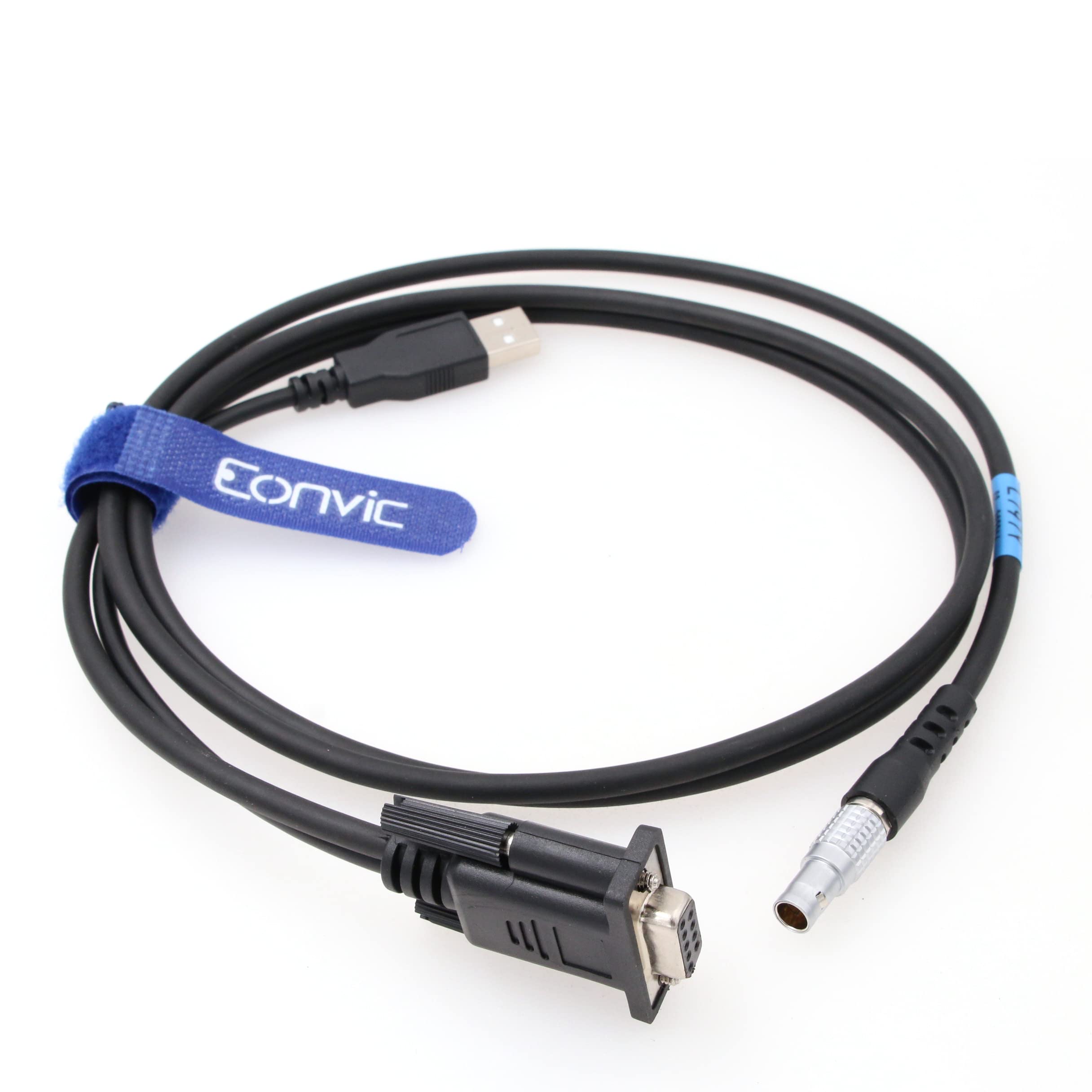
Image 1: The Eonvic L797Y data cable, showing the USB, DB9 RS232, and 7-pin connectors. The cable is coiled with a blue Eonvic branded strap.

Image 2: A closer view of the Eonvic L797Y data cable, highlighting the 7-pin connector, the blue Eonvic strap, the DB9 RS232 connector, and the USB connector.
3. Setup
Follow these steps to properly connect your Eonvic L797Y data cable:
- Identify Connectors: The cable has three distinct connectors: a 7-pin male connector (for the receiver), a DB9 RS232 female connector, and a standard USB Type-A connector.
- Connect to Receiver: Carefully insert the 7-pin male connector into the corresponding port on your SOUTH S86, S86T, Galaxy G1, Stonex S10, or S9 GPS/GNSS receiver. Ensure a secure fit.
- Connect to Computer:
- If your computer has a DB9 serial port, connect the DB9 RS232 female connector directly to it.
- Connect the USB Type-A connector to an available USB port on your computer. This connection typically provides power and may be used for data communication depending on your receiver's requirements and software.
- Driver Installation (if necessary): Your operating system may automatically install necessary drivers. If not, refer to your receiver's documentation or manufacturer's website for specific driver installation instructions for the USB-to-serial functionality.
4. Operating Instructions
Once the cable is physically connected and any necessary drivers are installed, you can proceed with data transfer or firmware updates.
4.1. Data Transfer
- Power On: Ensure your GPS/GNSS receiver is powered on.
- Launch Software: Open the data management or communication software provided by the manufacturer of your GPS/GNSS receiver on your computer.
- Select Port: Within the software, select the correct communication port (e.g., COM port for serial connection or USB port) that corresponds to your connected cable.
- Initiate Transfer: Follow the software's instructions to initiate the static data transfer from your receiver to your computer.
4.2. Firmware Update
Firmware updates are critical for maintaining optimal performance and accessing new features. Always follow the receiver manufacturer's specific instructions for firmware updates.
- Download Firmware: Obtain the correct firmware file for your specific receiver model from the manufacturer's official website.
- Connect Cable: Ensure the Eonvic L797Y cable is securely connected between your receiver and computer.
- Launch Update Tool: Open the firmware update utility provided by your receiver's manufacturer.
- Select Firmware and Port: Within the utility, select the downloaded firmware file and the correct communication port.
- Start Update: Follow the on-screen prompts to begin the firmware update process. Do not disconnect the cable or power off the receiver/computer during the update. Interruption can damage the receiver.
- Verify Update: After the update completes, verify the new firmware version on your receiver as per the manufacturer's instructions.
5. Maintenance
Proper care and maintenance will extend the life of your Eonvic L797Y data cable.
- Storage: Store the cable in a clean, dry environment away from extreme temperatures. Avoid tightly coiling or bending the cable sharply, which can damage internal wires.
- Cleaning: Use a soft, dry cloth to clean the cable and connectors. Do not use harsh chemicals or abrasive materials. Ensure connectors are free of dust and debris before use.
- Handling: Always grasp the connector housing when plugging or unplugging the cable, not the cable itself, to prevent strain on the connections.
- Inspection: Periodically inspect the cable for any signs of wear, cuts, or damage to the insulation or connectors. Discontinue use if damage is observed.
6. Troubleshooting
If you encounter issues with your Eonvic L797Y data cable, consider the following troubleshooting steps:
- Cable Not Recognized:
- Ensure all connectors are securely seated.
- Try connecting to a different USB port on your computer.
- Verify that the necessary drivers for the USB-to-serial functionality are installed and up to date. Check your computer's Device Manager for any unknown devices or driver errors.
- Restart your computer and receiver.
- Data Transfer Failure:
- Confirm that the correct communication port is selected in your receiver's software.
- Check the receiver's settings to ensure it is configured for data output via the connected port.
- Ensure the receiver has sufficient power.
- Temporarily disable any antivirus or firewall software that might interfere with communication.
- Firmware Update Issues:
- Double-check that you have the correct firmware file for your specific receiver model.
- Ensure a stable power supply to both the computer and the receiver throughout the update process.
- Refer to the receiver manufacturer's specific firmware update guide for detailed steps and common issues.
If these steps do not resolve the issue, please contact Eonvic customer support for further assistance.
7. Specifications
| Feature | Specification |
|---|---|
| Brand | Eonvic |
| Model | L797Y |
| Connector A | 7-pin Male |
| Connector B | DB9 RS232 Female |
| Connector C | USB Type A |
| Cable Type | USB to Serial Data Cable |
| Compatible Devices | PC, SOUTH S86, S86T, Galaxy G1, Stonex S10, S9 GPS/GNSS Receivers |
| Cable Length | 1.8 meters (70.87 inches) |
| Color | Black |
| Item Weight | 3.52 ounces (0.1 Kilograms) |
| Specification Met | EMC |
| Indoor/Outdoor Usage | Indoor, Outdoor |
8. Warranty and Support
Eonvic is committed to providing high-quality products and customer satisfaction. Each cable undergoes rigorous testing before shipment to ensure performance and reliability.
For any questions, concerns, or assistance with your Eonvic L797Y data cable, please contact Eonvic customer support. We are dedicated to resolving any problems you may encounter.
Please refer to your purchase documentation or the Eonvic official website for specific warranty terms and contact information.