
1. Introduction
Thank you for purchasing the Kadio Digital White Clock. This device is designed to provide accurate indoor temperature and humidity readings, along with time and date display. It also features an alarm function and a clear LCD screen for easy readability. This manual will guide you through the setup, operation, and maintenance of your new digital clock.
Key features include:
- Large LCD display for temperature, humidity, time, and date.
- Indoor temperature and humidity monitoring.
- Humidity level icon (DRY/COMFORT/WET) for quick reference.
- Switchable temperature units (°C/°F) and time formats (12h/24h).
- Integrated alarm clock function.
- Versatile placement: tabletop stand or wall-mountable.
2. Setup
2.1 Unpacking
Carefully remove the digital clock from its packaging. Ensure all components are present and undamaged. The package should contain the Kadio Digital White Clock unit.
2.2 Battery Installation
- Locate the battery compartment on the back of the unit.
- Open the battery compartment cover.
- Insert the required batteries (not included) according to the polarity indicators (+ and -) inside the compartment.
- Close the battery compartment cover securely.

Figure 1: Back view of the Kadio Digital White Clock, illustrating the battery compartment and the integrated hanging hole for wall mounting.
2.3 Placement
The Kadio Digital White Clock offers flexible placement options:
- Tabletop: Extend the retractable stand located on the back of the unit to place it on any flat surface, such as a desk, nightstand, or shelf.
- Wall-Mount: Use the hanging hole on the back of the unit to mount it securely on a wall.

Figure 2: Front view of the Kadio Digital White Clock, displaying its overall dimensions for placement reference.
3. Operating Instructions
3.1 Display Overview
The large LCD screen displays the following information:
- Top Section: Indoor Temperature (in °C or °F).
- Middle Section: Time (in 12h or 24h format) and Humidity percentage.
- Bottom Section: Date (Month/Day) or Alarm time.
- Humidity Level Icon: Indicates DRY, COMFORT, or WET conditions.
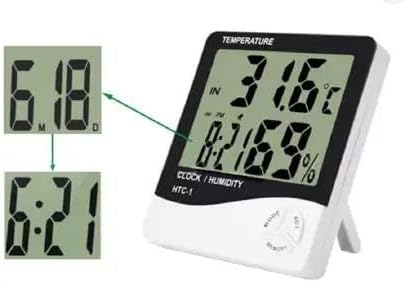
Figure 3: Detailed view of the Kadio Digital White Clock's display and control buttons.
3.2 Button Functions
- MODE: Press to cycle through Time/Date display and Alarm display. Press and hold to enter setting mode for time, date, or alarm.
- ADJ (+): In setting mode, press to increase the value. Outside setting mode, press to switch between Celsius (°C) and Fahrenheit (°F) temperature units.
- MEMORY (-): In setting mode, press to decrease the value. Outside setting mode, press to view maximum and minimum temperature/humidity records. Press and hold to clear memory.
3.3 Setting Time and Date
- Press and hold the MODE button for approximately 3 seconds until the hour digit starts flashing.
- Use the ADJ (+) or MEMORY (-) buttons to adjust the hour.
- Press MODE again to move to the minute setting, then adjust with ADJ (+) or MEMORY (-).
- Continue pressing MODE to cycle through year, month, and day settings, adjusting each with ADJ (+) or MEMORY (-).
- After setting the day, press MODE one last time to exit the setting mode.
3.4 Setting 12/24 Hour Format
While in time display mode (not setting mode), press the MEMORY (-) button to toggle between 12-hour and 24-hour formats.
3.5 Setting Temperature Unit (°C/°F)
While in normal display mode, press the ADJ (+) button to switch between Celsius (°C) and Fahrenheit (°F).
3.6 Setting the Alarm
- Press the MODE button once to display the alarm time (indicated by "AL" on the screen).
- Press and hold the MODE button for approximately 3 seconds until the alarm hour digit starts flashing.
- Use the ADJ (+) or MEMORY (-) buttons to adjust the alarm hour.
- Press MODE again to move to the alarm minute setting, then adjust with ADJ (+) or MEMORY (-).
- Press MODE one last time to exit the alarm setting mode.
- To activate or deactivate the alarm, press the ADJ (+) button while the alarm time is displayed. An alarm icon will appear/disappear to indicate its status.
3.7 Max/Min Temperature and Humidity Records
Press the MEMORY (-) button repeatedly to cycle through the current readings, maximum recorded temperature/humidity, and minimum recorded temperature/humidity. To clear the recorded maximum and minimum values, press and hold the MEMORY (-) button for 3 seconds while viewing the max/min records.
4. Maintenance
- Cleaning: Wipe the unit with a soft, dry cloth. Do not use abrasive cleaners or solvents, as they may damage the display or casing.
- Battery Replacement: Replace batteries when the display becomes dim or unresponsive. Always use new batteries of the specified type and ensure correct polarity. Remove batteries if the unit will not be used for an extended period to prevent leakage.
- Storage: Store the clock in a cool, dry place away from direct sunlight and extreme temperatures when not in use.
5. Troubleshooting
| Problem | Possible Cause | Solution |
|---|---|---|
| No display or dim display | Low or dead batteries; incorrect battery installation. | Replace batteries with new ones, ensuring correct polarity. |
| Incorrect temperature/humidity readings | Unit placed near heat/cold sources or in direct sunlight; sensor obstruction. | Relocate the unit to a stable environment away from extreme temperature fluctuations. Ensure sensors are clear. |
| Buttons not responding | Temporary software glitch; low batteries. | Remove and reinsert batteries to reset the unit. Replace batteries if necessary. |
| Alarm not sounding | Alarm not activated; alarm volume too low (if applicable). | Ensure the alarm icon is displayed on the screen. (This model does not have volume control). |
6. Specifications
- Model: Kadio Humidity Clock
- Display Type: Digital LCD
- Power Source: Battery Powered (Batteries not included)
- Product Dimensions: Approximately 3.74"W x 3.94"H (9.5 cm W x 10 cm H)
- Item Weight: Approximately 300 Grams
- Material: Fiberglass
- Mounting Type: Tabletop or Wall-Mount
- Indoor/Outdoor Usage: Indoor
- Special Features: Alarm, Temperature Display, Humidity Display, Date Display
7. Warranty and Support
For warranty information or technical support, please refer to the documentation provided at the point of purchase or contact your retailer. Keep your purchase receipt as proof of purchase.
If you experience any issues not covered in the troubleshooting section, please contact the seller or manufacturer for assistance.