1. Introduction
Thank you for choosing the EYOYO 2D Wireless Barcode Scanner, Model EY-029. This device is designed for efficient and versatile barcode scanning, supporting both 1D and 2D codes. It offers multiple connection methods and scanning modes to suit various operational needs in environments such as warehouses, libraries, supermarkets, and retail stores. This manual provides detailed instructions to help you set up, operate, and maintain your scanner effectively.
2. Safety Information
- Avoid direct eye exposure to the scanner's light beam.
- Do not disassemble or modify the scanner. Unauthorized modifications can void the warranty and pose safety risks.
- Keep the device away from water, moisture, and extreme temperatures.
- Use only the provided charging cable and adapter to prevent damage to the battery and device.
3. Package Contents
Please check the package contents upon receipt. If any items are missing or damaged, contact customer support.
- EYOYO 2D Wireless Barcode Scanner (Model EY-029)
- USB Charging Cable
- 2.4G Wireless Receiver
- Charging Stand (if included with your model)
- User Manual
4. Product Overview
4.1 Components
Familiarize yourself with the main components of the EYOYO barcode scanner.

Image: The EYOYO barcode scanner in its charging stand, highlighting its compact design and power indicator lights.
5. Setup
5.1 Charging the Scanner
The scanner is equipped with a 2500mAh battery, providing approximately 8 hours of continuous operation and up to 30 days of standby time. To charge the scanner, connect it to a power source using the provided USB cable. The power level indicator lights on the scanner will show the charging status and current battery level (100%, 75%, 50%, 25%).

Image: Visual representation of the scanner's 2500mAh battery, continuous operation time, standby time, and the four-segment battery level indicator.
5.2 Connection Methods
The EYOYO EY-029 scanner supports three connection methods: 2.4G Wireless, Bluetooth, and USB Wired. Choose the method that best suits your device and environment.
Image: The scanner connected via 2.4G wireless to a laptop, via Bluetooth to a smartphone and tablet, and via USB cable to a laptop, demonstrating its versatile connectivity.
5.2.1 2.4G Wireless Connection
- Insert the 2.4G wireless receiver into an available USB port on your computer or compatible device.
- Turn on the barcode scanner. It should automatically connect to the receiver. A successful connection is usually indicated by a specific sound or light pattern on the scanner.
5.2.2 Bluetooth Connection
- Turn on the barcode scanner.
- Activate Bluetooth on your host device (phone, tablet, computer).
- Scan the 'Bluetooth Pairing' barcode (refer to your physical user manual for this specific barcode).
- On your host device, search for available Bluetooth devices and select 'EYOYO Scanner' (or similar name) to pair.
- A successful connection will be indicated by a confirmation sound or light on the scanner.
5.2.3 USB Wired Connection
- Connect the scanner directly to your computer or device using the provided USB cable.
- The scanner will function as a wired device and also charge simultaneously. No additional drivers are typically required.
5.3 Compatibility
The EYOYO EY-029 barcode scanner is compatible with a wide range of operating systems and devices, including Windows XP/7/8/10, Mac OS, Android, iOS, and Linux. It can be used with phones, computers, laptops, POS systems, and tablets.
6. Operating Instructions
6.1 Scanning Modes
The scanner offers three distinct scanning modes to optimize your workflow:

Image: Visual guide to the three scanning modes: Manual Trigger (scan by pressing button), Continuous Scanning (scans constantly), and Automatic Detection (scans when a barcode is presented).
- Manual Trigger Mode: This is the default mode. Press the trigger button to initiate a scan. Release the button after a successful scan.
- Continuous Scanning Mode: The scanner continuously emits a scan beam, scanning any barcode that passes through its field of view without requiring a trigger press.
- Automatic Detection Mode: The scanner remains in standby and automatically activates the scan beam when a barcode is presented within its scanning range.
You can switch between these modes by scanning specific setup barcodes found in your physical user manual.
6.2 Data Upload Modes
The scanner supports two data upload modes:
- Instant Upload Mode: In this mode, scanned barcode data is immediately transmitted to the connected host device. This mode is active when the scanner is within the communication range of its 2.4G wireless receiver or Bluetooth connection.
- Storage Mode: When the scanner is out of communication range, it can store up to 100,000 barcodes internally. Once the scanner returns to the transmission range and reconnects, you can upload all stored data to the host device. Note: Always clear stored data before using storage mode again to prevent duplicate entries.
6.3 Supported Barcode Types
The EYOYO EY-029 is capable of scanning a wide array of 1D and 2D barcode symbologies:

Image: The scanner actively reading an EAN-13 barcode (example: 3123456789019) and a QR code (example: 1234567890) from different devices, demonstrating its 1D and 2D scanning capabilities.
- 1D Codes: UPC-A, UPC-E, EAN-8, EAN-13 (e.g., 3123456789019), ISBN, ISSN, Code 128, GS1-128 (UCC/EAN 128), Code 39, Code 39 Full ASCII, Code 32, Code 93, Code 11, Codabar (NW-7), Interleaved 2 of 5, Matrix 2 of 5, Industrial 2 of 5, MSI Plessey, GS1 DataBar 14 (RSS-14), GS1 DataBar Limited (RSS-Limited), GS1 DataBar Expanded (RSS-Expanded).
- 2D Codes: QR Code (e.g., 1234567890), Micro QR, Data Matrix, PDF 417, Micro PDF 417, Aztec, MaxiCode.
6.4 Advanced Features
The scanner includes several advanced configuration options to enhance functionality:
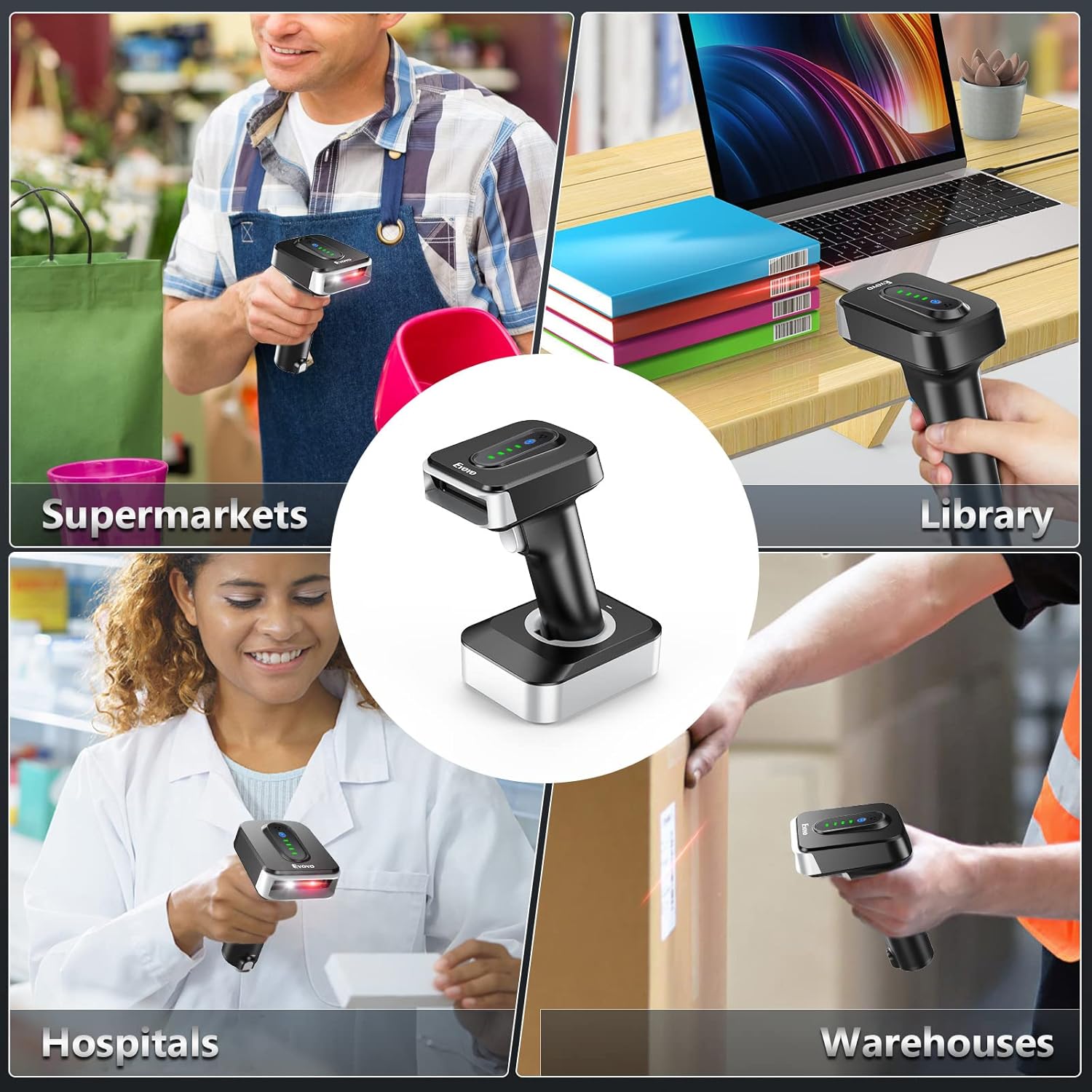
Image: The scanner's advanced features are listed, including options for adding time prefixes and suffixes, multi-language support (English, Swedish, German, Dutch, Spanish, French, Italian, Belgian flags shown), and case conversion.
- Adding Prefixes and Suffixes: Configure the scanner to automatically add custom prefixes or suffixes to scanned data.
- Multiple Languages: The scanner supports various language outputs, including English, Swedish, German, Dutch, Spanish, French, Italian, and Belgian.
- Case Conversion: Option to convert scanned letter data to upper or lower case.
7. Maintenance
7.1 Cleaning
To ensure optimal performance, keep the scanner's scanning window clean. Use a soft, lint-free cloth, slightly dampened with water or a mild cleaning solution. Avoid abrasive materials or harsh chemicals.
7.2 Battery Care
To prolong battery life, avoid fully discharging the battery frequently. If the scanner will not be used for an extended period, charge it to about 50% and store it in a cool, dry place.
8. Troubleshooting
If you encounter issues with your EYOYO barcode scanner, refer to the following common problems and solutions:
- Scanner not connecting: Ensure the scanner is charged. For 2.4G wireless, check if the receiver is properly inserted. For Bluetooth, ensure Bluetooth is enabled on your device and the scanner is in pairing mode. Try re-pairing the device.
- Scanner not reading barcodes: Ensure the barcode is clean and not damaged. Check that the scanner is in the correct scanning mode (e.g., Manual Trigger, Continuous, or Automatic). Verify that the barcode type is supported by the scanner. Adjust the distance and angle of the scanner to the barcode.
- Data not transmitting: If using Instant Upload mode, ensure the scanner is within range of the receiver or Bluetooth connection. If using Storage Mode, ensure you have initiated the upload process after reconnecting.
- Incorrect data output: Check the advanced settings for prefixes, suffixes, or case conversion that might be altering the data.
For more detailed troubleshooting or persistent issues, please consult the full user manual or contact EYOYO customer support.
9. Specifications
| Feature | Specification |
|---|---|
| Model | EY-029 |
| Manufacturer | EYOYO |
| Dimensions | 17.7 x 10.69 x 10.69 cm |
| Weight | 540 grams |
| Power Source | Battery Powered |
| Battery Capacity | 2500mAh |
| Connectivity Technology | Bluetooth, USB Cable, 2.4G Wireless |
| Compatible Devices | Tablet, PC, Laptop, POS, Smartphone |
| Scanning Capability | 1D, 2D, QR Codes |
| Durability | Resistant to drops up to 2 meters |

Image: A visual representation of the scanner's robust design, indicating its ability to withstand drops from a height of 2 meters (6.6 feet).
10. Warranty and Support
For warranty information, technical support, or any inquiries regarding your EYOYO 2D Wireless Barcode Scanner, please refer to the contact details provided in your product packaging or visit the official EYOYO website. Customer satisfaction is a priority, and assistance is available for any operational questions or issues you may encounter.


