
Introduction
Welcome to your new Generic Z36s Watch 7 Smart Watch. This manual provides essential information for setting up, operating, and maintaining your device. Please read it carefully before use to ensure optimal performance and longevity of your smart watch.
Safety Information
- Do not attempt to disassemble, repair, or modify the device. This may void the warranty and cause damage.
- Keep the device away from extreme temperatures, direct sunlight, and high humidity.
- Avoid exposing the device to water beyond its intended water resistance capabilities. Do not submerge the watch unless explicitly stated as waterproof.
- Consult a medical professional before starting any new exercise regimen, especially if you have pre-existing health conditions. The heart rate monitor is for general fitness tracking and not a medical device.
- Use only the provided charging cable or a certified equivalent.
Package Contents
Verify that all items are present in your package:
- Generic Z36s Watch 7 Smart Watch
- Charging Cable
- User Manual (this document)
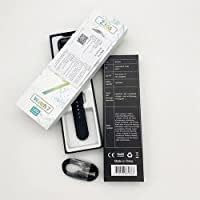
Image: The Z36s Watch 7 Smart Watch packaging, showing the watch, charging cable, and product box.
Product Overview
The Generic Z36s Watch 7 Smart Watch features a square display and a comfortable strap, designed for daily wear and fitness tracking. It includes a heart rate monitor and connects via Bluetooth to your smartphone for extended functionalities.

Image: Front view of the Z36s Watch 7 Smart Watch, displaying a user interface with time and a person exercising.

Image: Rear view of the Z36s Watch 7 Smart Watch, highlighting the heart rate sensors and product information.
Setup
1. Charging the Device
Before first use, fully charge your Z36s Watch 7. Connect the charging cable to the charging port on the back of the watch and plug the other end into a USB power adapter (not included). The watch display will indicate charging status.
Charging time may vary depending on the power source.
2. Power On/Off
- To Power On: Press and hold the side button until the screen illuminates and the boot animation appears.
- To Power Off: Press and hold the side button, then select 'Power Off' or 'Shut Down' on the screen. Confirm your selection.
3. App Installation and Pairing
To unlock the full features of your smart watch, download the companion application on your Android smartphone. The app name is typically mentioned in the quick start guide or displayed on the watch screen during initial setup. Search for the app in the Google Play Store.
- Ensure Bluetooth is enabled on your smartphone.
- Open the companion app and follow the on-screen instructions to create an account or log in.
- Select 'Add Device' or 'Pair New Device' within the app.
- Select 'Z36s Watch 7' from the list of available devices.
- Confirm the pairing request on both your watch and smartphone to establish the connection.
Operating the Smart Watch
Basic Navigation
- Swipe Up/Down: Access quick settings or view notifications.
- Swipe Left/Right: Navigate through widgets, main functions, or app screens.
- Tap: Select an item, open an application, or confirm an action.
- Side Button: Press to return to the home screen or wake the device. A long press typically accesses power options.

Image: Front view of the Z36s Watch 7 Smart Watch with a blank screen, illustrating its square design.
Key Features
- Heart Rate Monitor: Access the heart rate application on your watch to measure your current heart rate. Ensure the watch is worn snugly on your wrist for accurate readings.
- Notifications: Once paired, receive notifications from your smartphone (calls, messages, app alerts) directly on your watch.
- Activity Tracking: Track daily steps, distance traveled, and calories burned.
- Sleep Monitoring: Monitor your sleep patterns, including sleep duration and quality.
- Music Control: Control music playback on your smartphone (play, pause, skip tracks) from your watch.
- GPS via Smartphone: Utilize your smartphone's GPS for tracking outdoor activities and mapping routes through the companion app.

Image: The Z36s Watch 7 Smart Watch displaying a split-screen interface, showing multiple applications and a clear, vibrant display.
Maintenance
Cleaning
Wipe the watch screen and strap with a soft, slightly damp, lint-free cloth. Do not use harsh chemicals, abrasive materials, or strong cleaning agents, as these can damage the finish or internal components.
Storage
Store the watch in a cool, dry place when not in use. Avoid prolonged exposure to direct sunlight or extreme temperatures, which can affect battery life and device performance.
Troubleshooting
- Watch not turning on: Ensure the watch is fully charged. Connect it to the charging cable and a power source for at least 30 minutes.
- Cannot pair with smartphone:
- Check if Bluetooth is enabled on both devices.
- Ensure the watch is within close range of your smartphone.
- Restart both the watch and the smartphone.
- Try unpairing the device from your phone's Bluetooth settings and then re-pairing through the companion app.
- Inaccurate heart rate readings: Ensure the watch is worn snugly on your wrist, not too loose or too tight. Clean the sensor area on the back of the watch.
- Notifications not appearing: Check app permissions on your smartphone to ensure the companion app has access to notifications. Verify notification settings within the watch's companion app.
- Short battery life: Reduce screen brightness, disable unnecessary features, and ensure background apps are closed on the watch.
Specifications
| Feature | Detail |
|---|---|
| Model Name | Z36s |
| Brand | Generic |
| Operating System | Android |
| Memory Storage Capacity | 128 MB |
| Special Features | Heart Rate Monitor |
| Connectivity Technology | Bluetooth |
| GPS | GPS Via Smartphone |
| Item Shape | Square |
| Color | pink |
| Package Dimensions | 21.4 x 7.3 x 2.4 cm; 130 g |
| Date First Available | 21 June 2022 |
Warranty and Support
For warranty information and customer support, please refer to the documentation provided with your purchase or contact the retailer directly. Keep your proof of purchase for any warranty claims or service requests.
