
Introduction
This manual provides comprehensive instructions for the setup, operation, maintenance, and troubleshooting of your HP M22f 21.5-inch Full HD 1080p Monitor. Designed for both productivity and entertainment, this monitor features a 75Hz refresh rate, 5ms response time, IPS panel with wide viewing angles, AMD FreeSync technology, and Low Blue Light/Eyesafe certification for comfortable viewing. Please read this manual thoroughly before using your monitor to ensure optimal performance and longevity.
Setup
1. Package Contents
Before proceeding with the setup, verify that all components are present in the package:
- HP M22f Monitor
- Power Cord
- HDMI Cable
- Documentation (this manual)

Image: Contents of the HP M22f monitor package, showing the monitor, power cord, and HDMI cable.
2. Assembling the Monitor Stand
- Carefully remove the monitor and stand components from the packaging.
- Attach the stand base to the stand neck, ensuring it clicks securely into place or is fastened with the provided screw.
- Align the assembled stand with the mounting slot on the back of the monitor.
- Gently push the stand into the slot until it locks securely.

Image: Front view of the HP M22f monitor, showcasing its slim bezels and assembled stand.
3. Connecting the Monitor
The HP M22f monitor offers versatile connectivity options. Ensure your computer is turned off before making connections.
- HDMI Connection: Connect one end of the HDMI cable to the HDMI port on your computer's graphics card and the other end to the HDMI port on the monitor.
- VGA Connection: Connect one end of the VGA cable to the VGA port on your computer's graphics card and the other end to the VGA port on the monitor.
- Power Connection: Connect the power cord to the monitor's power input and then plug the other end into a grounded electrical outlet.

Image: Rear view of the HP M22f monitor, highlighting the available HDMI, VGA, and power input ports.

Image: Side profile of the HP M22f monitor, demonstrating its thin display panel.
4. Initial Power-On
After making all connections, turn on your computer, then press the power button on the monitor. The monitor should automatically detect the input signal. If not, you may need to manually select the input source using the On-Screen Display (OSD) menu.
Operating the Monitor
1. Power On/Off
To turn the monitor on or off, press the power button located on the bottom right side of the monitor frame.
2. On-Screen Display (OSD) Menu
The OSD menu allows you to adjust various monitor settings. Access the OSD menu by pressing the menu button (usually next to the power button). Use the navigation buttons to browse through options and the select button to confirm choices.
Key OSD Settings:
- Brightness/Contrast: Adjust the overall luminance and contrast of the display.
- Color Control: Modify color temperature, RGB levels, or select preset color modes.
- Input Select: Manually switch between HDMI and VGA input sources.
- Image Control: Adjust sharpness, aspect ratio, and other image-specific settings.
- Management: Access information about the monitor, reset settings, or enable/disable features like AMD FreeSync.
3. AMD FreeSync Technology
This monitor supports AMD FreeSync, which synchronizes the monitor's refresh rate with your AMD graphics card's frame rate. This eliminates screen tearing and stuttering, providing a smoother gaming and video experience. Ensure FreeSync is enabled in both the monitor's OSD menu and your AMD Radeon Software settings.
4. Low Blue Light & Eyesafe Certification
The HP M22f monitor features a Low Blue Light mode and is Eyesafe Certified. These features reduce harmful blue light emissions without compromising color accuracy, helping to minimize eye strain during prolonged use. This mode can typically be activated or adjusted within the OSD menu under picture or color settings.
Maintenance
Cleaning the Monitor
To maintain the clarity and appearance of your monitor, follow these cleaning guidelines:
- Always turn off the monitor and unplug it from the power outlet before cleaning.
- Use a soft, lint-free cloth slightly dampened with water or a non-abrasive screen cleaner.
- Do not spray cleaner directly onto the screen. Apply it to the cloth first.
- Avoid using benzene, thinner, ammonia-based cleaners, or abrasive materials, as these can damage the screen surface.
- Gently wipe the screen and exterior surfaces.
Troubleshooting
If you encounter issues with your HP M22f monitor, refer to the following common problems and their solutions:
| Problem | Possible Cause | Solution |
|---|---|---|
| No image on screen | Power cable disconnected, video cable disconnected, incorrect input source selected. | Ensure power and video cables are securely connected. Check power indicator. Press the input select button on the monitor to cycle through input sources (HDMI, VGA). |
| Image is blurry or distorted | Incorrect resolution, loose video cable, graphics driver issue. | Set the display resolution to 1920 x 1080 (Full HD). Ensure video cable is firmly connected. Update your computer's graphics drivers. |
| Screen flickering | Refresh rate mismatch, faulty cable, interference. | Verify refresh rate is set to 75Hz in display settings. Try a different video cable. Ensure no strong electromagnetic devices are near the monitor. |
| Colors appear incorrect | Color settings misconfigured, faulty cable. | Adjust color settings in the OSD menu or reset to factory defaults. Try a different video cable. |
If the problem persists after trying these solutions, please contact HP customer support or refer to the official HP support website.
Specifications
Below are the technical specifications for the HP M22f Monitor:
- Screen Size: 21.5 Inches (22 Inches standing screen display size)
- Panel Type: IPS
- Resolution: Full HD (1920 x 1080)
- Refresh Rate: 75Hz
- Response Time: 5ms
- Brightness: 300 nits
- Aspect Ratio: 16:9
- Connectivity: 1x HDMI, 1x VGA
- Special Features: AMD FreeSync, Low Blue Light, Eyesafe Certified, Anti-Glare
- Product Dimensions: 19 x 1 x 11 inches
- Item Weight: 4.85 pounds
- Manufacturer: HP
- Model Number: M22F
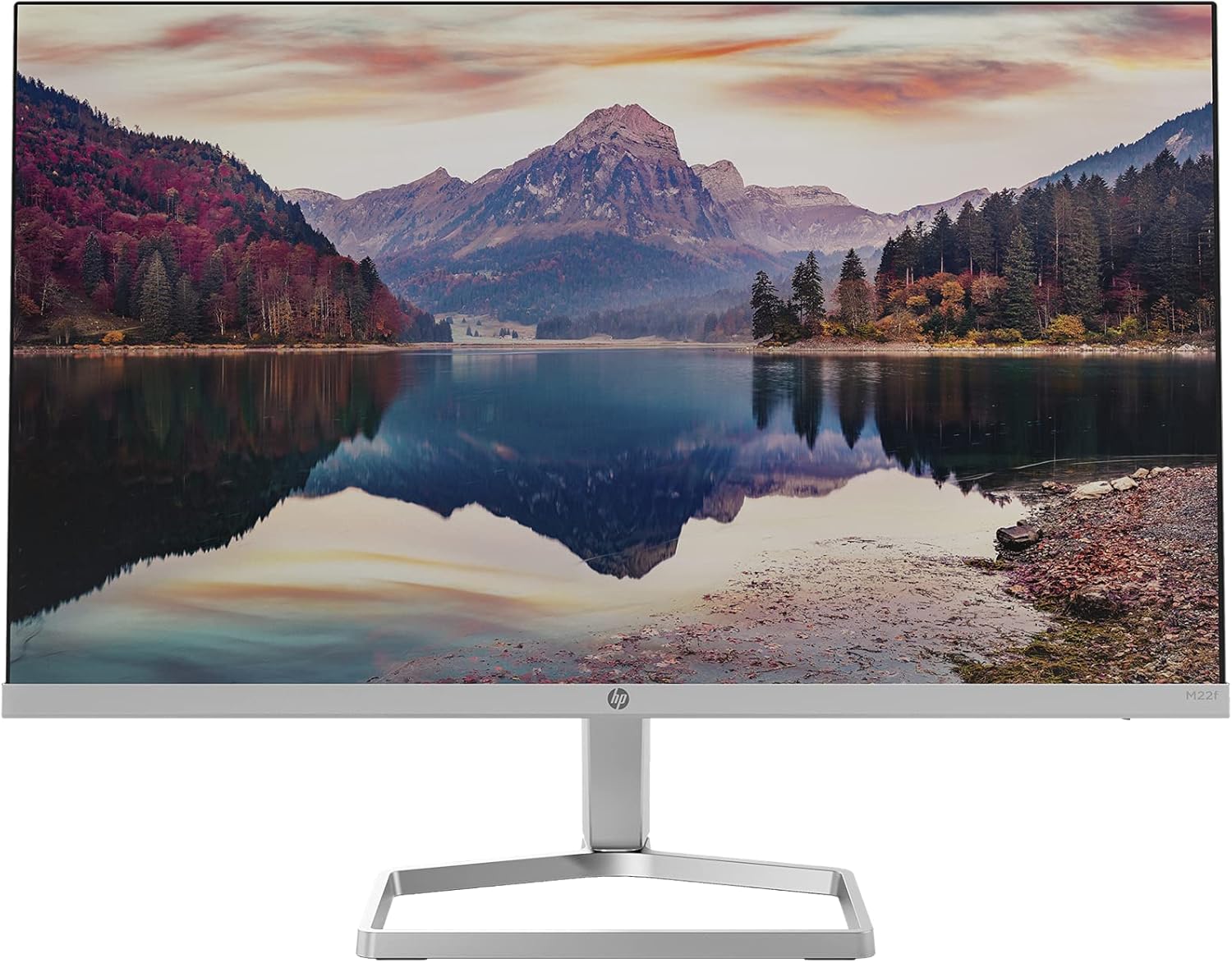
Image: Front view of the HP M22f monitor, showcasing its display quality.
Warranty and Support
As this product is listed as "Renewed" (Amazon Renewed), the warranty terms may differ from new products. Please refer to the specific warranty information provided at the time of purchase or contact the seller directly for details regarding the warranty period and coverage.
For technical support, troubleshooting assistance beyond this manual, or warranty claims, please visit the official HP support website or contact their customer service. Have your monitor's model number (M22F) and serial number ready when seeking support.
HP Support Website: www.hp.com/support