
Introduction
Thank you for choosing the Caixun 40-inch 1080p FHD Smart Android TV. This manual provides essential information for the proper setup, operation, and maintenance of your television. Please read it thoroughly before using the product and retain it for future reference.

Image: The Caixun 40-inch Smart Android TV showcasing its vibrant display and user-friendly Android TV interface.
Safety Information
Always follow basic safety precautions when using this television to reduce the risk of fire, electric shock, and injury.
- Do not expose the TV to rain or moisture.
- Do not block ventilation openings.
- Ensure proper grounding for the power cord.
- Do not place the TV on an unstable cart, stand, tripod, bracket, or table.
- Unplug the TV during lightning storms or when unused for long periods.
- Refer all servicing to qualified service personnel.
What's in the Box
Verify that all components are present upon unboxing:
- Caixun 40-inch TV (x1)
- Remote Control (x1)
- Remote Batteries (x2)
- HDMI Cable (x1)
- User Manual (this document)
- TV Feet (x2)
- Warranty Card (x1)

Image: A visual representation of the TV's dimensions and the contents of the product package.
Setup
Attaching the TV Feet
If placing the TV on a stand or table, attach the included TV feet:
- Carefully place the TV face down on a soft, clean surface to prevent screen damage.
- Align each TV foot with the corresponding screw holes on the bottom of the TV.
- Secure the feet using the provided screws. Do not overtighten.
Wall Mounting (Optional)
This TV supports VESA 200x200mm wall mounts. A wall mount bracket is not included. Please consult a professional for wall mounting installation to ensure safety and proper alignment.

Image: The back of the TV, highlighting the VESA mounting pattern and the location of connectivity ports.
Connecting Devices
Your Caixun TV offers multiple connectivity options:
- HDMI: Connect up to 3 HDMI devices (e.g., cable box, gaming console, Blu-ray player) using the HDMI 1.4 ports. An HDMI cable is included.
- USB: Two USB 2.0 ports are available for media playback from USB drives or for connecting peripherals.
- AV IN: For older devices using composite video and stereo audio.
- RJ45: For a wired internet connection.
- OPTICAL: For digital audio output to a soundbar or home theater system.
- Wi-Fi & Bluetooth: Built-in wireless connectivity for internet access and connecting Bluetooth devices.

Image: Examples of external devices such as laptops, gaming consoles, and streaming devices connected to the TV.
Initial Power On and Setup
After connecting all necessary cables, plug the TV into a power outlet. The TV will guide you through the initial setup process, including network connection, Google account login, and channel scanning.
Operating Your TV
Remote Control and Google Assistant
The included remote control provides full functionality for your TV. Utilize the dedicated Google Assistant button for voice commands. Simply press the button and speak your request.

Image: The remote control featuring the Google Assistant button, demonstrating voice command capabilities.
Examples of voice commands:
- "Show me the weather."
- "Play Stranger Things on Netflix."
- "Open YouTube."
- "Dim the lights." (Requires compatible smart home devices)
Android TV Features
Your Caixun TV runs on Android TV, providing access to a vast library of content and smart features:
- Streaming Services: Access over 400,000 movies and shows from popular streaming platforms via the Google Play Store.
- Chromecast Built-in: Easily cast photos, videos, and music from your smartphone, tablet, or computer directly to your TV.
- Google Play Store: Download and install additional apps, games, and streaming services.
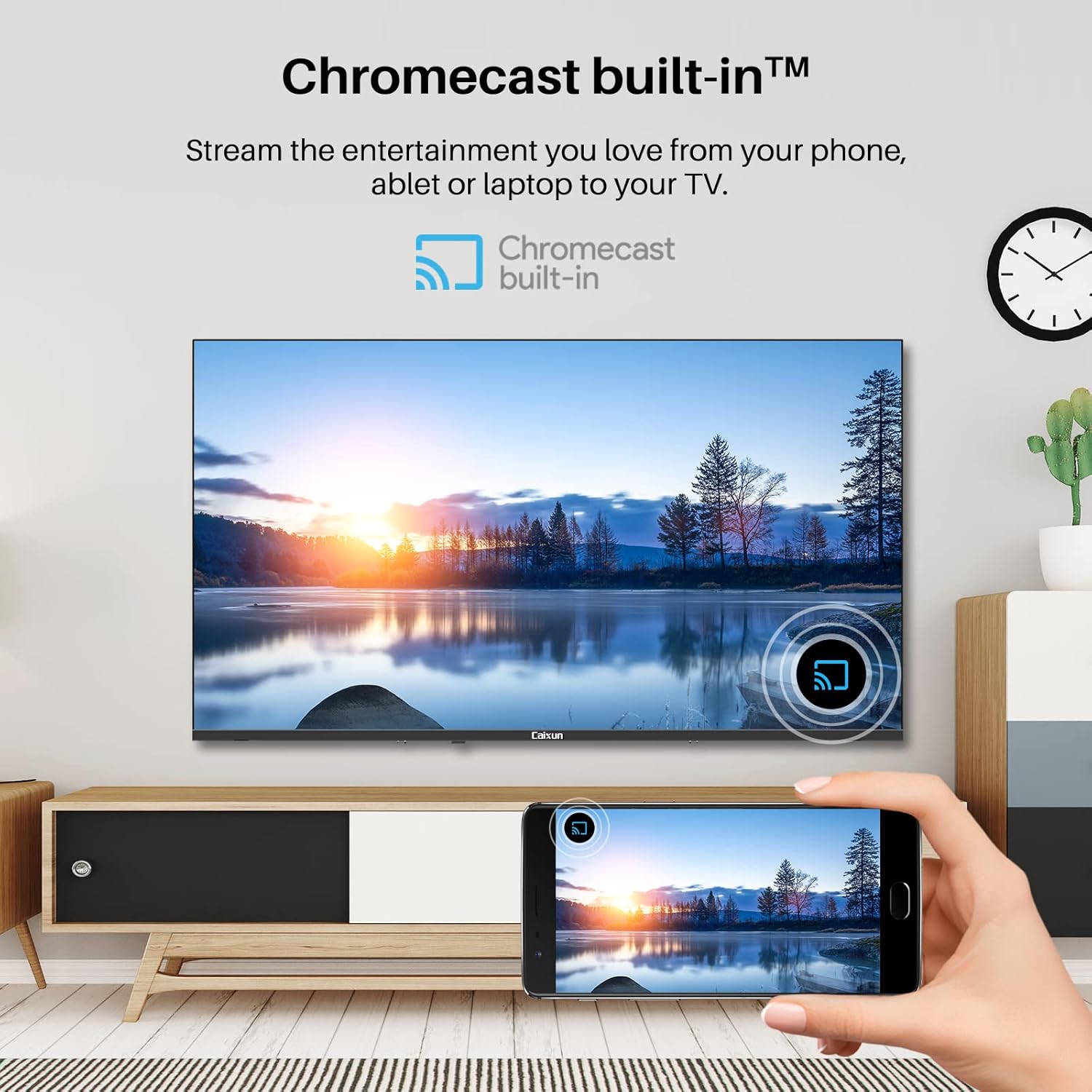
Image: Demonstrating the Chromecast built-in feature, allowing seamless content sharing from mobile devices to the TV.
Picture and Sound Settings
Experience stunning visuals and immersive audio:
- Full HD (1080p) Resolution: Enjoy sharp, detailed pictures with vivid colors and a wide 178° viewing angle.
- Dolby Audio: Provides rich, clear, and powerful sound, enhancing dialogue and details for movies, games, and music.
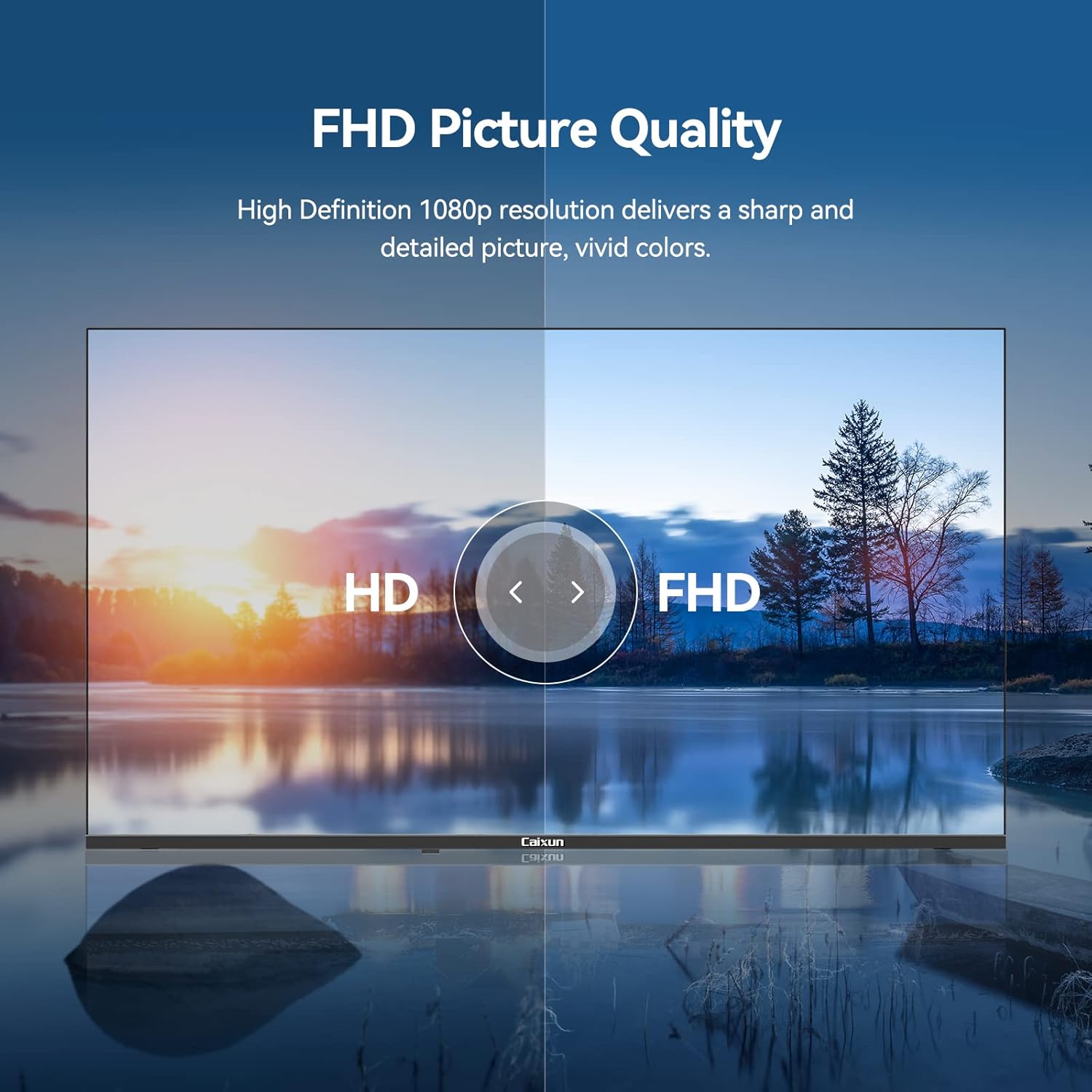
Image: A visual comparison illustrating the superior clarity of Full HD (FHD) picture quality.
TV and Monitor Dual Use
The TV can also function as a computer monitor. Connect your computer via an HDMI port for a large-screen visual experience.

Image: The TV connected to a laptop, illustrating its capability to serve as a large external monitor.
Maintenance
- Cleaning: Use a soft, dry cloth to clean the screen and cabinet. For stubborn marks, lightly dampen the cloth with water. Avoid harsh chemicals or abrasive cleaners.
- Ventilation: Ensure the ventilation openings on the back of the TV are not blocked to prevent overheating.
- Power: Unplug the TV from the power outlet before cleaning or when not in use for extended periods.
Troubleshooting
| Problem | Possible Cause / Solution |
|---|---|
| No Power | Check if the power cord is securely plugged into the TV and the wall outlet. Ensure the outlet is active. |
| No Picture / Sound | Verify the correct input source is selected. Check all cable connections (HDMI, AV, etc.). Try a different source device. |
| Remote Not Working | Replace the remote batteries. Ensure there are no obstructions between the remote and the TV's IR sensor. |
| Poor Picture Quality | Check the source resolution. Adjust picture settings (brightness, contrast, color). Ensure antenna/cable connection is secure. |
| Wi-Fi Connection Issues | Restart your router and TV. Ensure the TV is within range of your Wi-Fi network. Re-enter Wi-Fi password. |
Specifications
| Feature | Detail |
|---|---|
| Brand | Caixun |
| Model Number | EC40V2FA |
| Screen Size | 40 Inches (102 cm visible diagonal) |
| Display Technology | LED |
| Resolution | 1080p Full HD |
| Refresh Rate | 60 Hz |
| Operating System | Android TV |
| Special Features | Chromecast Built-in, Google Assistant |
| Connectivity | 3x HDMI 1.4, 2x USB 2.0, 1x AV IN, 1x RJ45, 1x Optical, Wireless, Bluetooth |
| Memory | 1GB RAM + 8GB Storage |
| Audio | Dolby Audio, Built-In Speakers |
| Power Consumption | 90 Watts (On-mode) |
| Dimensions (L x W x H) | 35.57 x 3.07 x 20.37 inches |
| Weight | 17.06 pounds |
| VESA Mount | 200x200mm |

Image: Visual representation of the TV's internal memory specifications.
Official Product Videos
Video: An official product video showcasing the features and benefits of the Caixun 40-inch Smart Android TV, including its Android TV interface, Google Assistant integration, Chromecast built-in, FHD picture quality, and Dolby Audio.
Warranty and Support
Your Caixun TV comes with a warranty. Please refer to the included warranty card for detailed terms and conditions. For technical support, troubleshooting assistance, or service inquiries, please contact Caixun customer support through the information provided on your warranty card or the official Caixun website.
For more information and updates, visit the official Caixun website: www.caixun.com


