Introduction
The CORSAIR K70 PRO MINI WIRELESS RGB 60% Mechanical Gaming Keyboard offers high performance and extensive customization options. It supports hyper-fast, sub-1ms SLIPSTREAM WIRELESS, Bluetooth®, and USB connectivity. Featuring easily swappable CHERRY MX Red mechanical keyswitches, durable PBT DOUBLE-SHOT PRO keycaps, and an aluminum frame, the keyboard is designed for a personalized gaming and typing experience. Per-key RGB backlighting with a 360° LightEdge enhances its visual appeal. CORSAIR AXON Hyper-Processing Technology ensures rapid keystroke transmission, and with up to 200 hours of battery life, it provides long-lasting wireless performance.
- Make it Yours: A high-performance wireless gaming keyboard in a compact 60% form-factor that’s big on customization, with swappable MX switches and a 360° RGB LightEdge.
- Three Ways to Connect: Powerful wireless connectivity with hyper-fast, sub-1ms SLIPSTREAM WIRELESS, low-latency Bluetooth, or USB wired with CORSAIR AXON 8,000Hz hyper-polling.
- Customize with Swappable CHERRY MX Red Keyswitches: Equipped with smooth 100-million-keystroke CHERRY MX Red keyswitches with a modular design, easily replaceable with any combination of MX-compatible 3-pin switches to fine-tune your keyswitch layout and play your way.
- 60% Form-Factor and Aluminum Frame: A compact mini form-factor easily fits into even the tightest spaces at home or on the go, in a durable aluminum frame.
- Long Battery Life with Per-Key RGB and 360° LightEdge: Enjoy up to 32 hours of wireless battery life with bright RGB backlighting and a radiant 360° LightEdge, or go the distance with up to 200 hours with backlighting off.
What's in the Box
- Corsair K70 PRO MINI WIRELESS RGB 60% Mechanical Gaming Keyboard
- USB Cable

Figure 1: Contents of the Corsair K70 PRO MINI WIRELESS keyboard box.
Setup
Initial Connection
The Corsair K70 PRO MINI WIRELESS keyboard offers multiple connectivity options. For initial setup, you can choose between wired USB, SLIPSTREAM WIRELESS, or Bluetooth.
- Wired Connection: Connect the provided USB-C to USB-A cable from the keyboard to your PC. The keyboard will automatically power on and be ready for use.
- SLIPSTREAM WIRELESS: Plug the included USB wireless adapter into an available USB port on your PC. Turn on the keyboard using the power switch. The keyboard will automatically connect to the adapter.
- Bluetooth: Ensure Bluetooth is enabled on your device. Turn on the keyboard and put it into Bluetooth pairing mode (refer to the operating section for specific key combinations). Select the keyboard from your device's Bluetooth settings to pair.
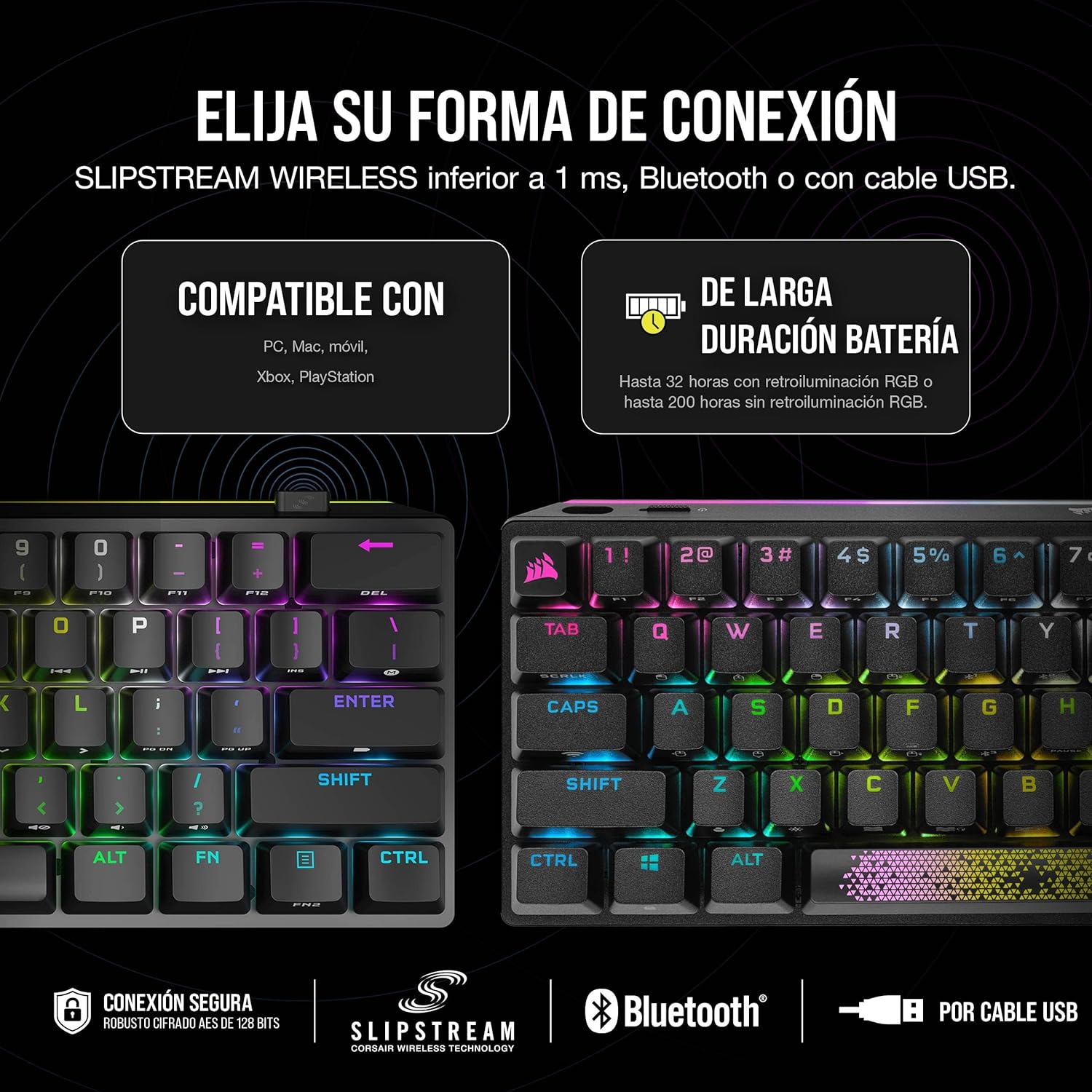
Figure 2: Connectivity options for the K70 PRO MINI WIRELESS.
Video 1: Official Corsair K70 RGB PRO MINI Wireless - 3D Trailer (English). This video showcases the keyboard's design and connectivity options.
Operating
Basic Usage
The K70 PRO MINI WIRELESS is a 60% form-factor keyboard, meaning it's compact but retains full functionality through the use of a dedicated Function (Fn) key. Many keys have secondary functions printed on their front or side.

Figure 3: Corsair K70 PRO MINI WIRELESS Keyboard Layout.
Function Key Combinations
Hold the Fn key and press the corresponding key to access its secondary function. This includes arrow keys, media controls, and F-keys (F1-F12).

Figure 4: Hot-swappable keyswitches and customizable accent bar.
RGB Lighting Control
The keyboard features per-key RGB backlighting and a 360° LightEdge. You can control lighting effects directly from the keyboard using Fn key combinations or through the CORSAIR iCUE software for advanced customization.

Figure 5: Durable aluminum frame and PBT double-shot keycaps with RGB lighting.
Video 2: Preview of Corsair K70 RGB PRO MINI Wireless - 3D Trailer (English). This short preview highlights the keyboard's RGB lighting effects.
Hot-Swappable Keyswitches
The CHERRY MX Red keyswitches are hot-swappable, allowing you to easily replace them with any MX-compatible 3-pin switches without soldering. Use the included switch puller to remove switches and the keycap puller to remove keycaps.

Figure 6: Keyboard layout highlighting SLIPSTREAM WIRELESS and AXON technology.
Maintenance
Cleaning
To clean the keyboard, gently wipe the surface with a soft, damp cloth. For deeper cleaning, remove keycaps using the provided keycap puller and clean the switches and plate with compressed air or a soft brush. Avoid using harsh chemicals or abrasive materials.
Keycap and Switch Replacement
Use the keycap puller to carefully remove keycaps. To replace switches, use the switch puller to gently pull the switch straight up from the PCB. Align the pins of the new switch with the holes on the PCB and press firmly until it clicks into place. Ensure the switch is properly seated before replacing the keycap.
Troubleshooting
Connectivity Issues
- Wireless Disconnection: Ensure the USB wireless adapter is securely plugged in and within range. Check the keyboard's battery level.
- Bluetooth Pairing Failure: Make sure the keyboard is in pairing mode and your device's Bluetooth is enabled. Try unpairing and re-pairing the keyboard.
- Wired Connection Not Detected: Try a different USB port or cable. Ensure the cable is fully inserted into both the keyboard and the PC.
RGB Lighting Problems
- Lights Not Working: Check if the RGB lighting is enabled via Fn key combinations or iCUE software. Ensure the keyboard's firmware is up to date.
- Incorrect Colors/Effects: Reset RGB settings to default or reconfigure them in iCUE software.
Specifications
| Brand | Corsair |
| Model Number | CH-9189010-NA |
| Hardware Platform | PC |
| Operating System | Windows 10 |
| Item Weight | 1.41 pounds |
| Product Dimensions | 9.41 x 4.29 x 1.57 inches |
| Color | Black |
| Power Source | Battery Powered |
| Batteries | 1 Lithium Polymer batteries required. |
| Connectivity Technology | Wireless |
| Keyboard Description | Mechanical, Gaming |
| Number of Keys | 61 |
| Keyboard Backlighting | RGB |
Warranty and Support
For warranty information and detailed support, please refer to the documentation included in your product packaging or visit the official Corsair support website. Corsair offers various protection plans for extended coverage.