
1. Introduction
This manual provides essential information for setting up, operating, maintaining, and troubleshooting your GEEK+ Mini PC Intel NUC 11. Please read this manual thoroughly before using the device to ensure proper functionality and longevity.

Figure 1: GEEK+ Mini PC Intel NUC 11 Front View
The GEEK+ Mini PC Intel NUC 11 is a compact and powerful computer featuring an Intel Celeron N5105 processor, Intel UHD Graphics, 8GB DDR4 RAM, and a 256GB PCIe Solid State Drive, pre-installed with Windows 11 Pro. Its small form factor makes it suitable for various applications, from home theater to office work.
2. Package Contents
Verify that all items are present in the package:
- 1x GEEK+ Mini PC Intel NUC 11
- 1x Power Adapter (US)
- 1x Power Cable (US)
- 1x User Manual
- 1x Safety Information Guide
- 1x Intel Original Box

Figure 2: What's Included in the Box
3. Product Overview and Features
The GEEK+ Mini PC Intel NUC 11 is designed for efficiency and versatility. Key features include:
- Processor: Intel Celeron N5105 (2.0 GHz - 2.9 GHz burst, 4 cores, 4 threads)
- Graphics: Intel UHD Graphics (450 – 800 MHz burst)
- Memory: 8GB DDR4 RAM (expandable)
- Storage: 256GB PCIe Solid State Drive (expandable)
- Operating System: Windows 11 Pro 64Bit
- Connectivity: 10/100/1000 Mbps Ethernet, Intel Wireless-AC 9462 (Wi-Fi 5), Bluetooth v5.1
- Display Outputs: 1x HDMI 2.0b, 1x DisplayPort 1.4 (supports 2x 4K displays, HDCP 2.2)
- USB Ports: 2x front USB 3.2 Gen 1, 2x rear USB 3.2 Gen 2, 2x rear USB 2.0
- Audio: 3.5mm front stereo jack, 3.5mm front microphone jack

Figure 3: Port Layout and Connectivity
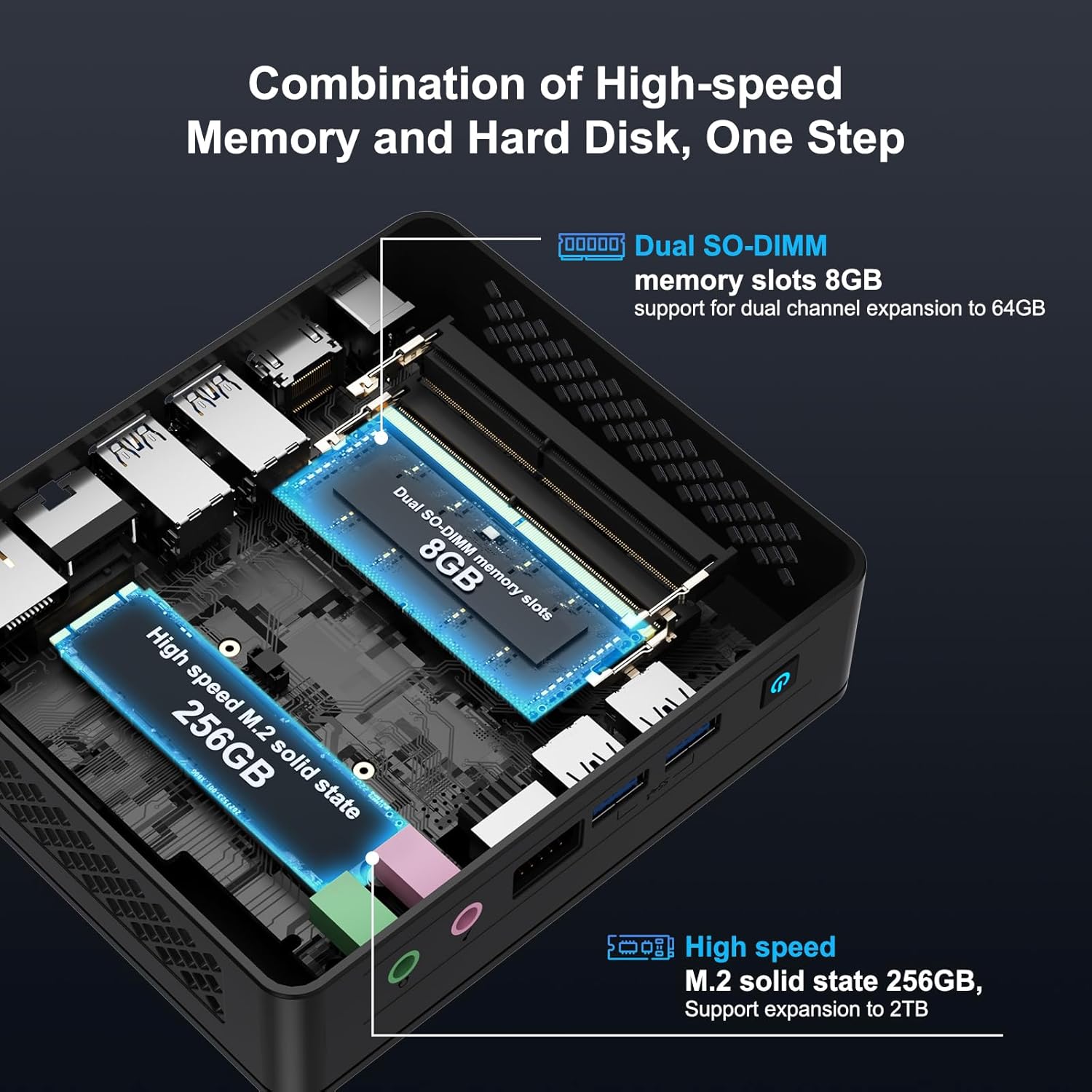
Figure 4: Memory and Storage Configuration
4. Setup Guide
- Connect Peripherals: Connect your monitor(s) to the HDMI 2.0b and/or DisplayPort 1.4 ports. Connect your keyboard and mouse to the available USB ports.
- Network Connection: For a wired connection, plug an Ethernet cable into the RJ45 port. For wireless, ensure your Wi-Fi network is available during initial setup.
- Power Connection: Connect the power adapter to the DC-in port on the Mini PC, then plug the power cable into an electrical outlet.
- Power On: Press the power button located on the front of the Mini PC.
- Initial Windows 11 Setup: Follow the on-screen instructions to complete the Windows 11 Pro setup, including language, region, network connection, and user account creation.

Figure 5: Dual Monitor Setup Example
5. Operating Instructions
- Power On/Off: Press the power button to turn on the device. To shut down, use the Windows Start menu options (Start > Power > Shut down).
- Restart: Use the Windows Start menu options (Start > Power > Restart).
- Sleep Mode: Use the Windows Start menu options (Start > Power > Sleep) or configure power settings.
- Network Connectivity:
- Wired: Ensure an Ethernet cable is connected to the RJ45 port and your router/modem.
- Wireless: Access Wi-Fi settings via the Windows taskbar network icon to connect to available networks.
- Audio: Connect headphones or speakers to the 3.5mm stereo jack. A microphone can be connected to the 3.5mm microphone jack.
- USB Devices: Connect USB peripherals such as external hard drives, printers, or webcams to the available USB ports.

Figure 6: Versatile Applications of the Mini PC
6. Maintenance
- Cleaning: Use a soft, dry cloth to clean the exterior of the Mini PC. Avoid liquid cleaners directly on the device. Use compressed air to clear dust from vents periodically.
- Software Updates: Regularly check for and install Windows updates to ensure system stability and security.
- Environmental Conditions: Operate the Mini PC in a well-ventilated area, away from direct sunlight, excessive heat, and moisture.
- Data Backup: Regularly back up important data to an external drive or cloud storage to prevent data loss.
7. Troubleshooting
| Problem | Possible Cause | Solution |
|---|---|---|
| No power | Power cable not connected, faulty adapter, power outlet issue. | Check power connections, try a different outlet, ensure adapter is functional. |
| No display | Monitor not connected, incorrect input source on monitor, faulty cable. | Ensure monitor cables are securely connected, select correct input source on monitor, try a different cable or monitor. |
| No network connection | Ethernet cable disconnected, Wi-Fi disabled, router issue. | Check Ethernet cable, enable Wi-Fi in Windows settings, restart router/modem. |
| Slow performance | Too many applications running, low disk space, outdated drivers. | Close unnecessary applications, free up disk space, update drivers via Windows Update or Intel's website. |
For more advanced troubleshooting or issues not covered here, please refer to the official Intel support resources or contact GEEK+ customer support.
8. Technical Specifications
| Feature | Detail |
|---|---|
| Processor | Intel Celeron N5105 (2.0 GHz base, 2.9 GHz burst, 4 cores, 4 threads) |
| Graphics | Intel UHD Graphics (450 – 800 MHz burst) |
| RAM | 8 GB DDR4 (800 MHz) |
| Storage | 256 GB PCIe Solid State Drive (SSD) |
| Operating System | Windows 11 Pro |
| Wireless Connectivity | Intel Wireless-AC 9462 (Wi-Fi 5), Bluetooth v5.1 |
| Ethernet | 10/100/1000 Mbps |
| Video Outputs | 1x HDMI 2.0b, 1x DisplayPort 1.4 (Supports 2x 4K displays) |
| USB Ports | 2x front USB 3.2 Gen 1, 2x rear USB 3.2 Gen 2, 2x rear USB 2.0 |
| Audio Ports | 3.5mm front stereo jack, 3.5mm front microphone jack |
| Dimensions (LxWxH) | 4.6 x 4.4 x 2 inches |
| Weight | 1 pound |
9. Warranty Information
The GEEK+ Mini PC Intel NUC 11 comes with the following warranty coverage:
- Three-years warranty for upgraded RAM / SSD, and the Operating System from GEEK+.
- Three-years original warranty for the Mainstream Kit/Barebone from Intel.
For detailed warranty terms and conditions, please visit the official Intel website or contact GEEK+ customer support.
10. Customer Support
If you encounter any issues or have questions regarding your GEEK+ Mini PC, please refer to the following resources:
- Online Resources: Visit the GEEK+ Store on Amazon for product information and FAQs.
- Technical Support: For technical assistance, please contact GEEK+ customer service.
- Bulk Purchases/Pre-sales: For bulk purchases, pre-sales, and after-sales questions, you may email ASUS-NUC@outlook.com.