
1. Introduction
This manual provides detailed instructions for the installation, operation, maintenance, and troubleshooting of your ORICO Dual M.2 NVMe SSD Enclosure. This device allows you to connect two M.2 NVMe SSDs to your computer via USB 3.2 Gen2 Type-C, offering high-speed data transfer up to 10Gbps. Its tool-free design and aluminum alloy construction ensure ease of use and efficient heat dissipation.

Image 1.1: The ORICO Dual M.2 NVMe SSD Enclosure with its included 2-in-1 data cable.
2. Package Contents
Please verify that all items listed below are included in your package:
- 1x Dual-Bay M.2 NVMe SSD Enclosure
- 1x 2-in-1 USB-C to USB-C/USB-A Data Cable
- 2x Aluminum Cooling Vests (Heatsinks)
- 2x Thermal Silicone Pads
- 4x Rubber Buckles
- 1x User Manual

Image 2.1: All components included in the product package.
3. Setup Guide: SSD Installation
Follow these steps to install your M.2 NVMe SSD into the enclosure:
- Prepare the Enclosure: Slide the button on the upper cover of the enclosure and gently pull the PCBA board out.
- Apply Thermal Management: Carefully stick the thermal silicone pad onto your M.2 NVMe SSD. Then, place the aluminum cooling vest (heatsink) on top of the thermal pad. This helps dissipate heat during operation.
- Insert the SSD: Align your M.2 NVMe SSD (with thermal components attached) with the slot on the PCBA board. Gently push the SSD into the M-Key slot. Secure the SSD in place using a rubber buckle at the end of the SSD. The enclosure supports 2230, 2242, 2260, and 2280 form factors.
- Reassemble the Enclosure: Carefully slide the PCBA board, with the installed SSD, back into the aluminum enclosure until it clicks securely into place.

Image 3.1: Step 1 - Removing the PCBA board.

Image 3.2: Step 2 - Applying thermal pad and cooling vest.
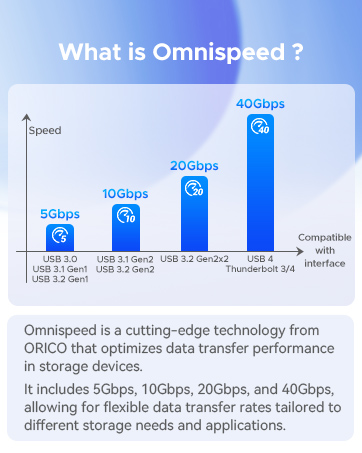
Image 3.3: Step 3 - Inserting and securing the SSD.

Image 3.4: Step 4 - Reassembling the enclosure.
Compatibility Note:
- This enclosure is designed for M.2 NVMe M-Key SSDs (PCIe-based).
- It supports M.2 SSD sizes: 2230, 2242, 2260, and 2280.
- It is not compatible with M.2 SATA B-Key or B+M Key SSDs.

Image 3.5: M.2 SSD compatibility chart.
4. Operating Instructions
Once your SSDs are installed, connect the enclosure to your device:
- Connect one end of the provided 2-in-1 USB data cable to the Type-C port on the ORICO enclosure.
- Connect the other end of the cable to an available USB-C or USB-A port on your computer, laptop, smart TV, mobile phone (with OTG support), smart router, or gaming console (PS3/PS4/XBOX).
- The enclosure is plug-and-play; no drivers are required for most operating systems. Your device should automatically detect the connected SSD(s).

Image 4.1: Connecting the enclosure to a laptop.
Key Features:
- High-Speed Data Transfer: Utilizes USB 3.2 Gen2 technology, providing data transfer speeds up to 10Gbps. Supports UASP and TRIM acceleration protocols for faster and more stable performance.
- Dual SSD Operation: Each M.2 NVMe SSD operates independently. You can connect two data cables simultaneously to access both SSDs, or use a single cable for one SSD.
- Wide Compatibility: Compatible with Windows, macOS, and Linux operating systems.

Image 4.2: Operating system compatibility.
5. Maintenance
To ensure the longevity and optimal performance of your ORICO Dual M.2 NVMe SSD Enclosure, consider the following maintenance tips:
- Proper Disconnection: Always safely eject the SSD from your operating system before unplugging the enclosure to prevent data corruption or loss.
- Heat Management: The aluminum alloy design and included cooling vests/thermal pads are designed for efficient heat dissipation. Ensure the enclosure is placed in a well-ventilated area during prolonged use, especially during large data transfers, to prevent overheating.
- Cleaning: Keep the enclosure clean and free from dust. Use a soft, dry cloth to wipe the exterior. Avoid using liquid cleaners.
- Storage: When not in use, store the enclosure in a cool, dry place away from direct sunlight and extreme temperatures.

Image 5.1: Internal components for heat dissipation.
6. Troubleshooting
If you encounter issues with your ORICO Dual M.2 NVMe SSD Enclosure, refer to the following common problems and solutions:
- SSD Not Recognized:
- Ensure the SSD is correctly installed and secured with the rubber buckle.
- Verify that the SSD is an M.2 NVMe M-Key type. SATA SSDs are not compatible.
- Check the USB cable connection to both the enclosure and your device. Try a different USB port or cable.
- For new SSDs, they may need to be initialized and formatted in your operating system's Disk Management (Windows) or Disk Utility (macOS) before they appear.
- Slow Data Transfer Speeds:
- Ensure your device's USB port supports USB 3.2 Gen2 (10Gbps). Connecting to a slower USB 2.0 or 3.0 port will limit speeds.
- Confirm your SSD is capable of 10Gbps speeds.
- Verify that UASP and TRIM are enabled by your operating system (usually automatic).
- Close other applications that might be using significant system resources or disk I/O.
- Overheating:
- Ensure the thermal silicone pad and cooling vest are correctly installed on the SSD.
- Avoid placing the enclosure in confined spaces that restrict airflow.
- Prolonged heavy use can generate heat; this is normal. The aluminum casing is designed to dissipate this heat.
- Data Loss During Transfer:
- Do not unplug the M.2 SSD case from the PC during data transfer. Always safely eject the drive first.
- Back up important data regularly.
7. Specifications
| Feature | Specification |
|---|---|
| Model Number | Dual M.2 NVMe+NVMe |
| Material | Aluminum Alloy |
| Interface | USB Type-C (USB 3.2 Gen2) |
| Data Transfer Rate | Up to 10 Gigabits Per Second |
| Supported SSD Type | M.2 NVMe M-Key (PCIe-based) |
| Supported SSD Sizes | 2230, 2242, 2260, 2280 |
| Max Storage Capacity | Up to 2 x 4TB (8TB total) |
| Compatible Devices | Laptops, PCs, Smart TVs, Mobile Phones (OTG), Routers, Gaming Consoles |
| Operating Systems | Windows, macOS, Linux |
| Product Dimensions | 4.41 x 2.95 x 0.67 inches (112 x 75 x 17 mm) |
| Item Weight | 3.52 ounces (0.1 Kilograms) |
8. Warranty and Support
ORICO products typically come with a manufacturer's warranty. Please refer to the product packaging or the official ORICO website for specific warranty terms and conditions applicable to your region.
Customer Support:
For technical assistance, product inquiries, or warranty claims, please visit the official ORICO website or contact their customer support:
- Official Website: www.orico.cc
- Email: support@orico.com.cn
When contacting support, please have your product model number (Dual M.2 NVMe+NVMe) and purchase information ready.


