
Podofo Q3516
Podofo 1-DIN Car Stereo User Manual
Model: Q3516 | Brand: Podofo
1. Introduction
Thank you for purchasing the Podofo 1-DIN Car Stereo. This multimedia system is designed to enhance your driving experience with its retractable 7-inch HD touchscreen, advanced connectivity features like Apple CarPlay and Android Auto, Bluetooth for hands-free communication, and a range of entertainment options. This manual provides detailed instructions for installation, operation, and maintenance to ensure optimal performance and longevity of your device. Please read this manual thoroughly before use and keep it for future reference.

Image: The Podofo 7-inch single DIN car stereo with its retractable screen extended, integrated into a car dashboard, showcasing its sleek design and large display.
2. Safety Information
To ensure safe operation and prevent damage, please observe the following safety precautions:
- Professional Installation Recommended: Due to the complexity of car electrical systems, professional installation is highly recommended to avoid damage to the vehicle or the stereo unit.
- Power Supply: Connect the unit only to a 12V DC power supply with a negative ground.
- Wiring: Ensure all wiring is correctly connected according to the provided wiring diagram. Incorrect wiring can cause fire, damage, or injury.
- Driving Safety: Do not operate the unit in a way that distracts you from driving. Always prioritize road safety.
- Screen Operation: Do not operate the touchscreen or watch videos while driving. This is illegal and dangerous.
- Temperature: Avoid exposing the unit to extreme temperatures, direct sunlight for prolonged periods, or high humidity.
- Cleaning: Use a soft, dry cloth for cleaning. Do not use abrasive cleaners or solvents.
- Ventilation: Ensure proper ventilation around the unit to prevent overheating.
3. Package Contents
Please check the package for the following items:
- Podofo 1-DIN Car Stereo Unit
- Power Cable Harness
- Remote Control
- Steering Wheel Controller
- Mounting Brackets (2x)
- AHD Rear Camera (if included in package variant)
- User Manual

Image: A visual representation of all items included in the Podofo car stereo package, neatly laid out for verification.
4. Product Overview
The Podofo 1-DIN Car Stereo is equipped with a range of features designed for convenience and entertainment. Below are the key components and functionalities:
4.1. Retractable 7-Inch HD Touchscreen
The unit features a motorized retractable 7-inch high-definition touchscreen display. This allows for a large viewing area when needed and can be retracted into the single DIN slot for a more compact appearance. The screen can be manually adjusted for optimal viewing angles.
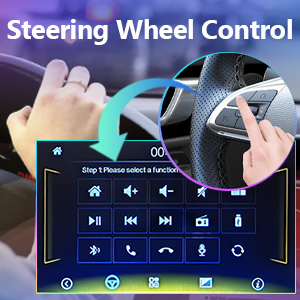
Image: A close-up showing hands manually adjusting the retractable screen of the car stereo, highlighting its flexible design.
4.2. Apple CarPlay & Android Auto
Connect your smartphone via USB to access Apple CarPlay or Android Auto. This allows you to use voice commands for navigation, make calls, send messages, and play music directly from your phone's interface displayed on the stereo screen.

Image: A visual guide demonstrating the Apple CarPlay and Android Auto interfaces, showing how a smartphone connects to the car stereo for integrated functionality.
4.3. Bluetooth 4.0
Built-in Bluetooth 4.0 supports A2DP for wireless audio streaming and hands-free calling. Easily pair your smartphone to make and receive calls safely while driving, and stream your favorite music wirelessly.

Image: The car stereo display showing a Bluetooth connection and an incoming call on a smartphone, illustrating the hands-free calling feature.
4.4. FM Radio
The integrated FM radio tuner allows you to listen to your favorite radio stations. It supports automatic station search and can store up to 18 preset stations for quick access to news, traffic updates, and music.

Image: The car stereo's screen showing the FM radio interface, including frequency display and preset buttons, indicating its radio functionality.
4.5. AHD Backup Camera Support
The unit supports AHD (Analog High Definition) backup cameras. When reversing, the display automatically switches to the rear camera view, providing clear images to assist with parking and maneuvering.

Image: The car stereo displaying a clear backup camera feed with parking guidelines, demonstrating its utility for safe reversing.
4.6. Steering Wheel Control (SWC)
The unit supports learning steering wheel controls, allowing you to manage basic functions like volume, track changes, and mode switching directly from your vehicle's steering wheel buttons for safer operation.

Image: A hand interacting with steering wheel controls, with the car stereo screen displaying a corresponding control menu, illustrating the steering wheel control feature.
4.7. Mirror Link
Mirror Link functionality allows you to project your smartphone's screen onto the car stereo display. iOS users can connect via wireless Wi-Fi Mirror Link, while Android users can use a USB data cable.

Image: The car stereo screen mirroring a smartphone's display, showing a video playing simultaneously on both devices, demonstrating the Mirror Link feature.
4.8. Multimedia Playback
The unit supports various multimedia playback options including USB drives, SD cards, and AUX input. It can play a wide range of audio and video formats, providing versatile entertainment on the go.
5. Setup & Installation
Proper installation is crucial for the performance and safety of your car stereo. It is highly recommended to have the unit installed by a qualified professional.
5.1. Dimensions
The unit is a standard 1-DIN size. Please ensure your vehicle's dashboard opening matches the following dimensions:
- Mounting Dimensions: Approximately 172 mm (Width) x 50 mm (Height)
- Unit Dimensions (retracted): 187 mm (Width) x 58 mm (Height) x 152 mm (Depth)
- Screen Dimensions (extended): 174 mm (Width) x 113 mm (Height)

Image: A detailed diagram illustrating the physical dimensions of the car stereo unit and its retractable screen, crucial for installation planning.
5.2. Wiring Instructions
Carefully follow the wiring diagram below. Incorrect wiring can lead to malfunction or damage. Always disconnect the vehicle's battery before beginning installation.
| Pin No. | Function | Pin No. | Function |
|---|---|---|---|
| 1 | KEY 2 (Steering Wheel Control 2) | 10 | KEY 1 (Steering Wheel Control 1) |
| 2 | REW BACK (Reverse Signal Input) | 11 | MIC (Microphone Input) |
| 3 | ILL (Illumination/Dash Light) | 12 | ACC (Accessory Power) |
| 4 | BRAKE (Parking Brake Signal) | 13 | GND (Ground) |
| 5 | ANTB (Antenna Power) | 14 | B+ (Battery Positive) |
| 6 | RL- (Rear Left Speaker Negative) | 15 | RR- (Rear Right Speaker Negative) |
| 7 | RL+ (Rear Left Speaker Positive) | 16 | RR+ (Rear Right Speaker Positive) |
| 8 | FL- (Front Left Speaker Negative) | 17 | FR- (Front Right Speaker Negative) |
| 9 | FL+ (Front Left Speaker Positive) | 18 | FR+ (Front Right Speaker Positive) |

Image: A comprehensive wiring diagram illustrating the connections for the car stereo, including power, speakers, and control signals.
RCA Connections:
- ANT: Antenna Input
- OUT-L / OUT-R: Audio Output (Left/Right)
- V-OUT1 / V-OUT2: Video Output 1 / Video Output 2
- V-IN: Video Input
- CAM-IN: Camera Input (for AHD Rear Camera)
- Power Cable: Main power harness connection
6. Operating Instructions
6.1. Basic Operation
- Power On/Off: Press the power button (usually a knob or dedicated button) to turn the unit on or off.
- Volume Control: Rotate the volume knob or use the +/- buttons on the remote/steering wheel controller.
- Mode Selection: Press the MODE button to cycle through available sources (Radio, USB, Card, Bluetooth, AUX, CarPlay/Android Auto).
- Screen Retraction/Extension: Manually push or pull the screen to retract or extend it.
6.2. Apple CarPlay / Android Auto
- Connect your iPhone or Android phone to the unit's USB port using a certified USB cable.
- The unit will automatically detect the connection and prompt you to launch CarPlay or Android Auto.
- Follow the on-screen instructions to complete the setup.
- Once connected, you can access compatible apps, navigation, calls, and messages directly from the stereo's touchscreen or via voice commands.
6.3. Bluetooth Pairing
- Go to the Bluetooth menu on the car stereo.
- Enable Bluetooth on your smartphone and search for available devices.
- Select "Podofo" or a similar device name from the list on your phone.
- Confirm the pairing code if prompted.
- Once paired, you can make/receive calls and stream audio wirelessly.
6.4. FM Radio Operation
- Select "Radio" mode.
- Use the seek buttons to automatically scan for the next/previous strong station.
- Manually tune by touching the frequency display.
- To save a station, tune to the desired frequency, then press and hold one of the preset buttons (P1-P6) until you hear a beep.
6.5. Backup Camera Display
When the vehicle is shifted into reverse gear, the unit will automatically display the feed from the connected AHD rear camera. Ensure the "REW BACK" wire is correctly connected to your vehicle's reverse light signal.
6.6. Mirror Link Setup
- For iOS (Wireless):
- Ensure your iPhone and the car stereo are connected to the same Wi-Fi network (the stereo may create a hotspot).
- On the stereo, select "Mirror Link" or "Phone Link" mode.
- On your iPhone, open Control Center and select "Screen Mirroring," then choose the stereo's device name.
- For Android (USB):
- Enable USB debugging on your Android phone (usually found in Developer Options).
- Connect your Android phone to the unit's USB port with a data cable.
- On the stereo, select "Mirror Link" or "Phone Link" mode.
- Follow any prompts on your phone to allow the connection.
6.7. Steering Wheel Control Learning
To program your steering wheel controls:
- Go to the "Steering Wheel Control" or "SWC Learning" settings in the unit's menu.
- Follow the on-screen instructions, which typically involve selecting a function on the stereo (e.g., Volume Up) and then pressing the corresponding button on your steering wheel.
- Repeat for all desired functions.
7. Maintenance
- Cleaning the Screen: Use a soft, lint-free cloth to gently wipe the touchscreen. For stubborn smudges, slightly dampen the cloth with water or a screen-safe cleaner. Do not spray cleaner directly onto the screen.
- General Cleaning: Wipe the unit's body with a dry, soft cloth. Avoid using harsh chemicals, solvents, or abrasive cleaners.
- Preventing Overheating: Ensure that the ventilation openings on the unit are not blocked.
- Environmental Conditions: Avoid exposing the unit to extreme temperatures, high humidity, or direct sunlight for extended periods, as this can affect its lifespan and performance.
8. Troubleshooting
If you encounter issues with your Podofo car stereo, refer to the following common problems and solutions:
| Problem | Possible Cause | Solution |
|---|---|---|
| No power | Incorrect wiring; Blown fuse; Loose connection. | Check power and ground wires; Check vehicle's fuse box and the unit's fuse; Ensure all connections are secure. |
| No sound | Speaker wires disconnected; Volume too low; Mute function active; Incorrect audio source. | Check speaker wiring; Increase volume; Deactivate mute; Select correct audio source. |
| Bluetooth not connecting | Bluetooth not enabled on phone/stereo; Incorrect pairing process; Device already paired to another unit. | Ensure Bluetooth is on; Follow pairing instructions carefully; Disconnect from other devices. |
| CarPlay/Android Auto not launching | Non-certified USB cable; USB debugging not enabled (Android); Phone software issue. | Use a high-quality, certified USB cable; Enable USB debugging on Android; Restart phone and stereo. |
| Rear camera not displaying | Camera not connected; Reverse signal wire (REW BACK) not connected or faulty. | Check camera connection; Verify REW BACK wire connection to reverse light. |
| Screen not retracting/extending | Obstruction; Motor malfunction. | Check for any physical obstructions; If issue persists, contact support. |
If the problem persists after trying these solutions, please contact Podofo customer support for assistance.
9. Specifications
| Feature | Detail |
|---|---|
| Model Number | Q3516 |
| Screen Size | 7 Inches |
| Screen Type | Retractable Touchscreen |
| Connectivity | Apple CarPlay, Android Auto, Bluetooth 4.0, USB, AUX, FM Radio |
| Controller Type | Touchscreen |
| Color | Black |
| Audio Output Mode | MP3/WMA/AAC/APE/OGG/M4A/RA/WAV |
| Surround Sound Channel Configuration | 5.1 |
| Video Encoding | H264 DIVX HD(720P 1080I 1080P)AVI/FLV/MKV/RMVB/MPEG/ASF/TS/H264/QT |
| Compatible Devices | Universal 1-DIN slot (172 x 50 mm installation size) |
| Manufacturer Warranty | 2 years |
| Country of Origin | China |
10. Warranty & Support
Podofo is committed to providing friendly and professional customer service. Your product comes with a 2-year manufacturer's warranty.
We offer:
- Lifetime technical support.
- 30-day no-reason return or exchange policy.
If you have any questions about the product, require technical assistance, or need to initiate a return/exchange, please do not hesitate to contact us via email. We are committed to providing a satisfactory response within 24 hours.
For contact information, please refer to the seller's details on the platform where you purchased the product or visit the official Podofo website.
Ask a question about this manual
Ask about setup, troubleshooting, compatibility, parts, safety, or missing instructions. Manuals+ will review the question and use this page’s manual context to help answer it.