
1. Introduction
Thank you for choosing the NACODEX AK992 99-key hot-swappable RGB gasket mount keyboard. This manual provides detailed instructions for setting up, operating, maintaining, and troubleshooting your new keyboard. The AK992 features a gasket-mounted design for enhanced typing feel, hot-swappable switches for customization, vibrant RGB lighting, and versatile connectivity options including Bluetooth 5.0, 2.4G wireless, and USB-C wired modes.

Image: The NACODEX AK992 keyboard showcasing its full layout and RGB lighting.

Image: An exploded view illustrating the internal components of the gasket mount keyboard, including PBT keycaps, volume knob, custom switches, positioning board, EVA sandwich cotton, IXPE switch pad, PCB board, switch pad, EVA bottom cotton, silicone sleeve, and bottom cover.
2. Package Contents
Please verify that all items are present in your package:
- 1 × NACODEX AK992 Custom Keyboard
- 1 × Type-C Cable
- 1 × Keycap Puller
- 1 × Switch Puller
- 8 × Yellow Keycaps (supplementary)
- 4 × Supplement Switches
- 1 × English User Manual
3. Setup
3.1 Charging the Keyboard
The AK992 keyboard is equipped with a 4000mAh rechargeable battery. To charge, connect the provided USB-C cable to the keyboard's USB-C port and the other end to a power source (e.g., computer USB port, wall adapter). The keyboard can be used while charging.
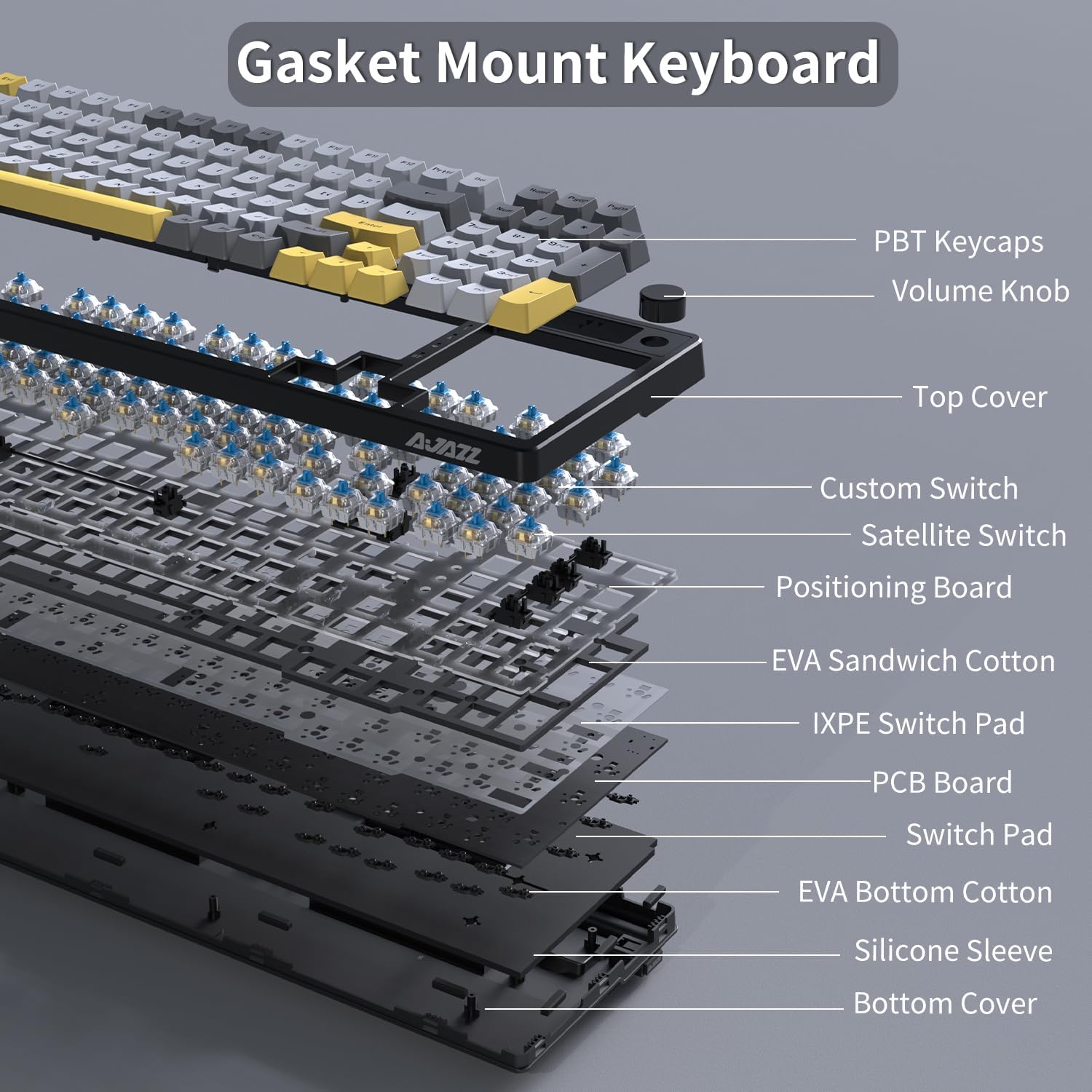
Image: The NACODEX AK992 keyboard highlighting its 4000mAh rechargeable battery and multi-mode connectivity options: Bluetooth 5.0, 2.4GHz Wireless, and Wired Type-C.
3.2 Connectivity Modes
The keyboard supports three connection modes: 2.4G wireless, Bluetooth 5.0, and USB-C wired. A 3-mode toggle switch located on the left side of the keyboard allows for quick switching between these modes.

Image: Close-up views of the NACODEX AK992 keyboard, showing the volume knob, the three-mode switch (BT/2.4G/Wired), the two-stage adjustable foot pad, and the hidden 2.4GHz receiver storage.
3.2.1 USB-C Wired Mode
- Connect the USB-C cable to the keyboard and your computer.
- Set the toggle switch on the left side of the keyboard to the 'Wired' position.
- The keyboard will be automatically recognized by your computer.
3.2.2 2.4G Wireless Mode
- Locate the 2.4G USB receiver, typically stored in a hidden compartment on the right side of the keyboard.
- Plug the 2.4G USB receiver into an available USB port on your computer.
- Set the toggle switch on the left side of the keyboard to the '2.4G' position.
- The keyboard should connect automatically.
3.2.3 Bluetooth 5.0 Mode
- Set the toggle switch on the left side of the keyboard to the 'BT' position.
- On your device (computer, laptop, tablet, or mobile phone), enable Bluetooth and search for new devices.
- Select 'NACODEX AK992' (or similar name) from the list of available devices to pair.
- The keyboard can seamlessly connect up to 5 devices. Refer to the keyboard's specific key combinations (e.g., Fn+1, Fn+2) for switching between paired Bluetooth devices.

Image: A diagram illustrating the three connection modes of the NACODEX AK992 keyboard: USB-C wired, 2.4G wireless, and Bluetooth, showing compatibility with various devices.
3.3 Adjustable Foot Pads
The keyboard features two-stage adjustable foot pads on the underside, allowing you to set the typing angle to three different heights for ergonomic comfort.
4. Operation
4.1 Volume Knob
The integrated volume knob provides convenient audio control:
- Rotate Clockwise: Increase volume.
- Rotate Counter-clockwise: Decrease volume.
- Press Down: Mute/Unmute audio.
4.2 RGB Lighting Control
The AK992 features programmable RGB backlighting with 18 light modes and 16.8 million customizable colors. It also supports light & shadow and music rhythm functions.
- Press FN + \| to cycle through the 18 different lighting effects.
- Further customization of lighting effects, brightness, speed, and music rhythm functions can be done via the dedicated software (see Section 5.3).

Image: The NACODEX AK992 keyboard displaying various RGB lighting modes and effects, highlighting its customizable backlighting.
4.3 Battery Level Check
To quickly check the remaining battery percentage, press FN + Backspace.
5. Customization
5.1 Hot-Swappable Switches
The AK992 features a hot-swappable PCB, allowing you to easily change mechanical switches without soldering. It is compatible with both 3-pin and 5-pin switches. This enables you to customize the typing feel and sound to your preference.
- Use the provided switch puller to carefully remove existing switches.
- Align the pins of the new switch with the holes on the PCB.
- Gently press the new switch into place until it clicks securely. Ensure pins are not bent.

Image: A close-up of the NACODEX AK992 keyboard demonstrating its hot-swappable feature, with several switches removed and various switch types shown alongside.

Image: A detailed view of the hot-swappable switch sockets on the NACODEX AK992 keyboard, with various mechanical switches and keycaps displayed, emphasizing easy customization.
5.2 PBT Keycaps
The keyboard comes with high-quality OEM profile PBT keycaps, manufactured using a two-color injection molding process. PBT material is known for its durability, oil resistance, and ability to maintain its natural color over time, offering a superior feel compared to ABS keycaps.

Image: The NACODEX AK992 keyboard with a focus on its OEM profile PBT keycaps, highlighting their durability and oil-resistant properties. Several individual keycaps are shown detached.
5.3 Software Customization
The AK992 offers dedicated software for advanced customization, including programmable RGB effects, button settings, macro management, and more. This software allows you to personalize your keyboard experience.
- Download: The software can typically be found on the official NACODEX or AJAZZ website. A common link provided is http://www.a-jazz.com/en/search.jsp?id=422&q=AK992.
- Features: Support custom RGB effects and music rhythm, adjust light speed and brightness, set Bluetooth sleep time, and configure function/key combinations and macros.
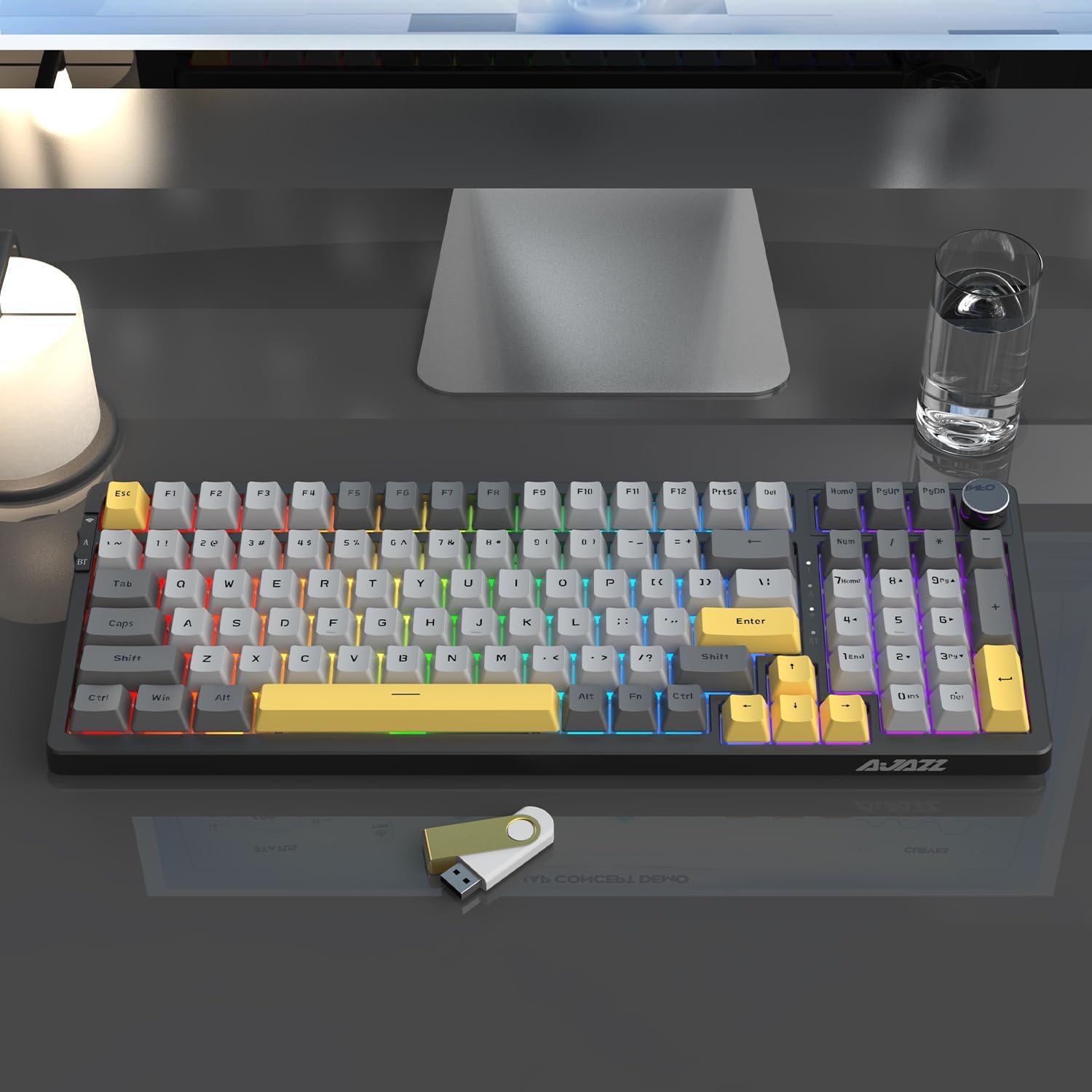
Image: A screenshot of the NACODEX AK992 software interface, showing options for light settings, button settings, and macro management, with the keyboard displaying various RGB effects.

Image: Multiple screenshots of the NACODEX AK992 software, demonstrating various customization options for RGB lighting, key remapping, and macro creation, allowing users to define their own keyboard settings.
6. Maintenance
6.1 Cleaning the Keyboard
- Keycaps: Use the provided keycap puller to remove keycaps. Clean them with a mild soap solution and a soft cloth, then rinse and dry thoroughly before reattaching.
- Keyboard Body: Use a soft, lint-free cloth slightly dampened with water or a mild cleaning solution. Avoid excessive moisture.
- Between Keys: Use compressed air to remove dust and debris from between the switches.
6.2 Battery Care
- Avoid fully discharging the battery frequently.
- Store the keyboard in a cool, dry place if not used for extended periods.
- Use only the provided or certified USB-C cables for charging.
7. Troubleshooting
If you encounter issues with your NACODEX AK992 keyboard, please refer to the following common solutions:
| Problem | Possible Solution |
|---|---|
| Keyboard not connecting (2.4G/Bluetooth) |
|
| RGB lighting not working or stuck |
|
| Keys not responding |
|
| Volume knob not working |
|
8. Specifications
| Feature | Detail |
|---|---|
| Model Number | AK992 |
| Dimensions | 15.24"L x 5.39"W x 1.63"H (38.71 x 13.69 x 4.14 cm) |
| Item Weight | 1.96 pounds (0.89 kg) |
| Connectivity Technology | Bluetooth 5.0, 2.4G Wireless, USB-C Wired |
| Battery Capacity | 4000mAh Lithium Ion (included) |
| Keycap Material | PBT (OEM Profile, Two-color Injection Molding) |
| Switch Compatibility | 3-pin or 5-pin mechanical switches (Hot-swappable) |
| Backlighting | RGB (18 modes, 16.8 million colors, programmable) |
| Special Features | Gasket Mount, Volume Roller, Hotkeys and Media Keys, Rechargeable, Adjustable Foot Pads |
| Compatible Devices | Laptop, Tablet, PC, Mobile Phones |
9. Warranty and Support
NACODEX is committed to providing excellent customer service. If you encounter any product problems or require assistance, please contact us. NACODEX offers 24-hour after-sales service to address your concerns promptly.
For support, please refer to the contact information provided with your purchase or visit the official NACODEX website.