
Introduction
Thank you for choosing the Oraolo Luster Portable Bluetooth Speaker. This manual provides essential information for setting up, operating, and maintaining your speaker to ensure optimal performance and longevity. Please read it thoroughly before use.
Package Contents
- 1 x Oraolo Luster Bluetooth Speaker with lights
- 1 x USB-C Charging Cable
- 1 x AUX-in Cable
- 1 x User Manual
Product Overview
Familiarize yourself with the speaker's components and controls.
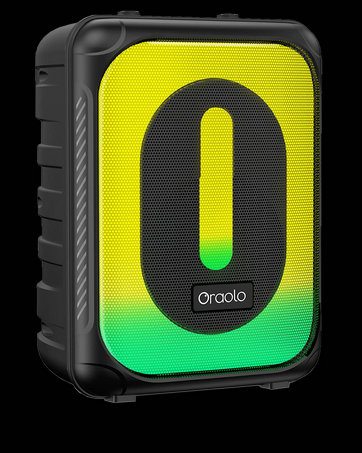
Image: Oraolo Luster speaker with control buttons labeled for Power, Previous Track/Volume -, Pause/Play, Next Track/Volume +, Mode Switch, and Light Mode.
Control Buttons:
- Power Button: Press and hold to power on/off. Short press to check battery status.
- Previous Track / Volume -: Short press for previous track. Long press to decrease volume.
- Pause / Play: Short press to play/pause music.
- Next Track / Volume +: Short press for next track. Long press to increase volume.
- Mode Switch: Short press to switch between Bluetooth and AUX-in modes.
- Light Mode: Short press to cycle through RGB light modes. Long press to turn lights off/on.
Ports:

Image: Close-up view of the speaker's side, highlighting the Type-C charging port and the AUX-in port, protected by a rubber flap.
- Type-C Port: For charging the speaker.
- AUX-in Port: For wired audio connection using the provided 3.5mm AUX cable.
The speaker also features a detachable lanyard for easy portability.
Setup
1. Charging the Speaker
Before first use, fully charge the speaker. Connect the provided USB-C cable to the speaker's Type-C port and the other end to a USB power adapter (not included) or a computer's USB port. The charging indicator will show charging status and turn off when fully charged. A full charge provides up to 24 hours of playback at 50% volume with lights off.
2. Power On/Off
- To power on, press and hold the Power Button for 2-3 seconds until you hear an audible prompt and the lights illuminate.
- To power off, press and hold the Power Button for 2-3 seconds until the lights turn off and you hear an audible prompt.
Operating Instructions
1. Bluetooth Pairing
- Ensure the speaker is powered on and in Bluetooth mode (indicated by a flashing blue light). If not, short press the Mode Switch Button to enter Bluetooth mode.
- On your device (smartphone, tablet, laptop), enable Bluetooth and search for available devices.
- Select "Oraolo Luster" from the list of devices.
- Once connected, the speaker will emit an audible confirmation, and the blue light will become solid.
Video: Demonstrates the Bluetooth pairing process for the Oraolo Luster speaker, showing how to connect it to a mobile device.
The speaker will automatically reconnect to the last paired device when powered on, if the device's Bluetooth is active and within range.
2. True Wireless Stereo (TWS) Pairing
For an immersive stereo experience, you can pair two Oraolo Luster speakers together.
- Ensure both speakers are powered on and in Bluetooth mode, but not connected to any device.
- On one speaker (this will be the primary speaker), press and hold the Play/Pause Button for 2-3 seconds until you hear a pairing tone.
- The two speakers will automatically connect to each other. Once connected, you will hear a confirmation tone, and the lights on both speakers will synchronize.
- Now, connect your device to the primary speaker via Bluetooth as described in the "Bluetooth Pairing" section.

Image: Two Oraolo Luster speakers wirelessly connected, providing a wider stereo sound experience in a home setting.
3. RGB Light Modes
The speaker features 7 light colors and 5 light modes to enhance your listening experience.
- Short press the Light Mode Button to cycle through the different light modes.
- Long press the Light Mode Button to turn the lights off or on.
Video: Demonstrates the various RGB light modes and colors available on the Oraolo Luster speaker, showcasing its dynamic visual effects.
4. Audio Playback (Volume & Track Control)
- Play/Pause: Short press the Play/Pause Button.
- Volume Up: Long press the Volume + Button.
- Volume Down: Long press the Volume - Button.
- Next Track: Short press the Next Track Button.
- Previous Track: Short press the Previous Track Button.
5. Hands-Free Calls
When connected via Bluetooth, the built-in microphone allows for hands-free calling.
- Answer Call: Short press the Play/Pause Button.
- End Call: Short press the Play/Pause Button during a call.
- Reject Call: Long press the Play/Pause Button.
- Activate Voice Assistant: Double-press the Play/Pause Button to activate your phone's voice assistant (e.g., Siri, Google Assistant).
6. AUX-in Mode
Connect non-Bluetooth devices using the 3.5mm AUX-in cable.
- Connect one end of the AUX-in cable to the speaker's AUX-in port.
- Connect the other end to the audio output jack of your device.
- Short press the Mode Switch Button on the speaker to switch to AUX-in mode.
- Audio will now play through the speaker. Volume and track control will primarily be managed from your connected device in this mode.
Maintenance
Cleaning
Wipe the speaker with a soft, damp cloth. Do not use harsh chemicals or abrasive cleaners. Ensure the charging port and AUX-in port are dry before use or charging.
Water Resistance (IPX6)
The Oraolo Luster speaker is IPX6 waterproof, meaning it is protected against powerful water jets. It is suitable for outdoor use, beaches, and poolside environments. Do not submerge the speaker in water. Ensure the rubber flap covering the charging and AUX-in ports is securely closed to maintain water resistance.

Image: The Oraolo Luster speaker positioned near a swimming pool, illustrating its IPX6 waterproof capability for outdoor and wet environments.
Storage
Store the speaker in a cool, dry place away from direct sunlight and extreme temperatures when not in use for extended periods. Charge the speaker periodically to maintain battery health.
Troubleshooting
| Problem | Possible Cause | Solution |
|---|---|---|
| Speaker does not power on. | Low battery. | Charge the speaker using the provided USB-C cable. |
| Cannot pair via Bluetooth. | Speaker not in pairing mode; device Bluetooth off; too far from device. | Ensure speaker is in Bluetooth pairing mode (flashing blue light). Turn on device Bluetooth. Move speaker closer to device (within 10 meters). Forget "Oraolo Luster" on your device and try pairing again. |
| No sound or low volume. | Volume too low on speaker or device; incorrect input mode. | Increase volume on both the speaker and your connected device. Ensure the correct mode (Bluetooth or AUX-in) is selected. |
| TWS pairing fails. | Speakers already connected to a device; incorrect pairing procedure. | Ensure both speakers are disconnected from any device before initiating TWS pairing. Follow TWS pairing steps carefully. |
| Lights are not working. | Lights turned off; speaker malfunction. | Long press the Light Mode Button to turn lights on. If issue persists, contact customer support. |
Specifications

Image: Dimensions and weight of the Oraolo Luster speaker, showing its compact and portable design.
| Model Name | Oraolo Luster |
| Connectivity Technology | Bluetooth 5.3 |
| Audio Output | 40W Stereo Sound (2 x 2-inch drivers, 2 x passive radiators) |
| RGB Lights | 7 Colors & 5 Modes |
| Playtime | Up to 24 hours (at 50% volume, lights off) |
| Charging Port | USB-C |
| Water Resistance | IPX6 |
| Bluetooth Range | 10 Meters |
| Built-in Microphone | Yes (for hands-free calls) |
| Material | Metal, Plastic |
| Item Weight | 486 Grams |
| Dimensions | Approximately 7.3 inches (L) x 3.35 inches (H) x 3.15 inches (W) |
Warranty and Support
The Oraolo Luster Portable Bluetooth Speaker comes with a 24-month warranty from the date of purchase. This warranty covers manufacturing defects and workmanship. It does not cover damage caused by misuse, accidents, unauthorized modifications, or normal wear and tear.
For technical support, warranty claims, or any questions regarding your product, please contact Oraolo customer service through the retailer where you purchased the product or visit the official Oraolo website for contact information.
Online Resources: