
VIDOKA BL-48
VIDOKA BL-48 Projector User Manual
Model: BL-48 | Brand: VIDOKA
Introduction
Thank you for purchasing the VIDOKA BL-48 Projector. This projector is designed to provide a high-quality home theater experience with its native 1080P Full HD resolution, 9500 lumens brightness, and versatile connectivity options including WiFi and Bluetooth. This manual will guide you through the setup, operation, and maintenance of your new projector to ensure optimal performance and longevity.
Important Safety Information
Please read all safety instructions carefully before using this product. Failure to follow these instructions may result in fire, electric shock, or other injuries.
- Do not block the ventilation openings. Ensure adequate space around the projector for proper airflow.
- Do not expose the projector to rain or moisture to prevent electric shock.
- Do not open the projector casing. There are no user-serviceable parts inside. Refer all servicing to qualified service personnel.
- Avoid direct eye exposure to the projector lens when the lamp is on. The bright light can cause eye damage.
- Place the projector on a stable, level surface to prevent it from falling.
- Unplug the projector from the power outlet during lightning storms or when unused for long periods.
Package Contents
Verify that all items listed below are included in your package:

Image: Contents of the VIDOKA BL-48 Projector package, including the projector, carrying bag, remote control, quick start guide, user manual, lens protection cover, AV cable, HDMI cable, and power cable.
- VIDOKA BL-48 Projector
- Carrying Bag
- Remote Control
- Quick Start Guide
- User Manual (this document)
- Lens Protection Cover
- AV Cable
- HDMI Cable
- Power Cable
Product Overview
Familiarize yourself with the various parts of your VIDOKA BL-48 Projector.

Image: Front view of the VIDOKA BL-48 Projector, highlighting its compact design and lens. Icons for WiFi, Bluetooth, 9500L, and HD are visible, along with a smartphone displaying "4K Support" connected wirelessly.
The projector features a robust design with intuitive controls and multiple ports for diverse connectivity. Key components include the projection lens, focus and keystone correction dials, control panel buttons, and various input/output ports on the rear and sides.
Setup
1. Placement
Choose a stable, flat surface for the projector. Ensure there is sufficient space around the projector for ventilation. The projection distance and screen size can be adjusted based on your viewing environment.
2. Power Connection
Connect the provided power cable to the projector's power input and then to a wall outlet.
3. Initial Setup: Focus and Keystone Correction
After powering on the projector, adjust the focus and keystone correction to achieve a clear and rectangular image.
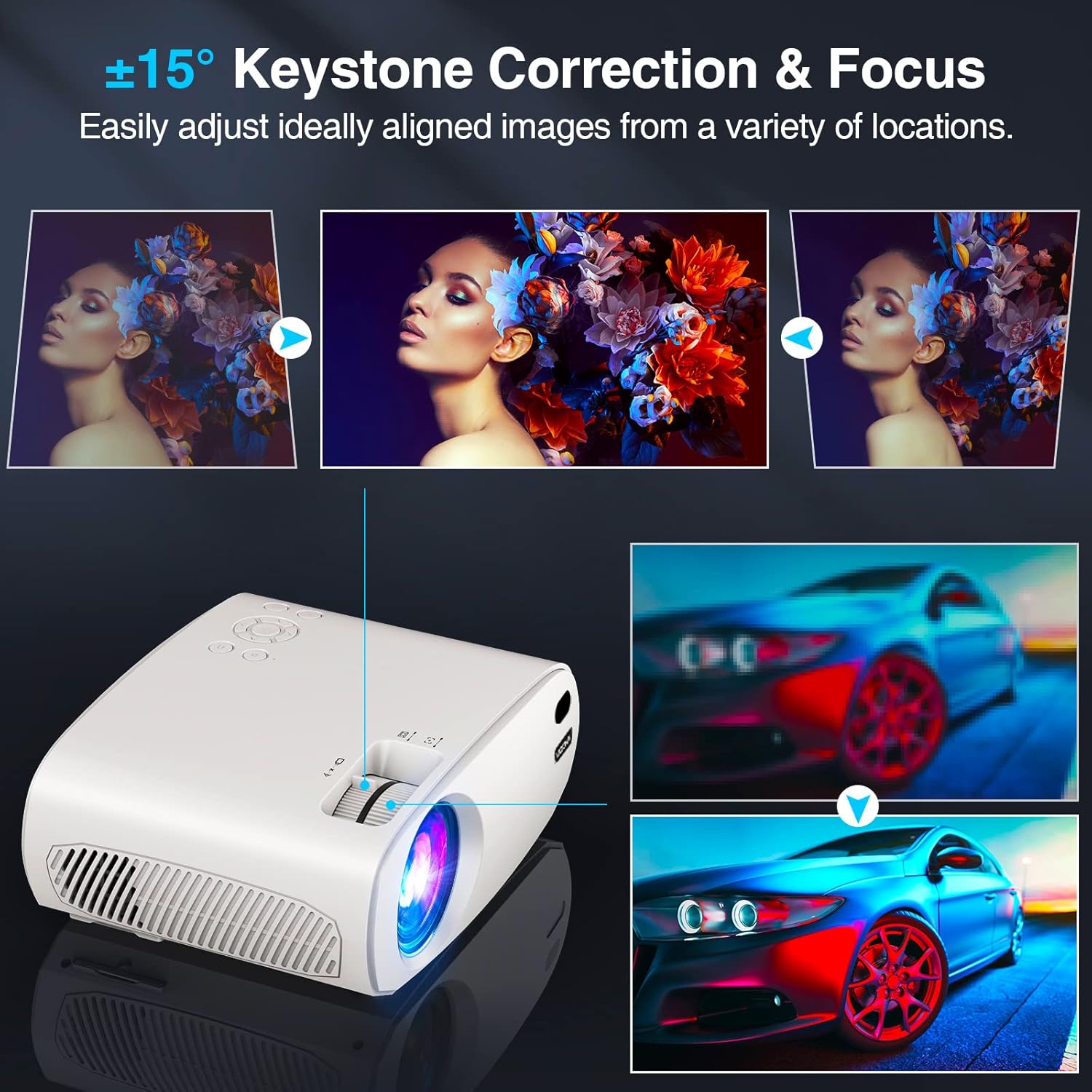
Image: Diagram illustrating the use of the keystone correction and focus dials on the projector. The image shows how adjusting these controls can correct a distorted projection and sharpen the image.
- Focus: Rotate the focus ring near the lens until the projected image is sharp and clear.
- Keystone Correction: Use the keystone correction dial to adjust the image shape. The VIDOKA BL-48 features 4-point keystone correction to correct trapezoidal distortion, ensuring a perfectly rectangular image even if the projector is not perfectly aligned with the screen.

Image: Close-up view of the focus adjustment mechanism on the projector, showing the dial used to sharpen the image.
Operating Instructions
1. Power On/Off
Press the power button on the projector or remote control to turn the unit on or off.
2. Connecting Devices
The VIDOKA BL-48 Projector supports various wired connections:
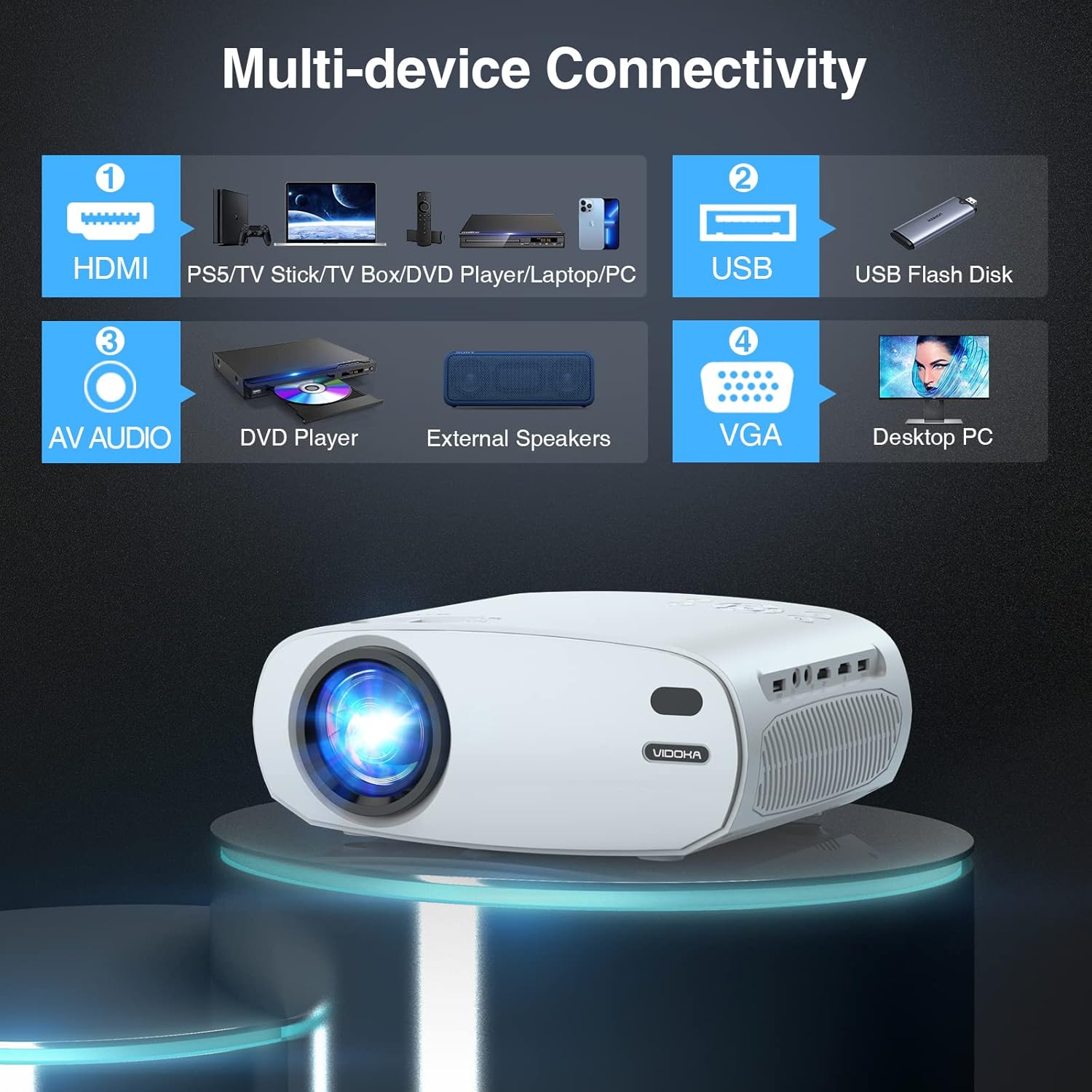
Image: Visual guide to the multi-device connectivity options, showing HDMI, USB, AV Audio, and VGA ports and examples of compatible devices like PS5, TV Stick, DVD Player, Laptop, PC, USB Flash Disk, External Speakers.
- HDMI: Connect devices such as TV sticks, PS4/PS5, laptops, and DVD players using an HDMI cable.
- USB: Insert a USB flash drive to play media files directly.
- AV: Use the AV cable to connect older devices like DVD players.
- VGA: Connect desktop PCs or other devices with a VGA output.
- SD Card: The projector also supports SD card input for media playback.
3. Wireless Connectivity: WiFi & Bluetooth
The projector offers convenient wireless options for audio and screen mirroring.
Bluetooth Connection
Connect external Bluetooth speakers, headsets, or AirPods for enhanced audio.

Image: Step-by-step guide for connecting Bluetooth devices. It shows navigating to settings, choosing BT Setting, searching for a speaker, and confirming connection. A projector is shown wirelessly connected to a speaker and headphones.
- Turn on the projector and navigate to the 'Setting' menu.
- Select 'BT Setting' and turn Bluetooth 'On'.
- Search for available Bluetooth devices and select your desired speaker or headset to connect.

Image: A person relaxing while watching a movie projected onto a wall, with the projector wirelessly connected to an external Bluetooth speaker. This highlights the convenience of Bluetooth 5.0.
Wireless Screen Mirroring (iOS & Android)
Mirror your smartphone or tablet screen wirelessly to the projector.

Image: Detailed instructions for wireless screen mirroring for both iOS and Android devices. It shows the menu navigation on the projector and the corresponding steps on the smartphone to connect via WiFi.
- Go to the HOME page on the projector and click 'Screen Mirroring' to enter the interface.
- For iOS: Click 'Setting', choose 'Search', find and connect your home WiFi. Then, come back to 'Screen Mirroring' page, click 'iOS System'. On your iOS device, turn on WiFi and screen mirroring, then search for "VIDOKA-FAE208" (or similar) and connect.
- For Android: Click 'Setting', choose 'Search', find and connect your home WiFi. Then, come back to 'Screen Mirroring' page, click 'Android System'. On your Android device, turn on WiFi and screen mirroring, then search for "VIDOKA-FAE208" (or similar) and connect.
4. Adjusting Settings
Screen Size and Aspect Ratio
Customize the screen size using the zoom function (75%-100%) and adjust the aspect ratio (4:3 or 16:9) via the menu.

Image: Visual explanation of how to adjust screen size using the zoom function (75%-100%) and how to change the aspect ratio between 4:3 and 16:9 through the projector's menu settings.
Sleep Timer
Set a shutdown time for the projector using the Sleep Timer function.

Image: A family enjoying a movie with the projector, showing the Sleep Timer menu overlay with options for Off, 10 min, 20 min, 30 min, 60 min, and 90 min.
Maintenance
1. Cleaning the Dustproof Filter
Regularly cleaning the removable dustproof filter helps extend the lifespan of your projector and maintain optimal image quality.

Image: Instructions on how to remove and clean the dustproof filter from the projector. It also includes a graph comparing dust accumulation in the VIDOKA Projector versus other projectors over time, showing less dust in the VIDOKA.

Image: Close-up of the dust filter, emphasizing its role in protecting the projector's internal components from dust.
- Locate the dustproof filter on the side of the projector.
- Gently pull out the filter.
- Clean the filter using a soft brush or a vacuum cleaner.
- Reinsert the filter securely.
2. Lamp Life
The VIDOKA BL-48 Projector features an extended lamp life of up to 10,000 hours, ensuring long-term use without frequent lamp replacement.

Image: An illustration highlighting the projector's lamp, indicating a lifespan of 50,000 hours.
Troubleshooting
| Problem | Possible Cause | Solution |
|---|---|---|
| No image/Power off | Power cable loose; Projector overheated; Sleep timer activated. | Check power connection; Allow projector to cool down; Disable or adjust sleep timer. |
| Blurred image | Incorrect focus; Incorrect keystone correction. | Adjust focus ring; Adjust keystone correction dial. |
| No sound | Volume too low; Muted; External audio device not connected properly; Bluetooth not paired. | Increase volume; Unmute; Check audio cable connections; Re-pair Bluetooth device. |
| Wireless mirroring issues | WiFi connection unstable; Device compatibility; Incorrect mirroring steps. | Ensure strong WiFi signal; Verify device compatibility; Follow screen mirroring steps carefully. |
| Remote control not working | Batteries low/dead; Obstruction between remote and projector; Remote not pointed at IR receiver. | Replace batteries; Remove obstructions; Point remote directly at the projector's IR receiver. |
Specifications
- Brand: VIDOKA
- Model: BL-48
- Native Resolution: 1920 x 1080 (Full HD)
- Brightness: 9500 Lumens
- Contrast Ratio: 12000:1
- Connectivity Technology: Bluetooth, USB, Wi-Fi, HDMI, AV, VGA, SD Card
- Keystone Correction: 4-point correction
- Zoom Function: 75% to 100%
- Lamp Life: Up to 10,000 hours
- Built-in Speaker: 5W Hi-Fi Stereo Surround Speaker
- Item Weight: Approximately 4.49 pounds
- Color: White
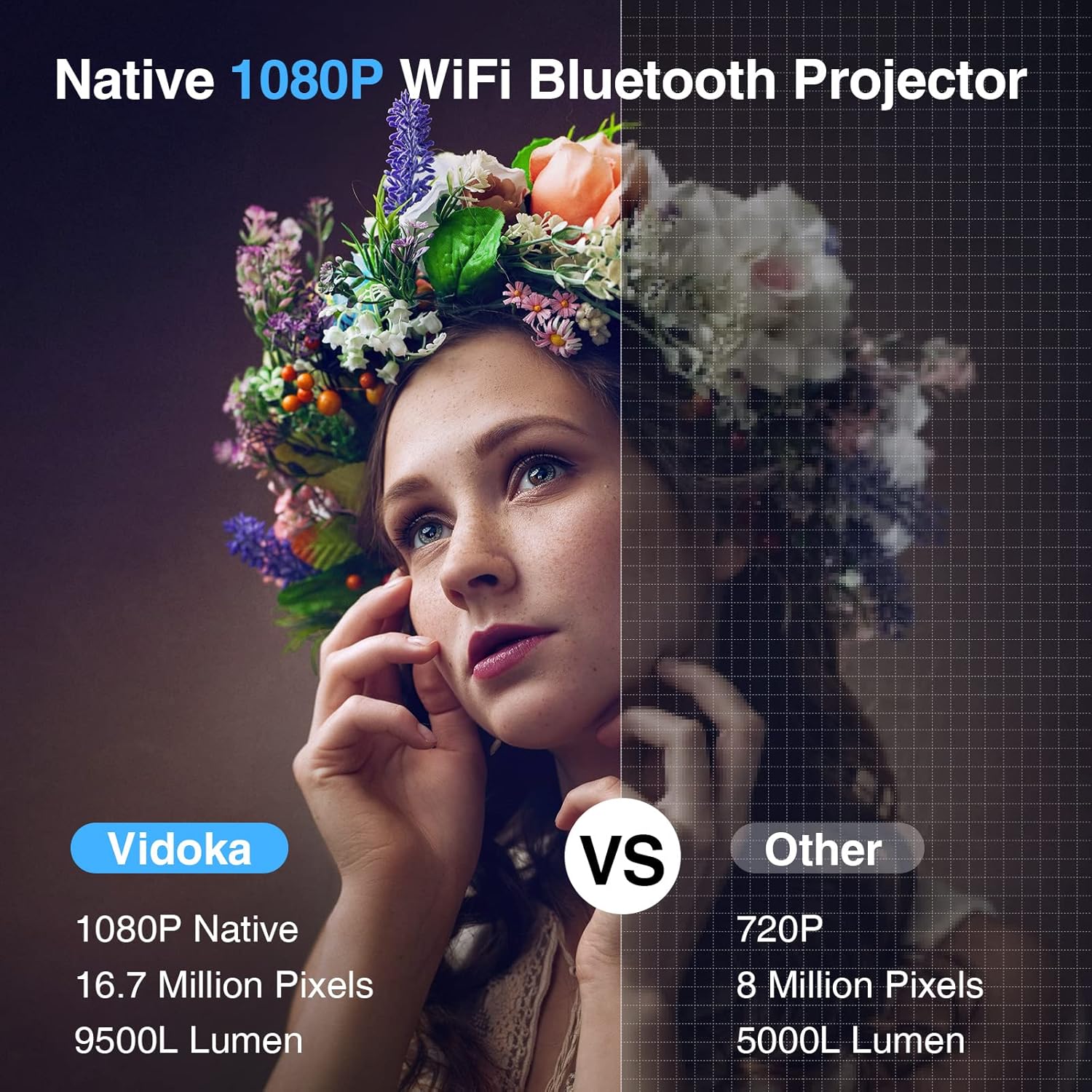
Image: A comparison graphic showing the superior resolution and brightness of the Vidoka projector (1080P Native, 16.7 Million Pixels, 9500L Lumen) against a generic "Other" projector (720P, 8 Million Pixels, 5000L Lumen).
Warranty and Support
The VIDOKA BL-48 Projector comes with a 12-month professional technical support and a 3-year repair warranty. For any questions, technical assistance, or warranty claims, please contact VIDOKA customer service through the contact information provided in your Quick Start Guide or on the official VIDOKA website.
Please retain your purchase receipt as proof of purchase for warranty purposes.
Ask a question about this manual
Ask about setup, troubleshooting, compatibility, parts, safety, or missing instructions. Manuals+ will review the question and use this page’s manual context to help answer it.