
1. Introduction
Thank you for choosing the Highbrain Light Bulb Camera. This advanced security camera offers comprehensive surveillance with its 5G and 2.4GHz Wi-Fi connectivity, PTZ (Pan/Tilt/Zoom) capabilities, two-way audio, and smart motion detection. Designed for easy installation into a standard E27 light socket, it provides reliable monitoring day and night with full color and infrared night vision options.

Image: The Highbrain Light Bulb Camera shown alongside a smartphone displaying its live view interface.

Image: Visual representation of the camera's key features: 2MP HD resolution, full color night vision, 2.4GHz Wi-Fi, mobile tracking, TF card & cloud storage, and easy installation.
2. Package Contents
Please verify that all items are present in your package:
- Highbrain Light Bulb Camera
- E27 Bulb Connector Adapter
- Mounting Screws and Wall Plugs
- Reset Pin
- User Manual (this document)
3. Setup & Installation
3.1 Physical Installation
The Highbrain Light Bulb Camera is designed for simple installation, similar to replacing a standard light bulb. Ensure the power to the light socket is turned off before installation.
- Carefully screw the camera into a standard E27 light socket.
- Turn on the power to the light socket. The camera will perform a self-test and calibrate, indicated by its rotation. Wait for a few seconds until it is ready for connection.

Image: A hand demonstrating the easy installation of the camera by screwing it into a light fixture, similar to a light bulb.
3.2 App Download & Account Setup
To control and monitor your camera, download the YI IoT app:
- Scan the QR code provided in the quick start guide or on the product packaging.
- Search for "YI IoT" in the Google Play Store (for Android devices) or Apple App Store (for iOS devices).
Once downloaded, open the YI IoT app. If you are a first-time user, you will need to register a new account. Otherwise, log in with your existing credentials.

Image: The official YI IoT application icon.
3.3 Camera Pairing
Follow these steps to pair your camera with the YI IoT app:
- In the YI IoT app, tap the "+" button (usually in the top right corner) to add a new device.
- Select "Scan QR Code Binding" or the appropriate option for adding a new camera.
- The app will prompt you to wait for a beeping sound from the camera (after about 20 seconds of power-on). Confirm you hear the sound.
- The app will display a QR code on your phone screen. Hold your phone with the QR code facing the camera lens. Adjust the distance until the camera recognizes the code.
- Once recognized, the camera will voice prompt its connection status (e.g., "Connecting to Wi-Fi," "Wi-Fi is connected," "Pairing is successful").
- Follow the on-screen prompts to select your Wi-Fi network (2.4GHz or 5GHz) and enter the password.
- After successful pairing, you can name your camera and begin live viewing.
Video: A comprehensive guide demonstrating the unboxing, physical installation, app download, camera pairing via QR code, Wi-Fi connection, live view, PTZ control, camera settings, resetting, and memory card installation for the Highbrain Light Bulb Camera.
4. Operating Instructions
4.1 Live View & PTZ Control
Once paired, tap on your camera in the app's main interface to access the live view. Use the on-screen controls to pan (355° horizontal rotation) and tilt (95° vertical rotation) the camera, allowing you to monitor almost every corner of your space without blind spots. You can also zoom in/out with finger gestures.

Image: The camera's 360° pan and tilt capabilities are highlighted, along with its 1080P HD video quality, controllable via the mobile app.
4.2 Two-Way Audio
The camera features a built-in microphone and speaker, enabling two-way communication. Tap the microphone icon in the live view interface to speak through the camera, and listen to audio from the camera's surroundings.

Image: Illustration of the two-way talk feature, allowing communication between the app user and the camera's location.
4.3 Night Vision Modes
The camera supports both infrared night vision and full-color night vision. You can switch between these modes in the camera settings within the app to suit your monitoring needs in low-light conditions.

Image: A side-by-side comparison showing the difference between infrared night vision (monochrome) and full-color night vision captured by the camera.
4.4 Motion Detection & Alerts
Enable smart motion detection to receive instant alerts on your mobile device when activity is detected. The camera can also track moving objects automatically.
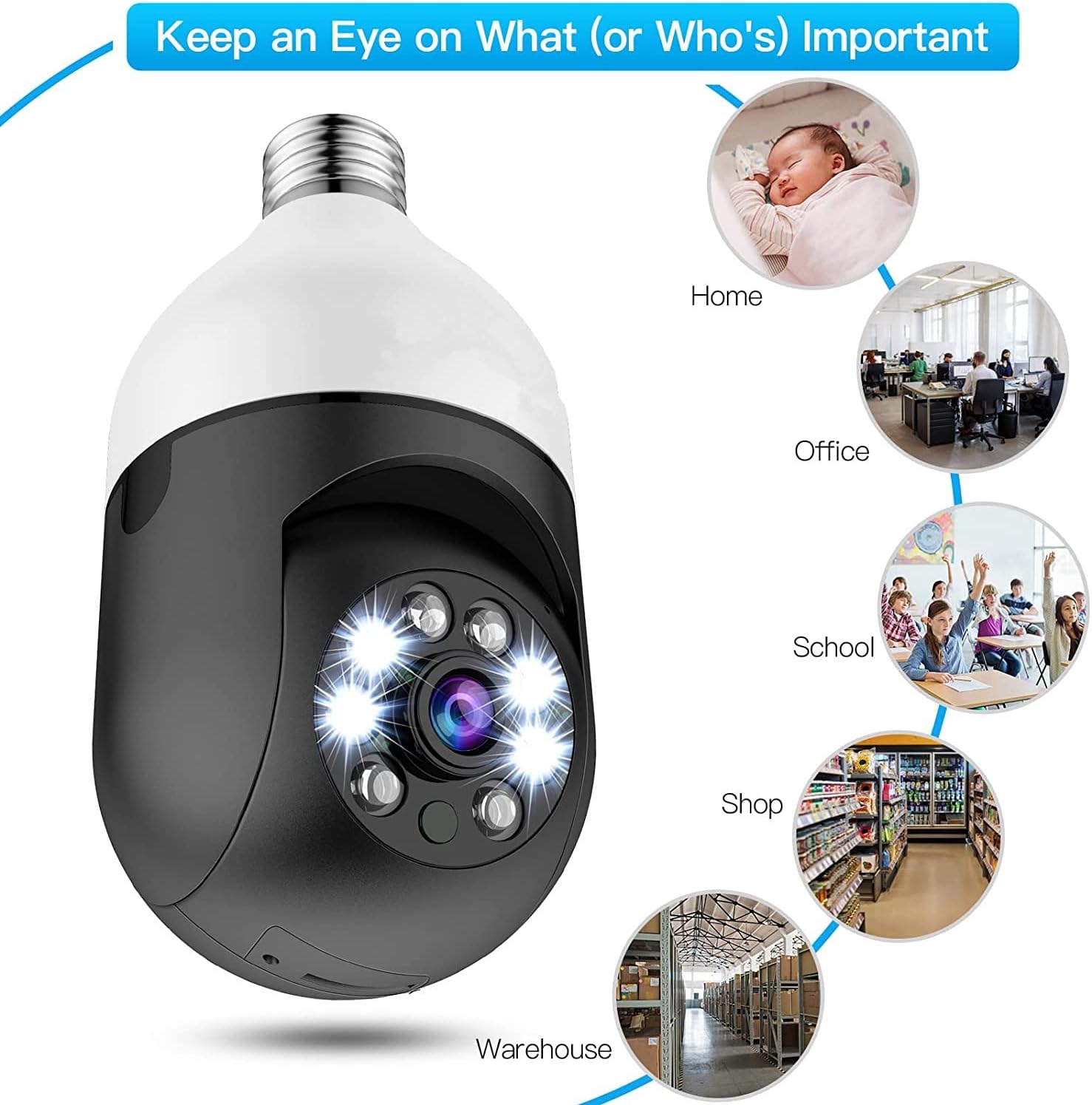
Image: Depiction of the camera's motion detection capabilities, including mobile notifications, timer/auto light-up, and cloud/TF card storage for triggered events.
4.5 Storage Options
The camera supports both local storage via a Micro SD card (up to 128GB, not included) and cloud storage (subscription may be required). You can view recorded history from anywhere.

Image: Icons representing the camera's support for both cloud storage and TF (Micro SD) card storage.
5. Maintenance
5.1 Resetting the Camera (Factory Reset)
If your camera loses connection, cannot be accessed, or you wish to reset all settings, you can perform a factory reset:
- Locate the reset hole on the camera body.
- Insert the provided reset pin into the hole.
- Press and hold the reset button for over 10 seconds until you hear a voice prompt indicating the reset is complete.
- The camera will reset to its factory default settings. You will need to re-pair it with the app as described in Section 3.3.
5.2 Memory Card Installation/Removal
To install or remove a Micro SD card:
- Locate the Micro SD card slot on the camera.
- To install, gently push the Micro SD card into the slot until it clicks into place.
- To remove, gently press the Micro SD card inward until it pops out, then pull it out.
6. Troubleshooting
If you encounter issues with your Highbrain Light Bulb Camera, please refer to the following common problems and solutions:
| Problem | Possible Cause | Solution |
|---|---|---|
| Camera not powering on | No power to socket, loose connection | Ensure light socket has power; re-screw camera firmly into socket. |
| Unable to connect to Wi-Fi | Incorrect Wi-Fi password, wrong network band (2.4GHz/5GHz), camera too far from router | Double-check Wi-Fi password; ensure you are connecting to a compatible 2.4GHz or 5GHz network; move camera closer to router. |
| Camera offline in app | Internet connection issue, camera power loss, app glitch | Check your home internet connection; verify camera is powered on; restart the app; if persistent, perform a factory reset. |
| Motion detection not working | Detection settings disabled, sensitivity too low | Go to camera settings in the app and ensure motion detection is enabled and sensitivity is adjusted. |
| No recording to SD card | SD card not inserted correctly, card full, card corrupted, recording settings off | Reinsert SD card; check card capacity; format card in app (this will erase data); ensure continuous recording or event recording is enabled. |
7. Specifications
| Feature | Detail |
|---|---|
| Brand | Highbrain |
| Model | B0B48WQBS6 |
| Connectivity Technology | Wireless (Wi-Fi) |
| Connectivity Protocol | Wi-Fi (2.4GHz & 5GHz compatible) |
| Video Capture Resolution | 1080p |
| Special Feature | PTZ Technology (355° Pan, 95° Tilt) |
| Indoor/Outdoor Usage | Outdoor (Recommended Uses For Product: Outdoor Security) |
| Night Vision | Full Color Night Vision, Infrared Night Vision |
| Audio | Two-Way Audio |
| Motion Detection | Smart Motion Detection, Instant Alerts |
| Storage | Micro SD Card (up to 128GB), Cloud Storage |
| Mounting Type | Wall Mount (E27 Bulb Connector) |
| Item Weight | 8.8 ounces |
| Package Dimensions | 6.81 x 3.23 x 3.23 inches |
| International Protection Rating | IP65, IP67 |
8. Warranty & Support
8.1 Warranty Information
This product is covered by a manufacturer's warranty. Please refer to the product packaging or contact Highbrain customer support for specific warranty terms and conditions.
8.2 Customer Support
For technical assistance, troubleshooting, or warranty claims, please contact Highbrain customer support through the contact information provided on the product packaging or the official Highbrain website. Ensure you have your product model number (B0B48WQBS6) and purchase details ready when contacting support.