
Introduction
Thank you for choosing the Goshyda 1080P FHD Dash Cam. This manual provides essential information for the proper installation, operation, and maintenance of your device. Please read it thoroughly before use to ensure optimal performance and safety.
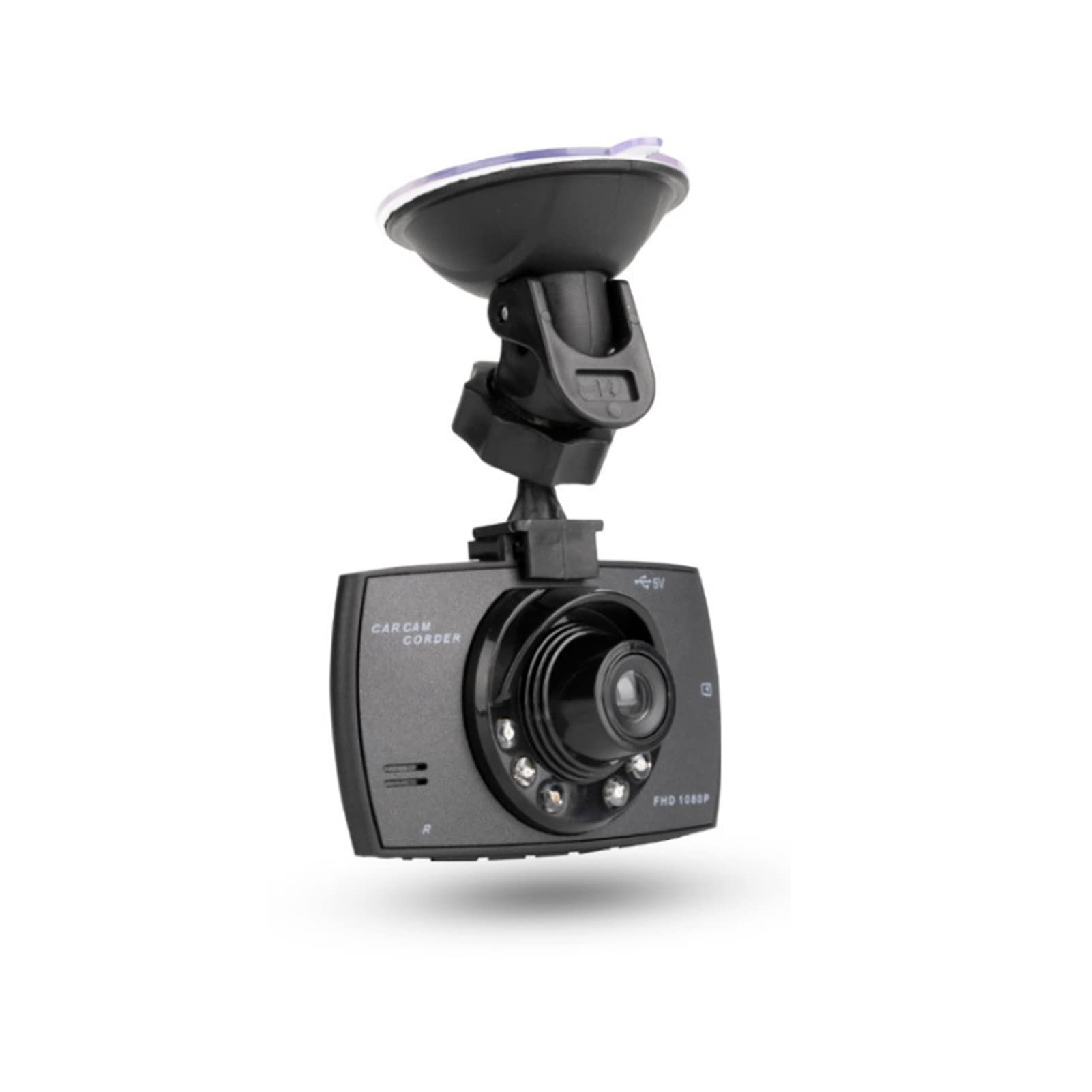
Image: Front view of the Goshyda 1080P FHD Dash Cam.
Package Contents
Verify that all items listed below are included in your package:
- 1 x Driving Recorder (Dash Cam)
- 1 x Car Charger
- 1 x Suction Cup Mount
- 1 x User Manual

Image: Contents of the Goshyda Dash Cam package, including the dash cam unit, car charger, and suction cup mount.
Setup and Installation
- Mounting the Dash Cam: Attach the suction cup mount to the dash cam. Securely affix the suction cup mount to your vehicle's windshield, ensuring it does not obstruct your view of the road.
- Power Connection: Connect the car charger to the dash cam's USB port. Plug the other end of the car charger into your vehicle's cigarette lighter socket. Route the cable neatly to avoid interference with driving controls.
- Memory Card Insertion: Insert a compatible micro SD card (8-32 GB, not included) into the dash cam's memory card slot. Ensure the card is inserted correctly until it clicks into place.

Image: The dash cam mounted on a car windshield, showing the driver's view of the road.
Charging the Device
The dash cam can be charged using two methods:
- Via Car Charger: Connect the dash cam to the included car charger and plug it into your vehicle's 12V cigarette lighter socket. The device will automatically begin recording when the car starts.
- Via USB to Computer: Connect the dash cam to a computer's USB port using a compatible USB cable (not included). A green light will indicate charging. The green light will turn off automatically when the battery is fully charged.
Important: Only use a 5V output car power supply. When using the car charger, long-press the power button or disconnect the power to turn off the recorder.
Operating Instructions
Automatic Recording
When connected to the car's 12V power supply and the vehicle starts, the dash cam will automatically power on and begin recording. In case of power failure, the recorder will automatically shut down after 15 seconds and save the recorded files.
Loop Recording
The dash cam features seamless loop recording. When the memory card is full, the camera will automatically overwrite the oldest unlocked video files. This ensures continuous recording without manual intervention.

Image: The dash cam screen showing a recording in progress, demonstrating the loop recording function.
G-Sensor (Gravity Detection)
In the event of a collision or sudden impact, the built-in G-sensor will detect the event and automatically lock the current video file. Locked files are protected from being overwritten by loop recording, preserving critical evidence.
Manual File Lock
During recording, you can manually press the lock button on the dash cam to protect the current video file from being deleted or overwritten.

Image: The dash cam's front, highlighting the night vision lights and indicating G-sensor functionality in a traffic scenario.
Motion Detection
When enabled, the dash cam will automatically start recording if it detects motion in its field of view while parked. This feature helps monitor your vehicle when you are away.
Key Features
- 1080P Full HD Recording: Captures clear video footage at 1920x1080P resolution.
- 170-Degree Wide Angle Lens: Provides a broad view of the road, minimizing blind spots.
- 2.4-inch LCD Screen: For real-time viewing and playback of recordings.
- 6 Infrared Fill Lights: Enhances night vision for clearer recordings in low-light conditions.
- G-Sensor: Automatically detects impacts and protects video files.
- Loop Recording: Ensures continuous recording by overwriting old, unlocked files.
- Motion Detection: Records automatically when motion is detected while parked.

Image: The dash cam mounted inside a car, illustrating its 1080P Full HD recording capability and 170-degree wide-angle view.

Image: A close-up view of the dash cam's lens, clearly showing the six infrared fill lights designed for improved night vision.
Specifications
| Feature | Specification |
|---|---|
| Pixel | 1000W (10 Megapixels) |
| Viewing Angle | 170 degrees |
| Video Format | AVI |
| Video Encoding Mode | M-JPEG |
| Video Resolution | 1920x1080P |
| Video Output | AVOUT, HD Multimedia Interface |
| Video Output Format | PAUNTSC |
| Operating System Compatibility | Windows 2000, Windows XP, Windows 7, etc. |
| Memory Card Capacity | 8-32 GB Micro SD card (not included) |
| Battery | 3.7V 120mAh Polymer Battery (built-in) |
| Power Consumption (Video) | 200 mAh |
| Power Consumption (Standby) | 250-315 mAh |
| Screen Size | 2.4 Inches |
| Mounting Type | Suction Cup Mount |
| Control Method | Remote |
| Frame Rate | 30 FPS |
| Item Weight | 172 Grams |
Maintenance
- Cleaning: Use a soft, dry cloth to clean the dash cam lens and screen. Avoid using abrasive cleaners or solvents.
- Temperature: Do not expose the device to extreme temperatures, either hot or cold, as this can affect battery life and performance.
- Memory Card: Regularly format your memory card (at least once a month) to ensure optimal performance and prevent data corruption. Back up important files before formatting.
Troubleshooting
- Device not powering on: Ensure the car charger is securely connected to both the dash cam and the vehicle's cigarette lighter socket. Check if the vehicle's 12V power outlet is functioning.
- Recording issues: Verify that a compatible memory card is inserted and has sufficient free space. Format the memory card if necessary.
- Poor video quality: Clean the lens of the dash cam. Ensure the windshield is clean where the camera is mounted.
- Battery drains quickly: The built-in battery is primarily for emergency power-off and saving files. For continuous operation, the dash cam should remain connected to the car charger.
Warranty and Support
For warranty information or technical support, please refer to the contact details provided with your purchase or visit the official Goshyda website. Keep your purchase receipt as proof of purchase.