
QTHREE HD 5450
QTHREE Radeon HD 5450 Graphics Card User Manual
Model: HD 5450 | Brand: QTHREE
1. Introduction
This manual provides detailed instructions for the installation, operation, and maintenance of your QTHREE Radeon HD 5450 Graphics Card. This low-profile graphics card is designed to enhance your computer's visual capabilities, supporting multiple monitors and offering a fanless design for silent operation. Please read this manual thoroughly before installation and use.
2. Package Contents
Verify that all items are present in the package:
- 1x QTHREE Radeon HD 5450 Graphics Card
- 2x Low Profile Brackets
- 1x User Manual (this document)
3. Product Features
- 2GB GDDR3 Memory: Equipped with 2GB GDDR3 memory, 650MHz core frequency, and up to 1066MHz memory speed, featuring 80 Stream Processors.
- Low Profile Design: Compact size suitable for low profile desktops and workstations, includes half-height brackets for flexible installation.
- Multi-monitor Support: Supports up to two monitors with DVI, VGA, and HDMI outputs. The VGA interface is removable for customization.
- Fanless Design: Features a silent passive cooling system with high-performance heatsinks, ensuring zero noise operation.
- Independent Power: No external power supply required, with approximately 19W full-load power consumption.
- Operating System Compatibility: Compatible with Windows 10, 8.1, 8, and 7. Not compatible with Windows 11.
4. Installation Guide
Follow these steps to install the graphics card into your computer:
- Prepare Your System:
- Power off your computer and unplug all cables (power, monitor, peripherals).
- Open the computer case. Refer to your computer's manual for specific instructions on opening the case.
- Ground yourself to discharge any static electricity by touching a metal part of the computer chassis.
- Locate a PCI Express x16 Slot:
Identify an available PCI Express x16 slot on your motherboard. This is typically the longest slot on the motherboard.

Image: Rear view of the graphics card, highlighting the PCI Express x16 connector and the removable VGA interface ribbon cable.
- Remove Slot Cover:
Remove the metal slot cover from the back of your computer case corresponding to the chosen PCI Express x16 slot.
- Install Graphics Card:
Carefully align the graphics card with the PCI Express x16 slot. Press down firmly and evenly until the card is securely seated in the slot. Ensure the retention clip (if present) locks the card in place.

Image: Front view of the QTHREE Radeon HD 5450 Graphics Card, showing the heatsink and the DVI, HDMI, and VGA ports.
- Secure the Card:
Secure the graphics card to the computer case with a screw or the case's locking mechanism.
- Install Low Profile Bracket (Optional):
If installing into a small form factor (SFF) or slim case, replace the standard bracket with the provided low profile brackets. The VGA port is connected via a ribbon cable and can be installed in an adjacent slot if needed.

Image: The graphics card shown with its dimensions and the two included low profile brackets, illustrating its compact design.
- Close Case and Reconnect Cables:
Close the computer case, reconnect all cables (power, monitor, etc.), and power on your computer.
- Driver Installation:
Upon first boot, Windows may automatically install a basic driver. For optimal performance, download and install the latest drivers from the AMD official website or QTHREE support page. Search for "AMD Radeon HD 5450 drivers".
5. Operating Instructions
5.1 Connecting Displays
The QTHREE Radeon HD 5450 Graphics Card supports DVI, HDMI, and VGA outputs. You can connect up to two monitors simultaneously.
- Connect your monitor(s) to the appropriate ports on the graphics card.
- Ensure your monitor cables are securely fastened.

Image: Detailed view of the graphics card's output ports, clearly labeled VGA, HDMI, and DVI.
5.2 Multi-Monitor Setup
After connecting multiple monitors, you may need to configure display settings in your operating system:
- Windows: Right-click on the desktop, select "Display settings" (Windows 10/11) or "Screen resolution" (Windows 7/8).
- From here, you can detect displays, arrange them, and choose display modes (e.g., Extend, Duplicate, Show only on 1/2).
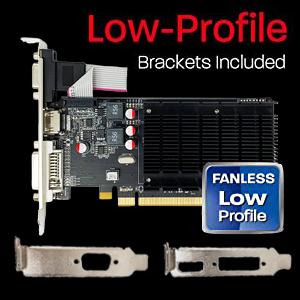
Image: A visual representation of a computer setup utilizing two monitors, demonstrating the multi-monitor capability of the graphics card.
5.3 Driver Software
The graphics card requires appropriate drivers for full functionality. Ensure you have the correct drivers installed for your operating system.
- Visit the AMD official website or QTHREE support page to download the latest drivers for Radeon HD 5450.
- Follow the on-screen instructions to complete the driver installation.

Image: A screenshot from GPU-Z, a utility that displays graphics card information, showing detailed specifications for the AMD Radeon HD 5450.
6. Maintenance
To ensure the longevity and optimal performance of your graphics card, consider the following maintenance tips:
- Dust Removal: Periodically clean dust from inside your computer case, especially around the graphics card's heatsink. Use compressed air for this purpose. Ensure the computer is powered off and unplugged before cleaning.
- Airflow: Ensure proper airflow within your computer case. Avoid blocking ventilation openings.
- Driver Updates: Keep your graphics drivers updated to benefit from performance improvements and bug fixes.
7. Troubleshooting
If you encounter issues with your QTHREE Radeon HD 5450 Graphics Card, refer to the following common troubleshooting steps:
| Problem | Possible Cause | Solution |
|---|---|---|
| No display on monitor | Graphics card not seated correctly; Monitor cable loose; Incorrect input selected on monitor. | Power off and reseat the graphics card. Check monitor cable connections. Ensure monitor is set to the correct input source (HDMI, DVI, VGA). |
| Low resolution or incorrect display settings | Outdated or missing drivers; Incorrect display settings in OS. | Install or update graphics drivers. Configure display settings in your operating system. |
| System instability or crashes | Driver conflicts; Overheating (less likely with fanless design but possible with poor case airflow). | Ensure drivers are correctly installed and up-to-date. Check system temperatures and ensure adequate case ventilation. |
| VGA port not working | Ribbon cable not connected or damaged; Incorrect bracket installation. | Verify the VGA ribbon cable is securely connected to the graphics card. Ensure the VGA bracket is properly installed in an adjacent slot. |
8. Specifications
| Feature | Detail |
|---|---|
| Graphics Coprocessor | Radeon HD 5450 |
| Brand | QTHREE |
| Graphics RAM Size | 2GB |
| Graphics RAM Type | GDDR3 |
| GPU Clock Speed | 650 MHz |
| Memory Clock Speed | 1066 MHz (effective) / 533 MHz (base) |
| Stream Processors | 80 |
| Video Output Interface | DVI, HDMI, VGA |
| Maximum Display Resolution | 2560x1600 |
| Graphics Card Interface | PCI-Express x16 |
| Compatible Devices | Desktop PCs |
| Power Consumption | Approx. 19W (full-load), no external power required |
| Cooling | Fanless (Passive Heatsink) |
| DirectX Support | DirectX 11 |
| Operating System Support | Windows 10, 8.1, 8, 7 (Not Windows 11 compatible) |
9. Warranty and Support
For warranty information and technical support, please refer to the QTHREE official website or contact their customer service. Keep your purchase receipt as proof of purchase for warranty claims.
Online Support: Visit the QTHREE website for FAQs, driver downloads, and support contact information.
Ask a question about this manual
Ask about setup, troubleshooting, compatibility, parts, safety, or missing instructions. Manuals+ will review the question and use this page’s manual context to help answer it.