
Introduction
The Gabba Goods Smart Indoor WiFi Camera provides comprehensive home monitoring with advanced features designed for ease of use and reliable performance. This manual will guide you through the setup, operation, and maintenance of your new camera.
Key features include:
- 720p HD Video: Clear video quality with horizontal and vertical rotation for a panoramic view.
- Night Vision: Super IR LED night vision for round-the-clock monitoring without light pollution.
- Motion & Sound Detection: Intelligent alerts sent directly to your smartphone.
- Two-Way Audio: Built-in microphone and speaker for remote communication.
- Flexible Storage: Supports cloud storage and local Micro SD card (up to 128GB).
- Remote Access: Monitor and control your camera from anywhere via the mobile app.

Image: The Gabba Goods Smart Indoor WiFi Camera, a white dome-shaped camera with a black lens, positioned next to a smartphone displaying a live feed of a sleeping baby. This illustrates the camera's use for baby monitoring.
Setup Guide
Follow these steps to set up your Gabba Goods Smart Indoor WiFi Camera:
- Power On: Connect the camera to a power source using the included micro USB cable and a USB wall charger (not included).
- Download the App: Scan the QR code below or search for "G-Home by Gabba Goods" in your device's app store (Google Play or Apple App Store) to download the official application.

Image: A graphic displaying key features of the camera, including unlimited sharing, cloud storage support, mobile remote view & control, Micro SD card support (up to 128GB), and inclusion of a micro USB cable. A QR code is prominently displayed for downloading the G-Home by Gabba Goods app from Google Play and the App Store.
Scan this QR code to download the G-Home app: https://qrco.de/bcAORD
- Connect to Wi-Fi: Open the G-Home app and follow the on-screen instructions to connect your camera to your 2.4GHz Wi-Fi network. An Ethernet cable connection to your router is also an option for initial setup.
- Position the Camera: The camera features a 360° rotatable base and a 90° swivel neck, allowing for flexible placement. It can be placed on a flat surface or wall-mounted. Adjust the camera's height and head to achieve your desired viewing angle.

Image: Two views of the Gabba Goods Smart Indoor WiFi Camera, one showing it placed on a flat surface and another showing it mounted on a wall, demonstrating its versatile setup options.
Operating Instructions
Live View and Pan/Tilt Control
Once connected, open the G-Home app to access the live video feed. Use the on-screen controls to remotely rotate the camera horizontally (side-to-side) and vertically (up and down) to achieve a full panoramic view of your space. You can also set several preset positions for quick navigation.
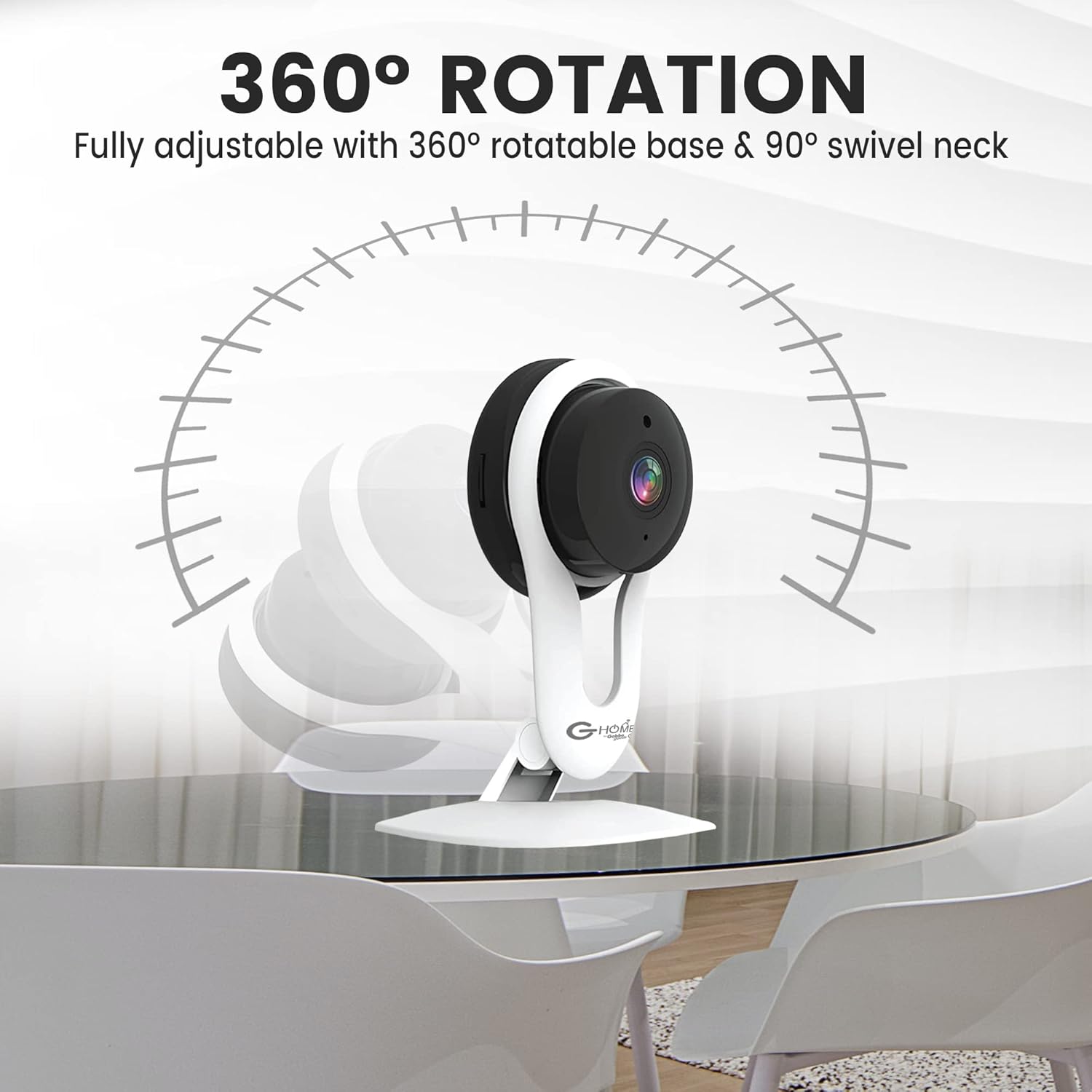
Image: The Gabba Goods Smart Indoor WiFi Camera on a table, with an arc indicating its 360-degree rotation capability, highlighting its fully adjustable and rotatable base.
Two-Way Audio
The camera features a built-in microphone and speaker. In the live view interface of the app, locate the microphone icon to speak through the camera, and the speaker icon to listen to audio from the camera's surroundings. This allows for remote communication with family members or pets.
Motion and Sound Detection Alerts
The camera is equipped with intelligent motion and sound detection. When activity is detected, the camera will send push notifications directly to your smartphone, ensuring you are aware of any events in your home. You can customize alert sensitivity and schedules within the app settings.
Video Recording and Playback
The camera supports continuous recording or event-triggered recording. Video footage can be stored on a Micro SD card (up to 128GB, not included) inserted into the camera, or via optional cloud storage services. Access recorded videos and play them back through the G-Home app to review past activities.

Image: The Gabba Goods Smart Indoor WiFi Camera next to a smartphone displaying its app interface. The phone shows a live feed of a sleeping puppy, demonstrating the camera's night vision and image-enhancing technology, which allows clear viewing in low light conditions.

Image: A scene depicting the Gabba Goods Smart Indoor WiFi Camera monitoring a dog that has made a mess with toilet paper. A hand holds a smartphone displaying the camera's live view, showing the dog and various app controls like Alarm, Speak, and Record. This highlights the camera's use for pet monitoring and remote interaction.
Maintenance
To ensure optimal performance and longevity of your camera, follow these maintenance guidelines:
- Cleaning: Gently wipe the camera lens and body with a soft, dry, lint-free cloth. Avoid using harsh chemicals or abrasive cleaners.
- Placement: Ensure the camera is placed in a well-ventilated area to prevent overheating. Avoid direct sunlight or extreme temperatures.
- Firmware Updates: Regularly check the G-Home app for available firmware updates to ensure your camera has the latest features and security enhancements.
Troubleshooting
| Problem | Possible Cause | Solution |
|---|---|---|
| Camera frequently disconnects from Wi-Fi. | Weak Wi-Fi signal, network interference, or router issues. |
|
| Poor video resolution or slow image loading. | Insufficient network bandwidth, app settings, or camera placement. |
|
| Motion/Sound alerts are not received. | App notification settings, detection sensitivity, or network issues. |
|
Specifications
- Model Number: GH-SWC-WHT
- Dimensions: 4.25 x 2.04 x 5.82 inches
- Weight: 5 ounces
- Video Capture Resolution: 720p (also supports 1080p)
- Connectivity: Wi-Fi (2.4GHz), Ethernet
- Power Source: Corded Electric
- Features: Motion Sensor, Night Vision, Two-Way Audio, Digital Zoom
- Storage: Micro SD card (up to 128GB), Cloud Storage (optional)
- Compatible Devices: Smartphone (via G-Home app)
- Control Method: Remote (via app)
- Indoor/Outdoor Usage: Indoor
Warranty and Support
For warranty information, technical support, or any inquiries regarding your Gabba Goods Smart Indoor WiFi Camera, please contact Gabba Goods customer service. Refer to the product packaging or the official Gabba Goods website for contact details.
You can also visit the Gabba Goods store on Amazon for more information: Gabba Goods Amazon Store