Introduction
This manual provides instructions for the Generic replacement remote control, model CTRC1US19. This remote is designed to be compatible with various Toshiba 4K Ultra HD Smart LED TV models, including 50LF711U20 and 55LF711U20. For basic television functions, no programming or pairing is required; simply install the batteries, and the remote is ready for use. For advanced features such as voice control or specific Fire TV functionalities, pairing steps may be necessary.
Compatible Toshiba TV models include: 32LF221C19, 32LF221U19, 43LED2160P, 43LF421U19, 43LF621U19, 43LF711U20, 49LF421U19, 50LED2160P, 50LF621U19, 50LF711U20, 55LED2160P, 55LF621U19, 55LF711U20, TF50A810U19.
Setup
Battery Installation
The remote control requires two (2) 1.5V AAA alkaline batteries for operation. Batteries are not included with the remote control.
- Locate the battery compartment on the back of the remote control.
- Slide the battery cover downwards to open the compartment.
- Insert two AAA alkaline batteries, ensuring the positive (+) and negative (-) terminals align correctly with the markings inside the compartment.
- Slide the battery cover back into place until it clicks securely.

Image: Back of the remote control with the battery compartment open, illustrating the correct orientation for AAA battery insertion.
Once batteries are installed, the remote is ready for basic TV control without further programming.
Operating Instructions
Remote Control Button Functions
The following diagram and descriptions detail the functions of each button on your remote control:

Image: Detailed diagram of the remote control, labeling each button and its primary function.
- Power Button: Turns your TV on or off. When the TV is off, the LED indicator on the front of the TV lights red.
- Voice Button: Hold down the Voice Button to activate the voice assistant. Release the Voice Button to initiate voice input. Releasing the Voice Button ends voice input. With Alexa, you can use your voice to search for movies, launch apps, and more. (Alexa Voice Service requires an Amazon account).
- Home Button: Takes you to the Home Screen. A long press activates the Quick Settings Overlay.
- Menu Button: Activates contextual commands on the screen.
- Back Button: Returns you to the previous screen.
- Select Button: Confirms selection or action.
- Navigation Ring: Used for on-screen navigation (Up, Down, Left, and Right).
- Play/Pause Button: Resumes or pauses playback.
- Rewind Button: Rewind (long press) and skip back (short press). Behavior varies by app.
- Fast Forward Button: Fast forward (long press) and skip ahead (short press). Behavior varies by app.
- Volume Up/Down Buttons: Volume Up increases the volume, and Volume Down decreases the volume.
- Mute Button: Mutes the sound.
- Guide Button: Brings up the Live TV Channel Guide.
- Prime Video Button: Launches Prime Video from the Home screen, even when the TV is off.
- Netflix Button: Launches Netflix app from any screen, even when the TV is off.
- HBO Button: Launches HBO app from any screen or when TV is off.
- Vue Button: Launches Vue app from any screen or when TV is off.
Pairing the Remote Control (for Fire TV Features)
While basic functions do not require pairing, for full functionality including voice control and seamless integration with Fire TV features, pairing the remote with your TV is recommended.
Pairing Steps
- Ensure your TV is powered on and functioning.
- Press and hold the Home button on the remote control for approximately 30 seconds.
- Release the button and wait for about 60 seconds. The remote should automatically enter pairing mode and attempt to connect with your TV.
- A confirmation message should appear on your TV screen upon successful pairing.
Image: Illustration of the remote control with an emphasis on the Home button for initiating the pairing process.
Troubleshooting Pairing Issues
If the remote does not pair successfully, follow these steps:
- Unplug the power cord from your Amazon Fire TV device, wait a few seconds, and then plug it back in.
- Remove the batteries from the remote control, wait 10 seconds, and then reinsert them.
- Repeat the pairing steps: Press and hold the Home button for 30-50 seconds, then release and wait for the remote to pair.
Resetting the Remote Control
If your Alexa Voice Remote experiences connectivity issues with your Fire TV device, you may need to reset it.
- Place your remote control within 10 feet of your Fire TV device.
- Press the Left button, Menu button, and Back buttons simultaneously and hold for 10 seconds.
- Release the buttons and wait for 5 seconds.
- Remove the batteries from the remote control.
- Unplug the power cord from your Fire TV device, wait 10 seconds, and then plug it back in.
- Once your Fire TV device is on and the Home screen is displayed, reinsert the batteries into the remote control.
- Press the Home button and hold for 30-50 seconds, then release and wait for the remote to automatically pair with your device.
- If pairing is not successful, repeat steps 1-6.
Completing On-Screen Setup (Fire TV)
After pairing, your TV should automatically prompt you to complete the on-screen setup for your Fire TV device. Follow these instructions:
- Network Connection: If your Wi-Fi network is password protected, enter your network password using the on-screen keyboard. If your network is hidden, select Join Other Network.
- Experience Full (recommended) or Basic:
- Select Full to access live TV, tens of thousands of streaming movies and TV episodes, thousands of apps, and Alexa skills. To get started, sign in to or sign up for a free Amazon account.
- Select Basic to access live TV and the six preset streaming apps. Alexa and the full Appstore are not included.
- Connected TV to an antenna or cable wall jack:
- Go to Settings > Live TV > Channel Scan.
- Follow the on-screen instructions to scan for channels.
Note: To browse and watch live TV, use the On Now or press 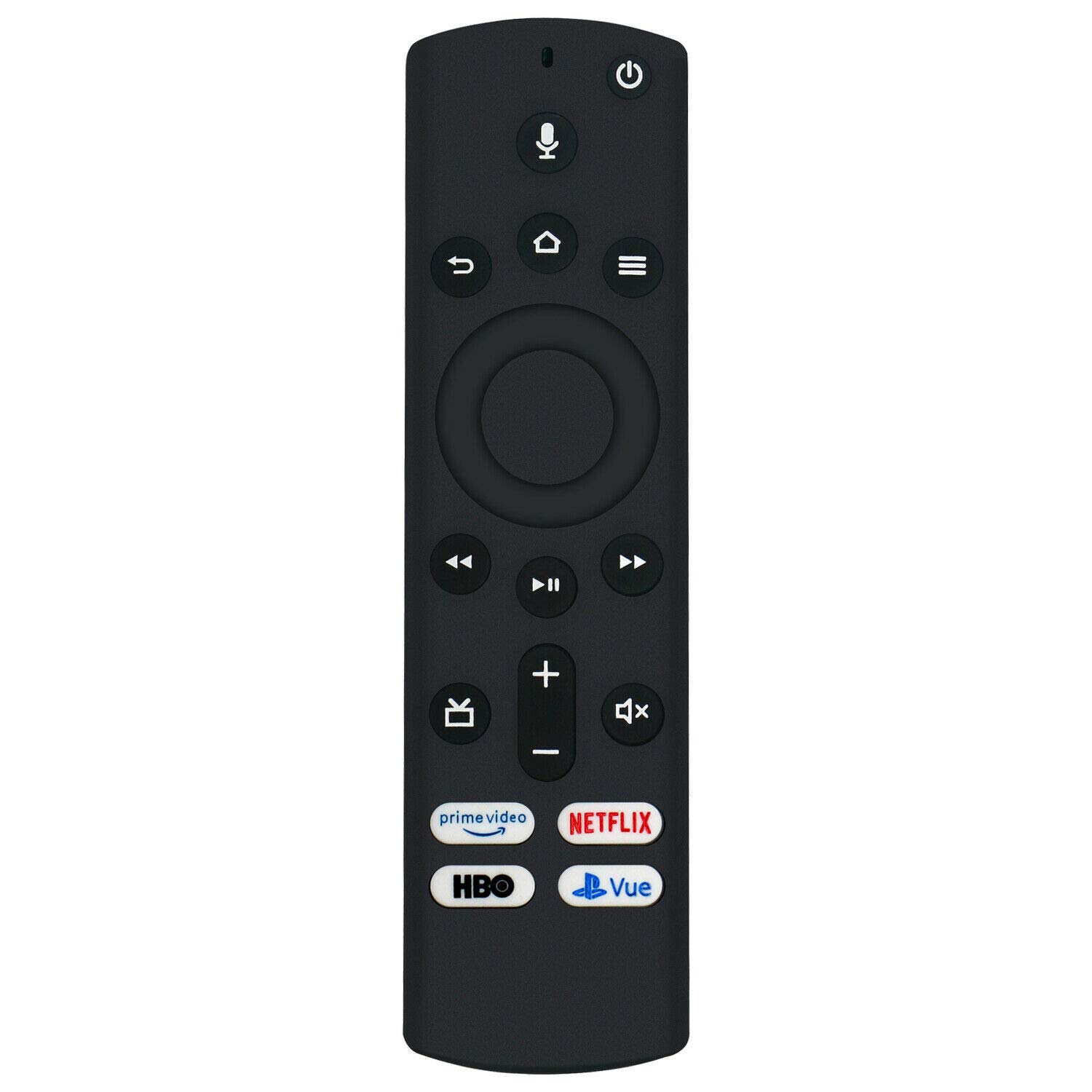 on your remote.
Maintenance
Care and Cleaning
- To clean the remote control, use a soft, dry cloth. Do not use liquid cleaners or abrasive materials.
- Avoid exposing the remote control to extreme temperatures, humidity, or direct sunlight.
Battery Replacement
Replace the AAA alkaline batteries when the remote's performance diminishes or it stops responding. Always replace both batteries at the same time with new ones.
Troubleshooting Common Issues
- Remote not responding (basic functions): Check if the batteries are correctly inserted and are not depleted. Replace with fresh AAA alkaline batteries if necessary. Ensure there are no obstructions between the remote and the TV's infrared receiver.
- Voice control or Fire TV features not working: Ensure the remote is properly paired with your Fire TV device. Refer to the "Pairing the Remote Control" section for detailed steps. If issues persist, try resetting the remote as described in the "Resetting the Remote Control" section.
- Intermittent response: This could indicate low battery power. Replace the batteries. Also, ensure you are within the effective range of the TV's IR receiver.
Product Specifications
| Brand | Generic |
| Model | CTRC1US19 |
| Compatible Devices | Television (Toshiba 4K Ultra HD Smart LED TVs) |
| Connectivity Technology | Infrared |
| Power Supply | 2 x 1.5V AAA Alkaline Batteries |
| UPC | 768677923588 |
| ASIN | B0B3MFYPHK |
Warranty Information
No specific warranty information is provided with this product. For details regarding returns or defects, please refer to the seller or the platform where the product was purchased.
Customer Support
For further assistance or inquiries, please contact the seller directly through the platform where you purchased this remote control.