
1. Introduction
Thank you for choosing the Hodozzy Android Car Radio A3017. This 7-inch double DIN car radio features an integrated Android 13 system, 2GB RAM, and 64GB ROM, providing a smooth user experience. It supports Wireless CarPlay and Android Auto, GPS navigation, Bluetooth hands-free calling, Wi-Fi connectivity, FM RDS radio, and includes a rearview camera. This manual provides essential information for installation, operation, maintenance, and troubleshooting to ensure optimal performance and safety.
2. Safety Information
- Professional Installation Recommended: Due to the complexity of car electrical systems, professional installation is highly recommended to prevent damage to the unit or your vehicle.
- Power Supply: Ensure the unit is connected to a 12V DC power supply with negative grounding. Incorrect voltage can cause damage.
- Wiring: Connect all wires correctly according to the wiring diagram. Incorrect wiring can lead to malfunctions or electrical hazards.
- Driving Safety: Do not operate the unit in a way that distracts you from driving. Always prioritize road safety.
- Temperature: Avoid exposing the unit to extreme temperatures or direct sunlight for prolonged periods.
- Moisture: Keep the unit away from water and excessive moisture to prevent electrical shock or damage.
3. Setup and Installation
3.1 Package Contents
Before installation, verify that all components are present:
- Hodozzy Android Car Radio Unit
- Power Cable
- ISO Power Cable
- RCA Cable
- Camera Input Cable
- GPS Antenna
- USB Cables (2)
- Microphone (MIC)
- Mounting Bracket
- AHD Rearview Camera
- User Manual

Image: Hodozzy Android Car Radio A3017 with included accessories: Power Cable, GPS Antenna, Rear Camera Input Cable, RCA Cable, User Manual, USB Cable, Mounting Bracket, and Microphone. The main unit dimensions are 7 inches (178mm) wide and 4.02 inches (102mm) high.
3.2 Dimensions
The unit features a 7-inch touchscreen display. The standard double DIN installation size is approximately 178 x 100 mm (7 x 4 inches). The overall product dimensions are 4.7 cm (depth) x 17.8 cm (width) x 10.2 cm (height).
3.3 Wiring Diagram
Refer to the following diagram for proper connection of the power, speakers, and other accessories. Ensure all connections are secure before powering on the unit.

Image: Detailed wiring diagram showing connections for power (GND, ACC, B+, ANT CONT), speakers (Front/Rear Left/Right), SWC (Steering Wheel Control), RCA input/output, USB cables, camera input, and GPS antenna.
Key Wiring Connections:
- Power Cable: Connect to your vehicle's power supply (GND, ACC, B+).
- Speaker Wires: Connect to your vehicle's speakers (Front Left/Right, Rear Left/Right).
- GPS Antenna: Connect the GPS antenna to the designated port on the unit and mount it in a location with a clear view of the sky.
- USB Cables: Connect external USB devices for media playback or phone charging.
- Microphone: Connect the external microphone for improved call quality.
- RCA Cables: For auxiliary audio/video input/output, amplifier, or subwoofer connections.
3.4 Rearview Camera Connection
The included AHD rearview camera provides a clear view when reversing. Connect the camera as follows:
- Connect the camera's video output to the "CAM IN" port on the car radio using the Camera Input Cable.
- Connect the camera's power cable (RED: +12V, BLACK: GND) to the vehicle's reversing light positive and ground.
- Connect the pink wire (usually labeled "BACK" or "REVERSE") from the car radio's harness to the vehicle's reversing light positive. This signal triggers the radio to display the rearview image automatically when the vehicle is in reverse gear.

Image: Diagram illustrating the connection of the AHD rearview camera to the car radio and the vehicle's reversing light power supply.
4. Operating Instructions
4.1 Basic Operation
- Power On/Off: Press the power button on the front panel or use the vehicle's ignition.
- Volume Control: Use the physical volume buttons or the on-screen controls.
- Touchscreen: The 7-inch 1024x600 resolution 2.5D tempered glass screen is touch-sensitive. Navigate by tapping, swiping, and pinching.
4.2 Android 13 System
The unit runs on Android 13 with 2GB RAM and 64GB ROM. This allows you to download and install various applications from the Google Play Store, similar to a smartphone or tablet.

Image: Display showing the Android 13 interface with GPS navigation, Wi-Fi connectivity, and various application icons.
4.3 Wireless CarPlay & Android Auto
Integrate your smartphone seamlessly with the car radio for navigation, music, calls, and messages.
- Connection: Connect your iPhone or Android phone wirelessly via Bluetooth and Wi-Fi, or via a wired USB connection.
- Functions: Access phone calls, music playback, send/receive messages, use navigation apps, and utilize voice assistants (Siri/Google Assistant) while focusing on driving.

Image: Illustration of wireless and wired connection options for CarPlay and Android Auto, showing a smartphone connected to the car radio display.
4.4 GPS Navigation
The unit includes a built-in GPS module for navigation.
- Offline Maps: The pre-installed "HereWeGo" app allows you to download offline map data by connecting to Wi-Fi/hotspot.
- Online Maps: With a Wi-Fi connection, online navigation apps (e.g., Google Maps) function perfectly.
4.5 Bluetooth Hands-free & Music
The integrated Bluetooth module supports hands-free communication and audio streaming.
- Hands-free Calls: Pair your phone to make and receive calls directly from the car radio. Supports phonebook synchronization.
- Music Streaming: Stream audio from your paired smartphone to the car radio.

Image: Display showing a Bluetooth hands-free call interface and the 16-band equalizer settings for audio customization.
4.6 FM RDS Radio
Enjoy your favorite radio stations with the built-in FM RDS tuner.
- Presets: Save up to 18 of your favorite FM stations.
- RDS Function: Displays station information (e.g., song title, artist) where available.
- Equalizer: Customize audio output with the 16-band equalizer and various preset sound models.
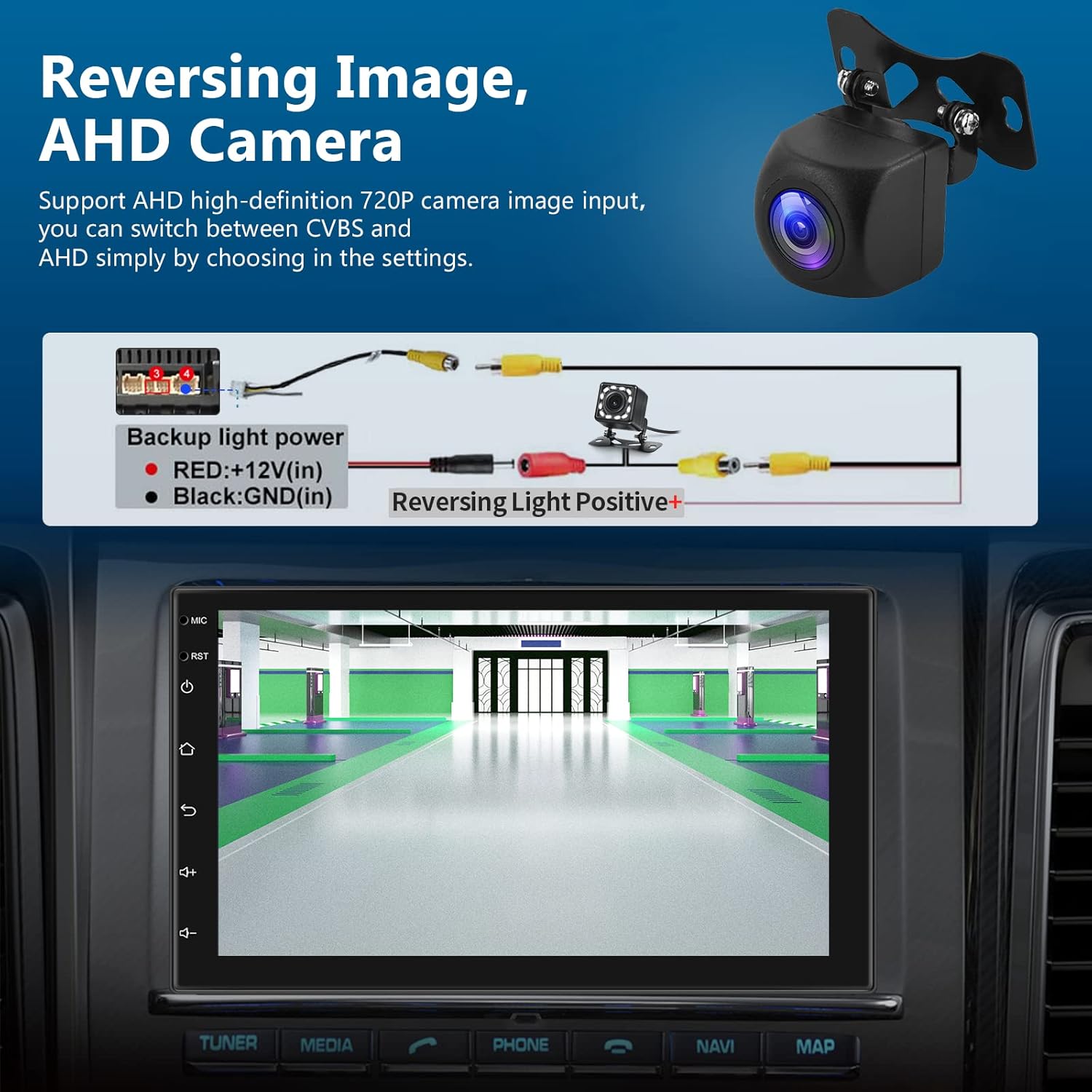
Image: Display showing the FM radio interface with frequency display and preset options, alongside the steering wheel control learning menu.
4.7 Steering Wheel Control (SWC)
Control the car radio using your vehicle's existing steering wheel buttons.
- Connection: Connect SW1 (Key1) or SW2 (Key2) wires from the car radio harness to your car's SWC wires.
- Learning Function: Access the "Steering Learn" menu in the settings to manually program the functions of your steering wheel buttons.
4.8 Multimedia Playback
The unit supports various multimedia formats and inputs.
- USB Inputs: Two USB inputs are available for connecting USB drives for media playback or charging mobile devices.
- Video Playback: Supports 1080P video playback. Compatible video formats include MKV, RMVB, AVI, MP4, MDV.
- Audio Playback: Compatible audio formats include WAV, WMA.
- Split Screen: The unit supports split-screen functionality, allowing you to run two applications simultaneously (e.g., navigation and music).
5. Maintenance
- Cleaning: Use a soft, dry cloth to clean the screen and unit. Avoid abrasive cleaners or solvents.
- Software Updates: Periodically check for software updates from the manufacturer to ensure optimal performance and access to new features.
- Heat Dissipation: The unit is designed with efficient heat dissipation using a double aluminum heat sink. Ensure proper ventilation around the unit during operation.
6. Troubleshooting
If you encounter issues, refer to the following common problems and solutions:
| Problem | Possible Cause | Solution |
|---|---|---|
| No power | Incorrect wiring, blown fuse, vehicle power issue. | Check power cable connections (ACC, B+, GND). Verify vehicle fuse. Consult a professional if unsure. |
| No sound | Speaker wires disconnected, volume too low, incorrect audio source, amplifier issue. | Check speaker wire connections. Increase volume. Select correct audio source. Verify amplifier connection if applicable. |
| GPS not working / No signal | GPS antenna not connected or poorly positioned, software issue. | Ensure GPS antenna is securely connected and placed in a location with a clear view of the sky. Restart the unit. Check GPS settings. |
| Bluetooth connectivity issues | Phone not discoverable, incorrect pairing process, interference. | Ensure Bluetooth is enabled on both devices. Delete previous pairings and re-pair. Move closer to the unit. |
| CarPlay/Android Auto not connecting | Incorrect USB cable, phone settings, software compatibility. | Use a high-quality USB cable. Ensure CarPlay/Android Auto is enabled on your phone. Check for software updates on both devices. |
| Unit is slow or unresponsive | Too many apps running, low memory, software glitch. | Close unnecessary applications. Restart the unit. Perform a factory reset if the issue persists (note: this will erase all data). |
7. Specifications
| Feature | Specification |
|---|---|
| Model Number | A3017 |
| Operating System | Android 13 |
| RAM | 2GB |
| ROM | 64GB |
| Display Size | 7-inch |
| Display Resolution | 1024 x 600 |
| Display Type | 2.5D Tempered Glass Touchscreen |
| Installation Size | Double DIN (178 x 100 mm) |
| Connectivity | Wireless CarPlay, Android Auto, Bluetooth, Wi-Fi, GPS, 2x USB, Auxiliary |
| Audio Output Power | 4 x 45W |
| Audio Channels | 4.0 Surround Sound, Stereo |
| Equalizer | 16-band EQ |
| Radio Tuner | FM with RDS |
| Video Playback | 1080P, MKV, RMVB, AVI, MP4, MDV |
| Audio Formats | WAV, WMA |
| Rearview Camera | AHD (included) |
| Item Dimensions (D x W x H) | 4.7 cm x 17.8 cm x 10.2 cm |
| Weight | 1 Kilogram |
8. Warranty and Support
8.1 Warranty
This Hodozzy product comes with a 2-year replacement warranty from the date of purchase. Please retain your proof of purchase for warranty claims.
8.2 Customer Support
For any questions, technical assistance, or warranty claims, please contact Hodozzy customer support:
- Email: hodozzyofficial@163.com
- Response Time: Expect a response within 18 hours.
- Return Policy: 60-day return period.
- Support: Lifetime technical support is provided.