1. Introduction
The OAKTER OakRemote is a smart all-in-one universal remote IR blaster designed to control various infrared-controlled home appliances. It integrates with your home WiFi network (2.4 GHz) and allows control via the Oakter Smart Home mobile application, as well as voice commands through Amazon Alexa and Google Assistant. This device simplifies your home entertainment and climate control by consolidating multiple remotes into a single, smart solution.
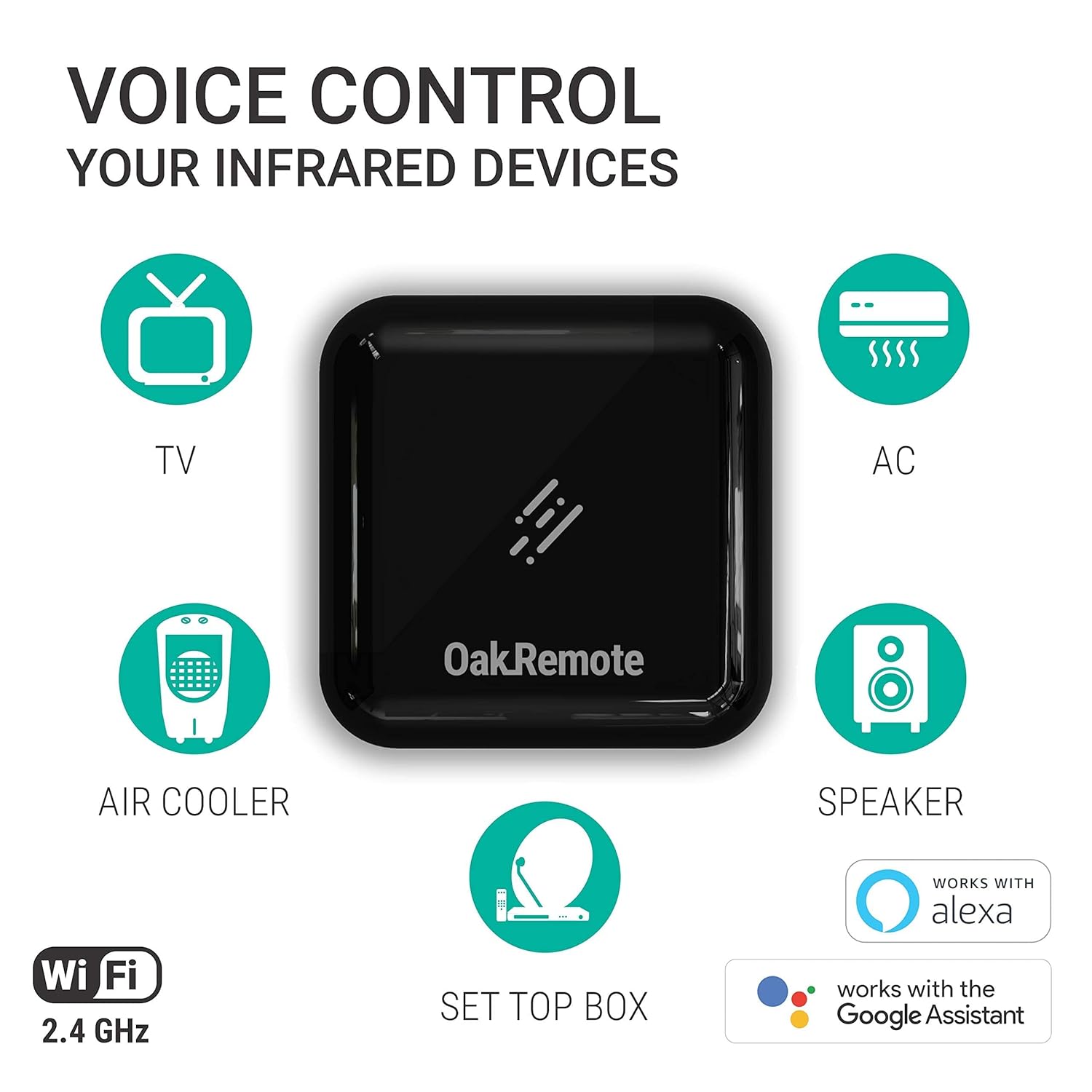
Image: The OakRemote device showcasing its compatibility with various infrared devices and voice assistants.
2. What's in the Box
Upon opening your OAKTER OakRemote package, you should find the following components:
- 1 x OakRemote WiFi Universal Remote device
- 1 x USB Power Cable (Micro USB)
- 1 x Power Adapter (Standard 2-pin Indian plug, 5V at 1.1A)
- 1 x User Manual / Quick Start Guide
- 1 x Support Contact Card
Video: An unboxing and quick overview of the OAKTER OakRemote WiFi Universal Remote, showing all included components.
3. Setup Guide
Follow these steps to set up your OAKTER OakRemote:
- Download the Oakter Smart Home App: Download the official Oakter Smart Home mobile application from Google Play Store (for Android) or Apple App Store (for iOS). Create your user account and log in.
- Power On the Device: Connect the provided Micro USB cable to the OakRemote device and the USB power adapter. Plug the adapter into a power outlet. The device requires a 5V, 1.1A power supply.
- Add Device in App: Open the Oakter Smart Home app. Click on 'Add Device' and scan the QR code printed on the underside of the OakRemote device.
- Configure WiFi: Follow the on-screen instructions in the mobile app to connect the OakRemote to your home 2.4 GHz WiFi network. Ensure your WiFi is stable for optimal performance.
- Create New Remote: In the app, click on 'Add New Remote'. Choose the remote type from the dropdown menu (e.g., TV, AC, Set Top Box, Speaker).
- Integrate Appliances: Follow the instructions in the mobile app to add your IR remotes. The app has an inbuilt library for Indian TV, Set Top Boxes, and Air Conditioners. For devices not in the library, you can use the 'Learn Your IR Remote' feature to teach the OakRemote commands from your original remote.

Image: The OakRemote device and its packaging, illustrating the product's appearance.
4. Operating Instructions
Once your OakRemote is set up and configured, you can control your infrared devices using the mobile app or voice commands.
4.1. Using the Oakter Smart Home App
- Device Control: Select the desired appliance (TV, AC, etc.) from the app's interface. You will see a virtual remote with all the necessary buttons to control your device.
- Favorite Channels: For set-top boxes, you can create a list of favorite channels for quick access.
- Scheduling: Use the app to schedule power on/off times for your appliances.

Image: The Oakter Smart Home app interface demonstrating one-click access to favorite channels.
4.2. Voice Control with Alexa and Google Home
The OakRemote is compatible with Amazon Alexa and Google Assistant, allowing you to control your devices using voice commands. Ensure your voice assistant device (e.g., Amazon Echo, Google Home) is linked to your Oakter account.
- General Commands:
- "Alexa, switch on TV."
- "Ok Google, switch off AC."
- "Alexa, set AC to 24 degrees."
- "Ok Google, mute TV."
- Channel Control:
- "Alexa, set channel to Star Sports." (Note: Alexa may not accept all Indian channel names; channel numbers are generally more reliable.)
Video: A demonstration of how the OakRemote functions, explaining its core capabilities.
5. Maintenance
To ensure the longevity and optimal performance of your OakRemote, follow these simple maintenance guidelines:
- Cleaning: Wipe the device regularly with a soft, dry cloth to remove dust. Avoid using liquid cleaners or abrasive materials.
- Placement: Place the OakRemote in a central location within the room, ensuring it has a clear line of sight to the appliances it controls for effective IR signal transmission. Avoid placing it near heat sources or in direct sunlight.
- Firmware Updates: Periodically check the Oakter Smart Home app for available firmware updates. Some features may require a firmware update for proper functionality.

Image: The OakRemote device highlighting its 360-degree infrared coverage for comprehensive control.
6. Troubleshooting
If you encounter issues with your OakRemote, refer to the following common problems and solutions:
- Device Not Connecting to WiFi / Frequent Disconnections:
- Ensure your WiFi network is 2.4 GHz. The device is not compatible with 5 GHz networks.
- Verify your WiFi signal strength at the device's location.
- Restart your WiFi router and the OakRemote device.
- If issues persist, try resetting the device using the reset button on the underside (long press for WiFi configuration).
- Commands Not Responding / Lag:
- Ensure the OakRemote has a clear line of sight to the appliance. Obstructions can block IR signals.
- Check your internet connection speed and stability. The device relies on internet connectivity for app and voice commands.
- Verify that the correct remote profile is selected in the app for the specific appliance.
- If using learned IR commands, ensure the learning process was accurate. Re-learn commands if necessary.
- Voice Commands Not Working:
- Confirm that your Amazon Alexa or Google Assistant device is properly linked to your Oakter account.
- Ensure the device name in the Oakter app matches the name used in your voice assistant app.
- Speak clearly and use the correct command syntax.
- Specific Remote Not Found in Library:
- If your specific model of TV, AC, or other device is not in the pre-installed library, use the 'Learn Your IR Remote' feature in the Oakter app to teach the OakRemote commands from your original remote.
7. Specifications
| Brand | OAKTER |
| Model Number | OakRemote (V2 44202) |
| Connectivity | WiFi (2.4 GHz compatible) |
| Control Type | Infrared (IR) Blaster |
| Compatible Devices | TV, Air Conditioner, Set Top Box, Speakers, Air Coolers, Home Theater (any IR-controlled device) |
| Voice Assistant Compatibility | Amazon Alexa, Google Assistant |
| Power Input | 5V DC, 1.1A (via Micro USB) |
| Dimensions (LxWxH) | 13 x 13 x 5.9 Centimeters |
| Item Weight | 250 g |
8. Warranty & Support
Your OAKTER OakRemote comes with a One Year Warranty from the date of purchase.
For help and support, you can reach out to OAKTER through the following channels:
- Phone: +91 7575 04 05 06
- YouTube Tutorials: youtube.com/loveOakter
- Website: www.oakremote.com
The OakRemote requires the Oakter Smart Home App and a functional home WiFi network to operate.
