
1. Introduction
This manual provides detailed instructions for the installation, operation, and maintenance of your BOHISEN J08 Dual Dash Cam. Please read this manual thoroughly before using the device to ensure proper functionality and to maximize your user experience. Keep this manual for future reference.
2. Product Overview
The BOHISEN J08 is a dual dash camera system designed to record both the front view of your vehicle and the interior cabin simultaneously. It features 1080P resolution for clear video capture, infrared (IR) night vision, a G-Sensor for accident detection, loop recording, and parking monitoring capabilities.

Image 2.1: The BOHISEN J08 Dual Dash Cam, showing its front-facing and interior-facing cameras, along with the display screen.
2.1 Key Features
- Dual 1080P Recording: Simultaneous recording of front and cabin views in Full HD.
- IR Night Vision: Enhanced visibility in low-light conditions for both cameras.
- Wide Angle Lenses: 170° front and 140° interior wide-angle coverage.
- G-Sensor: Automatically detects collisions and locks video files to prevent overwriting.
- Loop Recording: Continuously records by overwriting the oldest unlocked files.
- Parking Monitor: Records when vibration is detected while the vehicle is parked.
- Supports up to 256GB Micro SD Card: Ample storage for extended recording.

Image 2.2: The dash cam display showing a split view, capturing both the road ahead and the vehicle's interior.
3. Setup
3.1 Package Contents
Before installation, please verify that all items are present:
- 1x BOHISEN J08 Dual Dash Cam
- 1x Suction Cup Mount
- 1x Car Charger
- 1x Mini USB Cable
- 1x User Manual

Image 3.1: All components included in the BOHISEN J08 Dual Dash Cam package.
3.2 Installing the Suction Cup Mount
Follow these steps to securely attach the dash cam to your windshield:
- Clean the windshield surface where the mount will be placed and remove any protective film from the suction cup.
- Attach the suction cup to the windshield and twist the bracket to lock it into position.
To remove the mount:
- Twist the bracket to unlock it.
- Gently pick up the small silicone pad to release the suction and remove it from the windshield. Do not pull out the suction cup directly.

Image 3.2: Visual guide for installing and removing the suction cup mount.
3.3 Inserting the Micro SD Card
Insert a compatible Micro SD card (up to 256GB, Class 10 or higher recommended) into the designated slot on the dash cam. Ensure the card is inserted correctly until it clicks into place.
3.4 Power Connection
Connect the car charger to your vehicle's 12V power outlet and then connect the Mini USB cable to the dash cam. The device will typically power on and begin recording automatically when the vehicle starts.
4. Operation
4.1 Basic Recording
Once powered on, the dash cam will automatically start recording. The front and interior cameras will record simultaneously. Video files are saved to the Micro SD card.
4.2 Loop Recording
The dash cam features loop recording, which means it continuously records video in segments (e.g., 1, 3, or 5 minutes). When the memory card is full, the oldest unlocked video files will be overwritten to make space for new recordings. This ensures continuous recording without manual intervention.
4.3 G-Sensor and Emergency Lock
The built-in G-Sensor detects sudden movements or impacts, such as those from a collision. When triggered, the current video segment is automatically locked and saved to a protected folder on the Micro SD card, preventing it from being overwritten by loop recording. These locked files serve as important evidence.

Image 4.1: Explanation of Emergency Lock and G-Sensor functionality, showing how collision events are protected.
4.4 Parking Monitor
With the parking monitor feature enabled, the dash cam will automatically begin recording if it detects vibration or impact while your vehicle is parked and the engine is off. This provides surveillance for potential incidents when you are away from your vehicle.
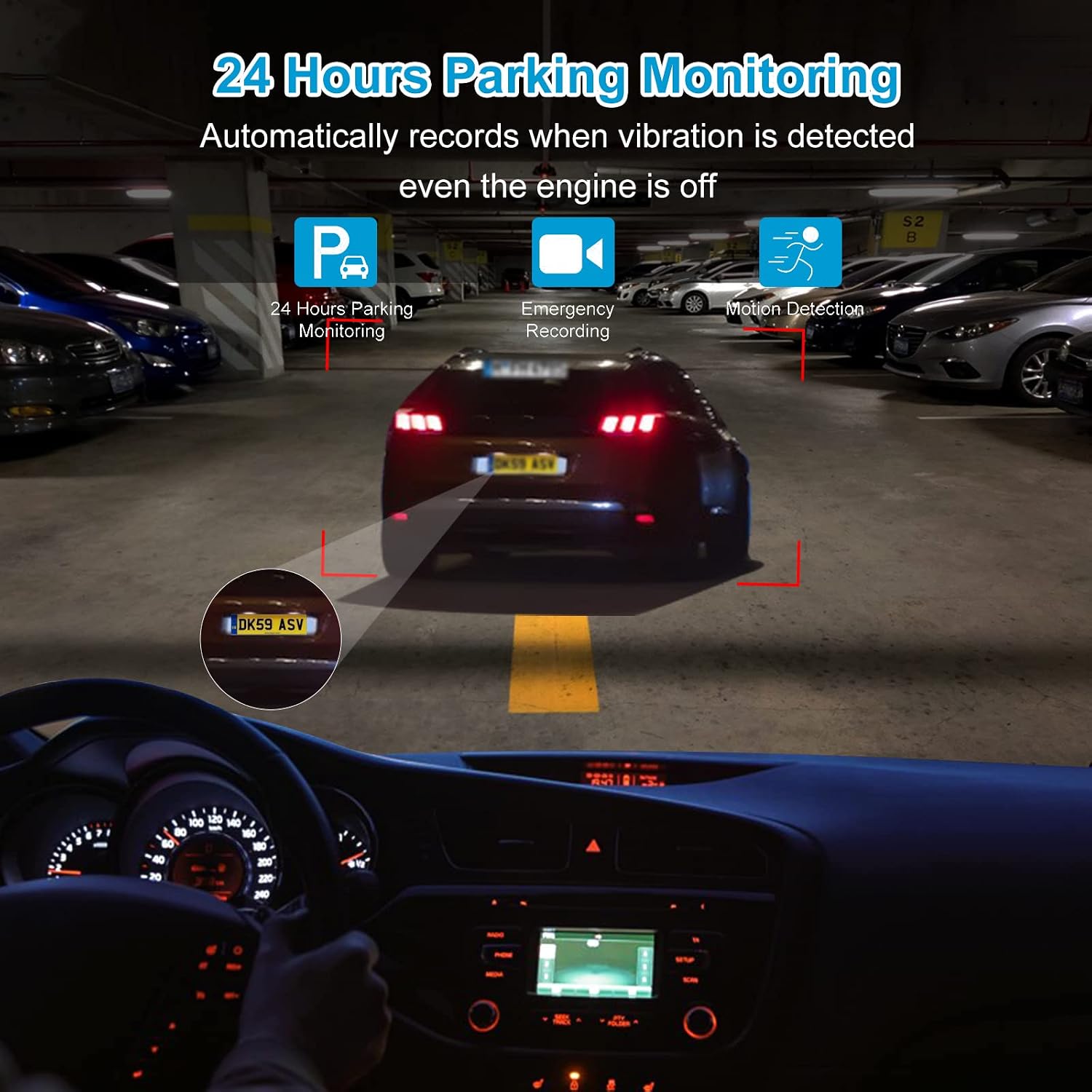
Image 4.2: The dash cam's 24-hour parking monitoring feature, which activates upon detecting vibration.
4.5 IR Night Vision
The BOHISEN J08 is equipped with infrared (IR) lights to enhance night vision capabilities, particularly for the interior cabin camera. This allows for clear recording even in complete darkness.

Image 4.3: The dash cam's Super Night Vision feature, highlighting the 4 IR lights for improved low-light recording.
4.6 Menu Navigation
The dash cam features an intuitive menu system for adjusting settings such as resolution, loop recording duration, G-Sensor sensitivity, motion detection, and more. Use the physical buttons on the device to navigate through the menu options and confirm selections.
Video 4.4: This video demonstrates how to navigate the menu settings on the BOHISEN J08 Dual Dash Cam, showing options like loop recording, resolution, and G-Sensor settings.
5. Maintenance
- Cleaning: Use a soft, dry cloth to clean the camera lenses and screen. Avoid abrasive cleaners or solvents.
- Firmware Updates: Check the manufacturer's website periodically for firmware updates to ensure optimal performance and access to new features.
- Memory Card: Format the Micro SD card regularly (e.g., once a month) to prevent data corruption and ensure smooth recording. Back up important files before formatting.
- Temperature: Avoid exposing the dash cam to extreme temperatures for prolonged periods.
6. Troubleshooting
6.1 Common Issues and Solutions
| Problem | Possible Cause | Solution |
|---|---|---|
| Dash cam does not power on. | No power supply; faulty car charger; damaged cable. | Check car charger connection and vehicle's power outlet. Try a different USB cable or car charger. |
| "Please Insert SD Card" message. | SD card not inserted; card not recognized; faulty card. | Ensure SD card is fully inserted. Try reinserting. Format the card (if data is backed up). Try a different, compatible SD card. |
| Video quality is poor. | Dirty lens; protective film still on lens; incorrect resolution setting. | Clean the camera lenses. Remove any protective film. Check video resolution settings in the menu. |
| Dash cam freezes or crashes. | SD card error; firmware issue. | Format the SD card. Reset the device (if a reset button is available). Update firmware if available. |
| Loop recording not working. | Loop recording disabled; too many locked files. | Enable loop recording in settings. Manually delete unnecessary locked files or format the SD card. |
7. Specifications
| Feature | Detail |
|---|---|
| Model | J08 |
| Video Capture Resolution | 1080p (Front & Interior) |
| Connectivity Technology | Infrared |
| Mounting Type | Suction Mount |
| Control Method | Buttons |
| Screen Size | 3 Inches |
| Flash Memory Type | SD (Micro SD) |
| Max SD Card Support | 256GB |
| Item Weight | 11.3 ounces |
| Package Dimensions | 7.56 x 5.24 x 2.68 inches |
| Are Batteries Included | Yes |
8. Warranty and Support
For warranty information, technical support, or further assistance, please refer to the contact details provided on the product packaging or the official BOHISEN website. Keep your purchase receipt as proof of purchase.


