
WiFi Card 0C011-00250100
User Manual
Model: MT7921 | Brand: Generic
1. Introduction
This manual provides essential information for the installation, operation, and maintenance of your MediaTek MT7921 M.2 2230 NGFF 802.11ax WLAN Bluetooth 5.2 WiFi Card. This card is a compatible replacement spare part for Asus ROG Zephirus G15 GA503 Series laptops.
The MT7921 offers advanced wireless connectivity, supporting the 802.11ax (Wi-Fi 6) standard for high-speed wireless local area network (WLAN) connections and Bluetooth 5.2 for seamless peripheral connectivity.
2. What's in the Box
- 1 x WLAN Bluetooth 5.2 WiFi Card (MediaTek MT7921)
3. Product Overview
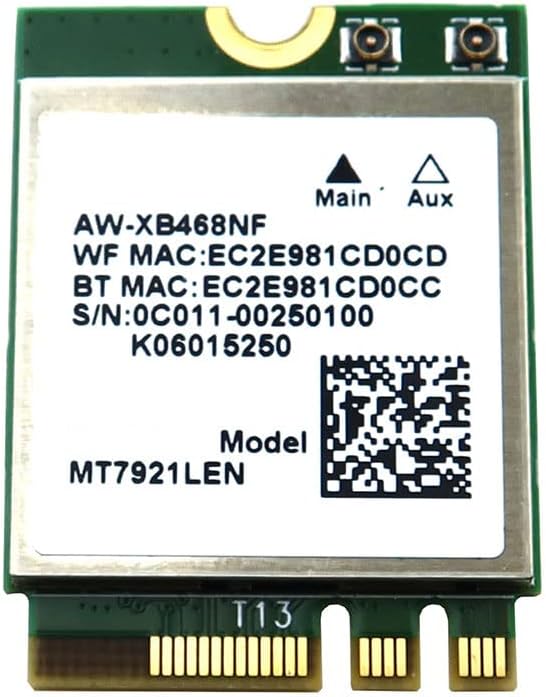
Figure 3.1: Front view of the MT7921 WiFi Card. This image displays the top side of the M.2 2230 form factor card, highlighting the MediaTek MT7921 chip, the main and auxiliary antenna connectors, and the serial number 0C011-00250100.
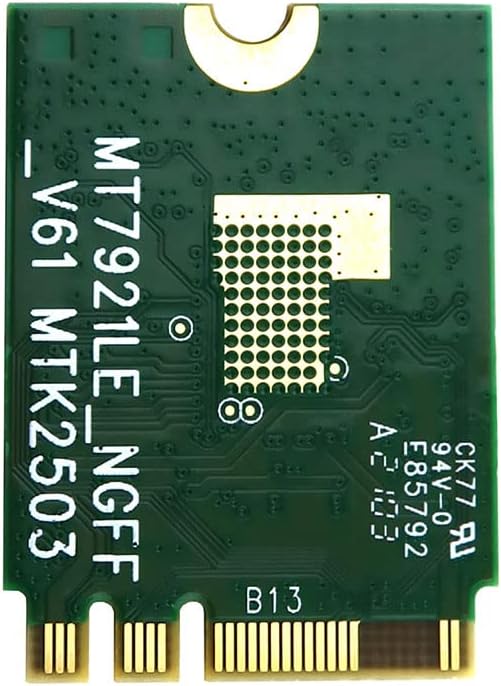
Figure 3.2: Back view of the MT7921 WiFi Card. This image shows the underside of the M.2 2230 card, revealing the gold-plated M.2 connector pins and the intricate circuit board traces.
4. Setup and Installation
Important: Before beginning installation, ensure your laptop is powered off and disconnected from all power sources. It is recommended to discharge any static electricity by touching a grounded metal object.
- Prepare your Laptop: Carefully open your laptop's chassis to access the internal components. Refer to your laptop's specific service manual for instructions on how to safely open it.
- Locate the M.2 Slot: Identify the M.2 2230 slot designated for the wireless card. If an old card is present, gently disconnect its antenna cables and remove the retaining screw, then slide the old card out.
- Install the New Card: Align the notch on the MT7921 WiFi card with the key in the M.2 slot. Gently insert the card into the slot at an angle (approximately 30 degrees) until it is fully seated.
- Secure the Card: Press the card down towards the motherboard and secure it with the retaining screw.
- Connect Antennas: Carefully connect the existing antenna cables to the corresponding connectors on the new WiFi card. Typically, the 'Main' antenna connects to the 'Main' port and 'Aux' to 'Aux'. Ensure a firm, snap-on connection.
- Close Laptop: Reassemble your laptop's chassis.
- Power On and Install Drivers: Power on your laptop. The operating system may automatically detect and install basic drivers. If not, download the latest MediaTek MT7921 drivers from your laptop manufacturer's support website or MediaTek's official website.
5. Operating Instructions
Once the card is physically installed and drivers are loaded, your system should recognize the new wireless and Bluetooth capabilities.
- Verify Installation: Open Device Manager (Windows) or System Information (macOS/Linux) and check under "Network adapters" and "Bluetooth" to confirm that the MediaTek MT7921 is listed and functioning correctly.
- Connect to Wi-Fi:
- Click on the Wi-Fi icon in your system tray (Windows) or menu bar (macOS).
- Select your desired Wi-Fi network from the list.
- Enter the network password if prompted and click "Connect".
- Use Bluetooth:
- Ensure Bluetooth is enabled in your system settings.
- Go to Bluetooth settings and initiate a device search.
- Select the Bluetooth device you wish to pair with and follow the on-screen instructions.
6. Maintenance
To ensure optimal performance and longevity of your WiFi card:
- Driver Updates: Regularly check for and install the latest drivers for the MediaTek MT7921 from your laptop manufacturer's website or MediaTek's official support page. Updated drivers can improve performance, stability, and security.
- System Updates: Keep your operating system updated to ensure compatibility and security patches that may affect wireless and Bluetooth functionality.
- Physical Inspection: If you experience persistent issues, a physical inspection of the card and antenna connections may be necessary. Ensure connections are secure and the card is properly seated.
7. Troubleshooting
If you encounter issues with your WiFi card, consider the following troubleshooting steps:
- Card Not Detected:
- Ensure the card is correctly seated in the M.2 slot.
- Verify the retaining screw is tightened.
- Check your laptop's BIOS/UEFI settings to ensure the M.2 slot is enabled.
- No Wi-Fi Connectivity:
- Confirm that Wi-Fi is enabled in your operating system settings.
- Ensure antenna cables are securely connected to the card.
- Reinstall or update the Wi-Fi drivers.
- Restart your router and modem.
- No Bluetooth Functionality:
- Confirm that Bluetooth is enabled in your operating system settings.
- Reinstall or update the Bluetooth drivers.
- Try removing and re-pairing Bluetooth devices.
- Intermittent Connection:
- Check for driver updates.
- Ensure there are no physical obstructions or interference sources near your laptop or router.
- Verify antenna connections are secure.
8. Specifications
| Feature | Description |
|---|---|
| Model | MT7921 |
| Part Number | 0C011-00250100 |
| Compatible Part Numbers | AW-XB468NF |
| Compatible Models | Asus ROG Zephirus G15 GA503 Series |
| Bluetooth Standard | Bluetooth 5.2 |
| Wireless LAN Support | 802.11ax WLAN (Wi-Fi 6) |
| Network/Communications | AzureWave AW-XB468NF |
| Interface | NGFF (Next Generation Form Factor) |
| Form Factor | M.2 2230 |
| Type | Bluetooth WiFi Card |
| Item Weight | 2 pounds |
9. Warranty and Support
For warranty information and technical support, please refer to the specific terms provided by your seller or the manufacturer. Keep your proof of purchase for any warranty claims.
For driver downloads and further technical documentation, visit the official MediaTek support website or the support page for your laptop manufacturer (e.g., Asus).