1. Introduction and Overview
Thank you for choosing the GreenLaw Keyboard Case for your iPad mini. This versatile accessory transforms your tablet into a powerful productivity tool, offering a comfortable typing experience, precise trackpad control, and flexible viewing angles. This manual provides essential information for setup, operation, maintenance, and troubleshooting to ensure you get the most out out of your device.

2. Compatibility
This GreenLaw Keyboard Case is specifically designed for the following iPad mini models:
- iPad Mini 7th Generation 2024 (8.3-inch) - Models: A2993, A2995, A2996
- iPad Mini 6th Generation 2021 (8.3-inch) - Models: A2567, A2568, A2569
Please verify your iPad model number before use to ensure proper fit and functionality.

3. Key Features
3.1 Multi-Gesture Trackpad
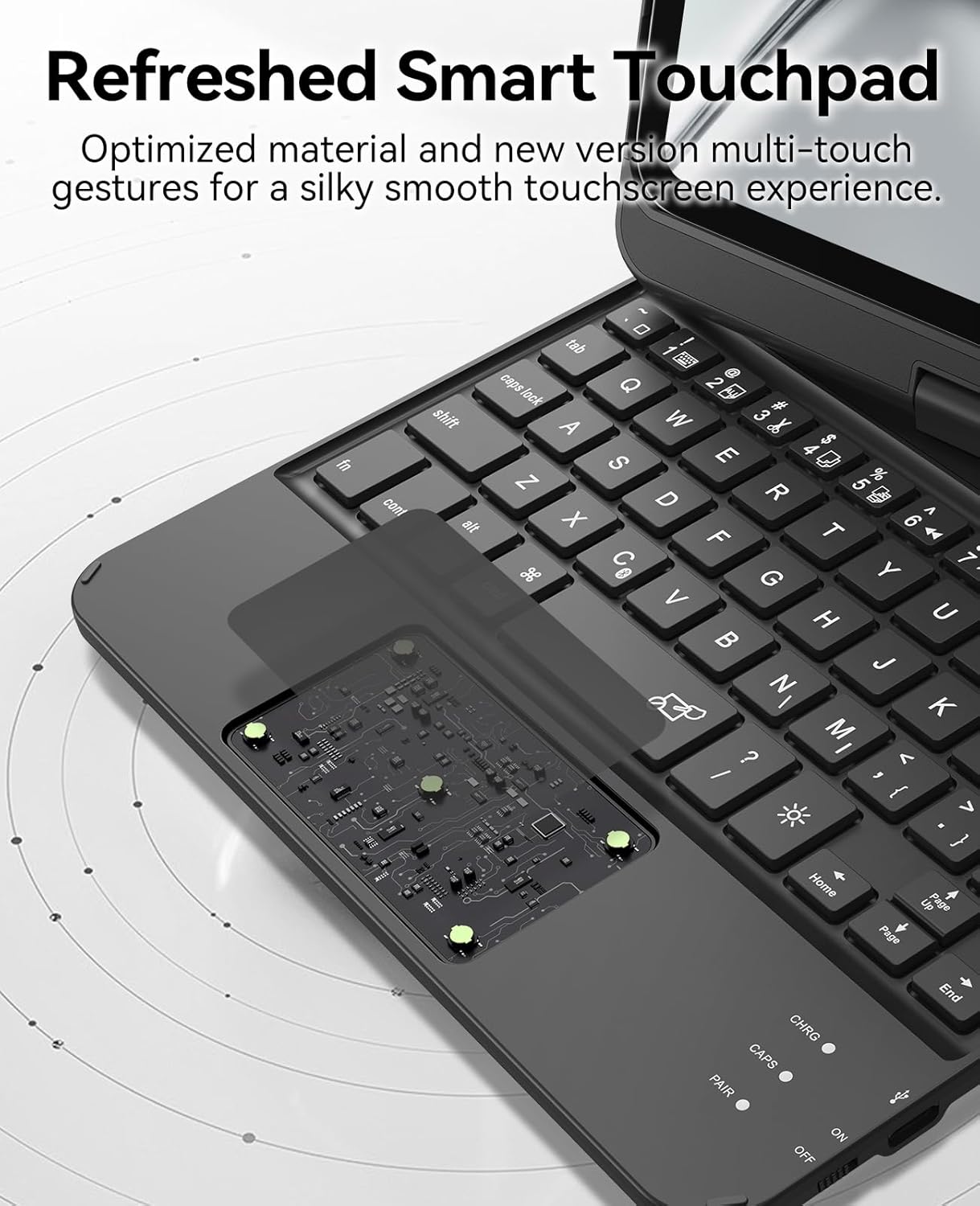
The integrated smart touchpad provides precise control and navigation, allowing you to interact with your iPad mini much like a laptop. It supports multi-touch gestures for efficient document editing, web browsing, and presentation building, enhancing your productivity.
Video 3.1: Demonstration of the GreenLaw Touchpad Keyboard for iPad mini 7/6 8.3 inch, showcasing its functionality.
3.2 7-Color Backlit Keyboard
Customize your typing experience with 7 vibrant backlight colors and 3 adjustable brightness levels. This feature not only adds a stylish touch to your keyboard case but also improves visibility in low-light conditions, providing a comfortable typing experience.


3.3 Free Rotation and Multiple Positions
Designed with a 360° free rotation hinge, this keyboard case offers maximum flexibility. You can position your iPad mini in various orientations, including laptop mode, tablet mode, and stand mode, providing optimal viewing and interaction for any task.


3.4 Energy Saving Features
The keyboard utilizes a universal Type-C interface for charging. A full charge (2-3 hours) provides up to 3 hours of continuous use with backlight or 60 hours without backlight. It also features an automatic sleep function to conserve battery life when not in use. Simply press any key to reactivate and reconnect.
3.5 Apple Pencil Charging Support
The case is designed with precise cutouts to allow for convenient magnetic attachment and charging of your Apple Pencil (2nd Generation) directly on your iPad mini, ensuring it's always ready when you are.

4. Setup Guide
4.1 Charging the Keyboard
- Locate the Type-C charging port on the side of the keyboard.
- Connect the provided Type-C charging cable to the keyboard and a compatible USB power adapter (not included).
- The charging indicator light will illuminate. A full charge typically takes 2-3 hours.
- Once fully charged, the indicator light may change or turn off. Disconnect the cable.
4.2 Bluetooth Pairing
- Ensure the keyboard is charged. Turn on the keyboard using the power switch.
- On your iPad mini, go to Settings > Bluetooth.
- Turn on Bluetooth. Your iPad will search for nearby devices.
- On the keyboard, press the Connect button (often indicated by a Bluetooth icon or "Pair"). The Bluetooth indicator light on the keyboard will start blinking.
- On your iPad, select "GreenLaw Keyboard" (or similar name) from the list of available devices.
- Follow any on-screen prompts to complete the pairing process. Once paired, the Bluetooth indicator light on the keyboard will stop blinking and remain solid, or turn off.
If pairing fails, turn off both the keyboard and iPad's Bluetooth, then repeat the steps.
5. Operating Instructions

5.1 Keyboard Backlight Control
- To turn the backlight on/off: Press the Lightbulb key (often near the spacebar or function row).
- To change backlight color: Press Fn + Lightbulb key. Cycle through the 7 available colors.
- To adjust brightness: Press Fn + Up Arrow or Fn + Down Arrow (or similar keys, refer to keyboard legends) to cycle through 3 brightness levels.
5.2 Trackpad Gestures
The multi-gesture trackpad supports various iPadOS gestures for intuitive navigation:
- Single Finger Tap: Left-click.
- Two Finger Tap: Right-click (context menu).
- Two Finger Scroll: Scroll up/down or left/right.
- Pinch to Zoom: Zoom in/out on content.
- Three Finger Swipe Up: Go to Home Screen.
- Three Finger Swipe Left/Right: Switch between open apps.
For a complete list of supported gestures, refer to your iPad's settings under Accessibility > Touch > AssistiveTouch or General > Trackpad.
5.3 Utilizing Rotation Modes
The 360° rotating hinge allows for several versatile modes:
- Laptop Mode: Use as a traditional laptop with the screen upright and keyboard accessible.
- Tablet Mode: Fold the keyboard completely behind the iPad for a pure tablet experience. The keyboard will automatically disable.
- Stand Mode: Rotate the screen to face away from the keyboard, ideal for watching videos or presentations.
- Book Mode: Fold the case back on itself to hold like a book, perfect for reading.
5.4 Multimedia Shortcut Keys
The keyboard includes dedicated function keys for quick access to common iPad functions, such as volume control, media playback, screen lock, and search. Refer to the key legends for specific functions.
6. Maintenance
To ensure the longevity and optimal performance of your GreenLaw Keyboard Case, follow these maintenance tips:
- Cleaning: Use a soft, lint-free cloth slightly dampened with water or a mild cleaning solution to wipe down the keyboard and case. Avoid harsh chemicals or abrasive materials.
- Storage: When not in use for extended periods, store the keyboard case in a cool, dry place. Ensure the keyboard is turned off to conserve battery.
- Handle with Care: While durable, avoid dropping the case or applying excessive force to the hinge or keys.
7. Troubleshooting
If you encounter any issues with your GreenLaw Keyboard Case, please refer to the following common solutions:
- Keyboard Not Connecting:
- Ensure the keyboard is charged and turned on.
- Verify Bluetooth is enabled on your iPad and the keyboard is in pairing mode.
- Forget the device in iPad Bluetooth settings and re-pair.
- Restart both your iPad and the keyboard.
- Trackpad Issues (e.g., unresponsive, overly sensitive, app freezing):
- Ensure the trackpad is clean and free of debris.
- Check iPad settings: Settings > General > Trackpad for sensitivity adjustments.
- If experiencing app freezing, try disabling all trackpad options in iPadOS settings (Settings > General > Trackpad) as a temporary workaround, then re-enable one by one to identify the cause.
- Turn the keyboard off and on again to reset the connection.
- Backlight Not Working:
- Ensure the keyboard has sufficient battery charge.
- Press the backlight key to toggle it on/off.
- Try adjusting brightness levels.
- Missing or Unresponsive Keys:
- Ensure the keyboard is properly connected via Bluetooth.
- Some special characters or functions may require the Fn key combination. Refer to the key legends.
- If a specific key is unresponsive, try cleaning around it.
For further assistance, please refer to the official User Manual (PDF) or contact GreenLaw customer support.
8. Specifications
| Feature | Detail |
|---|---|
| Product Dimensions | 9.84 x 6.5 x 0.98 inches |
| Item Weight | 1.14 pounds |
| Manufacturer | GreenLaw |
| Item Model Number | T83 |
| Batteries | 1 Lithium Polymer batteries required (included) |
| Connectivity Technology | Bluetooth |
| Keyboard Description | Wireless |
| Special Feature | 7-Color Backlit, 360° Rotate/180° Flip, Smart Trackpad |
| Number of Keys | 78 |
| Language | English |
9. Warranty and Support
GreenLaw products are designed for reliability and performance. For specific warranty information, please refer to the documentation included with your product or visit the official GreenLaw brand store.
For additional support, FAQs, and product information, please visit the GreenLaw Brand Store on Amazon.
You can also download the comprehensive User Manual (PDF) for detailed instructions and troubleshooting guides.


