
Introduction
The Equantu Azan Clock Quran Speaker SQ600 is an Islamic device designed to assist with daily prayer times and Quranic learning. This device functions as an alarm clock, a Quran speaker, and an Azan (Athan/Prayer) clock, offering features such as one-click Azan time setting, voice reminders for prayer, and integrated Quran recitations.
It supports control via touch, Bluetooth, and a dedicated mobile application, providing flexibility in operation. The clock is designed for indoor use and features a wooden frame with an analog display.
Package Contents
Please verify that all items listed below are included in your package:
- Equantu Azan Clock Quran Speaker (SQ600)
- Remote Control
- User Manual
- Power Adapter
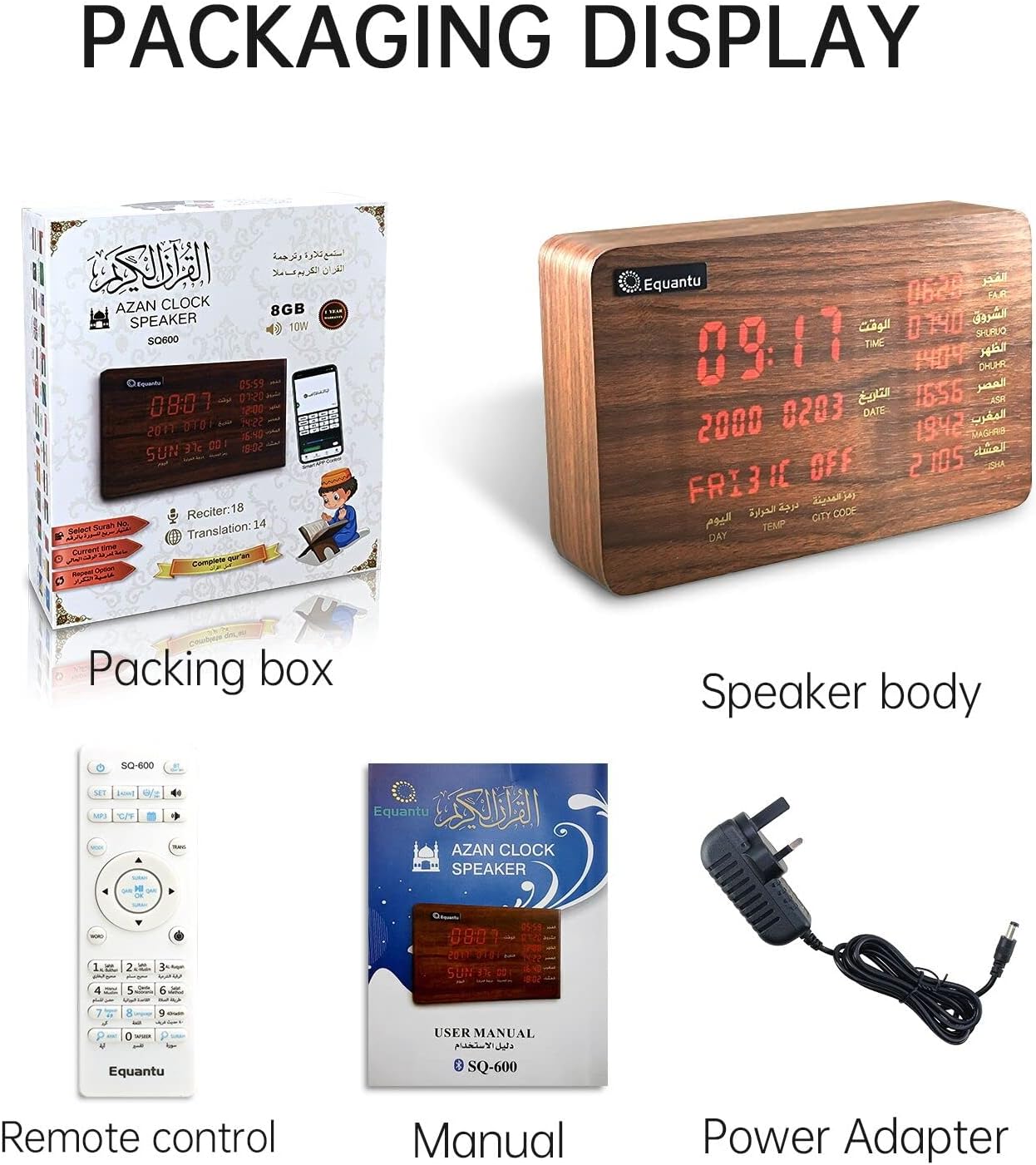
Image: Contents of the Equantu Azan Clock SQ600 package, showing the speaker unit, remote control, user manual, and power adapter.
Setup
- Power Connection: Connect the provided power adapter to the DC input port on the back of the Azan Clock. Plug the adapter into a standard electrical outlet. The clock will power on automatically.
- Initial Setup: Upon first power-on, the clock may display default settings. It is recommended to set the correct time zone and location for accurate Azan times.
- Mobile App Download (Optional): For enhanced control and features, download the official Equantu app from your smartphone's app store (available for Android and iOS). Search for "Equantu" or refer to the QR code in the printed manual if available.
- Bluetooth Pairing (Optional): If using Bluetooth for audio playback, activate Bluetooth on your mobile device and search for the Azan Clock (e.g., "Equantu SQ600"). Pair the devices.
Operating Instructions
Setting Azan Time and Location
The Azan Clock supports over 6000 cities worldwide for accurate prayer time calculations. You can set the Azan time and location using the mobile application or the remote control.
- Using the Mobile App: Open the Equantu app and connect to your device. Navigate to the "Azan Setting" or "Location Setting" menu. The app allows for one-click setting of Azan times by automatically detecting your current position or by manually entering longitude and latitude.
- Manual Setting (Remote Control): Refer to the detailed instructions in the printed manual for manual setting using the remote control buttons. This typically involves navigating through menus to select city, time zone, and calculation methods.

Image: Mobile application interface demonstrating Azan time settings and location configuration, including options for longitude, latitude, time zone, and calculation methods.

Image: The Azan Clock displaying current time and prayer times, alongside a smartphone screen illustrating the mobile app's location-based setting feature for over 6000 cities.
App Control
The mobile application provides comprehensive control over the Azan Clock's functions, including:
- Setting Azan times and alarms.
- Adjusting volume and playback of Quran recitations.
- Managing Quran reciters and language translators.
- Accessing additional features like full-screen mode for displaying information.

Image: A smartphone showing the Equantu app, which allows for full control of the Azan Clock, including setting Azan times and managing other features.
Remote Control
The included remote control allows for direct interaction with the Azan Clock without needing the mobile app. Functions typically include:
- Power On/Off.
- Volume adjustment.
- Navigation through Quran chapters (Surahs) and verses (Ayats).
- Setting alarms and basic clock functions.
- Changing display modes or light settings (if applicable).

Image: The Azan Clock shown with both its dedicated remote control and a smartphone displaying the control app, illustrating multiple methods of interaction.
Quran Learning Features
The Azan Clock is equipped with built-in Quran learning tools:
- Reciters: Features 16 built-in reciter voices for various Quranic recitations.
- Translators: Includes 16 language translators to understand the meanings of the Quran.
- Use the remote control or mobile app to select specific Surahs, Ayats, reciters, and translation languages.

Image: A visual representation of the Quran learning feature, showing a person engaged in Quranic study, with the Azan Clock visible in the setting.
Maintenance
- Cleaning: Use a soft, dry cloth to clean the surface of the clock. Avoid using abrasive cleaners or solvents, which may damage the wood finish or display.
- Power: Ensure the clock is connected to a stable power source. If using batteries (not included), replace them when the display dims or functions become erratic.
- Environment: Keep the clock in a dry environment, away from direct sunlight, extreme temperatures, and high humidity to prevent damage to electronic components and the wooden casing.
Troubleshooting
- Clock Not Powering On:
- Check if the power adapter is securely connected to both the clock and the power outlet.
- Ensure the power outlet is functional. - Incorrect Azan Times:
- Verify that the correct city, time zone, and calculation method are selected in the settings (via app or remote control).
- Ensure the clock's internal time is accurate. - App Connectivity Issues:
- Ensure Bluetooth is enabled on your smartphone and the clock.
- Make sure the app is updated to the latest version.
- Try restarting both the clock and your smartphone. - No Sound from Speaker:
- Check the volume level on the clock and via the remote/app.
- Ensure the speaker is not muted.
Specifications
| Brand | Equantu |
| Model | SQ600 |
| Colour | Wood |
| Display Type | Analog |
| Style | Traditional |
| Special Features | Alarm, Azan Clock, Quran Speaker, App/Remote Control |
| Power Source | Battery Powered (Batteries not included), Electrical (via adapter) |
| Indoor/Outdoor Usage | Indoor |
| Mounting Type | Tabletop |
| Material Type | Wood |
| Operation Mode | Electrical |
| UPC/GTIN | 768488478796 |
Warranty and Support
For warranty information and customer support, please refer to the contact details provided in the product packaging or visit the official Equantu website. Keep your purchase receipt as proof of purchase for any warranty claims.