
Introduction
This manual provides detailed instructions for the wanjiaone LED Desk Lamp, Model FX2U-050200U. This multifunctional device integrates an LED desk lamp with adjustable brightness, a color-changing nightlight, a pen holder, a USB charging port, and a digital clock display featuring time, date, alarm, and temperature. Please read this manual thoroughly before use to ensure proper operation and maintenance.

Figure 1: Overview of the wanjiaone LED Desk Lamp, showcasing its main features including the flexible lamp arm, pen holder, digital display, and color-changing nightlight.
Setup
- Unboxing: Carefully remove all components from the packaging. Ensure you have the LED Desk Lamp, Power Cable, Power Head, and User Manual.
- Power Connection: Connect the power cable to the DC 5V/2A input port on the back of the lamp base. Plug the power head into a standard electrical outlet.
- Initial Clock Setup: To activate the LCD display, locate the battery compartment on the underside of the lamp base. Pull out the white insulation paper from the CR2 battery slot.
- Display Backlight Activation: Long press the 'ON/OFF' button on the lamp base for 3 seconds to turn on the display backlight.

Figure 2: Illustrated steps for activating the LCD screen, including removing the insulation paper and long-pressing the power button.
Operating Instructions
1. Desk Lamp Operation
- Power On/Off: Tap the main power button on the lamp base to turn the LED desk lamp on or off.
- Brightness Adjustment: The lamp offers 3 brightness levels. Tap the main power button repeatedly to cycle through low, medium, and high brightness settings.

Figure 3: Visual representation of the three dimming levels available for the main LED desk lamp, demonstrating the range from low to high brightness.
2. Color Changing Nightlight
- Activate Nightlight: Tap the color wheel icon on the lamp base to turn on the nightlight.
- Change Colors: Slide your finger around the color wheel to select your desired nightlight color.

Figure 4: The color wheel control for the nightlight, illustrating how to select different colors to match your preference or room ambiance.
3. Clock Display & Alarm
- The LCD screen displays time, date, and temperature.
- Setting Time/Date/Alarm: Use the control buttons located on the underside of the lamp base to adjust these settings. Refer to the detailed instructions in the included user manual for specific steps.
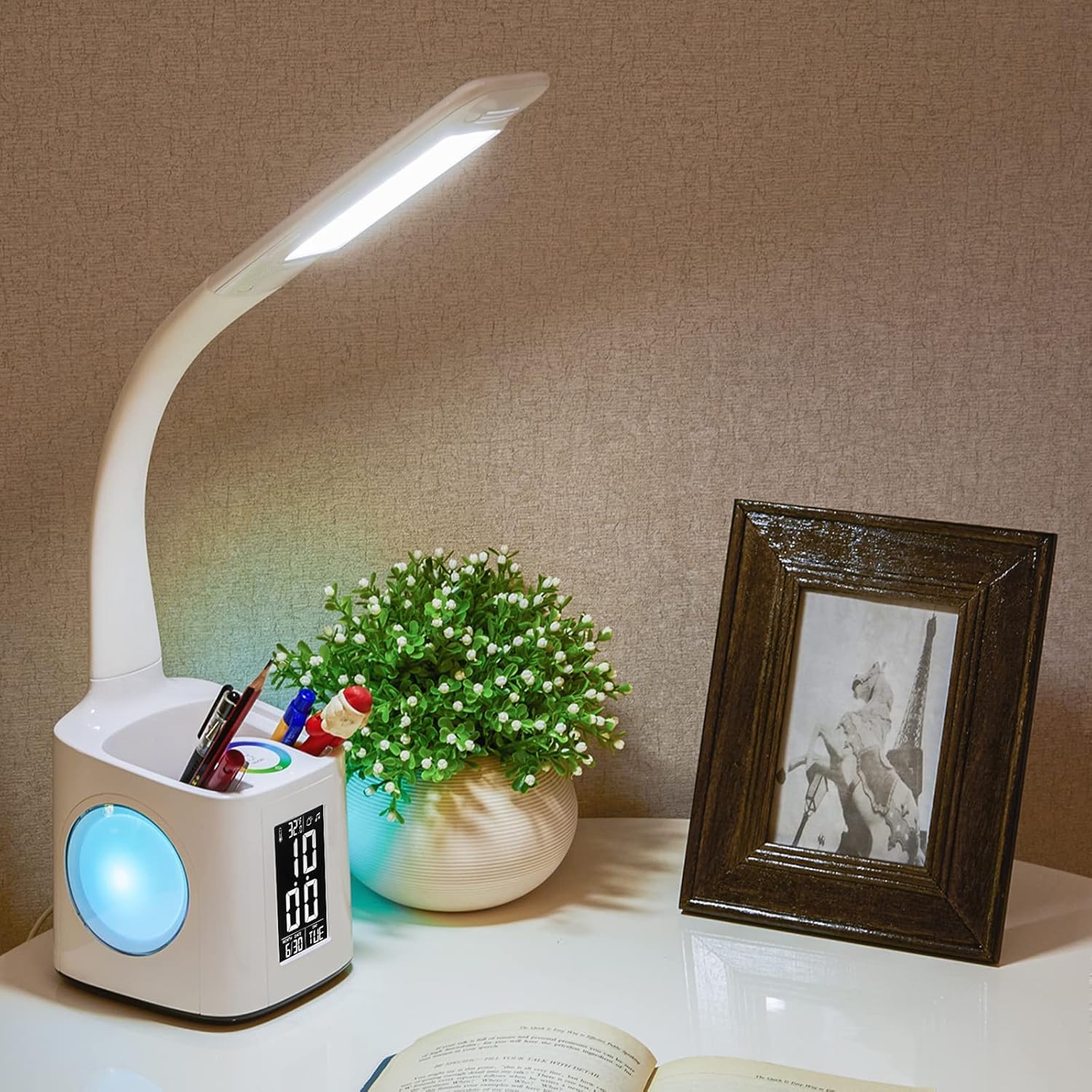
Figure 5: Detailed view of the digital display, indicating the various informational elements such as thermometer, alarm mode, hour, minute, month, date, and day.
4. USB Charging Port
- The lamp features a 5V/1A USB output port on the back.
- Connect your mobile phones, tablets, or other USB-powered devices to this port for convenient charging.

Figure 6: The USB output port located on the rear of the lamp, providing a convenient charging solution for various electronic devices.
5. Pen Holder
- The integrated pen holder provides storage for pens, pencils, and other small stationery items, helping to keep your workspace organized.
Maintenance
- Cleaning: Disconnect the power before cleaning. Use a soft, dry cloth to wipe the lamp. Avoid using abrasive cleaners or solvents.
- Clock Battery Replacement: The clock display is powered by a CR2 battery. If the display fails or becomes dim, replace the battery. Open the battery compartment on the underside of the base, remove the old battery, and insert a new CR2 battery with the correct polarity.
Troubleshooting
| Problem | Possible Cause | Solution |
|---|---|---|
| Lamp does not turn on. | Power cable not connected properly or no power from outlet. | Check power cable connection and ensure the outlet is functional. |
| LCD display is blank or dim. | Insulation paper not removed or CR2 battery is low/dead. | Ensure insulation paper is removed. Replace the CR2 battery if necessary. Long press the power button to activate backlight. |
| USB charging not working. | Device not connected correctly or lamp not powered. | Verify device connection and ensure the lamp is receiving power. |
Specifications
| Feature | Detail |
|---|---|
| Brand | wanjiaone |
| Model Number | FX2U-050200U |
| Light Source Type | LED |
| Wattage | 10 watts |
| Voltage | 5 Volts (DC) |
| Control Method | Touch |
| Special Features | Color Changing, Dimmable, USB Charging, Clock Display, Pen Holder |
| Material | Plastic |
| Product Dimensions | 5.31"D x 5.12"W x 23.62"H |
| Item Weight | 2.24 pounds |
| Included Components | LED Desk Lamp, Power Cable, Power Head, User Manual |
Product Videos
Desk Lamp with Color Changing Nightlight, Pen Holder, and USB Port
Video 1: This video demonstrates the various features of the wanjiaone LED Desk Lamp, including the color-changing nightlight, the integrated pen holder, and the convenient USB charging port. It provides a visual guide to the lamp's functionality.
Multi-Functional Desk Lamp: Everything You Need to Know
Video 2: A comprehensive overview of the multi-functional aspects of the desk lamp, detailing its design, controls, and integrated features for daily use.
Honest Review: All-in-One Light, Charger, Clock for Office
Video 3: This video provides a detailed demonstration of the desk lamp's features, including its lighting modes, charging capabilities, and clock functions, highlighting its utility in an office or study environment.
Warranty and Support
For warranty information or technical support, please refer to the contact details provided on the product packaging or visit the official wanjiaone website. Keep your purchase receipt for any warranty claims.