
1. Introduction
This user manual provides comprehensive instructions for the HP EliteDesk 800 G5-SFF desktop computer. It covers essential information regarding product setup, operational procedures, routine maintenance, and troubleshooting common issues. Please read this manual thoroughly to ensure proper use and longevity of your device.
2. What's in the Box
Upon unboxing your HP EliteDesk 800 G5-SFF, verify that all the following components are present:
- HP EliteDesk 800 G5-SFF Desktop Computer
- Power Cable
- Keyboard
- Mouse
- Documentation (this manual or similar guides)

Image: The HP EliteDesk 800 G5-SFF desktop computer shown with its accompanying wired keyboard and mouse.
3. Setup Instructions
Follow these steps to set up your HP EliteDesk 800 G5-SFF desktop computer:
- Placement: Position the desktop computer on a stable, flat surface with adequate ventilation. Ensure that air vents are not obstructed.
- Connect Peripherals:
- Connect the keyboard and mouse to the available USB ports on the front or rear of the computer.
- Connect your monitor(s) to the DisplayPort outputs on the rear of the computer. If your monitor requires a different connection type (e.g., HDMI, VGA), an appropriate adapter may be necessary.
- Connect Power: Plug the power cable into the power connector on the rear of the computer, then plug the other end into a grounded electrical outlet.
- Power On: Press the power button located on the front of the computer. The system will begin to boot up.
- Initial Configuration: Follow the on-screen instructions to complete the Windows 11 Pro setup, including language selection, network connection, and user account creation.
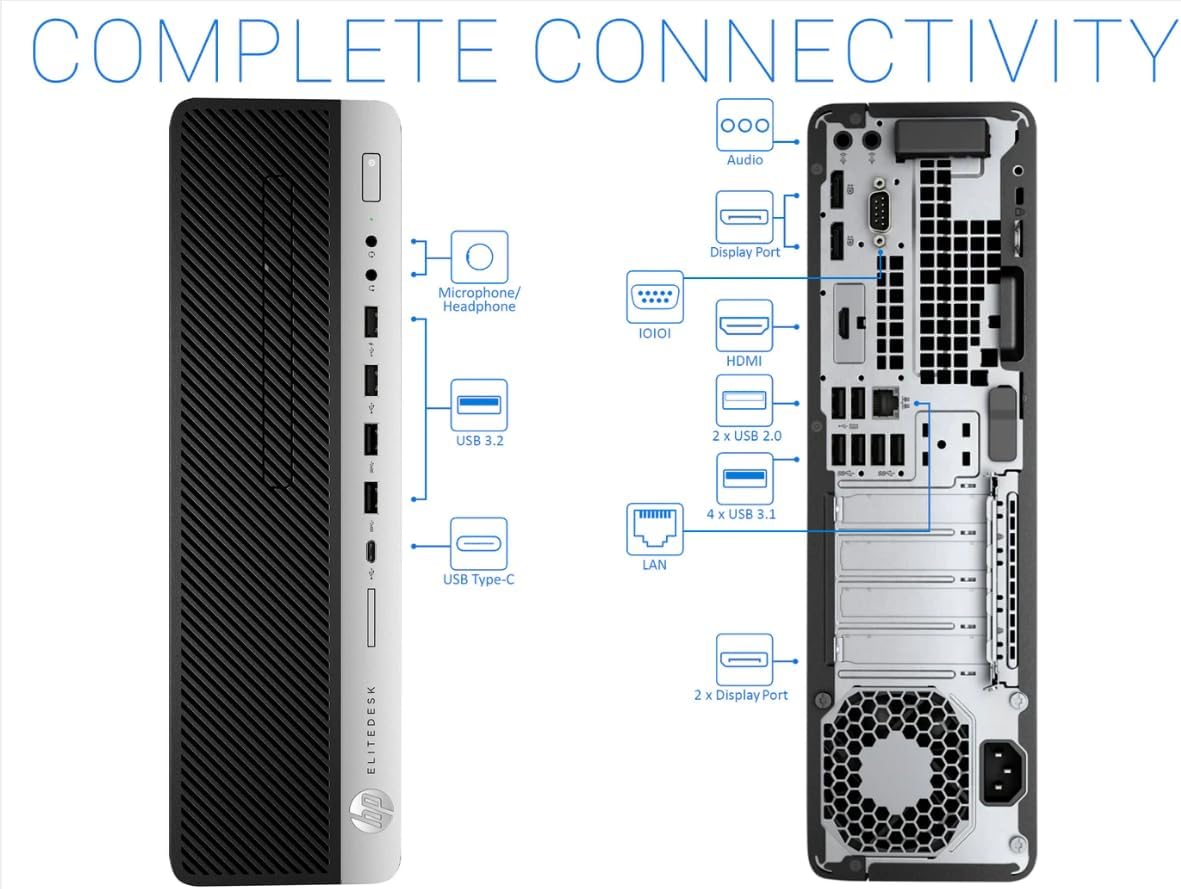
Image: The HP EliteDesk 800 G5-SFF desktop computer integrated into a typical office workspace with a monitor and accessories.

Image: A complete desktop setup featuring the HP EliteDesk 800 G5-SFF, a monitor, keyboard, and mouse.
4. Operating Instructions
4.1 Power Management
- Power On: Press the power button on the front panel.
- Shut Down: Click the Start button in Windows, then select Power > Shut down.
- Restart: Click the Start button in Windows, then select Power > Restart.
- Sleep: Click the Start button in Windows, then select Power > Sleep.
4.2 Connectivity
The HP EliteDesk 800 G5-SFF offers various ports for connecting external devices and networks.

Image: Front panel of the HP EliteDesk 800 G5-SFF, highlighting accessible USB ports, headphone/microphone jacks, and the power button.

Image: Side view of the HP EliteDesk 800 G5-SFF, illustrating its compact Small Form Factor design.

Image: A comprehensive diagram detailing the front and rear connectivity ports of the HP EliteDesk 800 G5-SFF, including USB, DisplayPort, LAN, and audio jacks.

Image: A close-up view of the rear panel ports on the HP EliteDesk 800 G5-SFF, labeling various connections such as DisplayPort, USB, and power input.
Front Ports:
- USB 3.2 (Type-A and Type-C)
- Microphone/Headphone Combo Jack
Rear Ports:
- USB 3.1 (multiple ports)
- USB 2.0 (multiple ports)
- DisplayPort (multiple ports for video output)
- LAN (Ethernet) port for wired network connection
- Audio In/Out
4.3 Network Connection
- Wired Connection: Connect an Ethernet cable from your router or modem to the LAN port on the rear of the computer.
- Wireless Connection: If your system includes a wireless adapter (or you are using a USB Wi-Fi dongle), Windows will automatically detect available Wi-Fi networks. Select your network and enter the password to connect.
5. Maintenance
Regular maintenance helps ensure optimal performance and extends the lifespan of your HP EliteDesk 800 G5-SFF.
5.1 Cleaning
- Exterior: Use a soft, lint-free cloth dampened with a mild cleaning solution to wipe the exterior surfaces. Avoid harsh chemicals.
- Vents: Periodically clean dust from the air vents using compressed air to prevent overheating. Ensure the computer is powered off before cleaning vents.
- Ports: Gently remove any dust or debris from ports using compressed air.
5.2 Software Updates
Keep your operating system and drivers updated to ensure security and performance. Windows Update will typically handle OS updates automatically. For driver updates, visit the official HP support website.
5.3 Data Backup
Regularly back up your important files to an external drive or cloud storage to prevent data loss.
6. Troubleshooting
This section addresses common issues you might encounter with your HP EliteDesk 800 G5-SFF.
- No Power:
- Ensure the power cable is securely connected to both the computer and the electrical outlet.
- Verify the power outlet is functional by plugging in another device.
- No Display:
- Check that the monitor is powered on and the video cable is securely connected to both the computer's DisplayPort and the monitor.
- Ensure the correct input source is selected on your monitor.
- Slow Performance:
- Close unnecessary applications running in the background.
- Run a disk cleanup and defragmentation (for HDD, not necessary for SSD).
- Check for and install any pending Windows updates.
- Scan for malware or viruses.
- Peripheral Not Detected:
- Try connecting the peripheral to a different USB port.
- Ensure the peripheral's drivers are installed and up to date.
- Restart the computer.
For more complex issues or if troubleshooting steps do not resolve the problem, please refer to the official HP support website or contact their customer service.
7. Specifications
| Feature | Detail |
|---|---|
| Model | HP EliteDesk 800 G5-SFF |
| Processor | Intel Core i7-9700 (8 Cores, 3.0 GHz base, up to 4.7 GHz) |
| RAM | 32GB DDR4 |
| Storage | 1TB M.2-NVMe SSD |
| Operating System | Windows 11 Pro 64Bit |
| Graphics | Intel UHD Graphics 630 (Integrated) |
| Front Ports | USB 3.2 (Type-A, Type-C), Headphone/Microphone Combo Jack |
| Rear Ports | 6x USB 3.1, 4x USB 2.0, Multiple DisplayPort, LAN, Audio In/Out |
| Wireless Connectivity | 802.11ac (Wi-Fi), Bluetooth 4.0 (may require USB adapter) |
| Dimensions (LxWxH) | 13.3 x 3.94 x 12.13 inches |
| Weight | 12.97 pounds |
8. Warranty and Support
This product is a Certified Refurbished item. It is tested and certified to look and work like new. The refurbishing process includes functionality testing, basic cleaning, inspection, and repackaging. The product ships with all relevant accessories and a minimum 90-day warranty.
For warranty claims, technical assistance, or further support, please refer to the documentation provided with your purchase or visit the official HP support website.