
Introduction
This manual provides essential information for setting up, operating, maintaining, and troubleshooting your ASUS ROG Strix G15 Gaming Laptop (Model G513IE-PH74). This laptop is designed for a streamlined gaming experience and efficient multitasking, featuring a powerful AMD Ryzen CPU and NVIDIA GeForce RTX GPU.

Figure 1: ASUS ROG Strix G15 Gaming Laptop overview.
What's in the Box
Verify that all items are present in your product packaging:
- ASUS ROG Strix G15 Gaming Laptop (Model G513IE-PH74)
- Power Adapter & Cord
- User Guide
- Warranty Card
Setup
1. Initial Power On
- Connect the power adapter to the laptop's power input port and then to a power outlet.
- Open the laptop lid.
- Press the power button located on the top right of the keyboard to turn on the laptop.
2. Windows 11 Home Setup
Follow the on-screen instructions to complete the initial setup of Windows 11 Home. This includes setting up your region, language, network connection, and user account.
3. Connecting Peripherals
Your ROG Strix G15 laptop offers comprehensive connectivity options:
- USB Ports: Connect external devices such as mice, keyboards, and storage drives to the available USB 3.2 Gen 1 Type-A ports and USB 3.2 Gen 2 Type-C port.
- HDMI: Use the HDMI 2.0b port to connect an external 4K monitor or TV at up to 60Hz.
- Ethernet: Connect to a wired network using the LAN RJ45 jack for stable internet access.
- Audio Jack: Connect headphones or external speakers to the audio combo jack.
- Wireless Connectivity: The laptop supports Wi-Fi 6 (802.11ax) and Bluetooth 5.2 for wireless connections.

Figure 2: Comprehensive connectivity ports on the laptop.
Operating Your Laptop
Keyboard and RGB Lighting
The laptop features an RGB keyboard with customizable lighting. Utilize the dedicated function keys or the pre-installed ASUS software (e.g., Armory Crate) to adjust lighting effects and colors to your preference.

Figure 3: RGB backlit keyboard.
Display Features
Experience smooth and clear visuals with the 15.6-inch Full HD (1920x1080) IPS-Type display, boasting a 300Hz refresh rate and 3ms response time. Adaptive-Sync technology helps eliminate screen tearing and minimizes stuttering for an enhanced viewing experience.
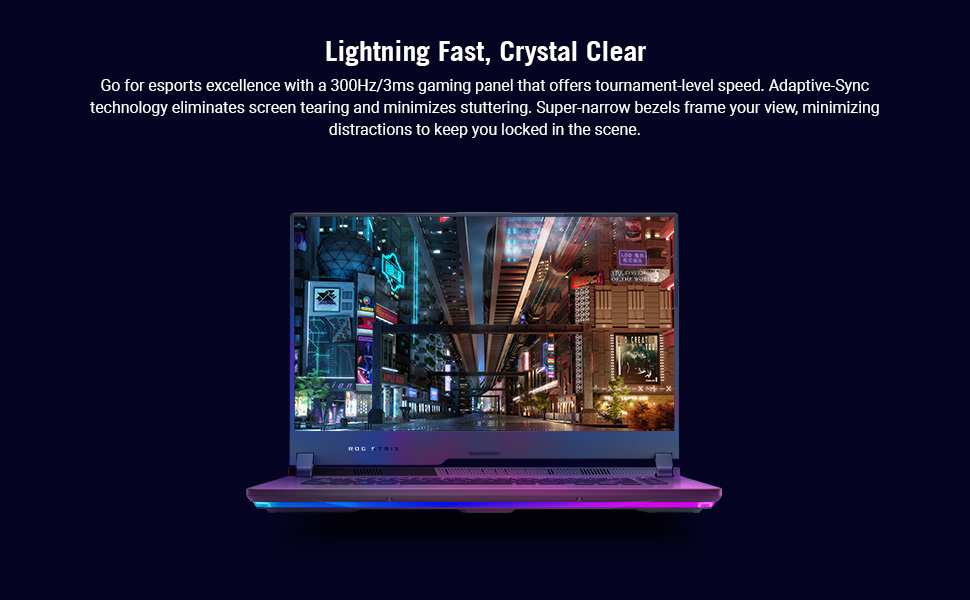
Figure 4: High-refresh-rate display with narrow bezels.
ROG Intelligent Cooling
The ROG Intelligent Cooling thermal system, featuring Thermal Grizzly Liquid Metal Thermal Compound, is designed to maintain optimal performance and keep noise levels low during intensive use. Ensure proper airflow around the laptop to maximize cooling efficiency.
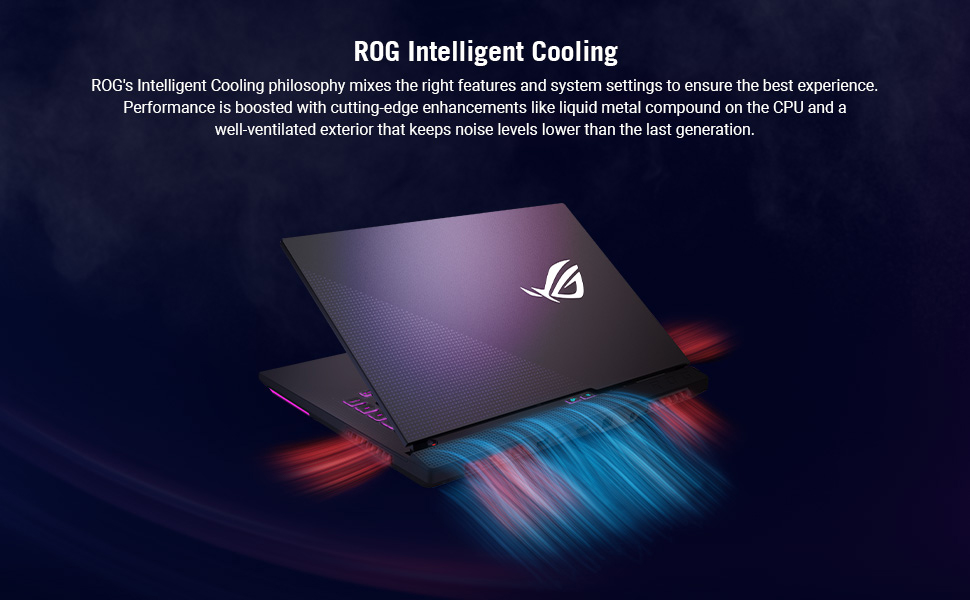
Figure 5: ROG Intelligent Cooling system.
Maintenance
General Care
- Keep the laptop clean by regularly wiping the screen with a microfiber cloth and the keyboard/chassis with a soft, dry cloth.
- Avoid placing heavy objects on the laptop or exposing it to extreme temperatures.
- Ensure the ventilation grilles are clear of obstructions to prevent overheating.
Battery Care
For optimal performance, especially during gaming, it is recommended to use the laptop while connected to the power adapter. While the laptop is portable, continuous high-performance tasks can quickly deplete battery life.
Troubleshooting
Common Issues and Solutions
- Laptop not powering on or screen blank:
Ensure the power adapter is securely connected and the battery has sufficient charge. If the issue persists, try a hard reset by holding the power button for 15-20 seconds. - Blue Screen Errors or Reboot Loops:
These can sometimes be caused by software conflicts or corrupted Windows files. Try booting into Safe Mode to diagnose. If Windows 11 has crashed, a system restore or reinstallation may be necessary. Ensure all drivers are up to date. - Overheating:
If the laptop feels excessively hot during use, ensure the cooling vents are not blocked. Consider using a laptop cooling pad to improve airflow and reduce temperatures, especially during extended gaming sessions. - Keyboard input issues:
If keys occasionally do not register, ensure the keyboard is clean. If the problem continues, check for driver updates or consult ASUS support. - Quiet Speakers:
If the built-in speakers are too quiet, consider connecting external speakers or headphones via the audio jack or Bluetooth for a better audio experience.
Specifications
| Feature | Detail |
|---|---|
| Brand | ASUS |
| Model Name | ROG Strix G15 |
| Model Number | G513IE-PH74 |
| Screen Size | 15.6 Inches |
| Display Type | IPS-Type FHD (1920x1080) LED |
| Refresh Rate | 300 Hz |
| CPU Model | AMD Ryzen 7 4800H (8-core/16-thread, 12MB Cache, up to 4.2 GHz) |
| Graphics Card | NVIDIA GeForce RTX 3050 Ti 4GB GDDR6 |
| RAM Memory | 16GB DDR4 (3200 MHz) |
| Storage | 512GB PCIe NVMe M.2 SSD |
| Operating System | Windows 11 Home |
| Connectivity | Bluetooth 5.2, Ethernet, HDMI, USB (3x USB 3.2 Gen 1 Type-A, 1x USB 3.2 Gen 2 Type-C with DisplayPort 1.4 & USB Power Delivery) |
| Special Features | AURA Sync, ROG Boost, ROG Intelligent Cooling |
| Item Weight | 4.63 Pounds |
| Dimensions (L x W x Thickness) | 13.94" x 10.2" x 1" |
| UPC | 195553467704 |
Warranty and Support
Warranty Information
Your ASUS ROG Strix G15 Gaming Laptop comes with a 1-year International warranty. It is also eligible for a 1-year free Domestic Accidental Damage Protection (ADP) upon registration, which includes 1-way free shipping for standard hardware warranty repairs.
Customer Support
For technical assistance, warranty claims, or further information, please visit the official ASUS support website or contact their customer service. Refer to the Warranty Card included in your product packaging for specific contact details and terms.