
Limentea Xbox 360 Wireless Controller D-pad Button
Limentea Transforming D-pad Button for Xbox 360 Wireless Controller
Instruction Manual
Introduction
This manual provides comprehensive instructions for the installation, operation, and maintenance of your Limentea Transforming D-pad Button for the Xbox 360 Wireless Controller. Please read this manual thoroughly before proceeding with installation to ensure proper functionality and to avoid damage to your controller or the product.
Safety Information
- Ensure the Xbox 360 controller is powered off and batteries are removed before beginning any installation or disassembly.
- Handle small components with care to prevent loss or damage.
- If you are unsure about any step, seek professional assistance or consult online resources for controller disassembly.
- Keep out of reach of small children due to small parts.
Package Contents
Verify that your package contains the following item:
- 1 x Limentea Transforming D-pad Button
Setup and Installation
Installing the Limentea Transforming D-pad Button requires disassembling your Xbox 360 Wireless Controller. This process typically involves removing screws and carefully separating the controller casing. Tools (not included) such as a Torx T8 security screwdriver and a prying tool may be required.
Step-by-Step Installation Guide:
- Prepare the Controller: Ensure your Xbox 360 Wireless Controller is powered off and remove the battery pack.
- Disassemble the Controller:
- Locate the seven screws on the back of the controller. One screw is typically hidden under the battery compartment label.
- Using a Torx T8 security screwdriver, carefully remove all seven screws.
- Gently pry open the controller casing, starting from the grips, to separate the front and back shells. Be mindful of any ribbon cables connecting internal components.
- Remove the Original D-pad:
- Once the controller is open, locate the existing D-pad assembly.
- Carefully lift and remove the old D-pad from its housing. Note its orientation.
- Install the Limentea Transforming D-pad Button:
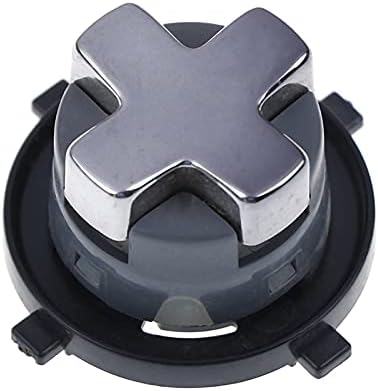
Image 1: Top view of the Limentea Transforming D-pad Button, showcasing its chrome-plated cross design. This is the primary visible component when installed.
- Align the new Limentea Transforming D-pad Button into the D-pad slot on the controller's circuit board. Ensure it sits flush and correctly engages with the internal mechanism.
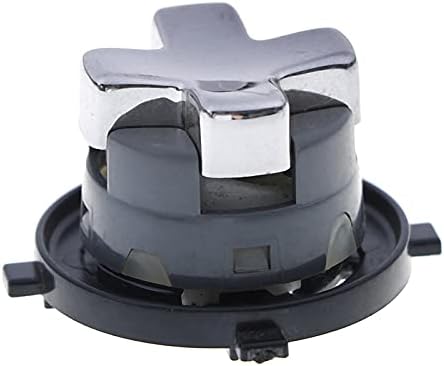
Image 2: Side view of the D-pad button, illustrating its height and the base structure that allows for rotation.

Image 3: Bottom view of the D-pad button, highlighting the four mounting clips and the central pivot point that secure it within the controller.
- Reassemble the Controller:
- Carefully align the front and back shells of the controller, ensuring all internal components are correctly seated and no wires are pinched.
- Replace the seven screws and tighten them securely, but do not overtighten.
- Reinsert the battery pack.
- Test Functionality: Power on your Xbox 360 controller and test the D-pad in a game or the console's dashboard to ensure all directions register correctly.
Operating Instructions
The Limentea Transforming D-pad Button features a rotating mechanism that allows you to switch between two D-pad configurations: a traditional cross-shape and a disc-like shape for improved diagonal input.

Image 4: Angled view of the D-pad, demonstrating the slight elevation and rotational design that allows it to transform between directional input modes.
To Transform the D-pad:
- Gently press down on the center of the D-pad.
- While pressed down, rotate the D-pad clockwise or counter-clockwise. You will feel a click as it locks into the alternative position.
- Release the D-pad. It is now in its transformed state, offering a different tactile feel and potentially improved diagonal input for certain games.
- To revert to the original configuration, repeat the process: press down and rotate until it clicks back into place.
Experiment with both configurations to determine which best suits your gaming style and the specific game you are playing.
Maintenance
To ensure the longevity and optimal performance of your Limentea Transforming D-pad Button:
- Cleaning: Use a soft, dry cloth to wipe the surface of the D-pad. For stubborn dirt, a slightly damp cloth with mild soap can be used, ensuring no moisture enters the controller's interior.
- Avoid Liquids: Do not expose the D-pad or controller to excessive moisture or liquids.
- Gentle Handling: Avoid applying excessive force when pressing or rotating the D-pad to prevent damage to the internal mechanism.
Troubleshooting
| Problem | Possible Cause | Solution |
|---|---|---|
| D-pad not responding or inconsistent input. |
|
|
| D-pad does not rotate smoothly or gets stuck. |
|
|
Specifications
- Product Name: Transforming D-pad Button
- Brand: Limentea
- Compatible Devices: Xbox 360 Wireless Controller
- Model Name: Xbox 360 Wireless Controller
- Item Weight: 0.16 ounces (approximately 4.5 grams)
- Package Dimensions: 2 x 0.3 x 0.2 inches (approximately 5.08 x 0.76 x 0.51 cm)
- Special Feature: Transformer D-pad Button (Rotating functionality)
- Material: Not specified, typically plastic with metal plating.
Warranty and Support
For any questions, concerns, or support regarding your Limentea Transforming D-pad Button, please contact the seller directly through the platform where the purchase was made. Please retain your proof of purchase for any warranty claims or support inquiries.
Limentea is committed to providing quality products. If you encounter any manufacturing defects, please reach out to customer service for assistance.
Ask a question about this manual
Ask about setup, troubleshooting, compatibility, parts, safety, or missing instructions. Manuals+ will review the question and use this page’s manual context to help answer it.