
SREMTCH 80W LCD Digital Soldering Iron Kit
SREMTCH 80W LCD Digital Soldering Iron Kit User Manual
Model: 80W LCD Digital Soldering Iron Kit
1. Introduction
Thank you for choosing the SREMTCH 80W LCD Digital Soldering Iron Kit. This kit is designed for a wide range of soldering applications, offering precise temperature control, rapid heating, and a comprehensive set of tools for both beginners and experienced users. Please read this manual thoroughly before use to ensure safe and optimal performance.
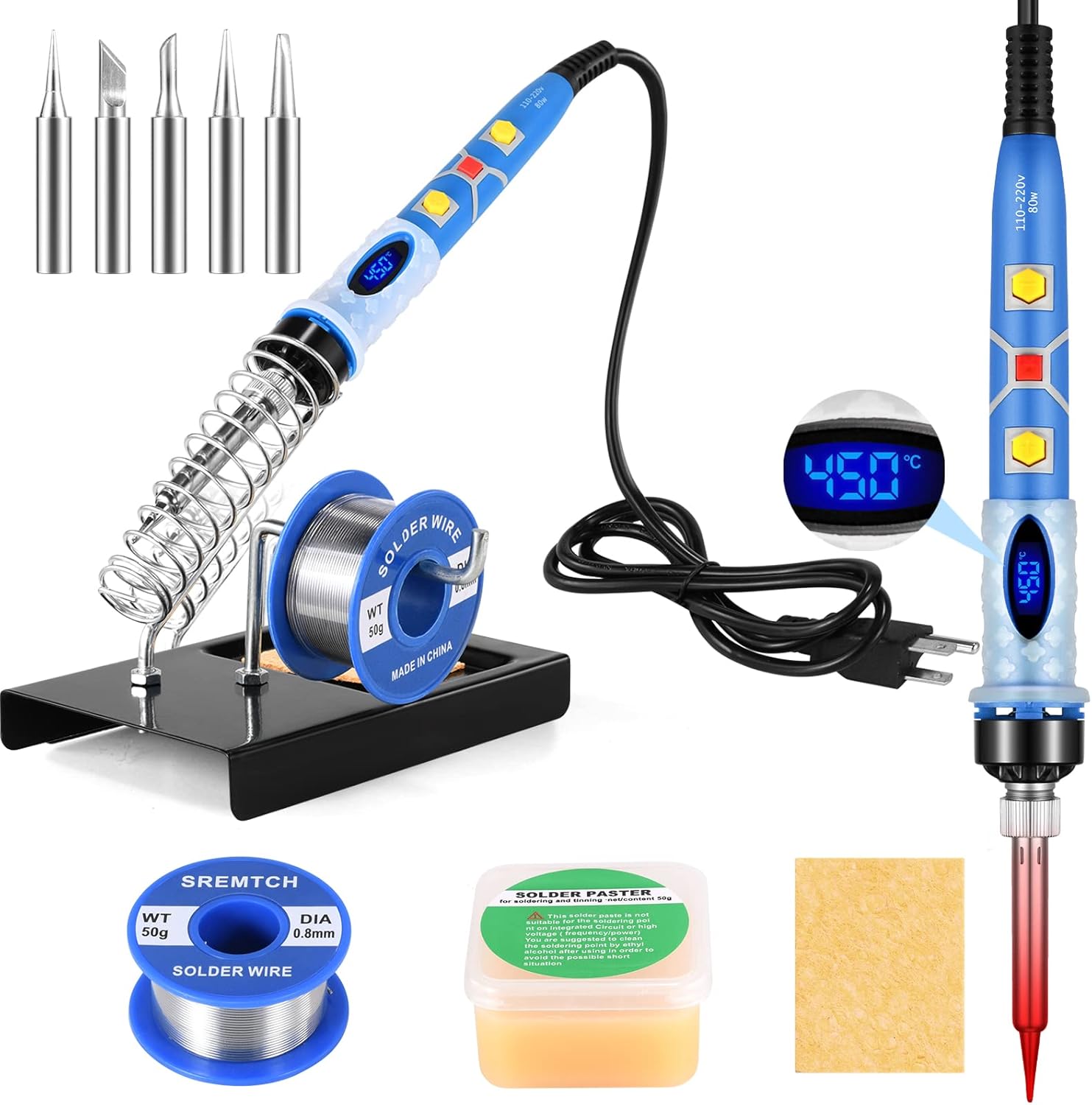
Figure 1.1: Complete SREMTCH 80W LCD Digital Soldering Iron Kit
2. Safety Instructions
Always observe the following safety precautions to prevent injury or damage to the product:
- Electrical Safety: Ensure the soldering iron is plugged into a grounded outlet to prevent electric shock. Do not use in wet conditions.
- Heat Hazard: The soldering iron tip reaches very high temperatures (up to 450°C / 842°F). Avoid direct contact with the tip or heated components. Allow the iron to cool completely before storing.
- Fumes: Soldering produces fumes. Always work in a well-ventilated area or use a fume extractor.
- Fire Hazard: Keep flammable materials away from the soldering area. Use a heat-resistant mat.
- Proper Stand Use: Always place the hot soldering iron in its designated stand when not in use. Ensure the stand is stable.
- Children and Pets: Keep the soldering iron and all accessories out of reach of children and pets.
- Maintenance: Disconnect power before cleaning or performing any maintenance.

Figure 2.1: Safety features including ground wire and ventilation holes
3. Package Contents
Your SREMTCH Soldering Iron Kit includes the following items:
- 1 x 80W LCD Digital Soldering Iron
- 5 x Different Shapes Soldering Iron Tips (e.g., 900M-T-I, 900M-T-K, 900M-T-3C, 900M-T-B, 900M-T-2.4D)
- 1 x 50g High Quality Tin Wire (Solder Wire)
- 1 x Rosin Paste Flux
- 1 x 2-in-1 Stainless Steel Soldering Iron Stand
- 1 x Highly Absorbent Sponge Pad

Figure 3.1: Soldering Tips and Stand

Figure 3.2: Solder Wire and Stand Detail

Figure 3.3: Rosin Paste Flux
4. Product Features
- Fast Heating: Equipped with an 80W inner-heated ceramic core, reaching operating temperatures in approximately 30 seconds.
- LCD Digital Display: High-definition LCD screen for clear temperature readings.
- Adjustable Temperature: Temperature range from 200°C to 450°C (392°F to 842°F), adjustable via '+' and '-' buttons in 50°C (122°F) increments.
- On/Off Switch: Convenient power button for safe and energy-saving operation.
- Ergonomic Design: Insulated silicone sheath for safe and comfortable handling.
- Ventilation: Four ventilation holes for efficient heat dissipation.

Figure 4.1: LCD Display and Controls

Figure 4.2: Rapid Heat-Up Performance
5. Setup and Operation
5.1. Assembly
- Assemble the Soldering Iron Stand: Follow the instructions provided with the stand to assemble it securely. Ensure it is stable on your workbench.
- Prepare the Sponge: Dampen the highly absorbent sponge pad with water and place it in the designated tray on the soldering iron stand. The sponge is used for cleaning the soldering tip.
- Select a Soldering Tip: Choose the appropriate soldering tip for your task and securely screw it onto the heating element of the soldering iron.
5.2. Basic Operation
- Connect Power: Plug the soldering iron into a standard 110V grounded electrical outlet.
- Power On: Press the 'On/Off' button to turn on the soldering iron. The LCD display will illuminate, showing the current temperature.
- Adjust Temperature: Use the '+' and '-' buttons to set your desired temperature. The temperature range is 200°C to 450°C (392°F to 842°F). The iron will quickly heat up to the set temperature.
- Tinning the Tip: Once the iron reaches the desired temperature, apply a small amount of solder to the tip. This process, called 'tinning,' helps protect the tip and improves heat transfer.
- Soldering: Place the hot tip against the component lead and the pad to be soldered, heating both simultaneously. Once heated, apply solder to the joint, allowing it to flow smoothly. Remove the solder, then remove the iron.
- Clean the Tip: Periodically wipe the hot tip on the damp sponge to remove excess solder and oxidation.
- Power Off: When finished, press the 'On/Off' button to turn off the soldering iron. Unplug the iron from the outlet and allow it to cool completely before storing.

Figure 5.1: Soldering on a Circuit Board
5.3. Applications
This soldering kit is suitable for various tasks, including:
- Electronic circuit board repair
- DIY home repairs
- Jewelry repair
- Guitar and watch repair
- Computer hardware work
- Pyrography and wood burning (with appropriate tips)

Figure 5.2: Diverse Applications of the Soldering Iron Kit
6. Maintenance
- Tip Cleaning: Regularly clean the soldering tip using the damp sponge. For stubborn oxidation, use a tip cleaner or brass wool. A clean tip ensures efficient heat transfer and extends tip life.
- Tip Replacement: If a tip becomes severely corroded or damaged, replace it with a new one. Ensure the iron is cool before changing tips.
- Storage: Always allow the soldering iron to cool completely before storing it. Store the kit in a dry, safe place, away from dust and moisture.
- General Cleaning: Wipe the body of the soldering iron with a soft, dry cloth. Do not use abrasive cleaners or solvents.
7. Troubleshooting
If you encounter issues with your soldering iron, refer to the following common problems and solutions:
| Problem | Possible Cause | Solution |
|---|---|---|
| Soldering iron not heating up. | Not plugged in; Power switch off; Faulty heating element. | Ensure iron is securely plugged in. Check if the 'On/Off' button is pressed. If still no heat, contact customer support. |
| Tip not melting solder effectively. | Temperature set too low; Oxidized tip; Insufficient wattage for task. | Increase temperature using '+' button. Clean and re-tin the tip. Ensure the iron is suitable for the material being soldered. |
| Solder not flowing smoothly. | Tip not clean; Insufficient heat; Dirty components. | Clean and re-tin the tip. Increase temperature. Ensure components are clean and free of grease/dirt. Use flux. |
| LCD display not working. | Power issue; Internal fault. | Check power connection. If the iron heats but display is off, contact customer support. |
8. Technical Specifications
| Feature | Specification |
|---|---|
| Brand | SREMTCH |
| Model | 80W LCD Digital Soldering Iron Kit |
| Wattage | 80 watts |
| Voltage | 110 Volts |
| Temperature Range | 200°C - 450°C (392°F - 842°F) |
| Heating Element | Inner-heated Ceramic |
| Heat-up Time | Approx. 30 seconds |
| Handle Material | Plastic with Insulated Silicone Sheath |
| Item Weight | 15.4 ounces |
| Power Source | Corded Electric |
| Included Components | Soldering iron, Soldering iron tips, Soldering iron stand, Solder wire, Sponge |
9. Warranty and Support
SREMTCH is committed to customer satisfaction. If you encounter any issues with your soldering iron kit or are not completely satisfied with your purchase, please do not hesitate to contact us. We are dedicated to resolving any concerns as quickly as possible.
For support, please refer to the contact information provided with your purchase or visit the official SREMTCH store on Amazon.
Online Store: SREMTCH Store on Amazon
Ask a question about this manual
Ask about setup, troubleshooting, compatibility, parts, safety, or missing instructions. Manuals+ will review the question and use this page’s manual context to help answer it.