
Tacelary HM008
Tacelary 8 in 1 Wireless Charging Station User Manual
Model: HM008
1. Introduction
Thank you for purchasing the Tacelary 8 in 1 Wireless Charging Station. This device is designed to provide a comprehensive and efficient charging solution for multiple electronic devices, including smartphones, smartwatches, earbuds, and other USB-powered gadgets. Constructed from aviation aluminum alloy and high-grade acrylic, it offers a stable and reliable charging experience. Please read this manual carefully before use to ensure proper operation and to maximize the lifespan of your product.
2. Safety Information
- Do not disassemble or modify the charging station.
- Keep the device away from water, moisture, and high temperatures.
- Avoid placing metal objects or magnetic cards on the wireless charging pads, as this may interfere with charging or damage the device.
- Ensure proper ventilation around the charging station during use.
- Use only the supplied power cord.
- This product is equipped with over-current, over-voltage, and over-temperature protection, as well as foreign object detection.

Figure 2.1: Safety and Efficiency Features. The image displays various safety certifications and protection mechanisms, including FCC, UL, CE, temperature protection, over-current protection, and overvoltage protection, ensuring safe and efficient charging.
3. What's in the Box
Upon opening the package, please verify that all the following components are included:
- 1 x Tacelary 8 in 1 Wireless Charging Station
- 1 x Power Cord (1.5M)
- 1 x User Manual (this document)
4. Setup Guide
Follow these steps to set up your charging station:
- Connect Power: Plug the supplied 1.5M power cord into the charging station's power input port and then into a standard wall outlet. The indicator light will turn green for approximately 10 seconds and then turn off, indicating the device is powered on and ready.

Figure 4.1: Charging Station with Power Connected. This image shows the charging station with its power cord plugged in, ready for use.
- Install Apple Watch Charging Cable (Optional):
The charging station requires your original Apple Watch charging cable for watch charging. Follow these steps to install it:
Step 1: Open the back base cover of the charging station.

Figure 4.2: Opening the Back Cover. This diagram illustrates the first step of opening the back cover to access the cable management area.
Step 2: Install your original watch cable along the groove provided.

Figure 4.3: Watch Cable Installation. This image demonstrates how to properly route the Apple Watch charging cable within the designated groove.
Step 3: Insert the USB-C or USB-A port of the watch cable into the corresponding interface correctly within the base.

Figure 4.4: Connecting the Watch Cable. This diagram shows the correct way to plug the watch charging cable into either the USB-C or USB-A port inside the station.
Step 4: Organize the remaining original watch cable in the online slot to ensure neat cable management.

Figure 4.5: Cable Management. This image demonstrates how to neatly store excess watch cable within the station's internal compartment.
Step 5: Close the back cover securely.
5. Operating Instructions
The Tacelary 8 in 1 Wireless Charging Station offers multiple charging options:
5.1 Wireless Charging Area (Phone, Watch, Earbuds)
- For Smartphones (15W Wireless Charging): Place your wireless-charging-compatible smartphone on the designated phone charging area. The indicator light in front of the wireless charging station will show green when the phone is charging. If it shows red, it indicates an issue preventing charging (e.g., foreign object, misalignment).

Figure 5.1: Device Compatibility and Wireless Charging Speeds. This image illustrates the types of devices compatible with the wireless charging pads and their respective charging wattages (15W for phones, 5W for watches, 5W for AirPods).
The phone charging area supports both vertical and horizontal charging orientations, allowing for convenient media consumption while charging.
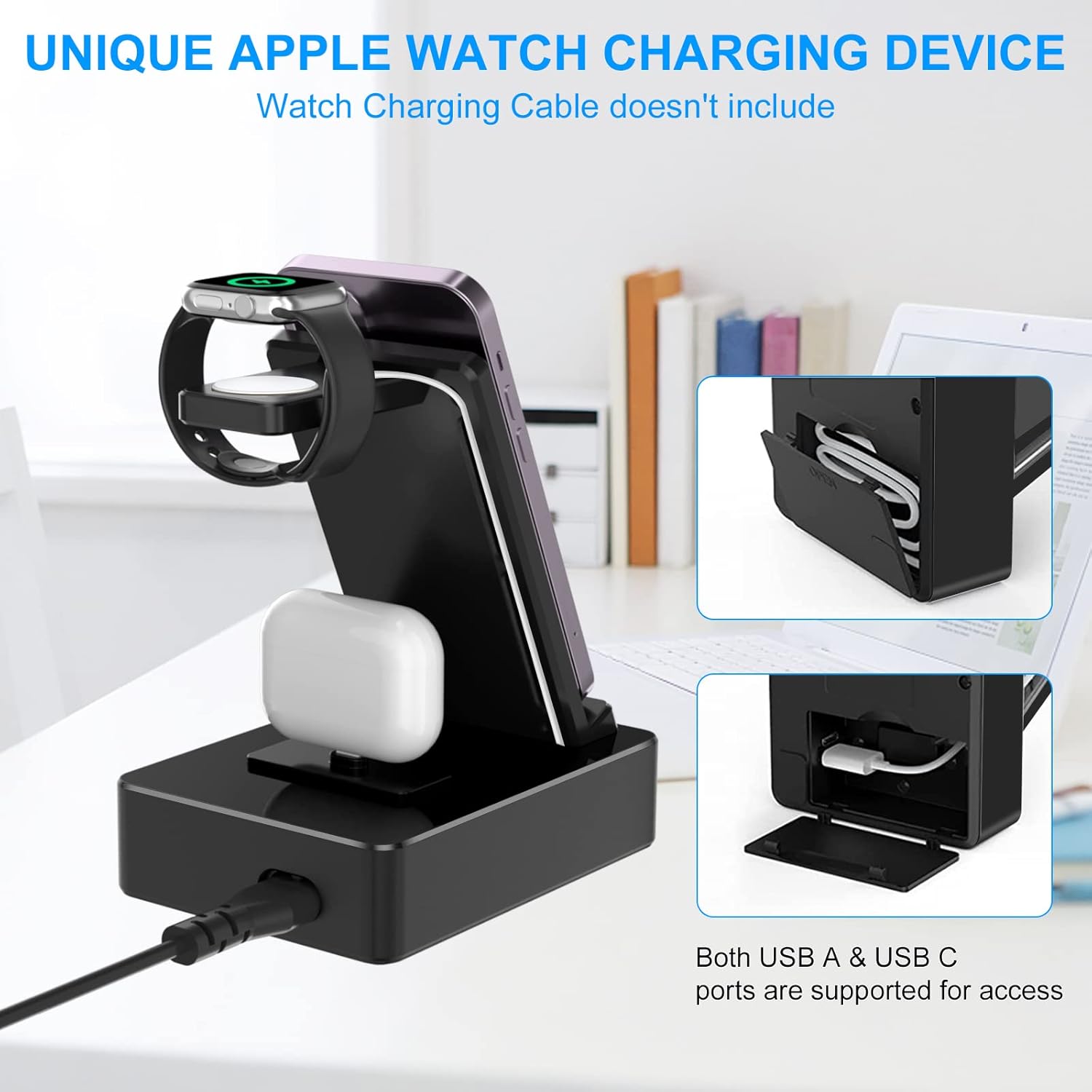
Figure 5.2: Vertical and Horizontal Charging. This image demonstrates the flexibility of the wireless charging pad, allowing devices to be charged in both portrait and landscape modes.
Ensure your phone case is less than 5mm thick and does not contain metal, credit cards, metal rings, or magnetic pads, as these can interfere with wireless charging.

Figure 5.3: Wireless Charging Case Compatibility. This diagram highlights important considerations for phone cases during wireless charging, advising against cases thicker than 5mm or those containing metal, credit cards, metal rings, or magnetic pads.
- For Smartwatches (5W Wireless Charging): After installing your original watch cable (as per Section 4.2), place your smartwatch on the watch charging stand.
- For Earbuds (5W Wireless Charging): Insert your earbud case into the charging port located under the watch charging area.
5.2 USB Charging Ports (Side)
The charging station features 5 additional charging ports on its side:
- 2 x USB-C Ports (PD 20W each): For fast charging of compatible devices like smartphones and tablets.
- 3 x USB-A Ports (QC 3.0 15W each): For charging a wide range of USB-powered devices.
Simply connect your device using its appropriate charging cable to one of these ports. The station can charge up to 8 devices simultaneously (3 wireless + 5 wired).

Figure 5.4: Side USB Charging Ports. This image provides a detailed view of the side USB ports, indicating their types (USB-C and USB-A) and power output, along with examples of compatible devices.

Figure 5.5: Versatile Charging Scenarios. This image illustrates the charging station's utility in different environments such as an office, bedroom, and living room, highlighting its ability to charge multiple devices simultaneously.
6. Maintenance
- To clean the charging station, disconnect it from the power source and wipe it with a soft, dry cloth.
- Do not use abrasive cleaners or solvents.
- Keep the charging pads free of dust and debris to ensure optimal charging performance.
7. Troubleshooting
| Problem | Possible Cause | Solution |
|---|---|---|
| Device not charging wirelessly. |
|
|
| Wired charging not working. |
|
|
| Indicator light is red. |
|
|
8. Specifications
| Feature | Detail |
|---|---|
| Model Number | HM008 |
| Brand | Tacelary |
| Input Voltage | 120 Volts (AC) |
| Wireless Phone Output | 15W |
| Wireless Watch Output | 5W |
| Wireless Earbuds Output | 5W |
| USB-C Port Output | 2 x PD 20W |
| USB-A Port Output | 3 x QC 3.0 15W |
| Total Output | 100W |
| Connectivity Technology | USB, Wireless |
| Compatible Devices | Smartphones, Tablets, Smartwatches, Headphones |
| Material | Aviation Aluminum Alloy, High-grade Acrylic |
| Product Dimensions | 5.83 x 5.08 x 3.62 inches |
| Item Weight | 1.19 pounds |
| Certifications | UL, CE, FCC |
| Country of Origin | China |
9. Warranty and Support
For warranty information or technical support, please refer to the contact details provided with your purchase or visit the official Tacelary website. Please retain your proof of purchase for any warranty claims.
Manufacturer: Shenzhen Huamao Technology Co.,Ltd
Ask a question about this manual
Ask about setup, troubleshooting, compatibility, parts, safety, or missing instructions. Manuals+ will review the question and use this page’s manual context to help answer it.