1. Introduction
The Evolux Smart Light Bulb (E26) is designed to transform your home lighting experience. This smart bulb offers a wide range of color options, dimmable brightness, and warm to cool white light settings, all controllable via your smartphone or voice commands through compatible smart assistants like Amazon Alexa.
This manual provides essential information for the safe and efficient use of your Evolux Smart Light Bulb, including setup instructions, operating procedures, maintenance tips, troubleshooting, and product specifications.

Image: Evolux Smart Light Bulb (E26) and its retail packaging, highlighting key features like Wi-Fi connectivity, multicolor, cool and warm white light, and Alexa compatibility.
2. Safety Information
- Ensure the power is off before installing or removing the bulb.
- Do not use with standard dimmers; dimming is controlled via the app or voice commands.
- Suitable for indoor use only.
- Avoid exposing the bulb to water or excessive moisture.
- Operate within the specified voltage range (120V).
3. Package Contents
Your Evolux Smart Light Bulb package includes:
- 1 x Evolux Smart Light Bulb (E26)
- 1 x English Installation Manual (this document)
4. Specifications
| Feature | Detail |
|---|---|
| Model Number | EA-9000 |
| Bulb Base | E26 |
| Wattage | 9 Watts (60W Incandescent Equivalent) |
| Luminous Flux | 806 Lumens |
| Color Temperature | 2700K (Warm White) to 6500K (Cool White) + Multicolor |
| Lifespan | 25,000 hours |
| Connectivity | 2.4 GHz Wi-Fi (No Hub Required) |
| Compatibility | Amazon Alexa, Google Assistant, Siri |
| Voltage | 120.0V |
| Dimensions | 6 x 6 x 11.4 cm |
| Weight | 39 g |

Image: Close-up view of the Evolux Smart Light Bulb, showing printed technical specifications such as wattage, lumens, and certifications.
5. Setup Guide
Follow these steps to set up your Evolux Smart Light Bulb and connect it to the Lloyd's Smart App and your smart assistant.
- Install the Bulb: Screw the Evolux Smart Light Bulb into a standard E26 light socket. Ensure the power is off before installation.
- Download the App: Download the Lloyd's Smart app from the App Store (for iOS) or Google Play Store (for Android).
- Register/Log In: Open the app and register for a new account or log in if you already have one.
- Add Device:
- In the app, select the '+' icon (usually in the upper right corner) to add a new device.
- Choose "Lighting" from the device categories, then select "Smart Bulb".
- Connect to Wi-Fi:
- Enter your 2.4 GHz Wi-Fi network information (SSID and password). Note: The bulb only supports 2.4 GHz Wi-Fi networks.
- Turn the light bulb on and off twice (on-off-on-off-on) until the bulb flashes rapidly. This indicates it's in pairing mode.
- Confirm in the app that the light is flashing rapidly, then click "Next".
- Configuration: Wait for the app to configure the device. This may take a few moments.
- Name the Bulb: Once configured, you can rename the bulb to something easily recognizable (e.g., "Living Room Light"). Click "Done".
- Connect to Smart Assistant (e.g., Alexa):
- Open your Amazon Alexa app.
- Go to "Devices" and tap the '+' icon to add a new device.
- Select "Light" and follow the on-screen instructions to discover your new Evolux Smart Light Bulb. Alexa should instantly pair with the smart bulb upon installation if your Alexa device is connected to your 2.4 GHz Wi-Fi channel.
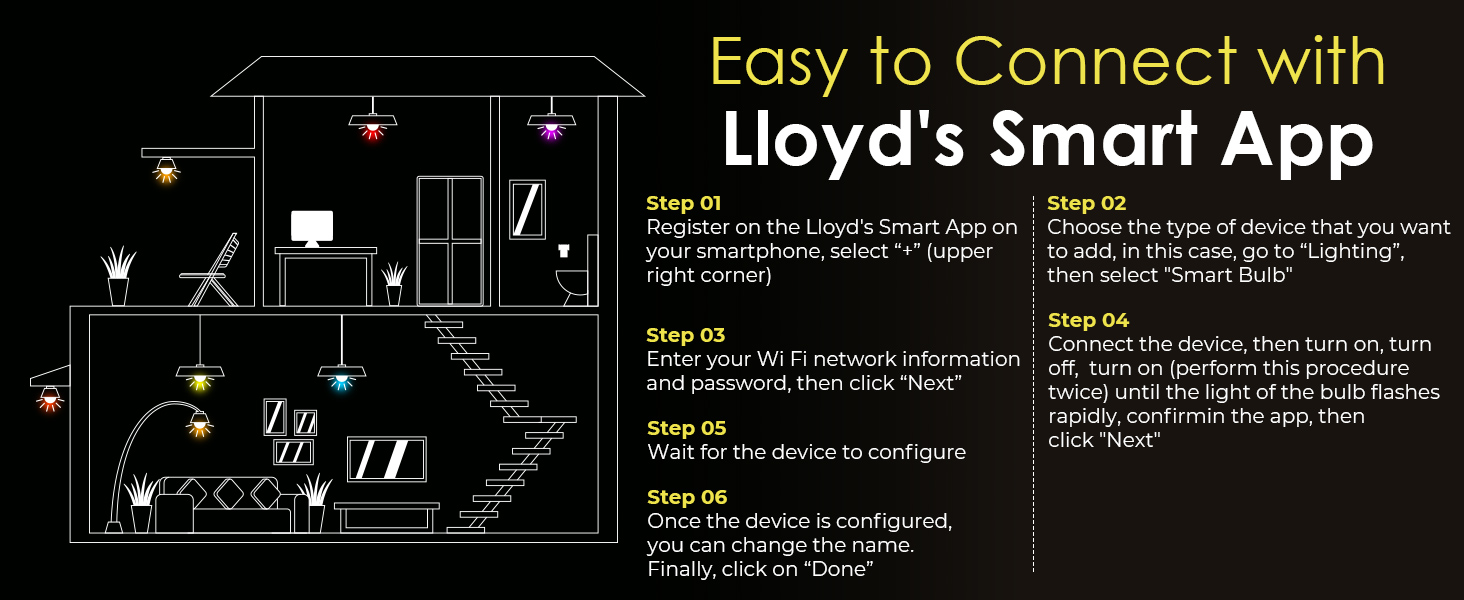
Image: Step-by-step diagram illustrating how to connect the Evolux Smart Light Bulb to the Lloyd's Smart App, including registration, device selection, Wi-Fi input, and pairing mode activation.
6. Operating Instructions
Once your Evolux Smart Light Bulb is set up, you can control it using the Lloyd's Smart App or your preferred smart assistant.
6.1. App Control
- On/Off: Tap the power icon next to the bulb's name in the app.
- Brightness: Use the slider in the app to adjust the brightness from 1% to 100%.
- Color Selection: Choose from millions of colors using the color wheel or preset color options.
- White Light Adjustment: Adjust the white light from warm (2700K) to cool (6500K) to suit your preference.
- Scenes: Select from pre-programmed scenes or create custom scenes for different moods or activities.
- Scheduling: Set schedules for the bulb to turn on/off or change settings at specific times.
- Grouping: Group multiple Evolux Smart Light Bulbs together to control them simultaneously with a single command.
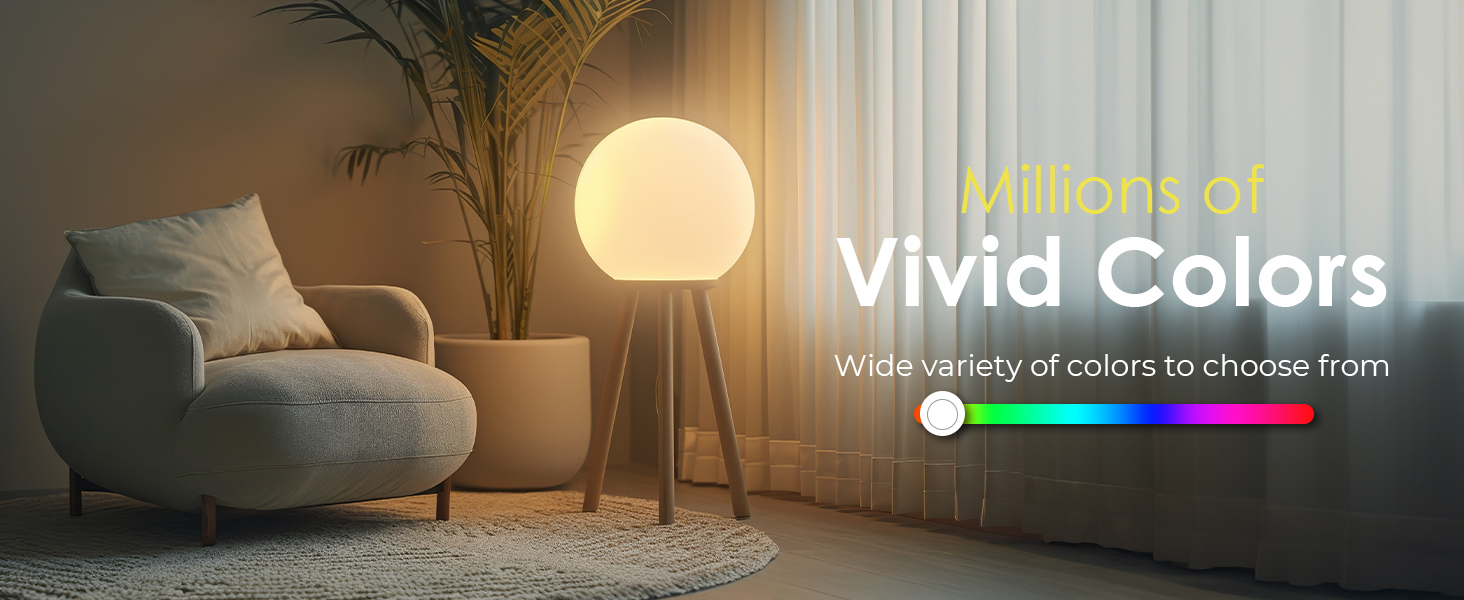
Image: Illustration demonstrating the wide spectrum of millions of vivid colors available for the Evolux Smart Light Bulb.
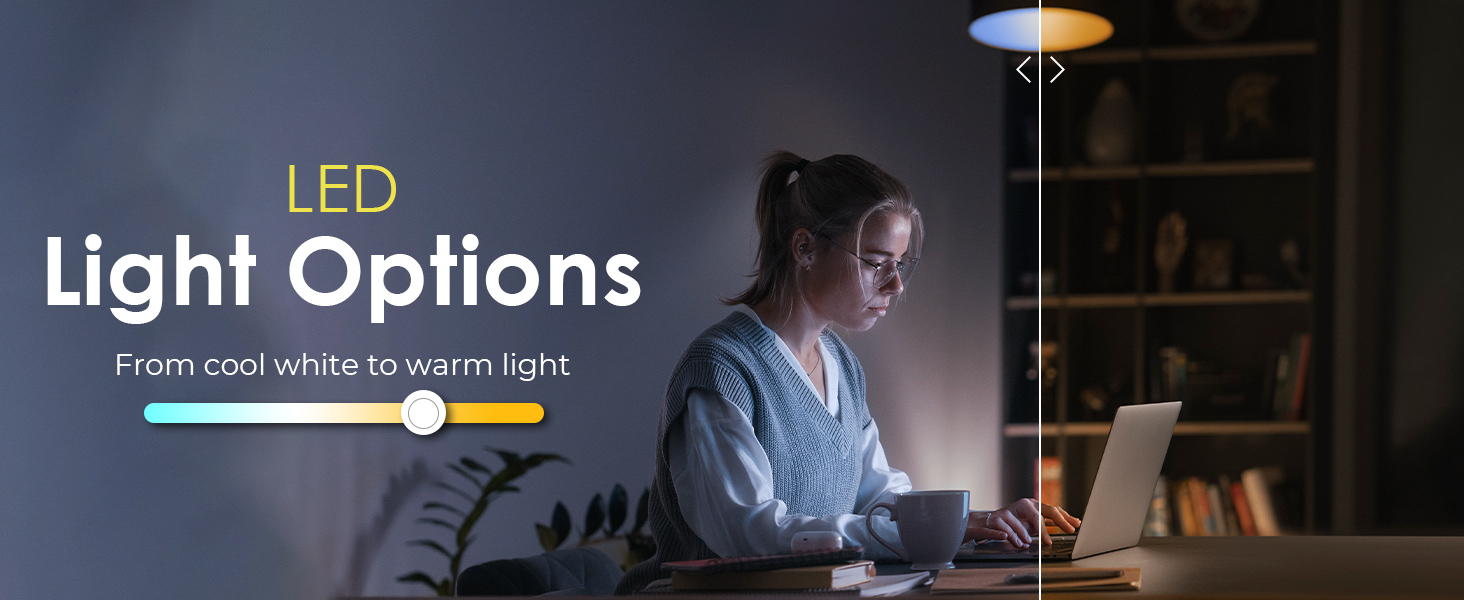
Image: Visual representation of the LED light options, allowing adjustment from cool white to warm light.
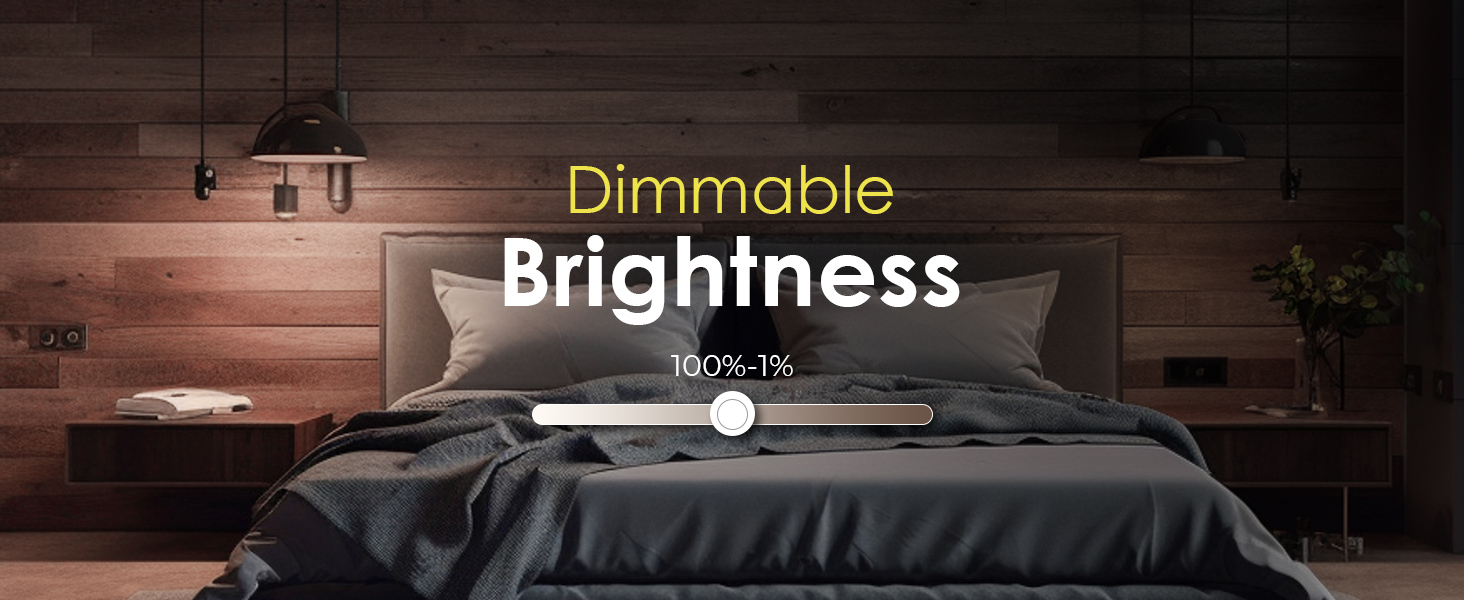
Image: Graphic illustrating the dimmable brightness feature, adjustable from 100% down to 1%.
6.2. Voice Control (Alexa, Google Assistant)
After linking your Lloyd's Smart account to your smart assistant, you can use voice commands to control your bulb.
- Turn On/Off: "Alexa, turn on [Bulb Name]" or "Hey Google, turn off [Bulb Name]".
- Adjust Brightness: "Alexa, set [Bulb Name] to 50%" or "Hey Google, dim [Bulb Name]".
- Change Color: "Alexa, set [Bulb Name] to blue" or "Hey Google, change [Bulb Name] to red".
- Change White Tone: "Alexa, set [Bulb Name] to warm white" or "Hey Google, make [Bulb Name] cool white".
- Activate Scenes: "Alexa, enable party mode" (if you have a scene named "Party Mode").
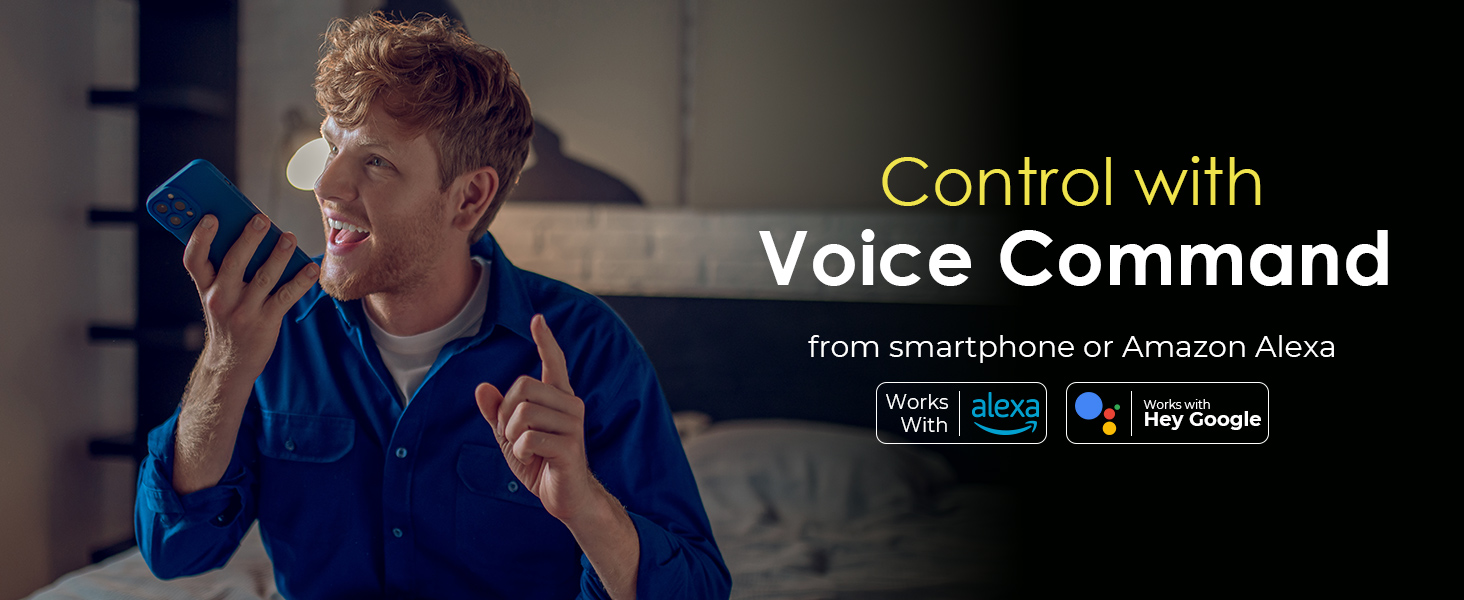
Image: A person using voice commands to control their smart lighting, with logos indicating compatibility with Amazon Alexa and Google Assistant.
7. Maintenance
- Cleaning: Ensure the bulb is off and cool before cleaning. Wipe with a soft, dry cloth. Do not use liquid cleaners.
- Storage: If storing the bulb for an extended period, keep it in a cool, dry place away from direct sunlight.
- Firmware Updates: Periodically check the Lloyd's Smart App for firmware updates to ensure optimal performance and security.
8. Troubleshooting
| Problem | Possible Cause | Solution |
|---|---|---|
| Bulb not turning on. | No power, loose connection, bulb faulty. | Check power switch. Ensure bulb is screwed in tightly. Test bulb in another fixture. |
| Bulb not connecting to Wi-Fi. | Incorrect Wi-Fi password, 5 GHz network, bulb not in pairing mode, weak signal. | Ensure you are connecting to a 2.4 GHz Wi-Fi network. Double-check password. Reset bulb to pairing mode (on-off-on-off-on). Move closer to router. |
| Bulb unresponsive via app/voice. | Wi-Fi disconnected, app issue, smart assistant link lost. | Check Wi-Fi connection. Restart the app. Relink the Lloyd's Smart account with your smart assistant. Power cycle the bulb. |
| Color/brightness issues. | App settings, firmware issue. | Verify settings in the app. Check for and apply any available firmware updates. |
| Bulb frequently disconnects. | Weak Wi-Fi signal, network interference. | Ensure strong 2.4 GHz Wi-Fi signal. Reduce interference from other devices. Consider a Wi-Fi extender. |
If problems persist after trying these solutions, please contact customer support.
9. Warranty and Support
The Evolux Smart Light Bulb (EA-9000) comes with a 1-year warranty from the date of purchase, covering manufacturing defects and malfunctions under normal use.
For warranty claims, technical support, or any inquiries, please refer to the contact information provided on the product packaging or visit the official Evolux website. Please have your proof of purchase and model number (EA-9000) ready when contacting support.
Certifications: Our smart light bulbs are ETL, FCC AC7Z-ESP868505 & ISED 32592-EA-9000 certified, ensuring quality, safety compliance, and efficiency.