
1. Introduction
This manual provides essential information for setting up, operating, maintaining, and troubleshooting your new HP 14-inch laptop. Please read this guide thoroughly to ensure optimal performance and longevity of your device.
2. Product Overview
The HP 14-inch laptop is designed for productivity and portability, featuring an Intel Celeron N4120 processor, 4GB RAM, and 128GB storage (64GB eMMC + 64GB Micro SD). It comes pre-installed with Windows 11 Home in S mode.
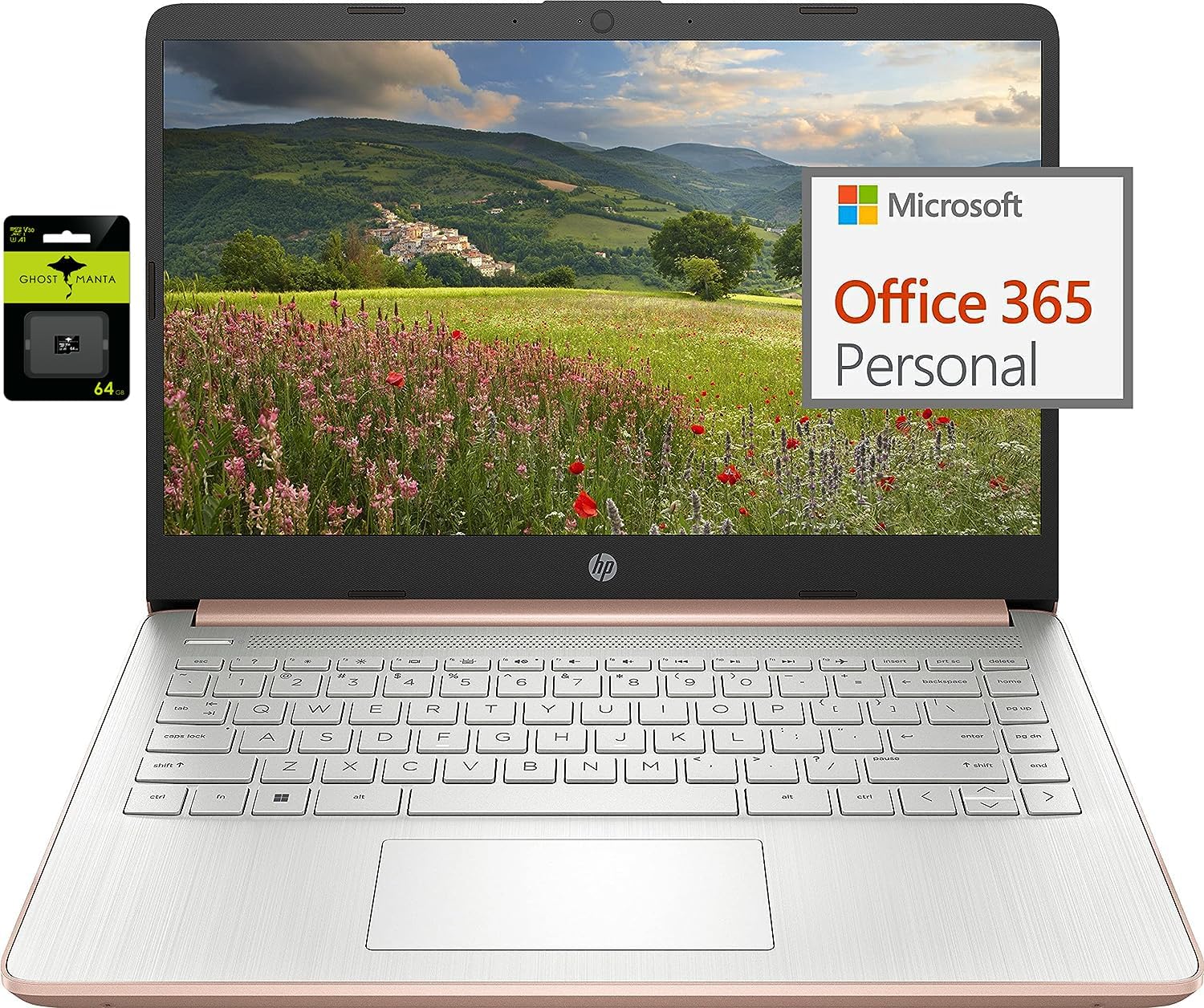
Figure 2.1: HP 14-inch Laptop with included accessories.
This image displays the HP 14-inch laptop in an open position, showcasing its screen and keyboard. To the left, packaging for a Ghost Manta 64GB SD card is visible, and to the right, a graphic indicating Microsoft Office 365 Personal is included. The laptop features a rose gold finish on the base and a silver keyboard deck.
2.1 Key Features
- Display: 14.0-inch diagonal, HD (1366 x 768), micro-edge, BrightView.
- Processor: Intel Celeron N4120, 4 Cores & 4 Threads.
- Memory: 4GB DDR4 RAM.
- Storage: 64GB eMMC internal storage with an additional 64GB Micro SD card.
- Operating System: Windows 11 Home in S mode.
- Connectivity: 802.11a/b/g/n/ac (2x2) Wi-Fi and Bluetooth.
- Ports: USB 3.1 Type-C, USB 3.1 Type-A (x2), HDMI, Headphone/Microphone Combo Jack, microSD slot.
- Webcam: HP True Vision 720p HD camera with integrated dual array digital microphones.
- Battery: Up to 11.5 hours video playback, HP Fast Charge.

Figure 2.2: Laptop displaying the Windows 11 desktop interface.
This image shows the HP 14-inch laptop open at an angle, with the screen displaying the Windows 11 desktop. The keyboard and touchpad are visible, and the laptop's rose gold and silver color scheme is prominent.
2.2 Port Layout
Familiarize yourself with the port locations for connecting external devices.

Figure 2.3: Left side ports.
This close-up image shows the left side of the HP 14-inch laptop. From left to right, the ports include a headphone/microphone combo jack, a USB Type-C port, two USB Type-A ports, an HDMI port, and the power input port.

Figure 2.4: Right side ports.
This close-up image shows the right side of the HP 14-inch laptop. From left to right, the ports include a microSD card slot, followed by indicator lights for power and storage activity.
3. Setup
3.1 Initial Power-On
- Connect the power adapter to the laptop and a power outlet.
- Open the laptop lid and press the power button, typically located on the top right of the keyboard.
- Follow the on-screen instructions to complete the initial Windows 11 setup, including language, region, and network settings.
3.2 Switching Out of Windows 11 S Mode
Your laptop comes with Windows 11 Home in S mode, which is optimized for security and performance by exclusively running apps from the Microsoft Store. If you need to install applications from outside the Microsoft Store, you must switch out of S mode. This process is irreversible.
- On your PC running Windows 11 in S mode, open Settings > System > Activation.
- In the "Switch to Windows 11 Pro" section, locate and select the Go to the Store link. (Note: If you also see an "Upgrade your edition of Windows" section, ensure you click the "Go to the Store" link specifically for switching out of S mode.)
- On the "Switch out of S mode" (or similar) page that appears in the Microsoft Store, select the Get button.
- After you see a confirmation message, you will be able to install apps from outside of the Microsoft Store.
4. Operating Instructions
4.1 Basic Operation
- Power On/Off: Press the power button to turn on. To shut down, click the Start button, then Power, and select Shut down.
- Keyboard: Use the integrated keyboard for typing. Function keys (F1-F12) often have secondary functions (e.g., volume, brightness) accessible by pressing the Fn key simultaneously.
- Touchpad: The touchpad acts as a mouse. Tap to click, use two fingers to scroll, and pinch to zoom.
4.2 Connecting Peripherals
- USB Devices: Connect USB drives, external keyboards, or mice to the USB Type-A or Type-C ports.
- HDMI: Use the HDMI port to connect to an external monitor or TV.
- Audio: Plug headphones or external speakers into the headphone/microphone combo jack.
- MicroSD Card: Insert the provided 64GB Micro SD card into the microSD slot for expanded storage.

Figure 4.1: Ghost Manta 64GB Micro SD card.
This image shows the retail packaging for a Ghost Manta 64GB Micro SD card, which is included with the laptop for additional storage.
4.3 Wireless Connectivity
- Wi-Fi: To connect to a wireless network, click the Wi-Fi icon in the taskbar, select your desired network, and enter the password if prompted.
- Bluetooth: To pair Bluetooth devices, go to Settings > Bluetooth & devices, turn on Bluetooth, and select "Add device."
5. Maintenance
5.1 Battery Care
- For optimal battery life, avoid fully discharging the battery frequently.
- Store the laptop in a cool, dry place when not in use for extended periods.
- Use only the original HP power adapter.
5.2 Cleaning Your Laptop
- Turn off the laptop and disconnect the power adapter before cleaning.
- Use a soft, lint-free cloth slightly dampened with water or a screen cleaner for the display.
- For the keyboard and chassis, use a soft, dry cloth. Avoid harsh chemicals.
5.3 Software Updates
Regularly check for and install Windows updates and HP driver updates to ensure system stability and security. You can find Windows updates in Settings > Windows Update.
6. Troubleshooting
This section addresses common issues you might encounter. For more complex problems, refer to HP's official support resources.
- Laptop will not power on: Ensure the power adapter is securely connected and the battery has sufficient charge. Try a different power outlet.
- Slow performance: Close unnecessary applications, check for background processes, and ensure sufficient free storage space. Consider switching out of S mode if you need to run more demanding applications not available in the Microsoft Store.
- Wi-Fi connectivity issues: Restart your router and laptop. Check Wi-Fi settings to ensure the correct network is selected and the password is entered accurately.
- Screen issues (no display, flickering): Connect an external monitor via HDMI to check if the issue is with the laptop's display or the graphics output.
7. Specifications
| Feature | Detail |
|---|---|
| Brand | HP |
| Model Number | HP |
| Screen Size | 14 Inches |
| Screen Resolution | 1366 x 768 Pixels |
| Processor | Intel Celeron N4120 (1.1 GHz base, up to 2.6 GHz burst) |
| RAM | 4GB DDR4 (2400 MHz) |
| Hard Drive | 64GB eMMC + 64GB Micro SD |
| Graphics Coprocessor | Intel UHD Graphics 600 |
| Operating System | Windows 11 Home in S mode |
| Wireless Type | 802.11a/b/g/n/ac, Bluetooth |
| USB 3.0 Ports | 3 (1x Type-C, 2x Type-A) |
| HDMI Port | 1 |
| Item Weight | 3.24 pounds |
| Product Dimensions | 12.76 x 8.86 x 0.71 inches |
| Color | Rose Gold |
| Battery Life (Video Playback) | Up to 11 hours 30 minutes |
| Webcam | HP True Vision 720p HD camera |
8. Warranty and Support
For warranty information, technical support, or service, please visit the official HP support website or contact HP customer service. Keep your purchase receipt and product serial number readily available.
HP Support Website: support.hp.com