Product Overview
The CAMMHD M1 Body Camera is a compact and versatile device designed for portable video, audio, and photo recording. Its magnetic clip allows for easy attachment to clothing or other surfaces, making it ideal for various personal and professional applications. This manual provides detailed instructions for its operation and maintenance.

Figure 1: Front and side view of the CAMMHD M1 Body Camera, highlighting its compact design and magnetic clip.
What's in the Box
Please verify that all items are present in your package:
- CAMMHD M1 Body Camera
- US Charger
- Mini USB Cable
- User Manual
- Wipe Cloth
- Card Pin (for reset)
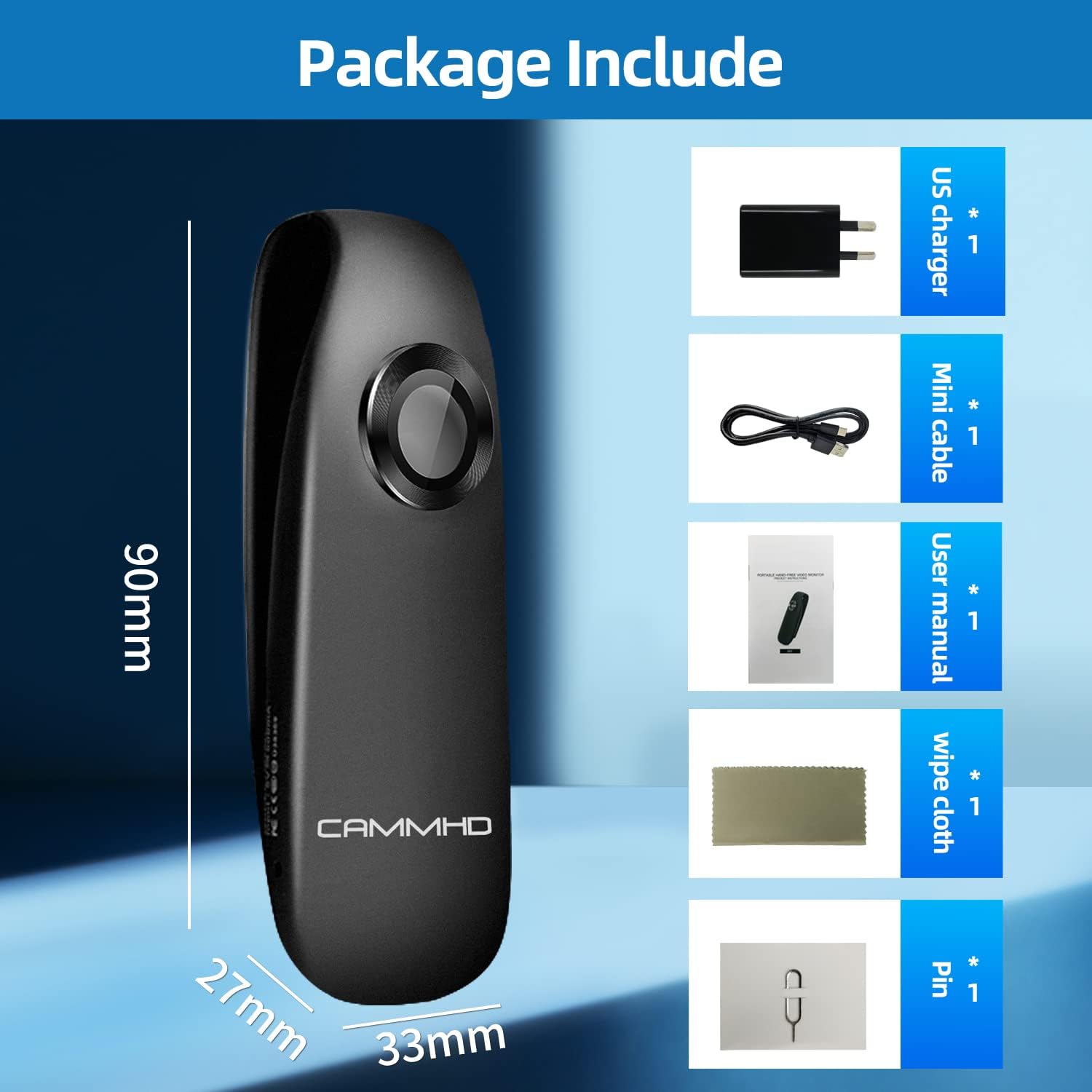
Figure 2: All components included in the CAMMHD M1 Body Camera package.
Component Identification
Familiarize yourself with the various parts and controls of your CAMMHD M1 Body Camera:

Figure 3: Detailed diagram of the camera's components and their functions.
- Lens: Captures video and photo footage.
- Indicator Light: Provides status feedback (e.g., recording, charging).
- Power/Video Button: Used to power on/off the device and initiate video recording.
- Audio/Indicator Button: Used to start/stop audio-only recording and may also serve as an indicator control.
- Photo/Motion Detection Button: Used to capture still images or activate motion detection mode.
- Micro Card Slot: Insert your Micro SD card here for storage.
- Charger Slot (USB Port): Connect the USB cable for charging and data transfer.
- Reset Hole: Use the provided pin to reset the device if necessary.
- Magnets: Two strong magnets on the back for secure attachment.
- Fixing Screw Hole: For optional mounting accessories.
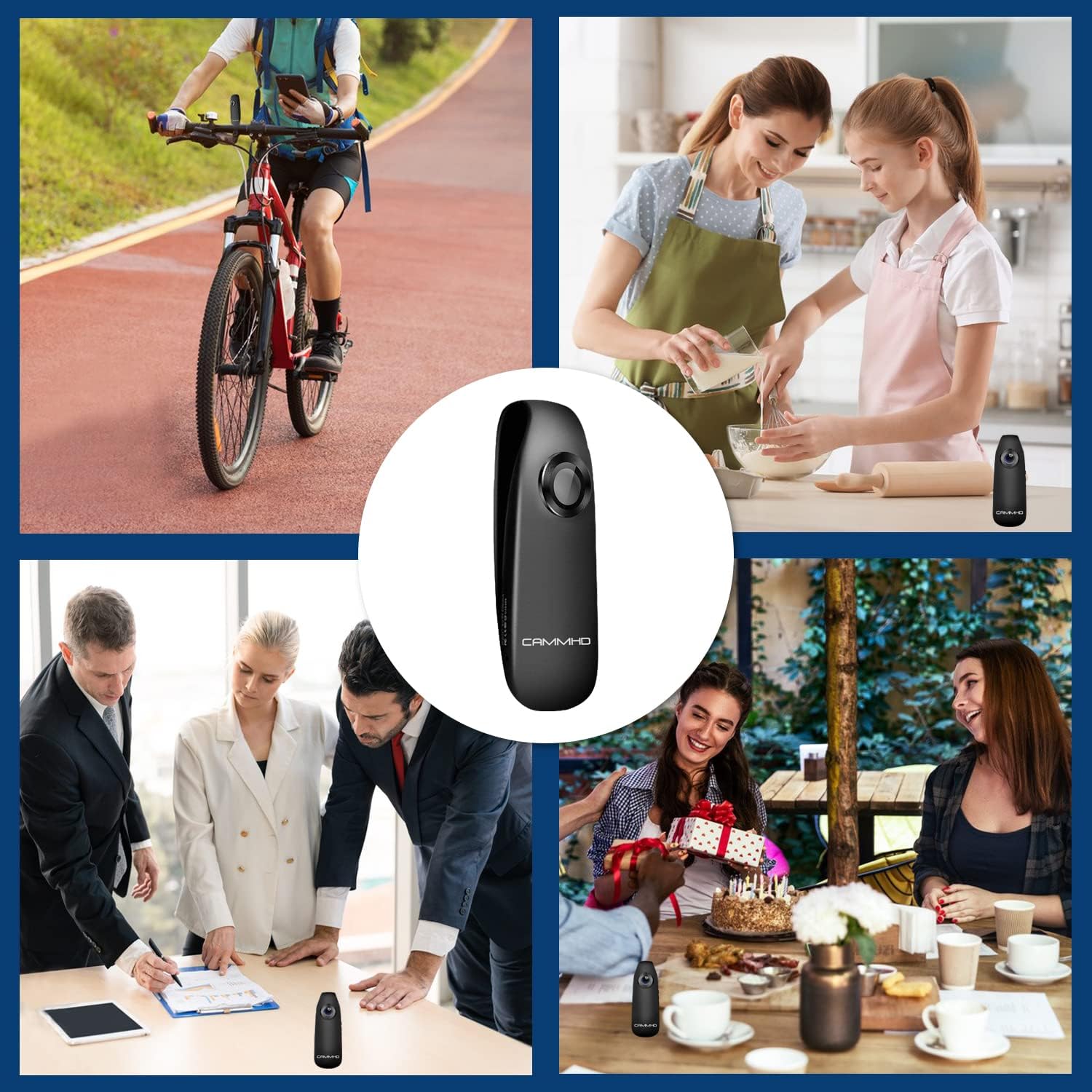
Figure 4: The camera features two strong magnets and a back clip for versatile attachment options.
Setup
1. Charging the Device
Before first use, fully charge the CAMMHD M1 Body Camera. Connect the mini USB cable to the camera's charger slot and the other end to a USB power source (e.g., wall adapter, computer USB port). The indicator light will show charging status. A full charge takes approximately 1 hour.

Figure 5: The camera's built-in 560mAh battery provides approximately 3 hours of video recording or 7 hours of audio recording on a single charge.
2. Inserting a Micro SD Card
The camera requires a Micro SD card for storing recordings. Locate the Micro Card Slot and gently insert a compatible Micro SD card (up to 32GB, not included) until it clicks into place. Ensure the card is inserted correctly to avoid damage.
3. Connecting to a Computer
The camera can be connected to a computer via the provided USB cable for data transfer. No special software is required for basic file access.
Video 1: This video demonstrates the ease of connecting the CAMMHD M1 body camera to a computer for file access without requiring additional software.
Operating Instructions
Power On/Off
- To Power On: Press and hold the Power/Video Button until the indicator light illuminates.
- To Power Off: Press and hold the Power/Video Button until the indicator light turns off.
Video Recording
The camera supports 1080P@30fps and 720P@30fps HD video recording with a 140° wide-angle view.
- To Start Video Recording: After powering on, press the Power/Video Button briefly. The indicator light will change to indicate recording is in progress.
- To Stop Video Recording: Press the Power/Video Button briefly again. The indicator light will return to standby mode.
Audio Recording (Voice Recorder Mode)
The camera can also function as a standalone voice recorder.
- To Start Audio Recording: After powering on, press the Audio/Indicator Button briefly. The indicator light will change to indicate audio recording is active.
- To Stop Audio Recording: Press the Audio/Indicator Button briefly again. The indicator light will return to standby mode.
Taking Photos
- To Take a Photo: After powering on, press the Photo/Motion Detection Button briefly. The indicator light will flash to confirm a photo has been taken.
Motion Detection
This feature allows the camera to start recording automatically when motion is detected.
- To Activate Motion Detection: While in standby mode, press and hold the Photo/Motion Detection Button for a few seconds until the indicator light changes to confirm motion detection mode is active.
- To Deactivate Motion Detection: Press the Photo/Motion Detection Button briefly again.
Video 2: This video provides a general overview of the CAMMHD M1 Small Body Camera's features and operation.
Specifications (Model M1)
| Feature | Detail |
|---|---|
| Product Dimensions | 1.26 x 1.1 x 3.58 inches |
| Item Weight | 1.21 pounds |
| Model Number | M1 |
| Photo Sensor Technology | CMOS |
| Video Capture Resolution | 1080p (max), 720p |
| Flash Memory Type | Micro SD (up to 32GB) |
| Video Capture Format | AVI |
| Supported Audio Format | WAV |
| Connectivity Technology | USB |
| Color | Black |
| Special Feature | Lightweight, Magnetic Clip |
| Battery Life (Video) | Approx. 180 minutes (3 hours) |
| Battery Life (Audio) | Approx. 560 minutes (9.3 hours) |
Maintenance
- Cleaning: Use the provided wipe cloth or a soft, dry cloth to clean the camera body and lens. Avoid using liquid cleaners or abrasive materials.
- Storage: Store the camera in a cool, dry place away from direct sunlight and extreme temperatures.
- Battery Care: To prolong battery life, avoid fully discharging the battery frequently. Charge the device regularly, even if not in use for extended periods.
- Data Management: Regularly transfer important recordings to a computer or other storage device to prevent data loss and free up space on the Micro SD card.
Troubleshooting
If you encounter issues with your CAMMHD M1 Body Camera, please refer to the following common problems and solutions:
- Camera not turning on:
- Ensure the battery is charged. Connect the camera to a power source and allow it to charge for at least 15 minutes before attempting to power on again.
- Try resetting the device by inserting the card pin into the Reset Hole for a few seconds.
- Cannot record video/audio/photos:
- Check if a Micro SD card is properly inserted and has sufficient free space.
- Ensure the camera is powered on and not in a different mode (e.g., connected to PC).
- The battery might be too low. Charge the device.
- Computer not recognizing the camera:
- Try a different USB port on your computer.
- Ensure the USB cable is securely connected to both the camera and the computer.
- Restart your computer and try connecting again.
- Try resetting the camera.
- Poor video/audio quality:
- Ensure the lens is clean and free from smudges or dust.
- Record in well-lit environments for optimal video quality.
- Ensure the camera is stable during recording to avoid blurry footage.
Warranty and Support
For warranty information and detailed support, please refer to the official CAMMHD website or contact their customer service. Keep your purchase receipt as proof of purchase for any warranty claims.
CAMMHD Official Store: Visit the CAMMHD Store on Amazon


