
1. Introduction
Thank you for choosing the NUBWO USB C Headset, Model HW02. This headset is designed for clear communication and comfortable use in various environments, including office, home, and call centers. It features a noise-cancelling microphone, in-line controls, and broad compatibility with USB-C enabled devices. This manual provides essential information for setting up, operating, maintaining, and troubleshooting your headset to ensure optimal performance.
2. Package Contents
Please verify that all items are present in your package:
- NUBWO USB C Headset (Model HW02)
- USB-C Cable (integrated with in-line control)
- User Manual (this document)
3. Setup Instructions
Follow these steps to set up your NUBWO USB C Headset:
- Connect the Headset: Plug the USB-C connector of the headset directly into an available USB-C port on your laptop, phone, or computer. The headset is plug-and-play, requiring no additional drivers for most operating systems (Windows 7/8/10, Android, iOS).

Image: NUBWO USB C Headset connected to a laptop, illustrating its wide compatibility with PC, laptop, tablet, and smartphone devices running Android, iOS, Windows 7, Windows 8, and Windows 10.
- Adjust for Comfort: Adjust the headband to fit comfortably on your head. The headset features an adjustable headband and breathable ear muffs for extended wear.

Image: Diagram highlighting the comfortable design elements of the headset, including a 180-degree rotatable microphone, breathable earmuffs, and an adjustable headband for personalized fit.
- Position the Microphone: Rotate the microphone boom to position it optimally near your mouth for clear voice capture. The microphone is 180-degree rotatable.
Setup Demonstration Video
Video: A detailed review of the NUBWO USB C Headset, demonstrating its lightweight design, in-line controls, and overall comfort for various uses. This video is provided by a seller and offers practical insights into the product's features.
4. Operating Instructions
The NUBWO HW02 headset features convenient in-line controls for easy management of audio and microphone functions:
- Volume Control: Use the '+' and '-' buttons on the in-line control unit to adjust the speaker volume.
- Microphone Mute: Press the microphone icon button to mute or unmute the microphone. A red indicator light will typically show when the microphone is muted.
- Speaker Mute: Press the speaker icon button to mute or unmute the headset speakers. A red indicator light will typically show when the speakers are muted.
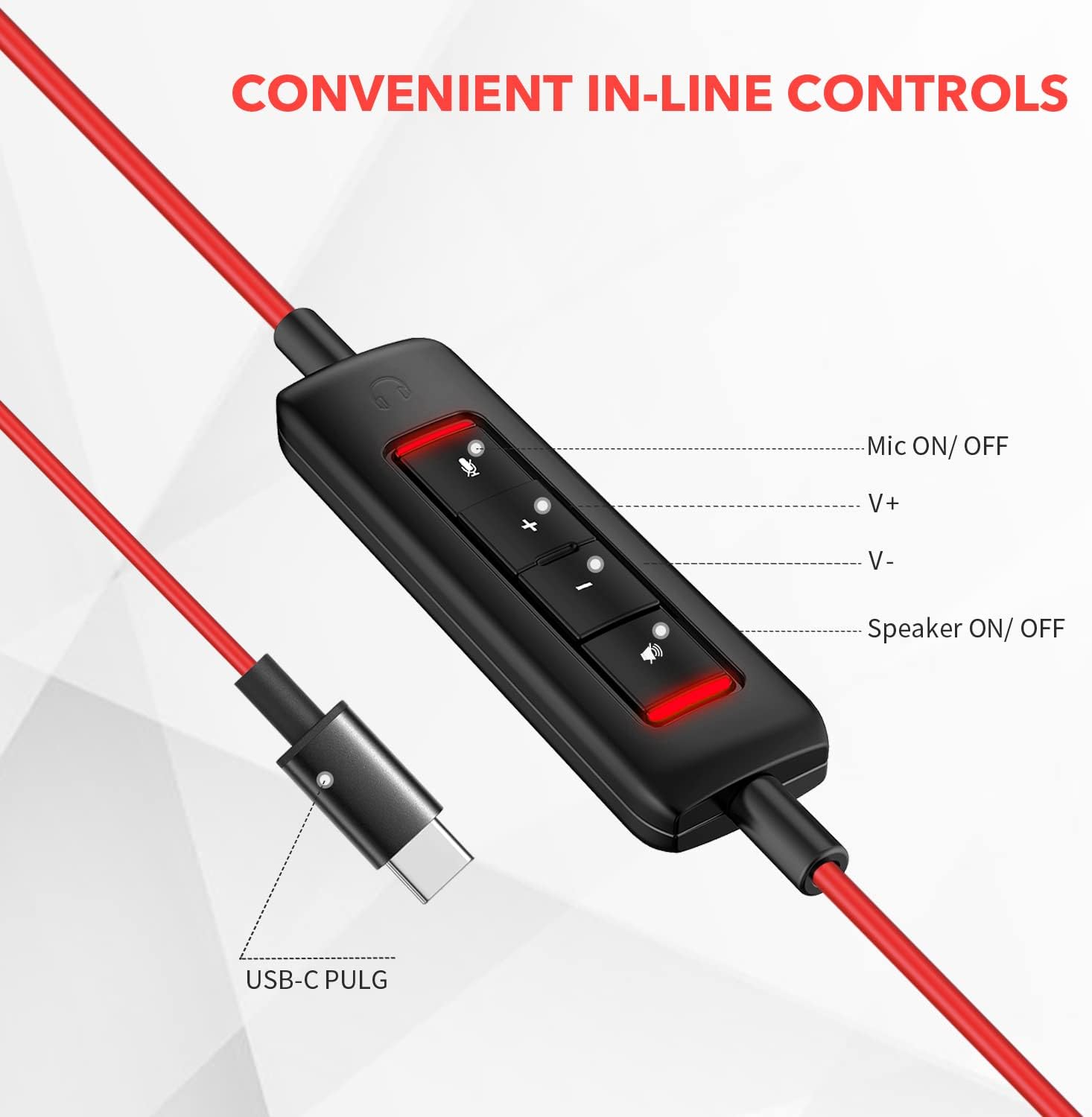
Image: Close-up view of the in-line control unit, detailing the buttons for microphone mute/unmute, volume up, volume down, and speaker mute/unmute. The USB-C plug is also shown.
5. Maintenance
To ensure the longevity and optimal performance of your NUBWO USB C Headset, follow these maintenance guidelines:
- Cleaning: Use a soft, dry cloth to wipe down the headset and cable. Avoid using harsh chemicals or abrasive materials.
- Storage: When not in use, store the headset in a clean, dry place, preferably in the provided velvet bag, to protect it from dust and damage.
- Cable Care: Avoid sharp bends or excessive pulling on the cable to prevent internal wire damage.
- Environmental Conditions: Do not expose the headset to extreme temperatures, humidity, or direct sunlight. The headset is not water resistant.
6. Troubleshooting
If you encounter issues with your NUBWO USB C Headset, refer to the following common solutions:
- No Sound from Headset:
- Ensure the USB-C connector is fully inserted into the device's port.
- Check the in-line control unit to ensure the speaker is not muted (red indicator light off).
- Increase the volume using the '+' button on the in-line control and your device's system volume settings.
- Verify that the headset is selected as the default audio output device in your computer's sound settings.
- Microphone Not Working:
- Ensure the microphone is not muted on the in-line control unit (red indicator light off).
- Check that the microphone boom is correctly positioned.
- Verify that the headset microphone is selected as the default input device in your device's sound settings or communication application settings.
- Test the microphone with another application or device to rule out software-specific issues.
- Poor Audio Quality:
- Ensure the connection is secure and free from debris.
- Avoid using the headset in environments with high electromagnetic interference.
- Adjust the audio settings on your device.
7. Specifications
| Feature | Specification |
|---|---|
| Brand | NUBWO |
| Model Number | HW02 |
| Connectivity Technology | Wired (USB-C) |
| Ear Placement | On Ear |
| Impedance | 32 Ohms |
| Frequency Range | 20 Hz - 20,000 Hz |
| Control Type | Volume Control, Microphone Mute, Speaker Mute (in-line) |
| Noise Control | Active Noise Cancellation (Microphone) |
| Item Weight | 0.17 Kilograms |
| Material | Plastic |
| Additional Features | Adjustable Headband, Lightweight, Microphone Included |
| Compatible Devices | Laptops, Phones, Computers (with USB-C) |
8. Warranty Information
The NUBWO USB C Headset (Model HW02) comes with a 2-Year Manufacturer Warranty. For details regarding warranty claims and coverage, please refer to the official NUBWO website or contact customer support.
Additionally, products purchased through Amazon may be eligible for a 30-day refund/replacement return policy, subject to Amazon's terms and conditions.
9. Support
For further assistance, technical support, or inquiries regarding your NUBWO USB C Headset, please visit the official NUBWO website or contact their customer service department. Contact information can typically be found on the product packaging or the brand's official online presence.

