
Introduction
This user manual provides comprehensive instructions for the KOWVOWZ 360° Security Camera. This wireless outdoor camera supports both 2.4GHz and 5GHz Wi-Fi networks, offers 1080p resolution, intelligent night vision, motion detection with real-time alerts, and two-way audio communication. Designed for easy installation into a standard E27 light bulb socket, it provides a 360-degree viewing angle for enhanced home security.
Key Features
- Dual-Band Wi-Fi Support: Compatible with both 2.4GHz and 5GHz network routers for smoother control and more wireless options.
- 1080P HD Resolution: Provides clear and detailed video footage.
- Intelligent Night Vision: Offers both ordinary night vision and color night vision modes.
- Motion Detection & Real-time Alerts: High-sensitivity motion sensor records moving objects and sends notifications via the app.
- Easy Installation: Installs directly into a normal E27 bulb base (110V~240V).
- Two-Way Audio: Built-in microphone and speaker for real-time conversation.
- 360-Degree Viewing: App-controlled viewing angle to cover all areas without blind spots.
What's in the Box
- KOWVOWZ 360° Security Camera (1PC)
- Light (referring to the bulb camera itself)
- User Manual (this document)
Setup Guide
1. Installation
The KOWVOWZ security camera is designed for simple installation, similar to a standard light bulb. Ensure the power to the light socket is off before installation.
- Locate a standard E27 bulb base (110V~240V) where you wish to install the camera.
- Carefully screw the KOWVOWZ security camera into the E27 light bulb socket until it is securely fastened.
- Turn on the power to the light socket. The camera will begin its startup sequence.
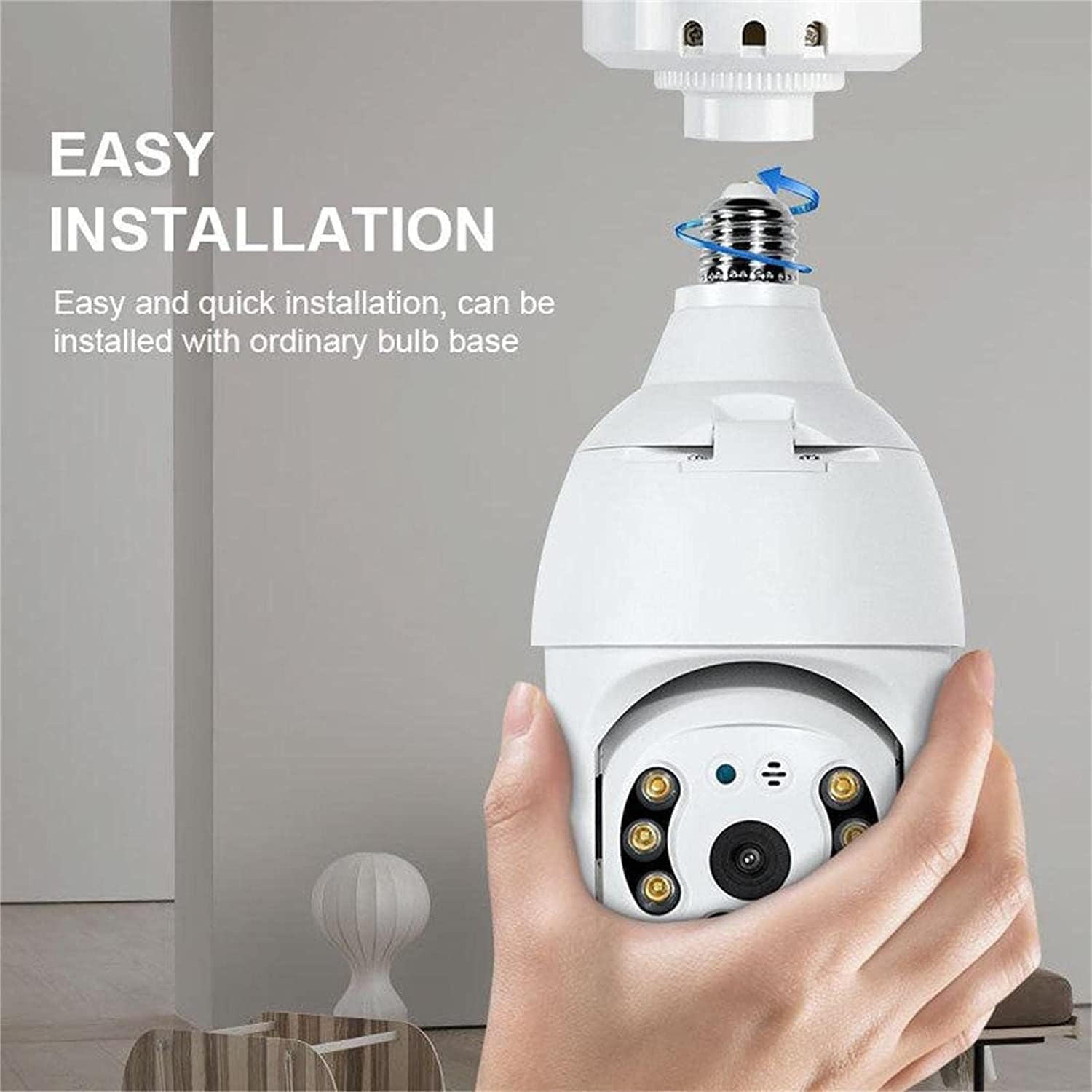
Figure 1: Easy installation into a standard E27 light bulb socket.
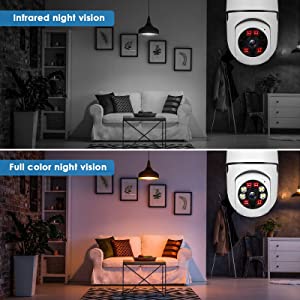
Figure 2: The camera is designed for quick and easy installation, just like a regular light bulb.
2. App Download and Wi-Fi Connection
To control and monitor your camera, you need to download the dedicated mobile application and connect the camera to your Wi-Fi network. The camera supports both 2.4GHz and 5GHz Wi-Fi bands.
- Download the official application (e.g., "YI IOT" or as specified in the camera's packaging) from your smartphone's app store (Android or iOS).
- Open the app and follow the on-screen instructions to create an account or log in.
- Add a new device within the app and select the KOWVOWZ security camera model.
- Follow the app's prompts to connect the camera to your 2.4GHz or 5GHz Wi-Fi network. This process typically involves scanning a QR code displayed on your phone with the camera.
- Allow approximately 40 seconds for the initial connection to be established. Once connected, the camera status indicator will change, and you will receive a confirmation in the app.

Figure 3: The camera connects to your smartphone via a dedicated app, supporting both 2.4GHz and 5GHz Wi-Fi.
Operating Instructions
1. Live View and Pan/Tilt Control
Once connected, you can access the live video feed from your camera through the mobile app. The camera offers a wide viewing range that can be controlled remotely.
- Open the app and select your camera from the device list to view the live feed.
- Use the directional controls within the app to pan (rotate horizontally up to 355°) and tilt (rotate vertically up to 95°) the camera lens, allowing you to cover almost every corner of the monitored area.
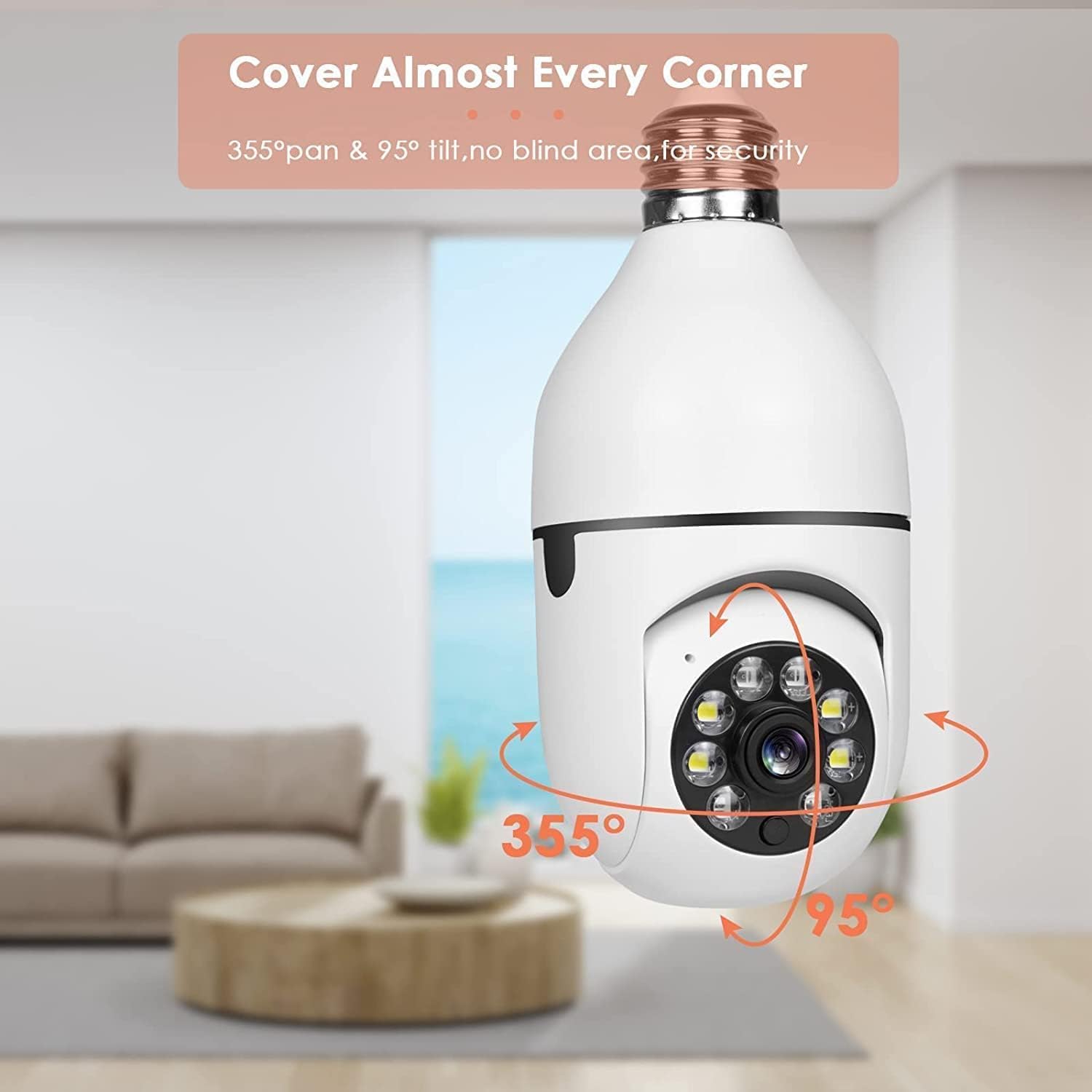
Figure 4: The camera offers 355° pan and 95° tilt for comprehensive coverage.
2. Intelligent Night Vision
The camera is equipped with intelligent night vision capabilities to provide clear images even in low-light conditions.
- The camera automatically switches to night vision mode when ambient light is low.
- You can choose between ordinary night vision (black and white infrared) and color night vision through the app settings, depending on your preference and environmental conditions.
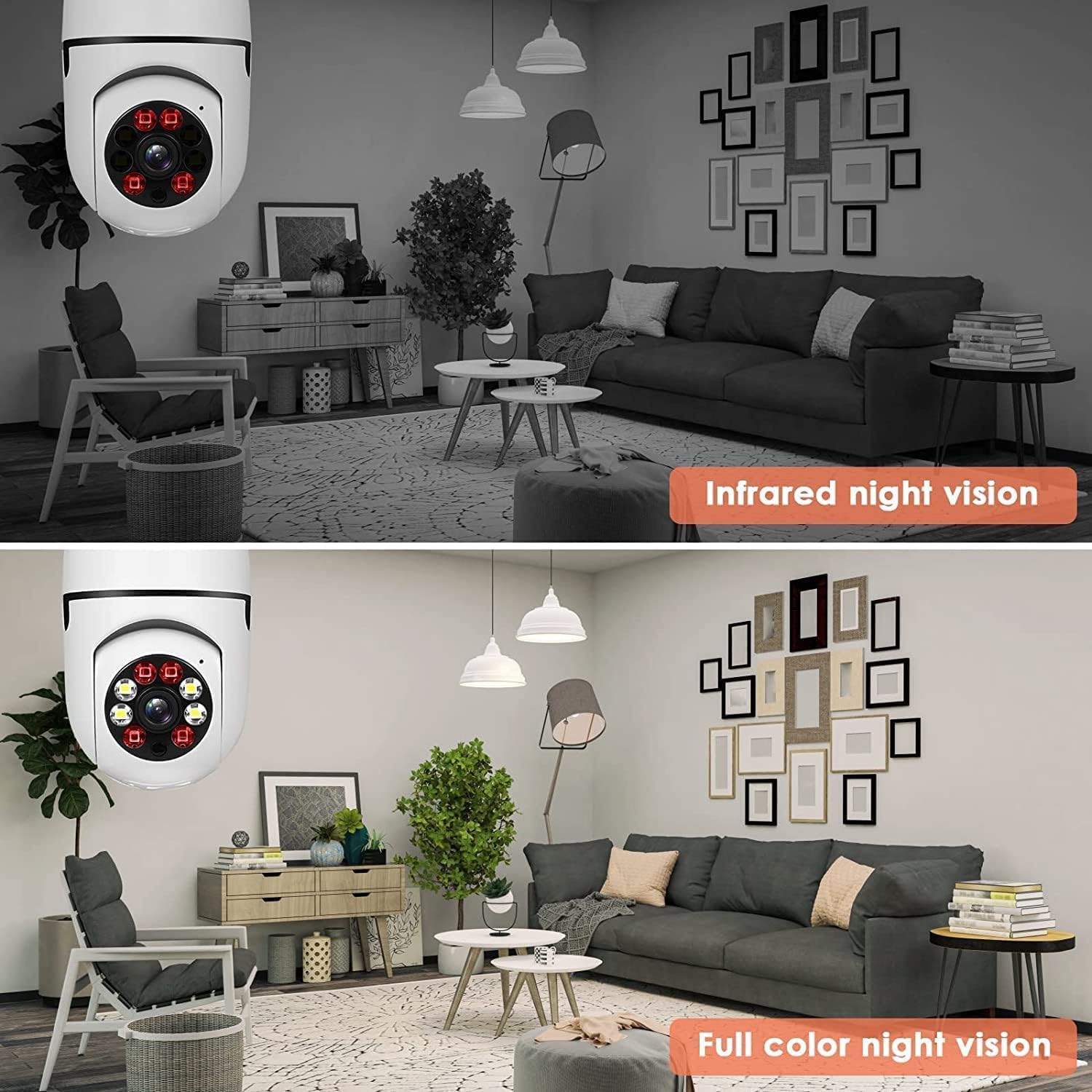
Figure 5: Choose between infrared and full-color night vision modes.
3. Motion Detection and Alerts
The camera features a highly sensitive motion sensor that detects movement and provides immediate alerts.
- Enable motion detection in the app settings.
- When a moving object is detected, the camera will record the event and send a real-time notification to your smartphone via the app.
- Review recorded motion events in the app's playback section.
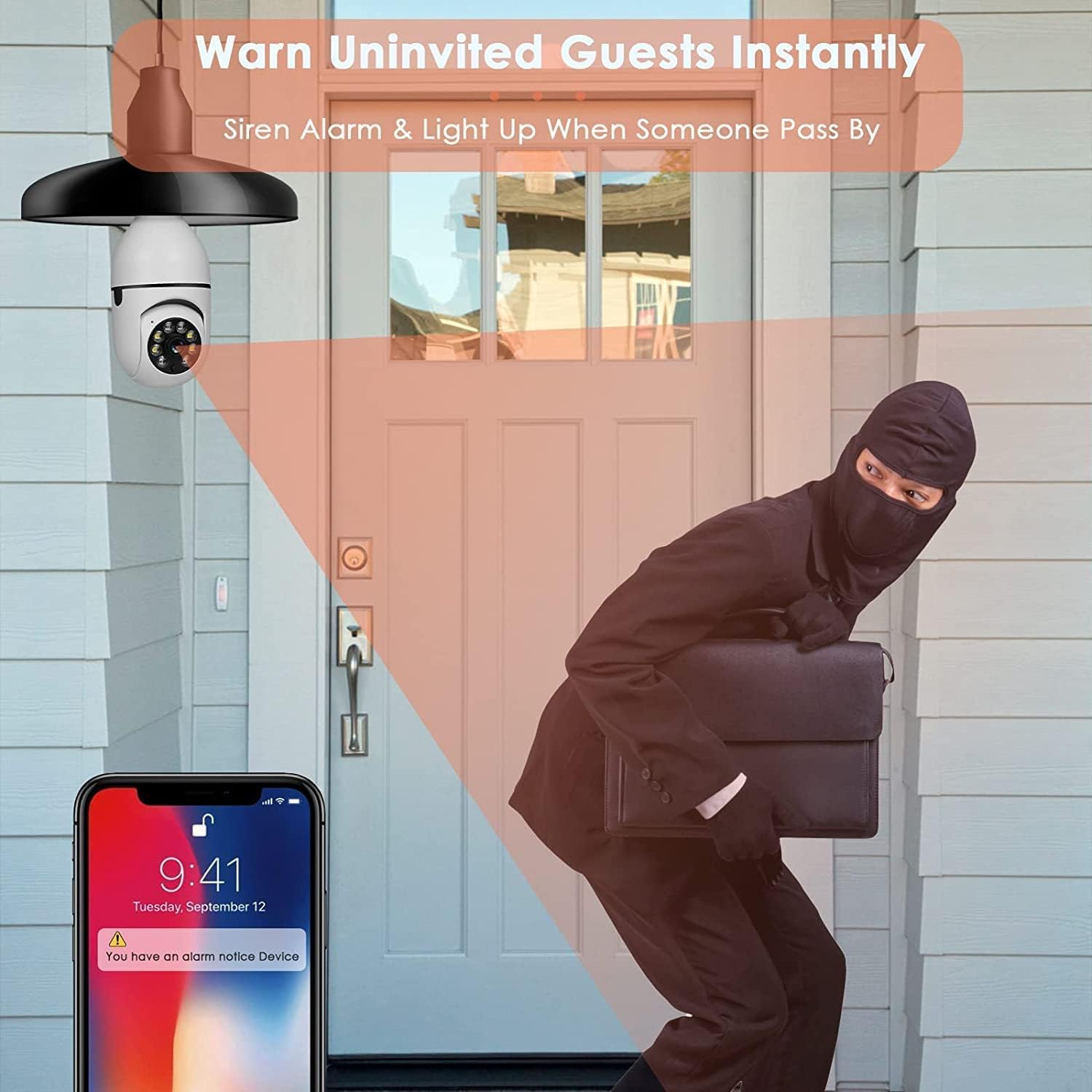
Figure 6: The camera warns of uninvited guests instantly with siren alarm and light-up features.
4. Two-Way Audio
Communicate directly through the camera using its built-in microphone and speaker.
- From the live view in the app, tap the microphone icon to speak through the camera.
- Tap the speaker icon to listen to audio from the camera's location.
- This feature allows for real-time conversations with visitors or to deter intruders.

Figure 7: Engage in two-way audio communication with ease.
5. Video Storage
The camera supports local storage via a Micro SD card (not included) and may offer cloud storage options (subscription may be required).
- Insert a Micro SD card (up to supported capacity, check product specifications or app for details) into the camera's designated slot for continuous or event-triggered recording.
- Access recorded footage via the app's playback function.
Official Product Video
Video 1: An overview of the KOWVOWZ Wireless WiFi Light Bulb Camera, demonstrating its easy installation, remote control features, and various applications. This video highlights the product's versatility and user-friendly design.
Specifications
| Feature | Detail |
|---|---|
| Brand | KOWVOWZ |
| Model Number | B0B2954P3H |
| Connectivity Technology | Wireless (Wi-Fi 2.4GHz & 5GHz) |
| Video Capture Resolution | 1080p |
| Viewing Angle | 360 Degrees (Pan 355°, Tilt 95°) |
| Special Feature | Motion Sensor, Two-Way Audio, Night Color |
| Power Source | Corded Electric (E27 Bulb Base, 110V~240V) |
| Indoor/Outdoor Usage | Outdoor |
| Item Dimensions L x W x H | 7.1 x 7.5 x 3.9 inches |
| Item Weight | 9.8 ounces |
| International Protection Rating | IP65 |
Troubleshooting
- Camera not connecting to Wi-Fi: Ensure your Wi-Fi password is correct and that the camera is within range of your router. Try restarting both the camera (by unscrewing and re-screwing it) and your router. Verify you are connecting to the correct 2.4GHz or 5GHz band as supported.
- Poor video quality: Check your internet connection speed. Ensure the camera lens is clean and free from obstructions.
- Motion alerts not received: Verify motion detection is enabled in the app settings. Check your phone's notification settings to ensure the app has permission to send alerts.
- Two-way audio issues: Ensure your phone's microphone and speaker are working correctly. Check the app's audio settings.
- Camera offline: Check the power supply to the light socket. Restart the camera and check your Wi-Fi connection.
Maintenance
- Cleaning: Gently wipe the camera lens and body with a soft, dry cloth. Do not use liquid cleaners or abrasive materials.
- Firmware Updates: Regularly check the app for available firmware updates to ensure optimal performance and security.
- Environmental Conditions: While designed for outdoor use (IP65 rated), avoid exposing the camera to extreme weather conditions beyond its specified operating range.
Warranty and Support
For warranty information, technical support, or service inquiries, please refer to the contact details provided on the product packaging or the official KOWVOWZ website. We provide lifetime technical support and services.


