
1. Introduction
This manual provides essential information for setting up, operating, and maintaining your Beelink SER5 Mini PC. The SER5 Mini PC is equipped with an AMD Ryzen 7 5800H processor, 16GB DDR4 RAM, and a 500GB M.2 NVMe 2280 PCIe3.0x4 SSD, designed for efficient performance in various tasks including image editing, office applications, programming, and HTPC/Zoom meetings.
The compact design supports 4K Ultra HD 60Hz triple display output and features WiFi 6 and Bluetooth 5.2 for robust wireless connectivity.

Video 1.1: An overview of the Beelink SER5 Mini PC, highlighting its features and compact design.
2. Setup
To begin using your Beelink SER5 Mini PC, follow these steps:
- Connect Power: Plug the power adapter (19V/3A) into the DC Jack on the rear of the Mini PC and then into a power outlet.
- Connect Display: Connect your monitor(s) to the Mini PC using the HDMI, DP, or Type-C ports. The device supports up to three displays simultaneously.
- Connect Peripherals: Attach your keyboard, mouse, and other USB devices to the available USB 2.0, USB 3.2 Gen2, or Type-C ports.
- Power On: Press the red power button on the front of the Mini PC to turn it on.

3. Operating
3.1 Triple Display Setup
The Beelink SER5 Mini PC supports connecting up to three displays simultaneously, allowing for enhanced multitasking and productivity. Use a combination of the HDMI, DP, and Type-C ports to connect your monitors. The AMD Radeon Graphics 8 cores 2000 MHz supports 4K Ultra HD 60Hz resolution on all connected displays.
3.2 Wireless Connectivity
The Mini PC features built-in WiFi 6 (802.11ax) for faster and more stable internet connections, and Bluetooth 5.2 for quick pairing with wireless devices such as headsets, mice, and keyboards.

4. Storage and Memory Expansion
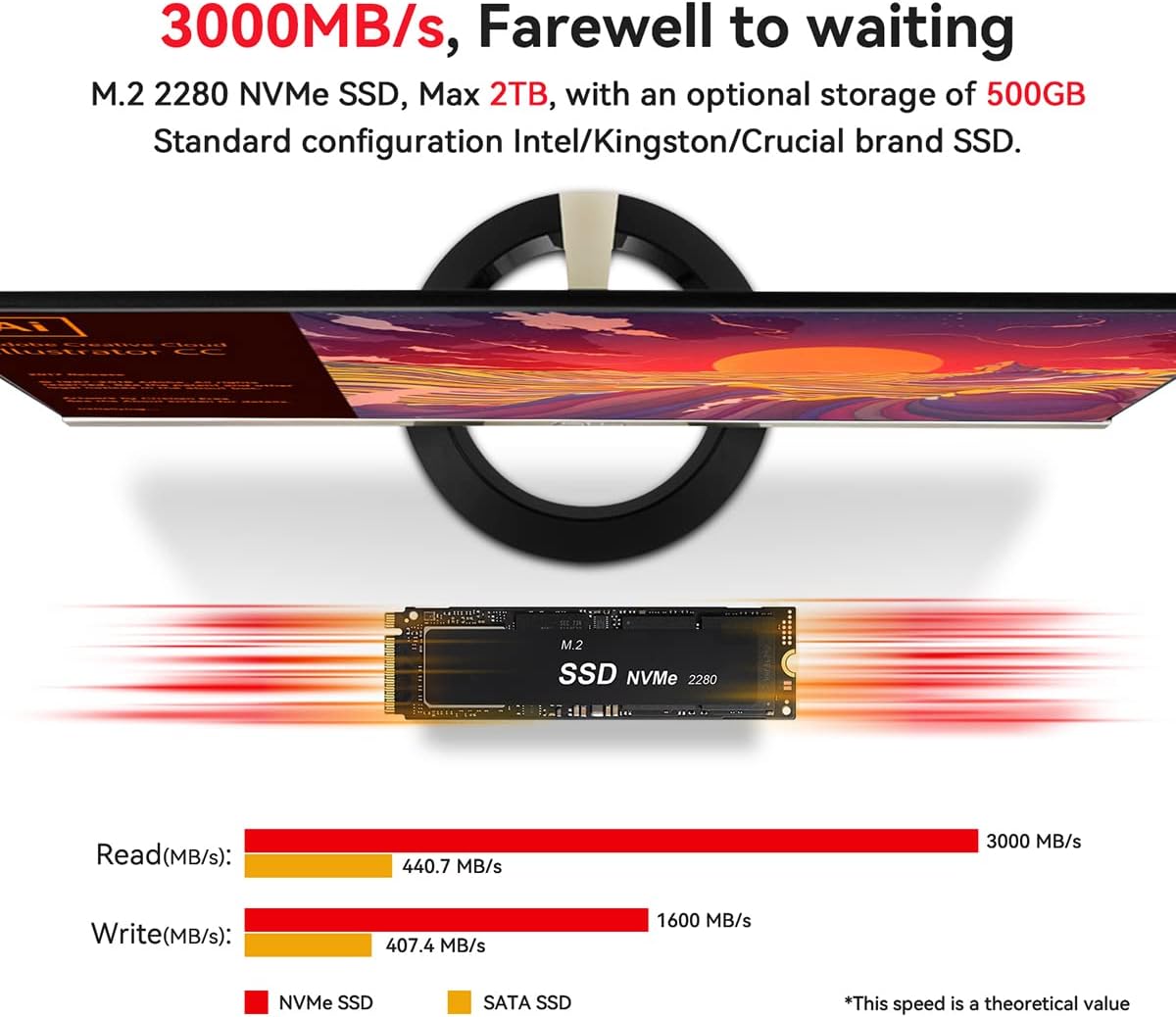
The Beelink SER5 Mini PC comes with 16GB SO-DIMM DDR4 RAM and a 500GB M.2 NVMe 2280 PCIe3.0x4 SSD. Both components can be upgraded to meet higher performance or storage needs.
4.1 RAM Upgrade
The 16GB DDR4 RAM can be upgraded to a maximum of 64GB (not included). This allows for improved multitasking and performance in memory-intensive applications.

4.2 SSD/HDD Upgrade
The 500GB M.2 NVMe 2280 PCIe3.0x4 SSD can be upgraded to support up to 2TB of storage (not included). Additionally, the Mini PC supports an internal 2.5-inch SATA HDD/SSD up to 2TB for secondary storage.

Video 4.1: A detailed tutorial on how to replace or upgrade the SSD in your Beelink Mini PC.
5. Specifications
| Model | Beelink SER5 |
| Processor | AMD Ryzen 7 5800H (8C/16T, up to 4.4GHz) |
| Graphics | AMD Radeon Graphics 8 cores 2000 MHz |
| RAM | 16GB SO-DIMM DDR4 3200MHz (Expandable to 64GB) |
| Storage | 500GB M.2 NVMe 2280 PCIe3.0x4 SSD (Expandable to 2TB) |
| Additional Storage | Supports 2.5-inch SATA HDD/SSD up to 2TB |
| Ethernet | 1000Mbps LAN (RJ45) |
| Wireless | WiFi 6 (802.11ax), Bluetooth 5.2 |
| Video Output | 1x HDMI, 1x DP, 1x Type-C (4K@60Hz Triple Display) |
| USB Ports | 3x USB3.2 Gen2 (10Gbps), 1x USB 2.0, 1x Type-C (Data&Video) |
| Audio | 1x Audio Jack (HP&MIC) |
| Operating System | OS (Windows 11 Pro compatible) |
| Dimensions | 5 x 4.4 x 1.6 inches (126 x 113 x 42 mm) |
| Weight | 2.27 pounds |
6. Maintenance
6.1 Cooling System
The Beelink SER5 Mini PC features an efficient cooling system with a dual fan design (CPU fan cooling and system fan cooling) and a large copper plate with double heat pipes to dissipate heat effectively. This ensures stable performance even under heavy loads.


6.2 General Care
The Mini PC is constructed with an ABS material body and a full metal mesh, providing a durable and compact design. To maintain optimal performance and longevity:
- Keep the device in a well-ventilated area to prevent overheating.
- Avoid blocking the air inlet and outlet vents.
- Clean the exterior regularly with a soft, dry cloth.
- Avoid exposing the device to extreme temperatures or humidity.

7. Troubleshooting
7.1 Automatic Power On Function
If you wish to set up the automatic power on function, please contact our technical support team. You will need to provide a picture of the barcode located on the bottom of the machine to receive the appropriate setup guide.
7.2 System or Key Loss
In the event of system or key loss, please contact our technical support team. Provide a barcode image from the bottom of the machine to obtain system files and reinstallation instructions.
7.3 Power Management Issues
If the Mini PC does not remain powered on when idle, even with Windows sleep settings configured to 'never', check the power plan settings. Some units may default to a non-standard 'Ryzen' Windows power plan. Changing this to the standard Windows 'Balanced' power plan and ensuring hibernation is set to 'never' in its advanced settings can resolve this issue.
8. Warranty and Support
Beelink offers 7 days/24 hours serving and lifetime technical assistance. If you require pre-sales or after-sales support, please email our customer service team. Our technical experts are available to assist you with any issues.
The product includes a 1-year warranty service.