
Riworal 8 Channel Audio Interface
Riworal 8 Channel Audio Interface Mixer Board User Manual
Model: 8 Channel Audio Interface
1. Introduction
This user manual provides comprehensive instructions for the operation, setup, and maintenance of your Riworal 8 Channel Audio Interface Mixer Board. This versatile mixer is designed for various audio applications, including music production, podcasting, live sound, and recording. It features built-in Bluetooth and USB interfaces for flexible audio input and output, along with essential controls for sound shaping and mixing.
2. Safety Instructions
- Power Supply: Use only the provided AC 110V-120V adapter. Ensure the voltage matches your local power supply.
- Water and Moisture: Do not expose the mixer to water, rain, or excessive moisture. Avoid placing liquid-filled objects on the unit.
- Ventilation: Ensure proper ventilation. Do not block ventilation openings. Operate the unit in a well-ventilated area to prevent overheating.
- Heat Sources: Keep the mixer away from heat sources such as radiators, heat registers, stoves, or other heat-producing apparatus.
- Cleaning: Disconnect power before cleaning. Use a dry, soft cloth. Do not use liquid cleaners or aerosol cleaners.
- Servicing: Do not attempt to service this product yourself. Refer all servicing to qualified service personnel.
- Cables: Protect power cords from being walked on or pinched, particularly at plugs, convenience receptacles, and the point where they exit from the apparatus.
3. Package Contents
Verify that all items listed below are included in your package:
- 1 x Riworal 8 Channel Music Mixer
- 1 x AC 110V-120V Adapter
- 1 x User Manual
4. Product Overview
The Riworal 8 Channel Audio Interface Mixer Board is equipped with a comprehensive set of controls and connection points for versatile audio management. Familiarize yourself with the layout and functions of each component.

Figure 4.1: Front Panel Controls and Connections. This image displays the top view of the mixer with various controls and input/output jacks clearly labeled, including microphone inputs, line inputs, gain adjustments, equalization knobs, effect controls, faders, and the MP3 control area.
4.1. Input Channels (1-8)
- Microphone Input (XLR): For connecting microphones.
- Line Input (1/4" Jack): For connecting line-level devices such as keyboards, guitars, or other musical instruments.
- Gain Adjustment: Controls the input sensitivity for each channel.
- EQ (Equalization) with 2-band: Adjusts the treble and bass frequencies for each channel.
- Aux Send: Sends a portion of the channel signal to an auxiliary output for external effects or monitoring.
- Pan: Adjusts the stereo position (left/right) of the channel signal.
- Effect Send: Sends a portion of the channel signal to the internal effect processor.
- PFL/AFL Button: Pre-Fader Listen / After-Fader Listen. Activates monitoring of the channel signal through headphones.
- Channel Fader: Controls the output volume of each individual channel.
4.2. Master Section
- MP3 Control Area: Features a display and controls for USB playback and Bluetooth connectivity.
- 48V Phantom Power ON/OFF: Supplies power to condenser microphones connected to XLR inputs.
- Effect Parameter Adjustment: Controls parameters for the built-in effects (e.g., Reverb, Delay).
- Monitor Volume: Adjusts the volume for headphone monitoring.
- Main Mix Fader (L/R): Controls the overall output volume of the main stereo mix.
- Headphone Jack: For connecting monitoring headphones.
- Main Outputs (XLR/1/4" Jack): Connect to power amplifiers or active speakers.
- Recording In/Out (RCA): For connecting external recording devices or playback sources.
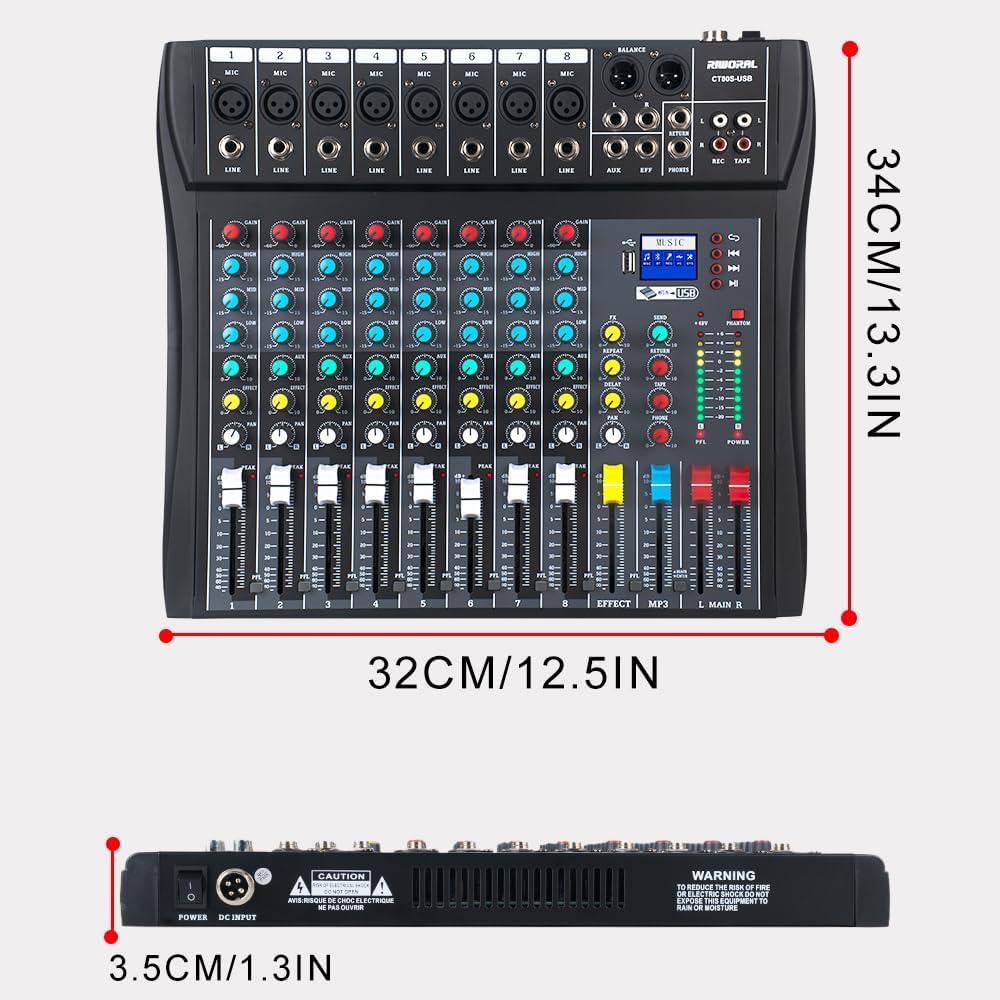
Figure 4.2: Mixer Dimensions. This image provides the physical dimensions of the mixer, showing its length, width, and height in both centimeters and inches.
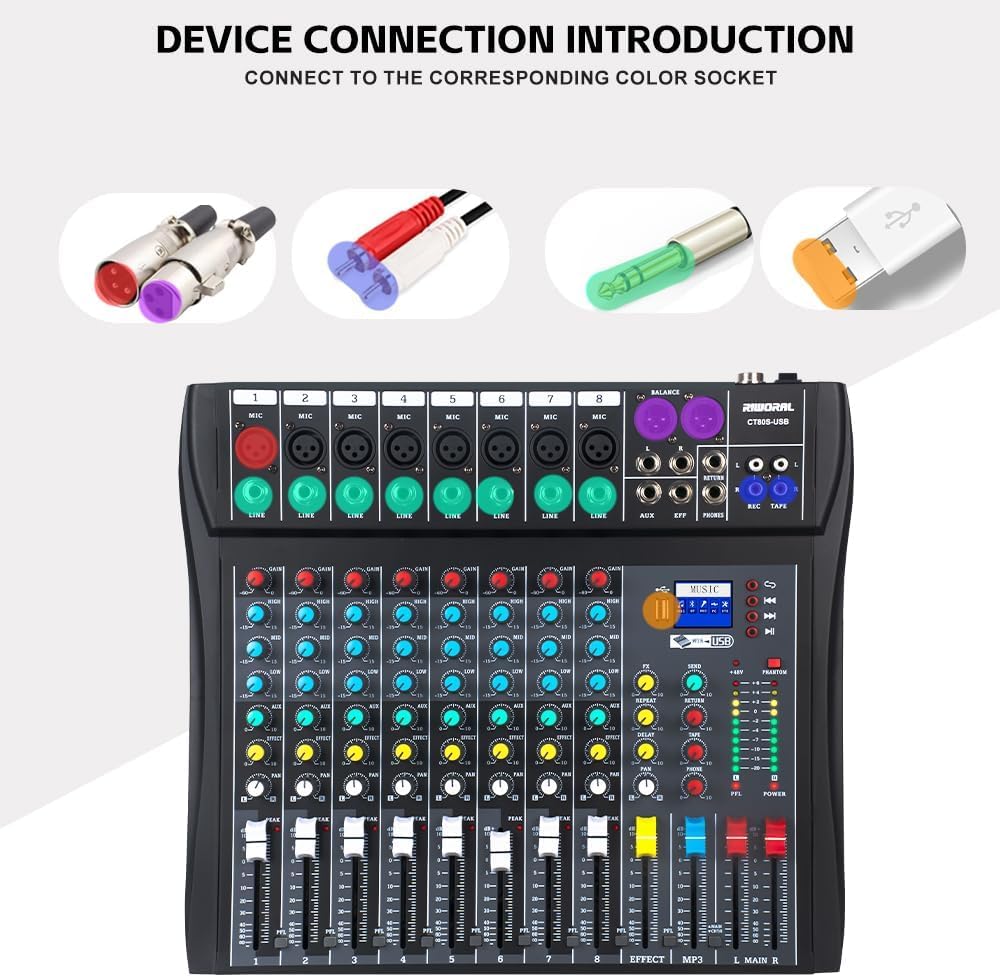
Figure 4.3: Device Connection Introduction. This image illustrates various connector types (XLR, 1/4-inch, USB) and their corresponding color-coded sockets on the mixer, indicating where different devices should be connected.
5. Setup
Follow these steps to set up your Riworal mixer for initial use:
- Power Connection: Connect the provided AC adapter to the mixer's power socket (DC INPUT) and then plug it into a suitable power outlet. Ensure the mixer's power switch is in the OFF position before connecting.
- Connecting Output Devices:
- Connect your main speakers or power amplifier to the MAIN OUT (L/R) XLR or 1/4" jacks.
- Connect monitoring headphones to the PHONES 1/4" jack.
- Connecting Input Devices:
- Microphones: Connect XLR microphones to the MIC inputs (Channels 1-8). If using condenser microphones, ensure the 48V PHANTOM POWER is turned ON after connecting.
- Line-Level Instruments: Connect instruments like guitars, keyboards, or other audio devices to the LINE 1/4" inputs (Channels 1-8).
- External Playback/Recording: Use the REC/TAPE RCA inputs/outputs for connecting CD players, external recorders, or other playback devices.
- Initial Power On: Once all connections are secure, switch the mixer's power ON.
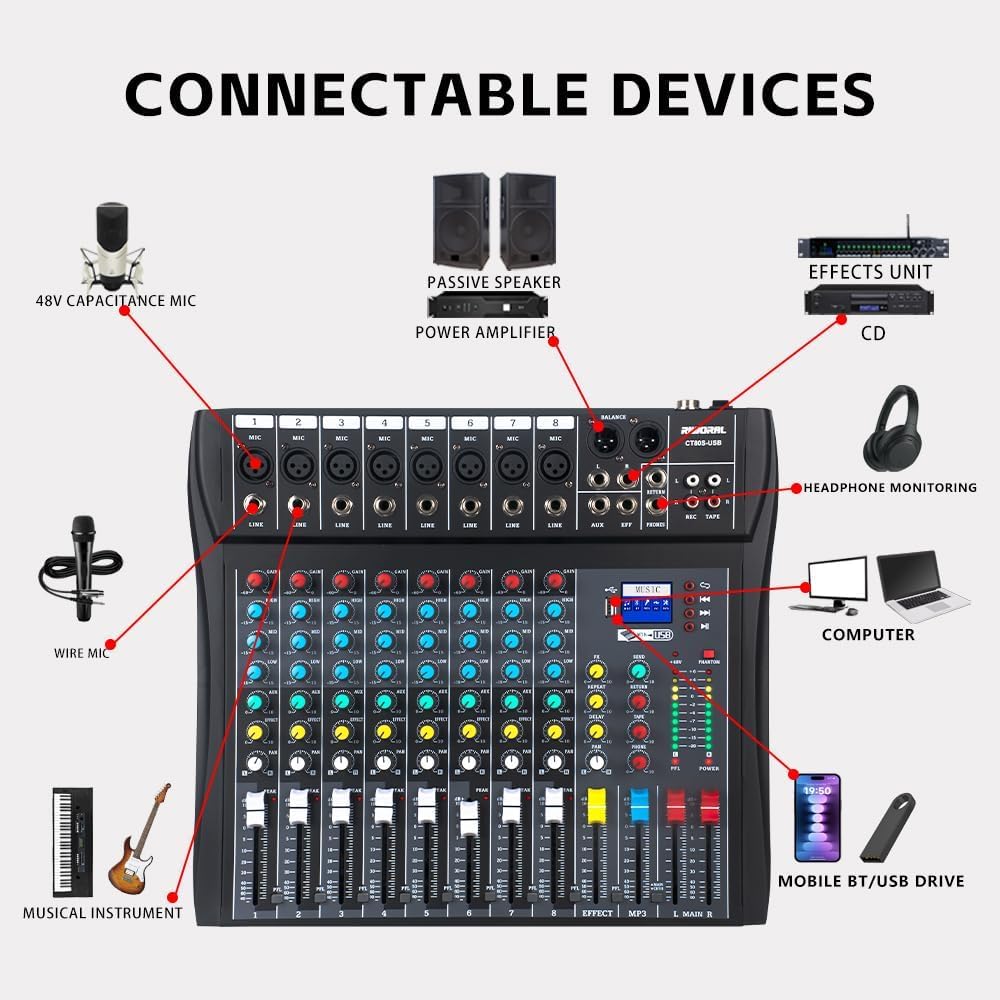
Figure 5.1: Connectable Devices Diagram. This diagram illustrates various devices that can be connected to the mixer, including microphones (48V capacitance and wire), musical instruments, passive speakers, power amplifiers, effects units, CD players, headphones, computers, mobile phones, and USB drives.
6. Operating Instructions
6.1. Basic Mixing
- Adjusting Input Gain: For each active channel, slowly turn the GAIN knob clockwise until the PEAK indicator light occasionally flashes. This ensures optimal signal level without distortion.
- Equalization (EQ): Use the HIGH and LOW knobs to adjust the treble and bass frequencies for each channel. Turn clockwise to boost, counter-clockwise to cut.
- Pan Control: Adjust the PAN knob to position the sound of each channel within the stereo field (left to right).
- Channel Volume: Use the individual channel faders to set the volume level for each input.
- Main Mix Volume: Adjust the L MAIN R fader to control the overall output volume of the mixed audio.
6.2. Using Effects
The mixer includes built-in effects for enhancing your audio.
- Turn the EFFECT knob on each channel to send a portion of that channel's signal to the internal effects processor.
- Adjust the EFFECT SEND and RETURN controls in the master section to control the overall effect level and mix it into the main output.
- Use the REVERB and DELAY knobs to fine-tune the effect parameters.
6.3. Bluetooth Connectivity
The mixer features Bluetooth 5.0 for wireless audio streaming.
- Press the MODE button in the MP3 control area until "Bluetooth" is displayed.
- On your mobile device (smartphone, tablet, etc.), enable Bluetooth and search for available devices.
- Select "RIWORAL" or a similar name from the list to pair.
- Once connected, you can play audio from your device through the mixer. Adjust the MP3 channel volume as needed.

Figure 6.1: High-Speed Bluetooth Connectivity. This image highlights the mixer's Bluetooth 5.0 capability, emphasizing fast and lag-free wireless connection for audio streaming from mobile devices.
6.4. USB Playback and Recording
The USB interface allows for direct playback from USB drives and recording to a computer or other compatible devices.
- USB Playback: Insert a USB flash drive containing MP3 audio files into the USB port. The mixer will automatically detect and begin playing the files. Use the MP3 control area buttons (Play/Pause, Next, Previous) to navigate.
- Recording to PC/Smartphone: Connect the mixer to your computer, iPad, or smartphone via the USB interface. The mixer will be recognized as an audio input device. Use your preferred recording software on your device to capture the mixed audio output from the mixer.

Figure 6.2: USB Interface Usage. This image demonstrates how to connect a USB flash drive for music playback and how to connect the mixer to a computer for playing or recording music.
7. Maintenance
- Cleaning: Regularly wipe the mixer's surface with a soft, dry cloth. Do not use abrasive cleaners, waxes, or solvents.
- Ventilation: Ensure the heat dissipation vents are clear of dust and debris to maintain optimal performance and prevent overheating.
- Storage: When not in use for extended periods, store the mixer in a cool, dry place, away from direct sunlight and extreme temperatures.
- Faders and Knobs: Avoid applying excessive force to faders and knobs. Keep them free from dust and liquids.
8. Troubleshooting
If you encounter issues with your mixer, refer to the following common problems and solutions:
| Problem | Possible Cause | Solution |
|---|---|---|
| No sound output from main speakers. |
|
|
| No sound from a specific input channel. |
|
|
| Distorted sound. |
|
|
| Bluetooth connection issues. |
|
|
9. Specifications
Detailed technical specifications for the Riworal 8 Channel Audio Interface Mixer Board:
| Feature | Detail |
|---|---|
| Model Number | 8 Channel Audio Interface |
| Dimensions (L x W x H) | 17.05 x 16.73 x 3.54 inches (approx. 43.3 x 42.5 x 9 cm) |
| Item Weight | 8.53 pounds (approx. 3.87 kg) |
| Number of Channels | 8 |
| Connectivity Technology | XLR, USB, Bluetooth, 1/4 Inch Interface |
| Hardware Interface | 1/4-inch Audio, 3.5mm Audio, Bluetooth, Headphone, USB |
| Compatible Devices | Musical Instrument Equipment, 48v Condenser Microphone, XLR Wired Microphone, Wireless Microphone System, PA System, Home Theater, Passive Mixer, USB Flash Drive, Monitor Headphones, Speaker, Power Amplifiers, Smartphones, Computers, Laptops, Tablets |
| Power Source | Corded Electric |
| Voltage | 110 Volts |
| Frequency | 50 Hz |
| Material Type | Metal (Steel) |

Figure 9.1: Detailed Specifications. This image presents a table of technical specifications for the mixer, including input channel sensitivity, outputs, signal-to-noise ratio, parametric EQ, and power section details for different channel models.
10. Warranty and Support
For any questions, technical assistance, or if you encounter issues not covered in this manual, please contact Riworal customer service immediately. Refer to the product packaging or the official Riworal website for contact information.