
1. Introduction
The EnhanBili Colorlight X8 is a professional LED display controller designed for advanced video signal processing and display management. It offers robust capabilities for receiving, splicing, and processing video signals, supporting a variety of input types and high-resolution displays.
Key features include support for multiple digital signal inputs (DVI and SDI), seamless switching between sources, advanced splicing functions, broadcast-quality scaling, and the ability to manage up to six-layer displays simultaneously.
2. Safety Information
- Ensure the power supply voltage matches the device's requirements (AC 100-240V, 50/60Hz).
- Do not expose the device to moisture or extreme temperatures outside the operating range (-20℃ to 70℃).
- Avoid blocking ventilation openings to prevent overheating.
- Only use authorized accessories and cables.
- Refer all servicing to qualified personnel. Do not attempt to open or repair the device yourself.
- Disconnect power before cleaning or performing any maintenance.
3. Product Overview
The Colorlight X8 controller is equipped with various input and output ports to facilitate comprehensive LED display management. Below is an overview of the rear panel connections.
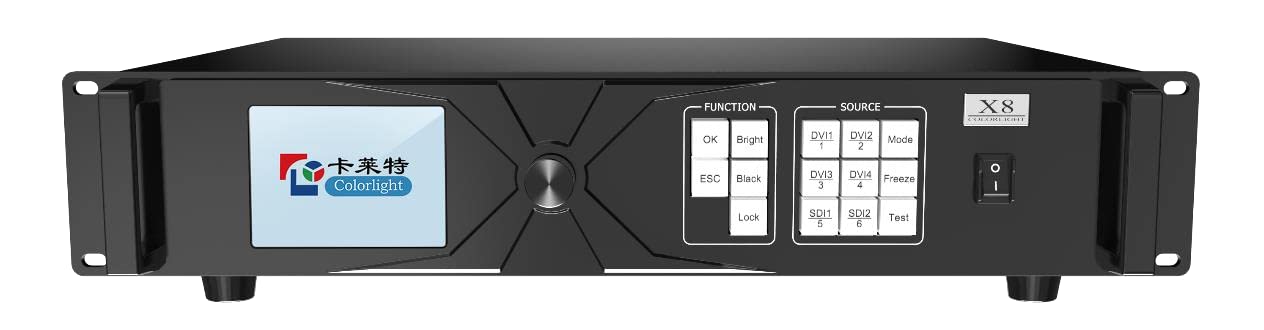
Figure 3.1: Rear Panel Layout of the Colorlight X8 Controller. This image displays the power input, LAN, RS232, USB, SDI, Genlock, and DVI ports for signal management and control.
3.1. Rear Panel Connections
- AC Power Input: Standard AC 100-240V, 50/60Hz power connector.
- LAN Port: Ethernet port for network control and communication.
- RS232: Serial communication port for control.
- USB OUT: USB output port.
- USB IN: USB input port for configuration or data transfer.
- SDI 1 & SDI 2: Serial Digital Interface inputs for professional video signals.
- GENLOCK LOOP & GENLOCK: Ports for synchronization with external video sources.
- DVI 1-4: Four DVI (Digital Visual Interface) input ports for high-resolution video signals.
- Ethernet Output Ports (PORT 1-8): Eight RJ45 Ethernet ports for connecting to LED display receiving cards.
4. Setup
- Power Connection: Connect the provided power cable to the AC power input on the rear panel and then to a suitable power outlet.
- Input Source Connection: Connect your video sources (e.g., computer, media player) to the DVI or SDI input ports using appropriate cables. The maximum input resolution supported is 1920x1200 pixels.
- LED Display Connection: Connect the Ethernet output ports (PORT 1-8) to the receiving cards of your LED display panels using standard Ethernet cables. Ensure correct port mapping according to your display configuration.
- Network Connection (Optional): For network control, connect the LAN port to your network router or switch.
- USB Connection (Optional): Use the USB IN port for initial configuration or firmware updates via a computer.
- Power On: Once all connections are secure, power on the Colorlight X8 controller. Observe the PWR and STAT indicators on the rear panel.
5. Operating Instructions
The Colorlight X8 controller is managed through its dedicated control software (typically provided by Colorlight or EnhanBili). This software allows for comprehensive control over display parameters, input switching, and advanced features.
5.1. Basic Operation
- Input Selection: Use the control software to select the desired video input source (DVI 1-4, SDI 1-2).
- Display Configuration: Configure the LED display resolution, refresh rate, and other parameters within the software to match your LED screen specifications. The controller supports output resolutions up to 4096x2160 pixels and a refresh rate of 3840 Hz.
- Scaling and Splicing: Utilize the built-in scaling engine for broadcast-quality image adjustments. The splicing function allows for combining multiple input sources or distributing a single source across complex LED display layouts.
- Layer Management: The X8 supports up to six-layer displays, enabling complex visual presentations with multiple video windows.
5.2. Advanced Features
- Genlock Synchronization: For professional broadcast environments, connect external synchronization signals to the GENLOCK ports to ensure precise timing with other video equipment.
- USB Data Transfer: The USB IN port can be used for importing display configurations or firmware updates.
6. Maintenance
- Cleaning: Regularly clean the exterior of the device with a soft, dry cloth. Do not use liquid cleaners or aerosols.
- Ventilation: Ensure that the ventilation slots on the device are clear of dust and obstructions to maintain proper airflow and prevent overheating.
- Environmental Conditions: Operate the device within the specified temperature range of -20℃ to 70℃ and avoid high humidity environments.
- Firmware Updates: Periodically check the manufacturer's website for firmware updates to ensure optimal performance and access to new features.
7. Troubleshooting
- No Power:
- Check if the power cable is securely connected to both the device and the power outlet.
- Verify that the power outlet is functional.
- No Video Output:
- Ensure the input source is correctly connected to the DVI or SDI ports.
- Verify that the LED display is properly connected to the Ethernet output ports.
- Check the input selection in the control software.
- Confirm that the LED display configuration in the software matches the physical display.
- Image Distortion or Flickering:
- Check cable connections for looseness or damage.
- Ensure the input signal resolution and refresh rate are compatible with the controller and display.
- Adjust scaling settings in the control software.
- Controller Not Responding:
- Restart the controller and the control computer.
- Verify network connectivity if controlling via LAN.
- Check RS232 cable connection if using serial control.
8. Specifications
| Feature | Specification |
|---|---|
| Brand | EnhanBili |
| Model Number | X8 |
| Input Voltage | AC 100-240V, 50/60Hz |
| Overall Consumption | 70W |
| Operating Temperature | -20℃ to 70℃ |
| Net Weight | 7 Kg (15.4 lbs) |
| Gross Weight | 9 Kg (19.8 lbs) |
| Max Input Resolution | 1920x1200 pixels |
| Max Output Resolution | 4096x2160 pixels (4K DCI) |
| Refresh Rate | 3840 Hz |
| Connectivity Technology | Ethernet |
| Input Ports | 4x DVI, 2x SDI, 1x USB IN, Genlock |
| Output Ports | 8x Ethernet (RJ45), 1x USB OUT, Genlock Loop |
| Control Ports | LAN (Ethernet), RS232 |
| Dimensions (D x W x H) | 19" x 14.6" x 3.5" (48.26cm x 37.08cm x 8.89cm) |
Note: Specifications are subject to change without prior notice.
9. Warranty and Support
For warranty information and technical support, please refer to the documentation provided with your purchase or contact EnhanBili customer service directly. You can typically find support contact details on the manufacturer's official website.