
1. Introduction
This manual provides detailed instructions for the installation, operation, and maintenance of your Wonlider Light Bulb Security Camera. Please read this manual thoroughly before using the product to ensure proper function and safety. This camera offers 360-degree pan/tilt functionality, 2MP resolution, dual-band Wi-Fi connectivity (2.4GHz/5GHz), two-way audio, color night vision, and motion detection capabilities for comprehensive home surveillance.
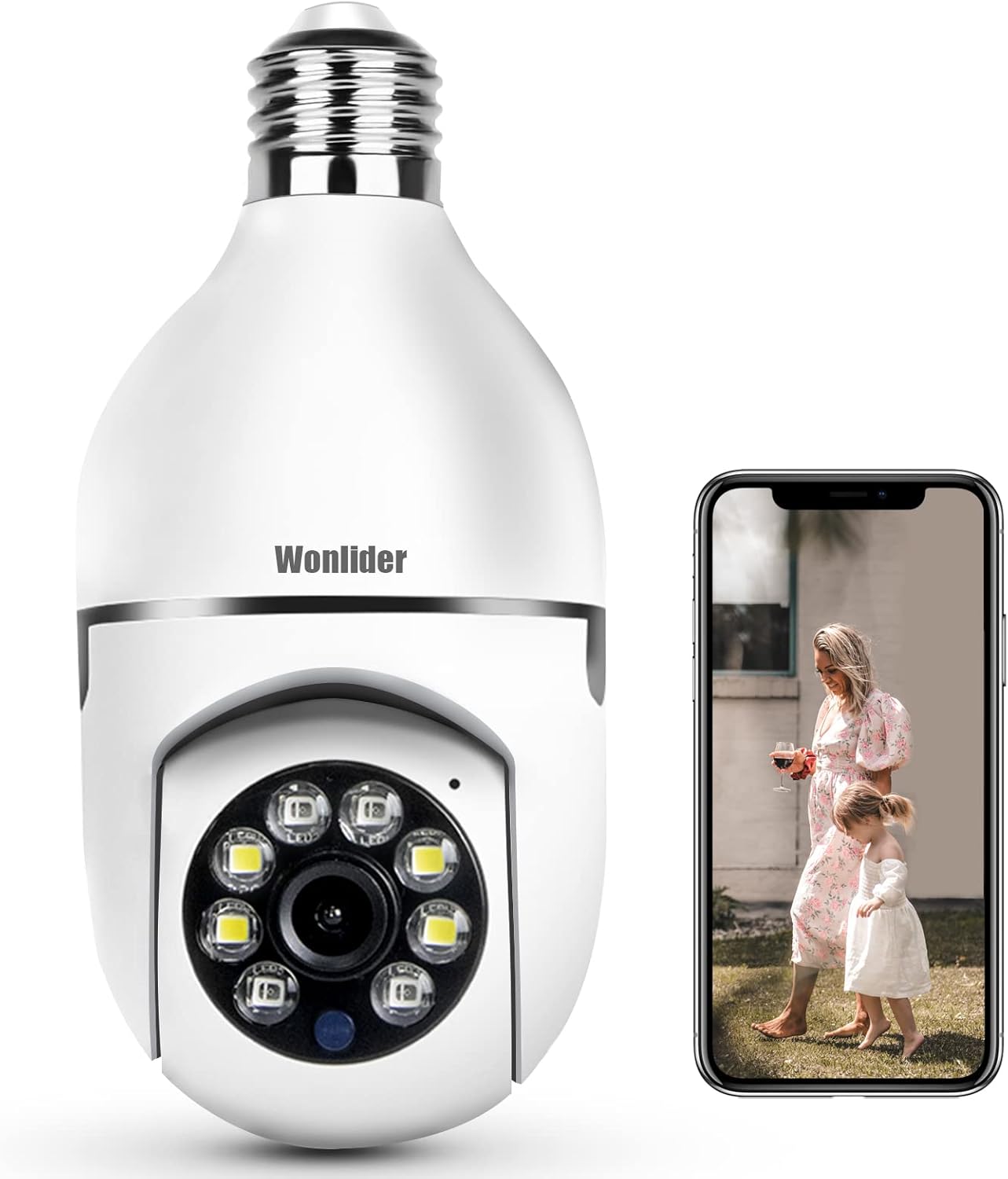
Figure 1.1: Wonlider Light Bulb Security Camera
2. Package Contents
Verify that all items listed below are included in your package. If any items are missing or damaged, please contact customer support.
- 1 x Wonlider Light Bulb Security Camera
- 1 x E27 Light Holder Adapter
- 1 x User Manual
- Mounting Screws and Wall Plugs (if applicable)
- Reset Pin

Figure 2.1: Included items: camera, base, and manual.
3. Product Overview
Familiarize yourself with the components of your Wonlider Light Bulb Security Camera.

Figure 3.1: Camera components including E27 light socket, enhanced WiFi module, microphone, white & IR LEDs, light sensor, and HD lens.
- E27 Light Socket: Standard screw-in base for power.
- Enhanced WiFi Module: For stable wireless connectivity.
- Microphone: Captures audio for two-way communication.
- White & IR LEDs: Provide illumination for color night vision and infrared night vision.
- Light Sensor: Detects ambient light levels to activate night vision automatically.
- HD Lens: Captures 1080P high-definition video.
- Speaker: Located on the back for two-way audio output.
- Reset Button: Used to reset the camera to factory settings.
- SD Card Slot: For local video storage (supports up to 128GB, card not included).
4. Setup Guide
4.1. Installation
- Ensure the power to the light fixture is turned off at the circuit breaker before installation.
- Screw the Wonlider Light Bulb Security Camera into a standard E27 light socket. If your existing socket is not E27, use the provided E27 light holder adapter.
- Ensure the camera is securely fastened.
- Turn on the power to the light fixture. The camera will power on and emit a startup sound or indicator light.

Figure 4.1: Easy installation into a standard light socket.
4.2. App Download & Account Registration
- Download the companion app (e.g., "Tuya Smart" or "Smart Life" as indicated in the product packaging or quick start guide) from your mobile device's app store (App Store for iOS, Google Play Store for Android).
- Open the app and follow the on-screen instructions to create a new account or log in if you already have one.
4.3. Connecting to Wi-Fi
The camera supports both 2.4GHz and 5GHz Wi-Fi networks.
- Ensure your phone's Bluetooth is enabled.
- In the app, tap "Add Device" or the "+" icon.
- The app should automatically detect the camera via Bluetooth. Select the camera from the list.
- Follow the in-app prompts to select your Wi-Fi network (2.4GHz or 5GHz) and enter the password.
- Wait for the camera to connect to the Wi-Fi network. A voice prompt or indicator light change will confirm successful connection.
- If Bluetooth quick connect fails, refer to the app's alternative connection methods (e.g., QR code scanning or AP mode).
5. Operating Instructions
5.1. Live View & Remote Access
Once connected, you can access the camera's live feed from anywhere using the app on your smartphone or tablet.
- Open the app and select your camera from the device list to view the live feed.
- You can share access to the camera with family members or other authorized users through the app's sharing features.

Figure 5.1: Remote access and home sharing of real-time monitoring.
5.2. Pan/Tilt & Motion Tracking
The camera offers a wide field of view with pan and tilt capabilities, along with automatic motion tracking.
- In the live view interface, use the directional controls (usually a joystick or arrows) within the app to manually pan the camera horizontally (355 degrees) and tilt it vertically (90 degrees).
- Enable the "Motion Tracking" feature in the camera settings. When activated, the camera will automatically detect and follow moving objects within its field of view.

Figure 5.2: 360-degree view and auto-tracking motion capabilities.
5.3. Two-Way Audio
Communicate with individuals near the camera using the built-in microphone and speaker.
- In the live view, tap the microphone icon to speak through the camera's speaker.
- Tap the speaker icon to listen to audio from the camera's vicinity.

Figure 5.3: Two-way audio communication feature.
5.4. Night Vision
The camera provides clear surveillance even in low-light or complete darkness.
- The camera automatically switches to night vision mode based on ambient light conditions.
- It features both infrared (IR) LEDs for black and white night vision and floodlights for full-color night vision.
- Color night vision is activated when motion is detected in dark environments, utilizing the built-in floodlights.

Figure 5.4: White LED activation for color night vision upon detecting movement.
5.5. Motion Detection & Alerts
Receive instant notifications when activity is detected.
- Configure motion detection sensitivity and alert zones within the app settings.
- Enable "Intelligent Human Detection" to filter out non-human movements and reduce false alarms.
- When motion is detected, the camera can push alert notifications to your phone, trigger an alarm sound, and begin recording.

Figure 5.5: Smart motion alerts delivered to your mobile device.
5.6. Recording & Storage
Your camera supports both local and cloud storage options for recorded video.
- SD Card Storage: Insert a microSD card (up to 128GB, not included) into the camera's SD card slot for continuous or event-based local recording.
- Cloud Storage: The app may offer optional cloud storage plans for secure, off-site video backup. Refer to the app for subscription details.

Figure 5.6: Options to save recordings to cloud or local storage.
6. Maintenance
- Cleaning: Gently wipe the camera lens and body with a soft, dry cloth. Avoid using harsh chemicals or abrasive cleaners.
- Firmware Updates: Periodically check the app for available firmware updates. Keeping your camera's firmware updated ensures optimal performance and security.
- Power Cycle: If the camera experiences issues, try turning off the power at the light switch for 10 seconds, then turning it back on.
7. Troubleshooting
| Issue | Possible Solution |
|---|---|
| Camera fails to connect to Wi-Fi |
|
| No image or poor image quality |
|
| Motion detection alerts are not received |
|
| Two-way audio not working |
|
8. Specifications
| Feature | Detail |
|---|---|
| Model | B0B1WW89V5 |
| Video Capture Resolution | 1080p (2MP Effective Still Resolution) |
| Connectivity Technology | Wireless (Wi-Fi 2.4GHz/5GHz Dual Band) |
| Pan/Tilt Range | 355 Degrees Horizontal, 90 Degrees Vertical |
| Field of View | 360 Degrees (overall coverage with pan/tilt) |
| Night Vision | Color Night Vision, Infrared Night Vision (20 Feet Range) |
| Audio | Two-Way Audio (Built-in Microphone and Speaker) |
| Motion Detection | Yes, with Intelligent Human Detection and Motion Tracking |
| Storage Options | MicroSD Card (up to 128GB), Cloud Storage (subscription may be required) |
| Power Source | Corded Electric (E27 Light Socket) |
| Control Method | App (Smartphone) |
| Material | Acrylonitrile Butadiene Styrene (ABS) |
| Indoor/Outdoor Usage | Indoor, Outdoor (Waterproof rating IP67) |
| Dimensions | 7.6 x 2.99 x 2.95 inches (Package) |
| Item Weight | 1.3 pounds |
9. Warranty and Support
For warranty information, technical support, or any inquiries regarding your Wonlider Light Bulb Security Camera, please refer to the contact details provided on the product packaging or the official Wonlider website. Keep your purchase receipt as proof of purchase for warranty claims.