
Introduction
Thank you for choosing the YOMARK Light Bulb Security Camera. This manual provides detailed instructions for setting up, operating, and maintaining your security camera. Please read this manual thoroughly before use to ensure proper functionality and safety. Keep this manual for future reference.
Product Features
- Dual-Band WiFi Connectivity: Supports both 2.4GHz and 5G WiFi networks for flexible and stable connection.
- Easy Installation: Designed to be installed in a standard E27 bulb base (110V~240V), eliminating the need for extra wiring.
- 360° Motion Tracking: Automatically senses and tracks motion with 355° horizontal rotation and 120° vertical tilt, ensuring comprehensive coverage.
- 1080P Full HD Video: Provides clear and crisp video recordings for detailed monitoring.
- Intelligent Night Vision: Offers both ordinary night vision and full-color night vision options, allowing clear viewing even in complete darkness.
- Two-Way Audio: Built-in speaker and microphone enable real-time communication with individuals near the camera.
- Motion Detection Alerts: Sends real-time alert notifications to your mobile phone upon detecting movement or changes in the video screen.
- Remote Viewing: Access live feed and recordings anytime, anywhere via the mobile application on iPhone/Android phones or iPads.
- Flexible Storage Options: Supports cloud storage (subscription may be required) and TF card storage up to 128GB (memory card not included).
Package Contents
Please check the package for the following items:
- YOMARK Light Bulb Security Camera
- E27 Bulb Base Extension (if included)
- Mounting Screws and Wall Anchors
- User Manual
Setup Instructions
Follow these steps to set up your YOMARK Light Bulb Security Camera:
1. Physical Installation
- Ensure the power to the light fixture is turned off before installation.
- Screw the YOMARK Light Bulb Security Camera into a standard E27 bulb base. Ensure it is securely tightened.
- Turn on the power to the light fixture. The camera will power on and begin its self-test.
Video: This video demonstrates the unboxing and initial physical installation of the YOMARK Light Bulb Security Camera into a standard E27 socket. It shows the camera powering on and preparing for app connection.
2. App Download and Account Creation
- Download the "YCC365 Plus" app from your mobile device's app store (App Store for iOS or Google Play Store for Android).
- Open the app and create a new account or log in if you already have one.
3. Connecting the Camera to the App
- In the YCC365 Plus app, tap the "Add device" or "+" icon to add a new camera.
- Select "Intelligent camera" from the device type options.
- Choose "Addition of AP hotspot" as the networking mode.
- Follow the on-screen prompts. Ensure the device indicator flashes or a beep is heard, then click "Next".
- The camera will create its own Wi-Fi hotspot (e.g., "CLOUD CAM_xxxx"). Go to your phone's Wi-Fi settings and connect to this hotspot.
- Return to the YCC365 Plus app. Select your home Wi-Fi network (2.4GHz or 5G) and enter the Wi-Fi password.
- The device will begin connecting. This process may take 1-2 minutes. Keep your phone close to the camera and router.
- Once "Addition success!" is displayed, you can name your camera (e.g., "Living Room") and start using it.
Video: This video illustrates the step-by-step process of connecting the YOMARK Light Bulb Security Camera to the YCC365 Plus mobile application using the AP hotspot method, including selecting the camera type, connecting to the camera's hotspot, and entering home Wi-Fi details.
Operating Instructions
Live View and Pan/Tilt Control
Open the YCC365 Plus app and select your camera to view the live feed. Use the on-screen controls to pan (horizontal) and tilt (vertical) the camera lens to adjust the viewing angle.
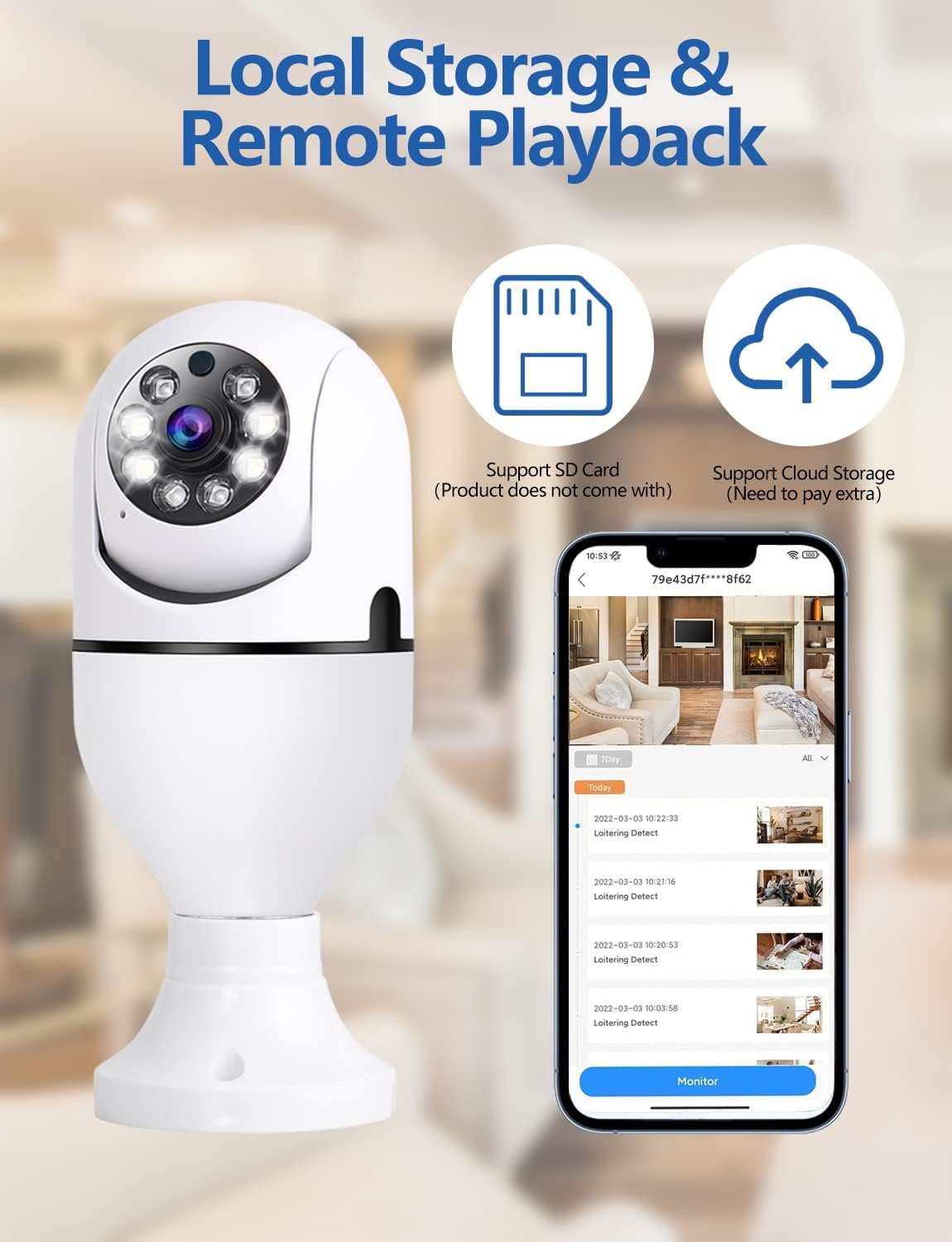
Image: An overview of the YOMARK Light Bulb Security Camera's key features, including its 355° horizontal and 90° vertical pan and tilt capabilities, 1080P Full HD resolution, two-way audio, secure local storage, night vision range, motion tracking, alarm detection, and 2.4GHz Wi-Fi connectivity.
Motion Detection and Alerts
The camera is equipped with motion detection. When motion is detected, the camera will automatically track the movement and send an alert notification to your mobile phone. You can adjust the detection sensitivity in the app settings to minimize false alarms.

Image: This image illustrates the camera's night vision and motion detection capabilities, showing a split view of a person and a dog being monitored, alongside a mobile phone displaying a "Motion Alert" notification from the camera.
Two-Way Audio Communication
Utilize the two-way audio feature to communicate through the camera. Tap the microphone icon in the app to speak, and listen through the camera's speaker. This is useful for interacting with family members or pets, or deterring intruders.

Image: This image highlights the two-way audio functionality of the YOMARK Light Bulb Security Camera, showing a scenario where a user might speak through the camera to pets, with a speech bubble indicating "Stop BoBo!".
Night Vision Modes
The camera offers both infrared (black and white) and full-color night vision. You can switch between these modes in the app settings based on your preference and lighting conditions to ensure clear visibility in low-light environments.

Image: A split image demonstrating the YOMARK Light Bulb Security Camera's night vision capabilities, showing the same living room scene in both infrared (monochrome) and full-color modes for comparison.
Recording and Playback
The camera supports continuous recording or event-triggered recording to a TF card (up to 128GB, not included) or cloud storage. Access recorded footage through the app's playback feature. You can download and save important clips to your mobile device.
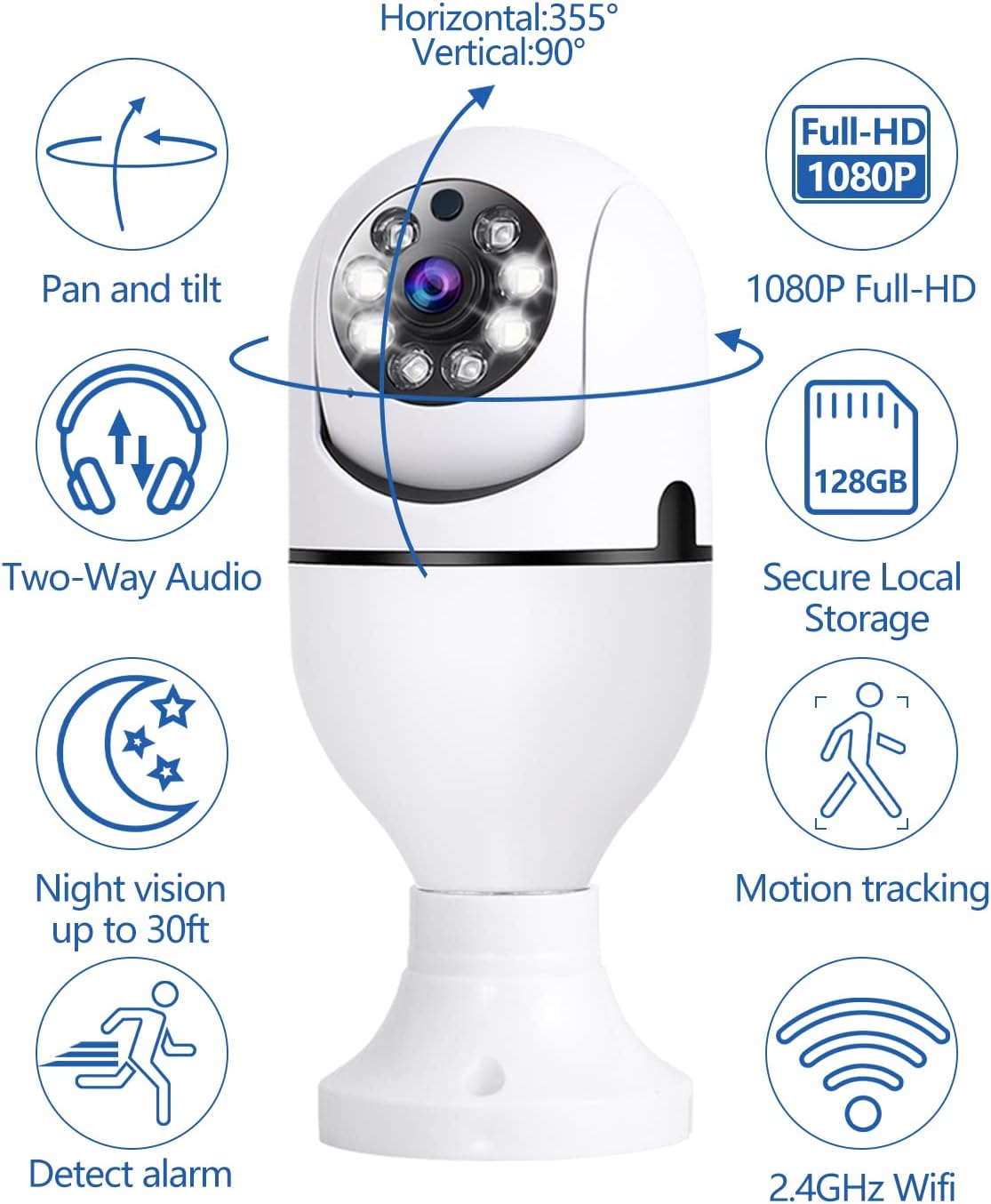
Image: This image details the local storage and remote playback options for the YOMARK Light Bulb Security Camera, featuring icons for SD card and cloud storage, and a mobile app interface showing a timeline of recorded events.

Image: A visual comparison demonstrating the difference between 1080P and 720P video resolutions, highlighting the superior clarity of 1080P for detailed monitoring.
Maintenance
- Cleaning: Gently wipe the camera lens and body with a soft, dry cloth. Avoid using harsh chemicals or abrasive materials.
- Firmware Updates: Regularly check the YCC365 Plus app for available firmware updates to ensure optimal performance and security.
- Storage Management: Periodically review and manage your recorded footage on the TF card or cloud storage to free up space if needed.
Troubleshooting
| Problem | Possible Cause | Solution |
|---|---|---|
| Camera fails to connect to Wi-Fi. | Incorrect Wi-Fi password, camera too far from router, 5G network selected when camera only supports 2.4GHz (or vice versa). | Verify Wi-Fi password. Move camera closer to the router. Ensure you are connecting to the correct Wi-Fi band (2.4GHz or 5G, as supported by the camera). Restart the camera and router. |
| Poor video quality. | Weak Wi-Fi signal, insufficient bandwidth, dirty lens. | Improve Wi-Fi signal strength. Ensure adequate internet bandwidth. Clean the camera lens. |
| Motion alerts are too frequent or not triggered. | Sensitivity settings are too high/low, environmental factors (e.g., moving branches, shadows). | Adjust motion detection sensitivity in the app settings. Ensure the camera's field of view is clear of unnecessary triggers. |
| Two-way audio not working. | Microphone/speaker muted in app, network latency. | Check app settings to ensure microphone and speaker are enabled. Verify network connection stability. |
Specifications
| Feature | Detail |
|---|---|
| Recommended Uses | Indoor Security, Baby Monitoring, Pet Monitoring, Outdoor Security |
| Brand | YOMARK |
| Connectivity Technology | Wireless (2.4GHz & 5G WiFi) |
| Special Feature | 2-Way Audio, Motion Tracking, Full-Color Night Vision |
| Indoor/Outdoor Usage | Indoor (Note: While the product title mentions outdoor, the specifications indicate primary indoor usage.) |
| Power Supply | E27 Bulb Base (110V~240V) |
| Video Resolution | 1080P Full HD |
| Storage | Cloud Storage, TF Card (up to 128GB, not included) |
Warranty and Support
Your YOMARK Light Bulb Security Camera comes with a standard manufacturer's warranty. For detailed warranty information, please refer to the product packaging or contact YOMARK customer support. If you encounter any issues or have questions not covered in this manual, please contact our customer support team for assistance.
Customer Support: Please refer to the contact information provided on the product packaging or YOMARK's official website.