
Introduction
This user manual provides essential information and instructions for the safe and efficient operation of your DUODUOGO S9 10-inch Android 11 Tablet. Please read this manual thoroughly before using your device to ensure proper setup and functionality. Keep this manual for future reference.
1. Setup
1.1 Package Contents
Verify that all items are present in the package:
- DUODUOGO S9 Tablet
- Power Adapter
- USB Cable
- Quick Guide (refer to this manual for detailed instructions)
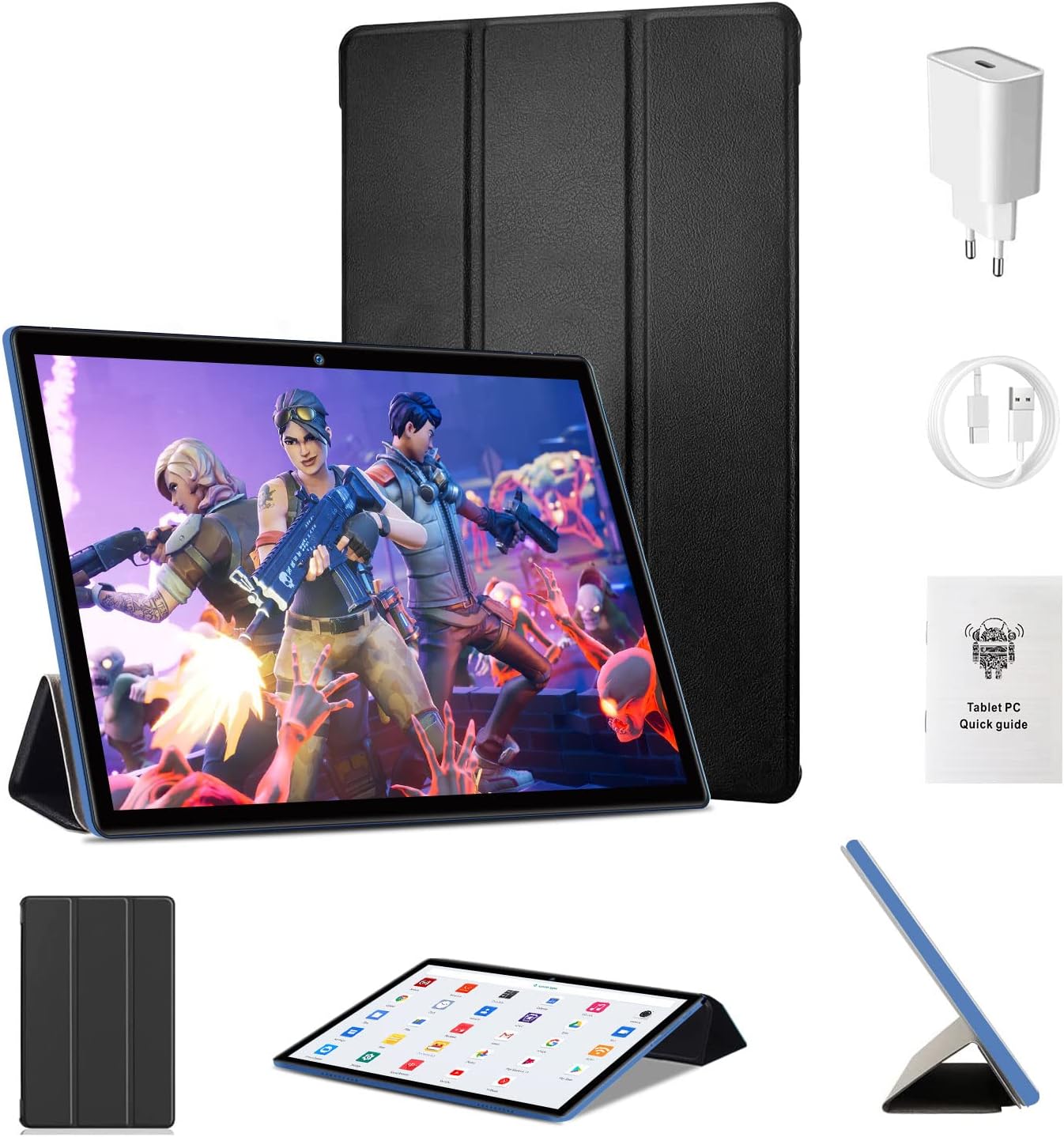
Image: DUODUOGO S9 Tablet with included accessories.
1.2 Initial Charging
Before first use, fully charge the tablet. Connect the USB cable to the tablet's charging port and the power adapter, then plug the adapter into a wall outlet. The battery indicator on the screen will show charging status.
1.3 Powering On/Off
- To Power On: Press and hold the Power button until the DUODUOGO logo appears.
- To Power Off: Press and hold the Power button until the power options appear, then select "Power Off".
- To Restart: Press and hold the Power button until the power options appear, then select "Restart".
1.4 Initial Setup Wizard
Upon first startup, the tablet will guide you through an initial setup process:
- Select your preferred language.
- Connect to a Wi-Fi network.
- Set up your Google account (optional, but recommended for app downloads).
- Review and accept terms and conditions.
- Set up screen lock (PIN, pattern, or password).

Image: The Android 11 interface with various applications.
1.5 Inserting a Micro SD Card
The tablet supports Micro SD cards up to 256GB for expanded storage.
- Locate the Micro SD card slot on the side of the tablet.
- Gently insert the Micro SD card into the slot until it clicks into place.
- To remove, gently push the card in until it springs out.

Image: Illustration of the TF (Micro SD) card slot and Wi-Fi connectivity.
2. Operating Instructions
2.1 Basic Navigation
- Tap: Select an item or open an application.
- Tap & Hold: Access contextual menus or move icons.
- Swipe: Scroll through screens or lists.
- Pinch: Zoom in or out on images and web pages.
2.2 Wi-Fi Connection
The tablet supports dual-band Wi-Fi (2.4 GHz and 5 GHz) for fast internet access.
- Go to Settings > Network & internet > Wi-Fi.
- Toggle Wi-Fi On.
- Select your desired network from the list and enter the password if prompted.
2.3 Bluetooth Pairing
Connect to Bluetooth 5.0 devices such as headphones or speakers.
- Go to Settings > Connected devices > Bluetooth.
- Toggle Bluetooth On.
- Ensure your Bluetooth device is in pairing mode.
- Select the device from the "Available devices" list to pair.
2.4 Using the Camera
The tablet features a 2MP front camera and a 5MP rear camera.
- Open the Camera application.
- Tap the shutter button to take a photo.
- Switch between front and rear cameras using the camera icon.

Image: Tablet display showcasing camera and screen specifications.
2.5 App Management
- Downloading Apps: Open the Google Play Store app, search for your desired app, and tap "Install".
- Uninstalling Apps: Tap and hold the app icon on the home screen or app drawer, then drag it to "Uninstall" or select "App info" and then "Uninstall". Alternatively, go to Settings > Apps & notifications, select the app, and tap "Uninstall".
3. Maintenance
3.1 Cleaning the Tablet
Use a soft, lint-free cloth to clean the screen and body of the tablet. Do not use liquid cleaners or aerosols directly on the tablet.
3.2 Battery Care
- Avoid exposing the tablet to extreme temperatures.
- Do not allow the battery to fully discharge frequently.
- Use only the provided charger or a certified compatible charger.
3.3 Software Updates
The tablet runs on Android 11. Software updates may be released periodically to improve performance and security. You can check for updates in Settings > System > System update. Please note that information regarding guaranteed software updates is not available.
3.4 Storage Optimization
To maintain optimal performance, regularly manage your tablet's storage:
- Delete unnecessary apps and files.
- Clear cache data for apps in Settings > Apps & notifications > (select app) > Storage & cache.
- Utilize the Micro SD card for storing media files.

Image: Visual representation of the tablet's memory and storage capabilities.
4. Troubleshooting
If you encounter issues with your tablet, refer to the following common solutions:
| Problem | Solution |
|---|---|
| Tablet does not turn on | Ensure the tablet is charged. Connect it to the charger for at least 30 minutes. Press and hold the Power button for 10-15 seconds. |
| Cannot connect to Wi-Fi | Check if Wi-Fi is enabled in Settings. Restart your Wi-Fi router. Forget the network and reconnect. |
| Apps are crashing or running slowly | Clear the app's cache (Settings > Apps & notifications > [App Name] > Storage & cache). Restart the tablet. Ensure sufficient storage space. |
| Tablet is unresponsive | Perform a force restart by pressing and holding the Power button for approximately 10 seconds. |
| Battery drains quickly | Reduce screen brightness. Close unused apps. Disable Wi-Fi/Bluetooth when not in use. Check battery usage in Settings to identify power-hungry apps. |
If the issue persists after trying these steps, please contact customer support.
5. Specifications
Key technical specifications for the DUODUOGO S9 Tablet:
| Feature | Detail |
|---|---|
| Brand | DUODUOGO |
| Model | S9 |
| Operating System | Android 11 |
| Processor | Quad-Core 1.8 GHz |
| RAM | 4 GB |
| Internal Storage | 64 GB |
| Expandable Storage | Micro SD up to 256 GB |
| Screen Size | 10 inches |
| Screen Resolution | 1280 x 800 pixels IPS |
| Front Camera | 2 MP |
| Rear Camera | 5 MP |
| Battery Capacity | 6000 mAh |
| Connectivity | Wi-Fi (2.4G & 5G), Bluetooth 5.0 |
| Dimensions | 26.7 x 19.6 x 5.3 cm |
| Weight | 890 grams |

Image: Summary of DUODUOGO S9 tablet key features.
6. Warranty and Support
For warranty information, please refer to the documentation provided at the time of purchase. Information regarding spare parts availability and guaranteed software updates is not available for this product.
If you require further assistance or encounter issues not covered in this manual, please contact DUODUOGO customer support through your retailer or the official brand website.
