
RAINPOINT TWG004WRF
RAINPOINT WiFi Irrigation Hub TWG004WRF User Manual
Model: TWG004WRF
Introduction
The RAINPOINT WiFi Irrigation Hub TWG004WRF is designed to extend the functionality of your RAINPOINT WiFi Water Timers (TTV103WRF or TTV203WRF models). This hub acts as a central communication point, enabling remote control and monitoring of your irrigation system via a dedicated mobile application. It is an essential component for building a scalable and smart watering system for your garden or lawn.
Please note that this product is the WiFi Hub only and does not include a WiFi Water Timer. It must be used in conjunction with a compatible RAINPOINT WiFi Water Timer.
Package Contents
- RAINPOINT WiFi Irrigation Hub TWG004WRF
- User Manual
Setup Guide
1. Initial Placement and Power
Place the RAINPOINT WiFi Irrigation Hub in a central location within range of your WiFi router and your RAINPOINT WiFi Water Timers. Ensure it is protected from direct weather exposure if used outdoors, or use an appropriate outdoor-rated enclosure.
Plug the WiFi Hub into a standard electrical outlet. The indicator light on the hub will illuminate, indicating it is powered on.

Image: Front view of the RAINPOINT WiFi Irrigation Hub TWG004WRF, showing the power button and electrical outlet.
2. Connecting to WiFi Network
The RAINPOINT WiFi Irrigation Hub requires a 2.4GHz WiFi network for connection. If your router is a dual-band router (supporting both 2.4GHz and 5GHz), it is recommended to independently enable the 2.4GHz WiFi band and name it differently from the 5GHz band to ensure a stable connection.
- Download the official RAINPOINT app from your smartphone's app store (iOS or Android).
- Register or log in to your RAINPOINT account.
- Follow the in-app instructions to add a new device. Select the WiFi Irrigation Hub from the device list.
- Ensure your smartphone is connected to your 2.4GHz WiFi network.
- The app will guide you through the pairing process, which typically involves putting the hub into pairing mode (often indicated by a flashing light) and entering your WiFi credentials.

Image: Diagram illustrating the stable connection of the RAINPOINT WiFi Irrigation Hub with water timers and a smartphone app, showing the hub plugged into an indoor outlet and communicating with outdoor timers.
3. Pairing with WiFi Water Timers
Once the WiFi Hub is successfully connected to your network, you can proceed to pair your RAINPOINT WiFi Water Timers (TTV103WRF or TTV203WRF) with the hub. Refer to the specific user manual for your WiFi Water Timer for detailed pairing instructions. The hub facilitates communication between the timers and your smartphone, allowing for centralized control.
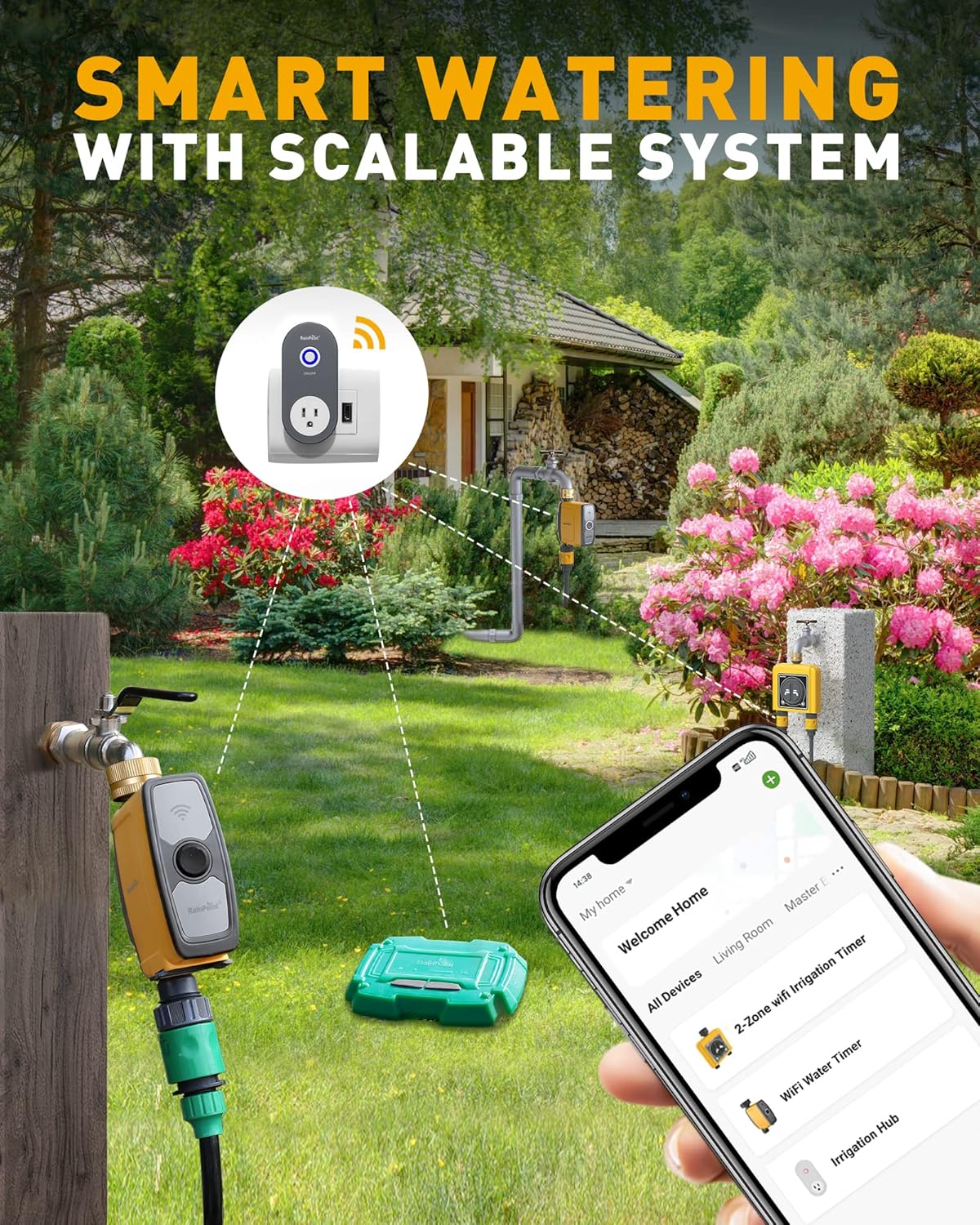
Image: Visual representation of a smart watering system, showing the RAINPOINT WiFi Irrigation Hub connected to multiple water timers and controlled via a smartphone app, demonstrating system scalability.
Operating Instructions
1. Power On/Off
The hub powers on automatically when plugged into an electrical outlet. To turn it off, simply unplug it from the power source. The front of the hub features an ON/OFF button, which primarily controls the power to the integrated electrical socket, not the hub's WiFi functionality itself.

Image: The RAINPOINT WiFi Irrigation Hub plugged into a wall outlet, demonstrating its compact design and the integrated electrical socket.
2. App Control and System Management
All primary operations and management of your irrigation system are performed through the RAINPOINT mobile application. The app allows you to:
- Monitor the status of connected WiFi Water Timers.
- Set and adjust watering schedules for individual timers.
- Manually start or stop watering cycles.
- View historical watering data.
- Manage multiple hubs and timers for a comprehensive irrigation system.

Image: An aerial view of a smart irrigation system setup, showcasing the RAINPOINT WiFi Irrigation Hub connecting various WiFi-enabled watering devices across a large garden, all managed from a smartphone.
Maintenance
The RAINPOINT WiFi Irrigation Hub is designed for low maintenance. Follow these guidelines to ensure optimal performance:
- Cleaning: Wipe the exterior of the hub with a soft, dry cloth. Do not use harsh chemicals or abrasive cleaners.
- Environmental Conditions: While robust, avoid exposing the hub to extreme temperatures or direct water spray. The operating temperature is up to 85 degrees Celsius.
- Firmware Updates: Periodically check the RAINPOINT app for available firmware updates for the hub. Keeping the firmware updated ensures the best performance and access to new features.
Troubleshooting
Common Issues and Solutions:
- Hub not connecting to WiFi:
- Ensure your router is broadcasting a 2.4GHz WiFi signal.
- Verify your smartphone is connected to the 2.4GHz network during setup.
- Check that the WiFi password entered is correct.
- Move the hub closer to your WiFi router to improve signal strength.
- Water Timers not connecting to Hub:
- Ensure the hub is successfully connected to WiFi.
- Verify the water timers are within range of the hub (approximately 25 feet, as noted in customer reviews).
- Follow the specific pairing instructions for your water timer model.
- Hub unresponsive or not functioning correctly:
- Unplug the hub from the power outlet, wait 10 seconds, and plug it back in.
- Perform a factory reset if the issue persists.
How to Reset the RAINPOINT WiFi Hub TWG004WRF:
If you experience persistent connectivity issues or need to reconfigure your hub, performing a factory reset can resolve many problems. This process will restore the hub to its default settings, requiring you to re-pair it with your WiFi network and water timers.
Video: This video demonstrates the steps to reset the RAINPOINT WiFi Hub TWG004WRF to its default settings, preparing it for re-pairing with the mobile application.
Steps for Manual Reset:
- Press and hold the ON/OFF button on the hub. Do not release the button.
- While still holding the button, plug the gateway hub into a power outlet.
- Continue holding the button and wait for the blue light to turn on. Keep holding the button.
- After a few seconds, the blue light will rapidly flash. At this point, you can release the button. The gateway hub has now been restored to its default settings and is ready for pairing with the app.
Specifications
| Brand | RAINPOINT |
| Model | TWG004WRF |
| Product Dimensions | 3.15 x 5.28 x 2.25 inches |
| Item Weight | 5.3 ounces |
| Material | Plastic |
| Color | Dark Gray |
| Charging Port Type | USB |
| Display Type | Digital |
| Operating Temperature | Up to 85 Degrees Celsius |
| Country of Origin | China |
Warranty and Support
RAINPOINT is committed to providing quality products and customer satisfaction. We have a local service team in the United States ready to assist you.
If you encounter any issues with your RAINPOINT WiFi Irrigation Hub or have questions regarding its operation, please do not hesitate to contact our customer support. Refer to the product packaging or the RAINPOINT official website for the most current contact information.
Related documentsTWG004WRF


Ask a question about this manual
Ask about setup, troubleshooting, compatibility, parts, safety, or missing instructions. Manuals+ will review the question and use this page’s manual context to help answer it.