
1. Introduction
The Giguid FLYMICE Series Mouse Mover is a mechanical device designed to simulate mouse movement, preventing your computer from entering sleep mode or locking the screen. It operates by gently moving an optical mouse placed on its rotating turntable, ensuring your system remains active without requiring software installation. This device features a timer function, an ON/OFF switch, and customizable LED lighting.

The Giguid Mouse Mover positioned on a desk, actively moving a mouse, next to a keyboard and monitor. The device features blue LED lighting.
2. Safety Information
- Keep the device away from water or other liquids to prevent electric shock or damage.
- Do not attempt to disassemble or repair the device yourself. Refer to qualified service personnel.
- Use only the specified power source (USB port from PC, laptop, Hub, docking station, or a USB charger).
- Ensure the device is placed on a stable, flat surface during operation.
- Keep out of reach of children.
3. Package Contents
Please check the package for the following items:
- Giguid FLYMICE Series Mouse Mover Unit
- USB Power Cable
- Instruction Manual (this document)

An image displaying the dimensions of the Giguid Mouse Mover, its USB-A to USB-C power cable, and examples of wired and wireless mice placed on the device, demonstrating its universal compatibility.
4. Product Overview
The Giguid FLYMICE Series Mouse Mover features a unique design with a mechanical turntable that randomly spins back and forth, occasionally pausing for a few seconds. This mechanical movement ensures it is 100% undetectable by software. The device is built with a silent motor and contactless operation to minimize noise. It includes an ON/OFF switch, a timer function, and switchable LED lights.
Key Components:
- Turntable: The rotating surface where the mouse is placed.
- ON/OFF Switch: Controls the power to the device.
- Random Control Switch: Activates the random movement pattern.
- Timer/RGB Control Button: Used to set the timer and change LED light colors.
- LED Lights: Indicate operational status and selected color.
- USB-C Power Port: For connecting the power cable.
- Silicone Foot Pads: Located on the bottom for stability and shock absorption.

An exploded view diagram of the Giguid Mouse Mover, illustrating its internal components including the top cover, LED strips, electric motor, cursor turntable, silicone foot pad, motherboard, and bottom cover, highlighting its quiet design.
5. Setup
- Placement: Place the Giguid Mouse Mover on a flat, stable surface on your desk.
- Power Connection: Connect the provided USB power cable to the USB-C port on the device. Plug the other end of the USB cable into any available USB port on your PC, laptop, USB hub, docking station, or a standard USB charger (power adapter not included).
- Mouse Placement: Place your optical mouse directly onto the center of the turntable. Ensure the mouse's optical sensor is positioned over the rotating surface. The device is compatible with almost all optical mice.

The Giguid Mouse Mover shown with a laptop, emphasizing its undetectable operation and compatibility with Windows, Mac OS, Linux, and Android operating systems.
6. Operating Instructions
6.1 Power ON/OFF
- To turn the device ON, press the ON/OFF switch located on the side. The turntable will begin to move, and the LED lights will illuminate.
- To turn the device OFF, press the ON/OFF switch again. The turntable will stop, and the LED lights will turn off.
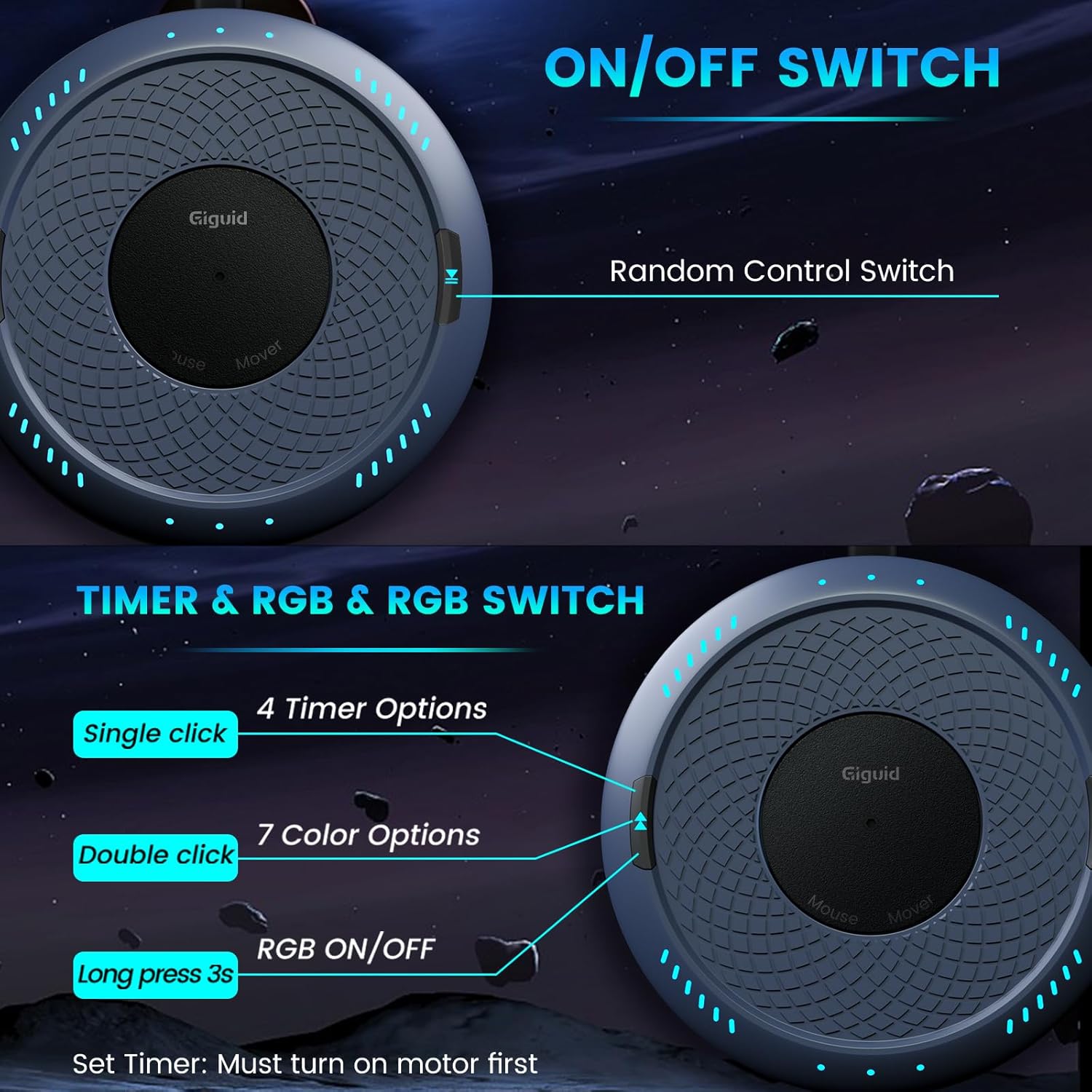
A detailed view of the Giguid Mouse Mover highlighting the physical ON/OFF switch and the Random Control Switch located on the side of the device.
6.2 Setting the Timer
The device features a unique timing function. Ensure the motor is running before setting the timer.
- Single Click: While the turntable is moving, a single click of the control button (often labeled with a clock icon or similar) will cycle through the timer options.
- Each set of illuminated LED lights represents 30 minutes. The available timer options are 30 minutes, 60 minutes, 90 minutes, and 120 minutes.
- Once the countdown is complete, the turntable will stop, and the device will enter standby mode.
6.3 Changing LED Light Color
The device offers 7 different LED light colors and an ON/OFF function for the lights.
- Double Click: While the device is operating, a double click of the control button will cycle through the 7 available LED colors.
- Long Press (3 seconds): A long press of the control button for approximately 3 seconds will turn the LED lights ON or OFF.
- The device has a memory function, meaning it will light up with the previously selected color when turned on again.
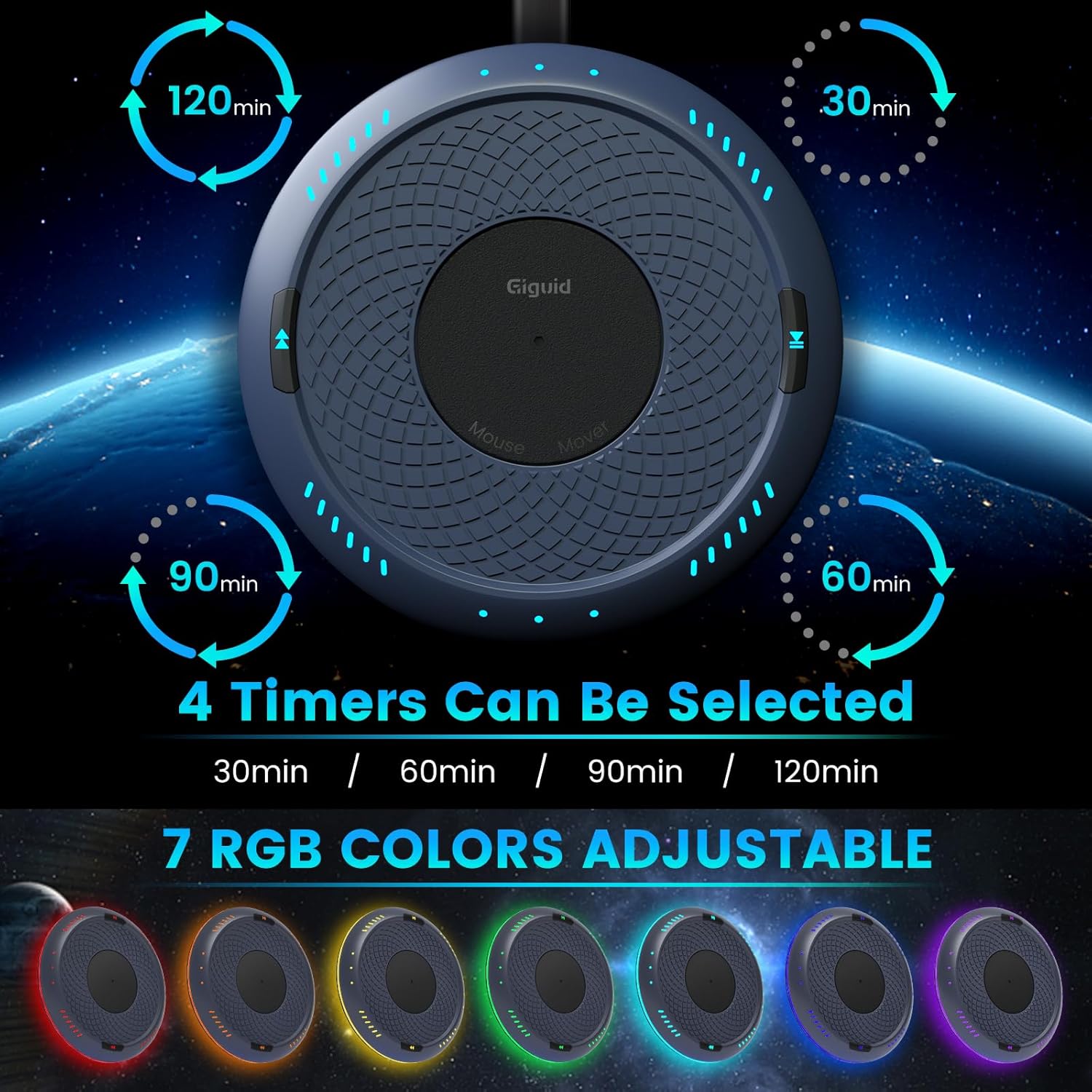
An illustration of the Giguid Mouse Mover's control panel, detailing how to set the timer (30, 60, 90, 120 minutes) and select from 7 RGB LED colors using single click, double click, and long press actions.
7. Maintenance
- Cleaning: Use a soft, dry cloth to wipe the surface of the device. Do not use abrasive cleaners or solvents.
- Storage: When not in use, store the device in a cool, dry place away from direct sunlight and extreme temperatures.
- Avoid Obstructions: Ensure no foreign objects obstruct the turntable's movement.
8. Troubleshooting
| Problem | Possible Cause | Solution |
|---|---|---|
| Device does not turn on. | No power or loose connection. | Ensure the USB cable is securely connected to both the device and a working USB power source. Try a different USB port or power adapter. |
| Turntable is not moving. | Device is off, timer has expired, or obstruction. | Press the ON/OFF switch to turn it on. Check if the timer has completed its cycle. Remove any obstructions from the turntable. |
| Mouse cursor is not moving on screen. | Mouse not properly placed or sensor issue. | Ensure the optical sensor of your mouse is directly over the center of the rotating turntable. Clean the mouse sensor if necessary. |
| LED lights are not working. | Lights are turned off or device is off. | Ensure the device is powered on. Long press the control button for 3 seconds to toggle the LED lights ON/OFF. |
| Device is making unusual noise. | Obstruction or internal issue. | Check for any foreign objects on or under the turntable. If the noise persists, contact customer support. |
9. Specifications
| Feature | Detail |
|---|---|
| Brand | Giguid |
| Model | MJUF-SE (FLYMICE Series) |
| Dimensions | 12.5 x 12.5 x 0.1 cm (Product); 222 g (Weight) |
| Power Source | USB (Power adapter not included) |
| Connectivity | USB |
| Movement Detection Technology | Optical (for compatible mice) |
| Special Features | LED Lights (7 colors), Soundless operation, Timer function (30/60/90/120 min), ON/OFF Switch, Random Move Mechanical Turntable |
| Compatible Devices | Laptop, Personal Computer (Windows, Mac OS, Linux, Android) |
| Material Type | Silicone (foot pads) |
10. Warranty and Support
10.1 Warranty
The Giguid FLYMICE Series Mouse Mover comes with a 1-year guarantee. If you encounter any issues or are not satisfied with the product, you may return or exchange it within one year of purchase. Please retain your proof of purchase for warranty claims.
10.2 Customer Support
For any questions, troubleshooting assistance, or warranty claims, please contact Giguid customer support. Refer to the contact information provided with your purchase or visit the official Giguid website for support details.