1. Introduction
Thank you for choosing the GOWENIC YN50 Solar Panel Battery Camera. This outdoor security camera is designed for easy installation and reliable surveillance, powered by a built-in lithium battery and a solar panel. It offers 1080p high-definition video, advanced motion detection, and two-way audio communication, all managed conveniently through a mobile application.
This manual provides essential information for setting up, operating, and maintaining your camera to ensure optimal performance and longevity.
2. Safety Information
- Installation: Ensure the camera is mounted securely to prevent accidental falls. Avoid installing near flammable or explosive materials.
- Power: The camera uses solar power and a built-in battery. Do not attempt to replace the battery yourself. Use only specified charging methods if emergency charging is required.
- Water Resistance: The camera has an IP67 rating for dust and water resistance. However, avoid submerging the device in water or exposing it to high-pressure water jets.
- Temperature: Operate the camera within the specified temperature range. Extreme temperatures can affect performance and battery life.
- Cleaning: Disconnect power before cleaning. Use a soft, dry cloth. Do not use harsh chemicals or abrasive cleaners.
- Disassembly: Do not attempt to disassemble or modify the camera. This will void the warranty and may cause damage or injury.
3. Product Overview
The GOWENIC YN50 camera system includes a 1080p HD camera unit and a dedicated solar panel for continuous power. It features a robust, weather-resistant design suitable for various outdoor environments.

Front view of the GOWENIC YN50 camera, showing the lens and housing.

Side view of the camera, highlighting the antenna for wireless connectivity.

Front view of the solar panel, designed to charge the camera's internal battery.
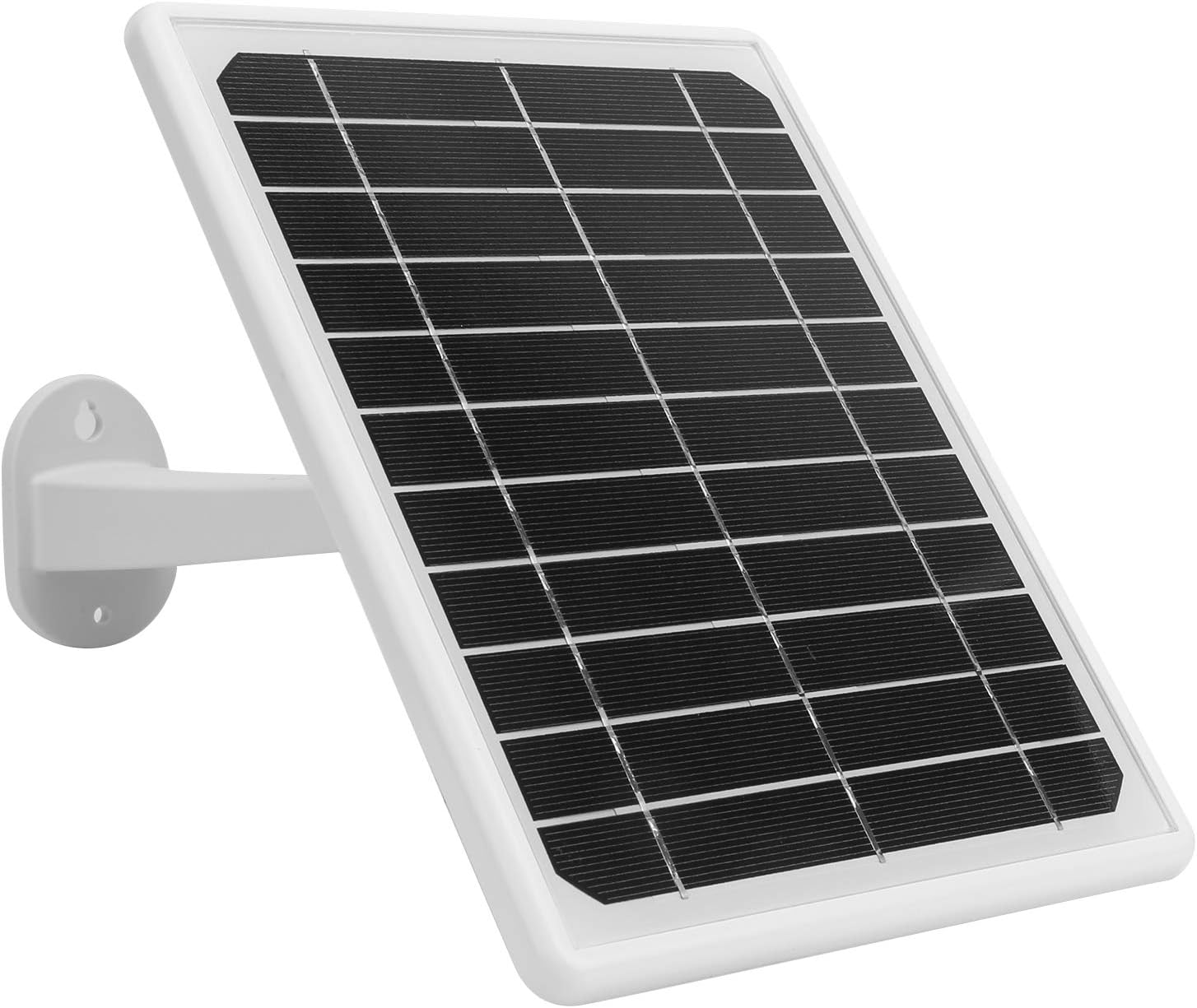
Side view of the solar panel, showing its adjustable mounting bracket.
4. Setup
4.1 Unboxing and Initial Charge
- Carefully unpack all components and verify against the package contents list (not provided, assume standard camera and solar panel).
- Before first use, it is recommended to fully charge the camera's built-in battery by exposing the solar panel to direct sunlight for at least 2 hours, or by using a compatible USB power adapter (not included) if available.
4.2 App Installation and Account Creation
- Download the MYCAM app from your smartphone's app store (iOS or Android).
- Open the app and follow the on-screen instructions to create a new user account.
4.3 Camera Pairing and Wi-Fi Connection
- Power on the camera. The camera will enter pairing mode (indicated by an LED light, refer to camera LED indicator guide in app for specifics).
- In the MYCAM app, tap the "Add Device" or "+" icon.
- Select your camera model (YN50) and follow the in-app instructions to connect the camera to your home Wi-Fi network. Ensure your Wi-Fi network is 2.4GHz, as 5GHz networks may not be supported.
- Once connected, the camera's LED indicator will change, and you will receive a confirmation in the app.
4.4 Mounting the Camera and Solar Panel
The camera and solar panel are designed for wall mounting. Choose a location that provides a clear view of the area you wish to monitor and ensures the solar panel receives ample direct sunlight throughout the day.
- Camera Placement: Position the camera at an optimal height (typically 7-10 feet) to cover the desired area. Ensure it is within range of your Wi-Fi signal.
- Solar Panel Placement: Mount the solar panel in a location that receives maximum direct sunlight, ideally facing south (in the Northern Hemisphere) or north (in the Southern Hemisphere). Adjust the angle of the solar panel using its bracket to optimize sun exposure.
- Secure Mounting: Use the provided screws and anchors to securely fasten both the camera and the solar panel to a sturdy surface.
- Connect Solar Panel: Connect the solar panel cable to the camera's charging port.

The camera and solar panel are designed for outdoor use, featuring an IP67 waterproof enclosure, as shown here in rainy conditions.
5. Operating Instructions
5.1 Live View and Remote Monitoring
Once the camera is connected to the MYCAM app, you can access live video feed from anywhere with an internet connection.
- Open the MYCAM app and select your camera from the device list.
- The live video stream will appear. You can switch between standard and high-definition views.

The camera provides 1080p image quality, allowing you to watch and record high-definition video directly on your smartphone.
5.2 Two-Way Audio Intercom
The camera supports full-duplex two-way voice intercom, allowing you to communicate with people near the camera.
- While in live view, tap the microphone icon in the app.
- Speak into your phone's microphone. Your voice will be transmitted through the camera's speaker.
- You will hear audio from the camera's microphone through your phone's speaker.
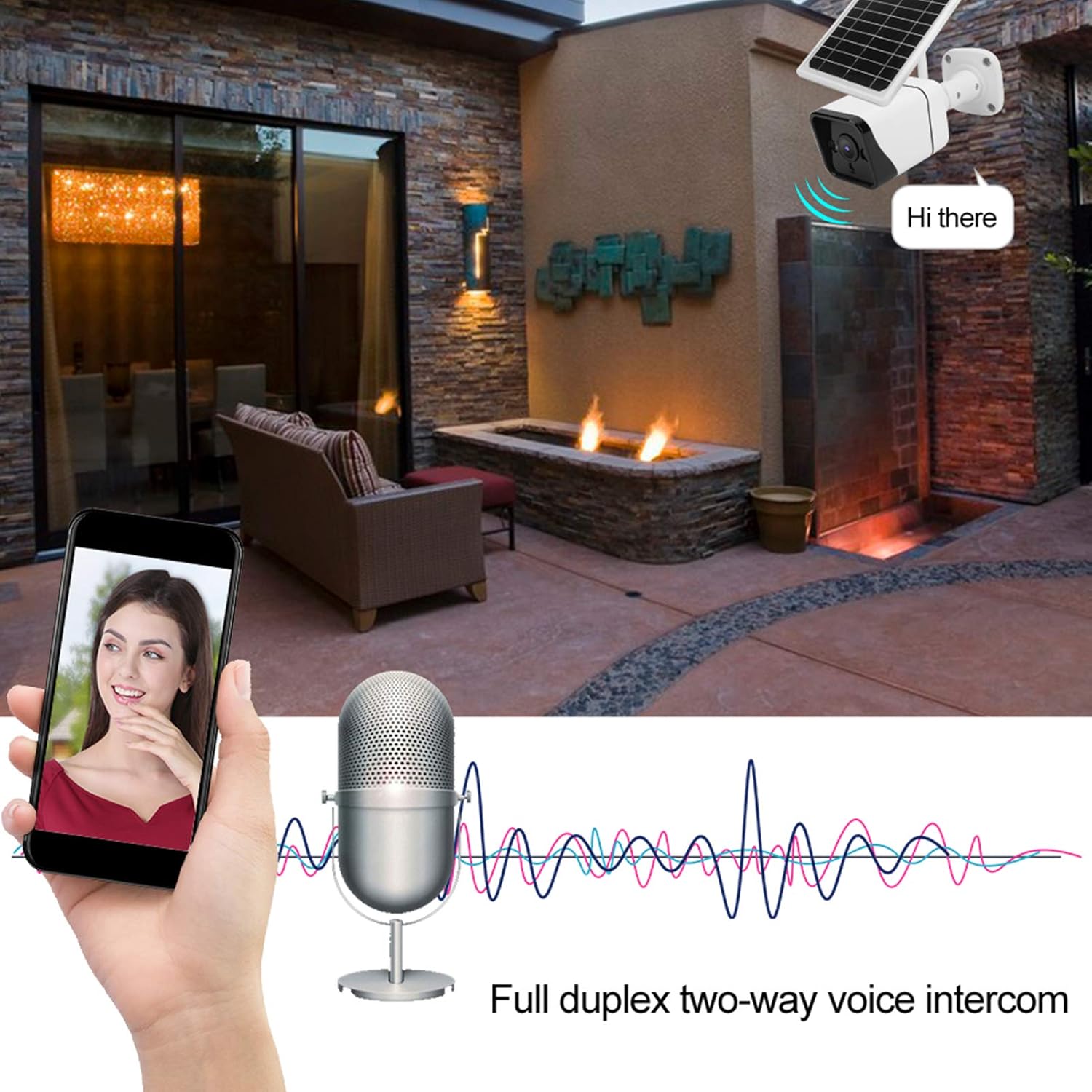
The camera supports full duplex two-way voice intercom, enabling real-time communication through the app.
5.3 Motion Detection and Alerts
The GOWENIC YN50 camera utilizes Human Motion Detection (HMD) and microwave induction for accurate and rapid motion sensing.
- Activation: When a person is detected, the camera will immediately begin recording (within 0.6 seconds) and send an alert notification to your smartphone.
- Night Vision: At night, if motion is detected, the camera's white light will automatically activate to enhance visibility and deter intruders.
- Settings: You can customize motion detection sensitivity and alert preferences within the MYCAM app.
5.4 Video Recording and Storage
The camera records video in H.265 format for efficient storage. Recordings are stored locally, ensuring privacy.
- Event Recording: Videos are automatically recorded when motion is detected.
- Manual Recording: You can initiate manual video recording directly from the live view in the MYCAM app.
- Playback: Access recorded videos through the app's playback feature.
- Storage: The camera supports local storage (e.g., via a microSD card, details not specified in product description but implied by "store locally"). Ensure a compatible storage card is inserted for continuous recording.
6. Maintenance
- Solar Panel Cleaning: Regularly clean the surface of the solar panel with a soft, damp cloth to remove dust, dirt, or debris that may obstruct sunlight and reduce charging efficiency.
- Camera Lens Cleaning: Gently wipe the camera lens with a microfiber cloth to ensure clear image quality. Avoid touching the lens directly with fingers.
- Firmware Updates: Check the MYCAM app periodically for firmware updates. Keeping your camera's firmware up-to-date ensures optimal performance and security.
- Battery Health: While the camera is designed for continuous solar charging, ensure the solar panel is positioned to receive adequate sunlight to maintain battery health. If the camera is in a shaded area for extended periods, the battery may deplete.
7. Troubleshooting
7.1 Camera Not Powering On
- Check Solar Panel: Ensure the solar panel is connected correctly and receiving direct sunlight.
- Battery Charge: Allow the solar panel to charge the camera for several hours in direct sunlight.
7.2 Unable to Connect to Wi-Fi
- Wi-Fi Band: Confirm your Wi-Fi network is 2.4GHz. The camera may not support 5GHz networks.
- Signal Strength: Ensure the camera is within range of your Wi-Fi router. Try moving the camera closer to the router during setup.
- Password: Double-check that you are entering the correct Wi-Fi password.
- Router Settings: Restart your Wi-Fi router.
7.3 Motion Detection Not Working
- App Settings: Verify that motion detection is enabled in the MYCAM app settings.
- Sensitivity: Adjust the motion detection sensitivity in the app.
- Obstructions: Ensure there are no physical obstructions blocking the camera's view or the microwave sensor.
7.4 Poor Video Quality
- Lens Cleanliness: Clean the camera lens as described in the Maintenance section.
- Network Speed: Ensure your internet connection has sufficient upload speed for streaming HD video.
- App Settings: Check if the video quality setting in the MYCAM app is set to HD.
8. Specifications
| Feature | Specification |
|---|---|
| Model | YN50 |
| Item Type | Solar Battery Camera |
| Material | Metal, Plastic |
| Sensing Principle | HMD (Human Motion Detection) |
| Main Chip | For Junzheng T31Z |
| Sensor | F23/2063/for 1/2.7in CMOS |
| APP Name | MYCAM |
| Video Encoding | H.265 |
| Effective Pixels | 2MP |
| Video Capture Resolution | 1080p |
| International Protection Rating | IP67 |
| Power Source | Battery Powered, Solar |
| Connectivity Protocol | Wi-Fi |
| Mounting Type | Wall Mount |
| Compatible Devices | Smartphone |
| Indoor/Outdoor Usage | Outdoor |
| Special Feature | Motion Sensor |
| Alert Type | Motion Only |
| Video Capture Format | MP4 |
| Manufacturer | GOWENIC |
9. Warranty and Support
GOWENIC products are manufactured to high-quality standards. For warranty information, please refer to the warranty card included with your product or visit the official GOWENIC website. If you encounter any issues or require technical assistance, please contact GOWENIC customer support through the following channels:
- Online Support: Visit the GOWENIC official website for FAQs, troubleshooting guides, and contact forms.
- Email Support: Refer to your product packaging or the GOWENIC website for the customer support email address.
- In-App Support: Some support features may be available directly within the MYCAM application.
Please have your product model (YN50) and purchase details ready when contacting support.
