
metapen ME-MPP712
Metapen Stylus Pen M1 User Manual
Model: ME-MPP712
1. Introduction
The Metapen Stylus Pen M1 is a high-performance digital pen designed for seamless interaction with a wide range of compatible devices, including Microsoft Surface, HP, ASUS, DELL, Acer, SONY, ViewSonic, and Kobo. Featuring fast charging, precise pressure sensitivity, palm rejection, and magnetic attachment, the M1 enhances your digital writing and drawing experience.
This manual provides essential information on setting up, operating, maintaining, and troubleshooting your Metapen M1 stylus.
2. What's in the Box
Upon unboxing your Metapen Stylus Pen M1, please verify that all the following items are included:
- 1x Metapen M1 Active Pen with Tip
- 1x USB-C Charging Cable
- 1x Replacement Tip
- 1x User Manual (this document)
- 1x Dust Cover for Charging Port
If any items are missing or damaged, please contact customer support.
3. Setup
3.1 Charging the Stylus
The Metapen M1 features fast Type-C charging. A full charge takes approximately 40 minutes and provides up to 300 hours of battery life, or 75 days with 4 hours of daily use. A quick 5-minute charge can provide up to 80 hours of use.
- Locate the USB-C charging port on the end of the stylus.
- Connect the provided USB-C cable to the stylus and a compatible USB power source (e.g., computer USB port, wall adapter).
- The LED indicator will show charging status:
- White: Charging
- LED Off: Fully Charged
- Blinking Orange: Power less than 10%

Figure 3.1: Fast Charging with Type-C
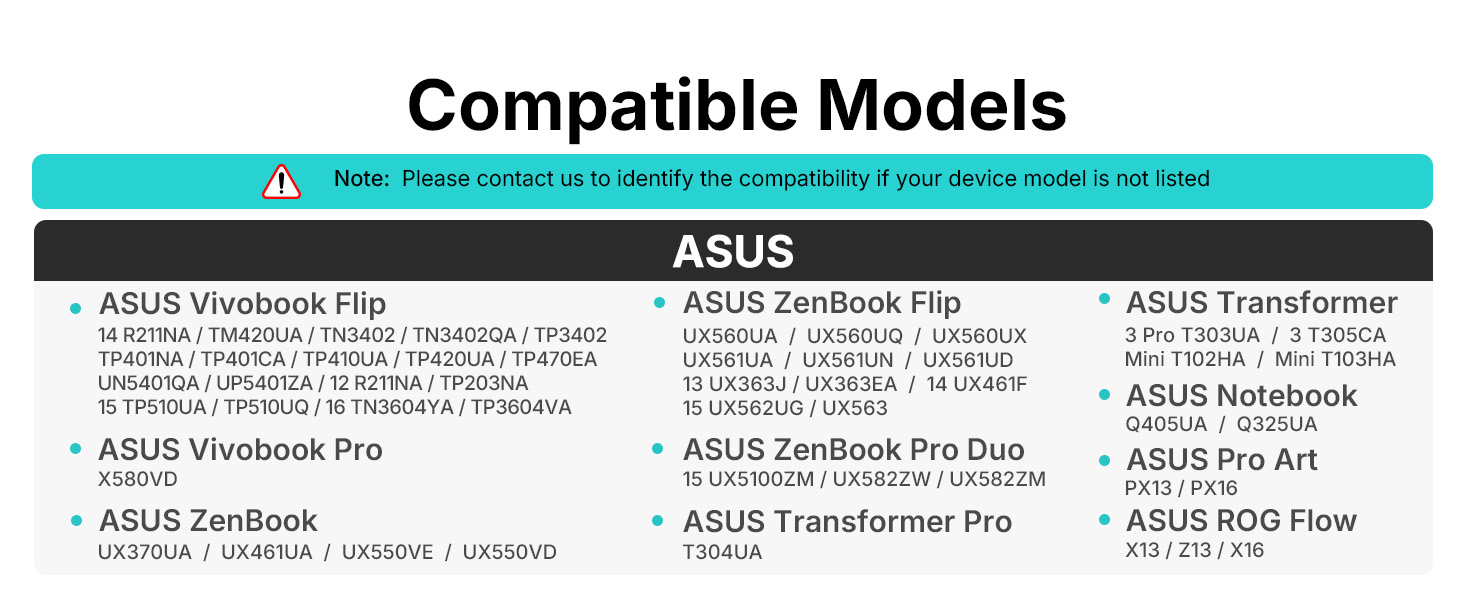
Figure 3.2: Charging Indicators
3.2 Compatibility
The Metapen M1 supports the MPP1.15 protocol and is compatible with most Microsoft Surface devices, as well as select models from HP, ASUS, DELL, Acer, SONY, and ViewSonic. Please refer to the detailed compatibility lists below to ensure your device is supported.
Important Note: The Metapen M1 does NOT work with Surface Laptop Go models. If your device model is not listed, please contact support@metapen.com for compatibility verification.
Figure 3.3: Microsoft Device Compatibility

Figure 3.4: ASUS Device Compatibility

Figure 3.5: HP Device Compatibility

Figure 3.6: DELL Device Compatibility

Figure 3.7: Kobo Device Compatibility
4. Operating the Metapen M1
4.1 Basic Usage and Pressure Sensitivity
The Metapen M1 offers fluent writing with 1024 pressure points, allowing for fine control and real-time ink flow without lag or latency. Simply touch the pen tip to your compatible device's screen to begin writing or drawing.

Figure 4.1: Jot Down Every Creative Idea with 1024 Pressure Levels
4.2 Side Buttons Functionality
The Metapen M1 features two convenient side buttons for quick actions:
- Eraser Button: Press this button to quickly erase mistakes.
- Right-click Button: This button acts as a right-click function, similar to a mouse.

Figure 4.2: Delete and Edit Quickly with Side Buttons
4.3 Palm Rejection
The Metapen M1 supports palm rejection, allowing you to rest your hand comfortably on the screen while writing or drawing without causing unintended marks. This feature ensures a natural and fatigue-free experience.

Figure 4.3: Palm Rejection in Use
4.4 Magnetic Attachment
The Metapen M1 is equipped with two strong built-in magnets, allowing it to firmly attach to compatible Microsoft Surface tablets. This provides convenient storage and ensures your stylus is always within reach.

Figure 4.4: Secure Magnetic Attachment
5. Maintenance
5.1 Replacing the Pen Tip
The Metapen M1 comes with a replaceable tip to ensure consistent performance. A replacement tip is included in the box.
- Gently pull out the old tip from the stylus.
- Insert the new tip exactly into the thin hole until it is secure.
Note: In order to produce pressure sensitivity, it is normal for the pen tip to have a slight movement or looseness. This is not a defect. Avoid pulling out and inserting the tip repeatedly more than necessary.

Figure 5.1: Easy Tip Replacement
5.2 Cleaning the Stylus
To maintain the performance and appearance of your Metapen M1, wipe it regularly with a soft, dry, lint-free cloth. Avoid using abrasive cleaners or solvents.
6. Troubleshooting
If you encounter any issues with your Metapen M1 stylus, please refer to the following common troubleshooting steps:
- Stylus not responding: Ensure the stylus is sufficiently charged. Connect it to a power source using the USB-C cable and allow it to charge for at least 5-10 minutes before retesting.
- Inaccurate writing or drawing: Check if the pen tip is securely installed. If the tip appears worn, replace it with the spare tip provided. Ensure your device's screen is clean and free of debris.
- Compatibility issues: Double-check your device model against the compatibility lists in Section 3.2. Remember that the Metapen M1 does NOT work with Surface Laptop Go models. If your device is listed as compatible but not working, try restarting your device.
- Side buttons not working: Ensure the stylus is powered on and connected to your device. If the issue persists, try restarting your device.
- Stylus not magnetically attaching: Ensure you are attempting to attach it to a compatible Microsoft Surface tablet. The magnetic attachment points are typically along the side of the tablet.
If these steps do not resolve your issue, please contact Metapen customer support for further assistance.
7. Specifications
Key technical specifications for the Metapen Stylus Pen M1:
| Feature | Specification |
|---|---|
| Model Number | ME-MPP712 |
| Dimensions | 7.36 x 2.28 x 0.67 inches (Package) |
| Item Weight | 0.423 ounces (12 Grams) |
| Battery Type | 1 Lithium Metal battery (included) |
| Battery Life (Standby) | 300 Hours |
| Charging Time | 40 minutes |
| Pressure Sensitivity | 1024 Pressure Points |
| Material | Aluminum |
| Color | Classic Black |
| Manufacturer | metapen |
| Country of Origin | China |
8. Warranty and Support
Metapen provides a worry-free 12-month warranty for the M1 Stylus Pen. If you experience any issues or have questions, our friendly customer service team is available to provide quick replies within 24 hours.
For support, please contact us via email at: support@metapen.com
You can also refer to the official user manual PDF for additional information: Download User Manual (PDF)
Related Documents - ME-MPP712
 |
Metapen Surface Pen M2 User Manual and Specifications User manual, specifications, quick guide, and FAQ for the Metapen Surface Pen M2, a stylus designed for Surface devices and compatible with various Windows laptops. Includes safety warnings and disposal information. |
 |
Metapen Surface Pen M1 User Manual User manual for the Metapen Surface Pen M1, providing quick start guide, specifications, warnings, FAQs, and disposal information. Supports Microsoft Surface devices. |
 |
Metapen Surface Pen M3 Pro User Manual | Stylus Pen for Microsoft Surface Detailed user manual for the Metapen Surface Pen M3 Pro, including setup, specifications, FAQs, and warnings for compatible Microsoft Surface devices. Learn how to use and maintain your digital stylus. |
 |
Metapen USI Pen G1 User Manual and Specifications User manual for the Metapen USI Pen G1 stylus, providing setup instructions, specifications, compatibility information, FAQs, and safety guidelines for Chromebook users. |
 |
Metapen Pencil Air 8 Pro X User Manual - Digital Stylus Pen Guide Comprehensive user manual for the Metapen Pencil Air 8 Pro X digital stylus pen, covering setup, usage, troubleshooting, compatibility, and safety information. |
 |
Metapen USI Pen G1 Air User Manual - Stylus for USI-Enabled Chromebooks Official user manual for the Metapen USI Pen G1 Air, detailing setup, specifications, compatible devices, warnings, and FCC compliance for USI-enabled Chromebooks. |