
1. Introduction
Thank you for choosing the AISPEECH AIMIC-M4 Bluetooth Conference Speakerphone. This device is designed to provide crystal-clear audio for your conference calls, whether you're in the office, at home, or on the go. Featuring AI-powered noise reduction, omnidirectional voice pickup, and multiple connectivity options, the AIMIC-M4 ensures seamless communication. Please read this manual carefully to understand how to set up and operate your speakerphone effectively.
2. What's in the Box
- AISPEECH AIMIC-M4 Conference Speakerphone
- USB-C Charging Cable
- User Manual
- Protective Carrying Case

Image: The AISPEECH AIMIC-M4 speakerphone and its included protective carrying case.
3. Product Features
- AI-Powered Noise Reduction: Distinguishes human voices from background noise for crystal-clear audio.
- Optimized Sound Quality: Advanced digital signal processing for clear voice and music.
- Omnidirectional Voice Pickup: Four microphones capture sound from up to 16 feet away.
- Full-Duplex Communication: Allows simultaneous speaking without audio interruption.
- Easy Connectivity: Plug-and-play via USB, easy pairing with Bluetooth or NFC.
- Wide Compatibility: Works with popular conferencing platforms like Zoom, Skype, Teams, and WebEx.
- Long Battery Life: Up to 10 hours of battery life on a single charge.
- Touchable Mute Button: Discreet mute function with a red indicator light.

Image: The speakerphone's 360-degree omnidirectional voice pickup and full-duplex communication capabilities.

Image: The patented intelligent noise reduction algorithm at work, minimizing environmental distractions.
4. Controls and Indicators
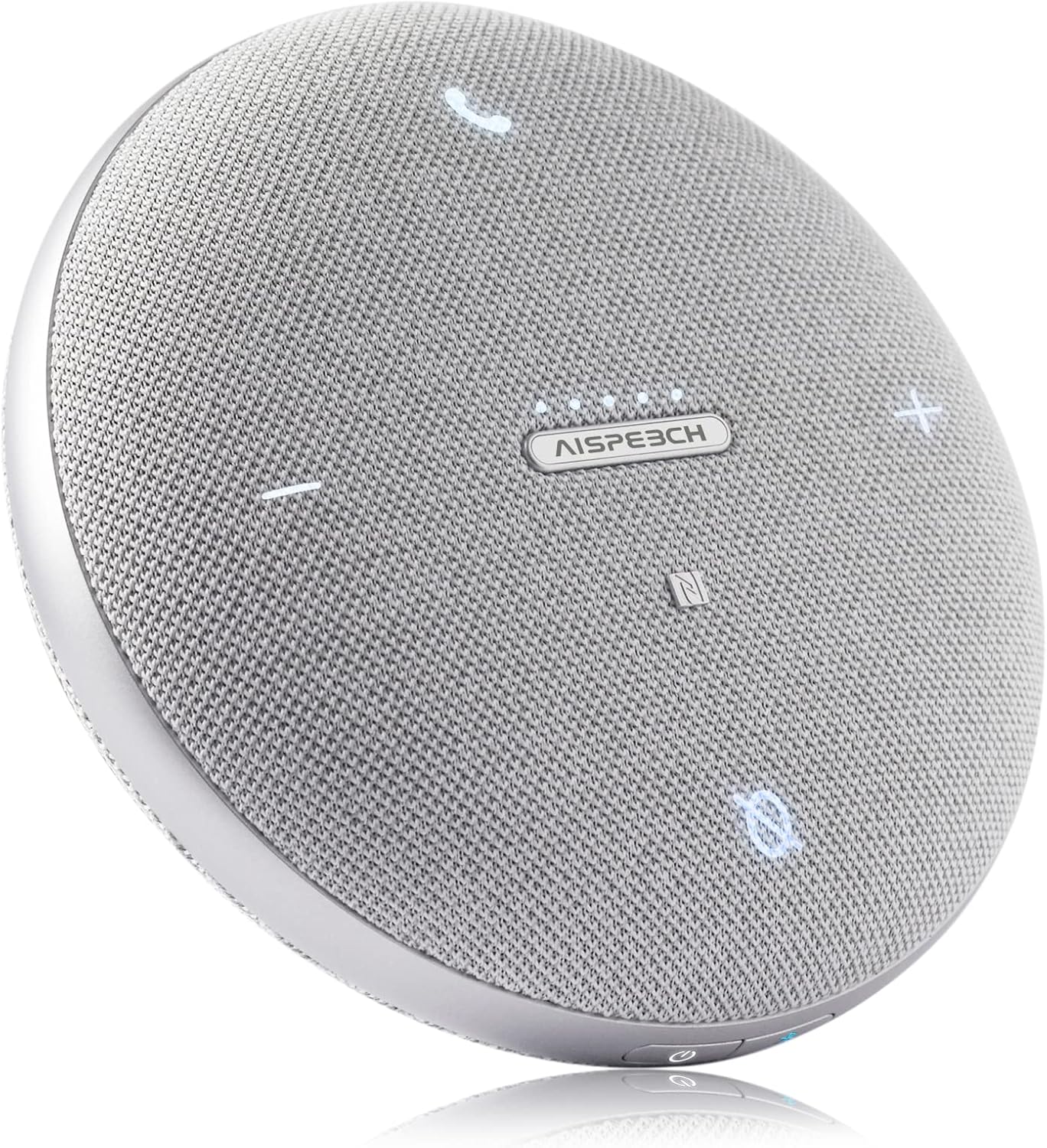
Image: Top view of the speakerphone highlighting its touch controls.
Top Panel Controls:
- Call Button (Phone Icon): Press to answer an incoming call or end an ongoing call.
- Volume Down (-) Button: Decreases the speaker volume.
- Volume Up (+) Button: Increases the speaker volume.
- Mute Button (Microphone Icon): Toggles microphone mute on/off. A red indicator light will illuminate when muted.
- NFC Area: Tap an NFC-enabled device here for quick pairing.
- Status/Battery Indicator Lights: Five small lights indicate battery level and connection status.
Side Panel Controls:
- Power Button: Press and hold to power on/off the device.
- Bluetooth Button: Press and hold to enter Bluetooth pairing mode.
- USB Type-C Port: For charging and wired USB connection to a computer.
5. Setup
5.1 Charging the Speakerphone
Before first use, fully charge the speakerphone. Connect the included USB-C cable to the speakerphone's USB Type-C port and the other end to a USB power adapter (not included) or a computer's USB port. The indicator lights will show charging progress and turn solid when fully charged.
5.2 Powering On/Off
- Power On: Press and hold the Power button on the side until the indicator lights illuminate.
- Power Off: Press and hold the Power button on the side until the indicator lights turn off.
6. Operating Instructions
6.1 Connecting to Your Device

Image: The speakerphone offers versatile connectivity options including USB, Bluetooth, and NFC, compatible with various conferencing platforms.
USB Connection (Plug & Play)
Connect the speakerphone to your computer using the provided USB-C cable. The device will be automatically recognized by your operating system (Windows, macOS, Linux) and ready for use without needing additional drivers. Select the AIMIC-M4 as your audio input and output device in your conferencing application settings.
Bluetooth Connection
- Ensure the speakerphone is powered on.
- Press and hold the Bluetooth button on the side of the speakerphone until the indicator lights flash blue, indicating pairing mode.
- On your device (smartphone, tablet, computer), go to Bluetooth settings and search for available devices.
- Select "AIMIC-M4" from the list of found devices.
- Once connected, the indicator lights will turn solid blue.
NFC Connection
If your smartphone or tablet supports NFC, simply tap your device to the NFC area on the top of the speakerphone to initiate pairing. Follow the on-screen prompts to complete the connection.
6.2 Call Management
- Answer Call: When an incoming call rings, press the Call button (phone icon) on the top panel.
- End Call: During a call, press the Call button (phone icon) to end the conversation.
6.3 Adjusting Volume and Mute
- Adjust Volume: Use the Volume Up (+) and Volume Down (-) buttons on the top panel to control the speaker output volume.
- Mute Microphone: Press the Mute button (microphone icon) to mute or unmute the microphone. The button will light up red when muted.
7. Maintenance
- Cleaning: Use a soft, dry cloth to clean the speakerphone. Do not use liquid cleaners or aerosols.
- Storage: Store the device in a cool, dry place, away from direct sunlight and extreme temperatures. Use the provided carrying case for protection during travel.
- Battery Care: To prolong battery life, avoid fully discharging the battery frequently. Charge the device regularly, even if not in use for extended periods.
8. Troubleshooting
| Problem | Possible Cause | Solution |
|---|---|---|
| No power/Device won't turn on | Low battery; Device off | Charge the speakerphone; Press and hold the Power button to turn on. |
| Cannot connect via Bluetooth | Speakerphone not in pairing mode; Device Bluetooth off; Out of range | Press and hold Bluetooth button until lights flash; Ensure Bluetooth is enabled on your device; Move device closer to speakerphone (within 10 meters). |
| No sound or poor sound quality | Volume too low; Incorrect audio output selected; Muted microphone | Increase volume using (+) button; Select "AIMIC-M4" as audio output in your computer/app settings; Ensure microphone is not muted (red light off). |
| Microphone not picking up sound | Microphone muted; Incorrect audio input selected | Press Mute button to unmute; Select "AIMIC-M4" as audio input in your computer/app settings. |
| Connectivity issues with conferencing platforms (e.g., MS Teams) | Software conflict; System audio settings | Ensure the speakerphone is selected as the default communication device in your platform's audio settings. Try restarting the application or your computer. Disable system sounds in Windows 10/11 settings if experiencing constant audio interruptions. |
9. Specifications
- Model Name: AIMIC-M4
- Brand: AISPEECH
- Connectivity Technology: Bluetooth, NFC, USB
- Wireless Communication Technology: Bluetooth 5.1
- Bluetooth Range: 10 Meters (33 feet)
- Microphone Pickup Range: Up to 5 Meters (16 feet)
- Speaker Type: Computer Speakerphone
- Audio Output Mode: Stereo
- Signal-to-Noise Ratio: 80 dB
- Power Source: Battery Powered
- Battery Life: Up to 10 Hours
- Battery Type: 1 Lithium Ion battery (included)
- Control Method: Touch
- Color: Gray
- Product Dimensions: 4.4 x 4.4 x 1.38 inches
- Item Weight: 8.3 ounces
- Special Feature: AI Noise Reduction, Omnidirectional Voice Pickup, Mute Function, Full-Duplex Communication
- Recommended Uses: Video Conference
- Is Waterproof: No
10. Warranty and Support
The AISPEECH AIMIC-M4 Conference Speakerphone comes with a Limited Warranty. Please refer to the warranty card included in your product packaging for specific terms and conditions. For technical support, troubleshooting assistance, or warranty claims, please contact AISPEECH customer service through the retailer where you purchased the product or visit the official AISPEECH website for contact information.
Note: Product specifications and features are subject to change without prior notice.