1. Introduction
This manual provides instructions for the ezControl Universal Remote Control, designed as a replacement for various Philips LCD, LED, 4K UHD Smart TVs. This remote offers a convenient solution for controlling your Philips television without the need for complex setup or programming. Please read this manual thoroughly to ensure proper use and to maximize your remote control's functionality.
2. Important Safety Information
- Battery Handling: Use only AAA batteries. Do not mix old and new batteries, or different types of batteries. Remove batteries if the remote will not be used for an extended period to prevent leakage.
- Disposal: Dispose of used batteries according to local regulations. Do not dispose of batteries in fire.
- Environment: Keep the remote control away from extreme temperatures, direct sunlight, and moisture.
- Cleaning: Clean the remote with a soft, dry cloth. Do not use liquid or aerosol cleaners.
3. Package Contents
- 1 x ezControl Universal Remote Control for Philips TV
Note: AAA batteries are not included and must be purchased separately.
4. Setup Guide
4.1 Battery Installation
- Locate the battery compartment on the back of the remote control.
- Slide the battery cover downwards or outwards to open it.
- Insert two (2) AAA batteries, ensuring the positive (+) and negative (-) terminals match the markings inside the compartment.
- Replace the battery cover by sliding it back into position until it clicks securely.
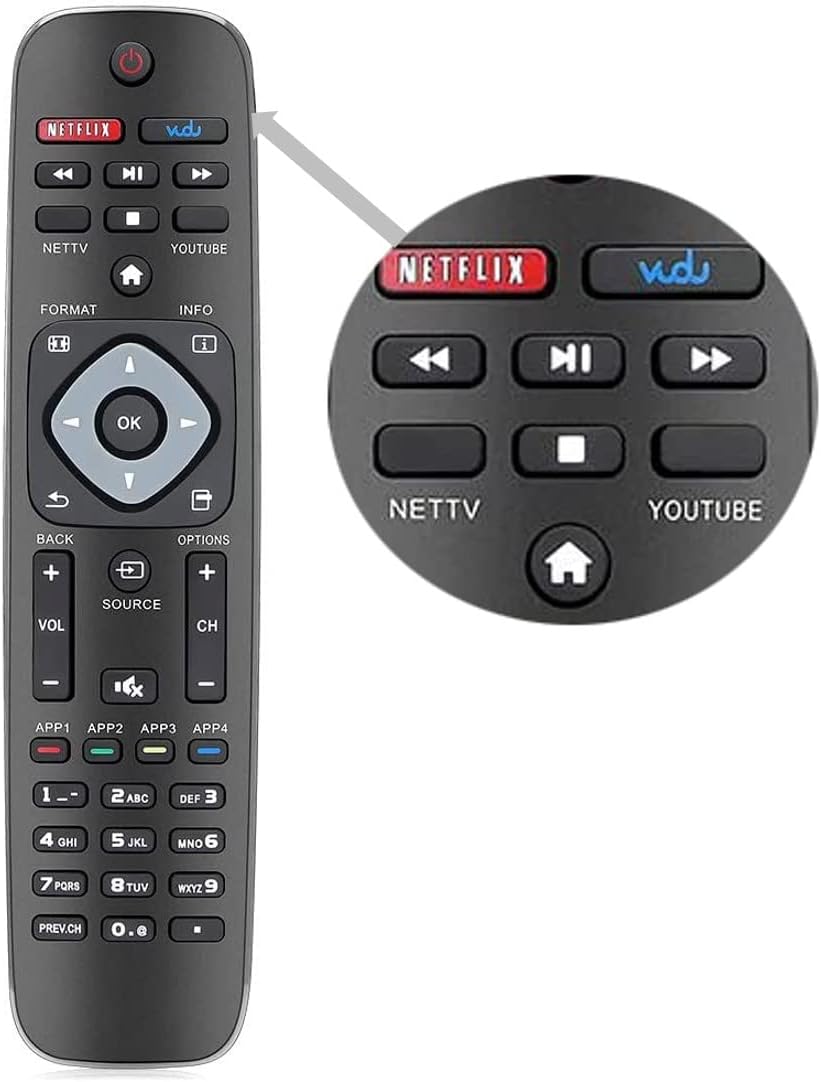
Image: Rear view of the remote control, indicating the battery compartment location.
4.2 Initial Use (No Pairing Required)
The ezControl Universal Remote Control is designed for immediate use with most Philips TVs. No setup, programming, or pairing is required. Once batteries are installed, the remote is ready to operate your television.
5. Operating Instructions
5.1 Remote Control Layout
Image: Front view of the ezControl Universal Remote Control, displaying all buttons.
The remote control features a standard layout with dedicated buttons for common functions and popular streaming services.
5.2 Button Functions

Image: Close-up of the remote control buttons with text descriptions of their functions.
| Button | Function |
|---|---|
| POWER | Turns the TV on and off. |
| NETFLIX | Direct access to the Netflix application. |
| VUDU | Direct access to the VUDU application. |
| YouTube | Direct access to the YouTube application. |
| NETTV | Direct access to the NETTV application. |
| HOME | Enters the TV's home menu or smart hub. |
| INFO | Displays information about the current program or input. |
| BACK | Returns to the previous menu or screen. |
| OPTIONS | Displays available options for the current content or menu. |
| VOL +/- | Adjusts the volume level. |
| CH +/- | Changes channels up or down. |
| SOURCE | Displays and allows selection of video input sources (e.g., HDMI 1, AV). |
| MUTE | Temporarily cuts off the sound. Press again to restore sound. |
| Color buttons (RED/GREEN/YELLOW/BLUE) | Shortcut keys for interactive functions within certain applications or TV menus. |
| PREV.CH | Returns to the previously viewed channel. |
| Number buttons (0-9) | Direct input for channel numbers. |
| APP1, APP2, APP3, APP4 | Dedicated buttons for accessing specific applications. Functionality may vary by TV model. |
6. Troubleshooting
- Remote not responding:
- Ensure batteries are inserted correctly with the correct polarity.
- Replace old batteries with new AAA batteries.
- Check for any obstructions between the remote and the TV's infrared sensor.
- Ensure you are within the effective operating range (typically up to 10 meters).
- Some buttons not working:
- Verify that the button's function is applicable to your specific TV model or current TV mode (e.g., some smart features may require the TV to be connected to the internet).
- Clean the remote control buttons and surface to ensure no debris is interfering with button presses.
- Remote range is poor:
- Replace batteries with fresh ones.
- Ensure there are no strong light sources or other electronic devices interfering with the infrared signal.
7. Care and Maintenance
- Cleaning: Wipe the remote control with a soft, slightly damp cloth. Avoid using harsh chemicals, abrasive cleaners, or solvents.
- Storage: Store the remote in a cool, dry place when not in use. Avoid placing heavy objects on it.
- Impact: Do not drop the remote control or subject it to strong impacts, as this may damage internal components.
8. Product Specifications
- Shell Material: ABS
- Product Dimensions: 7.2 x 1.8 x 0.7 inches (approximately)
- Item Weight: 2.08 ounces (without batteries)
- Battery Required: 2 x AAA (not included)
- Remote Range: More than 10 meters (approximately 40 feet)
- Response Time: Less than 0.2 seconds
- Compatibility: Designed for various Philips LCD, LED, 4K UHD Smart TVs.
9. Warranty and Support
This product is covered by a standard manufacturer's warranty against defects in materials and workmanship. For specific warranty details, please refer to the product packaging or contact your retailer. For technical support or further assistance, please reach out to the ezControl customer service department through your purchase platform or the contact information provided with your product.