
1. Introduction
The Owl Labs Meeting Owl 3 is an all-in-one 360-degree camera, microphone, and speaker device designed to enhance hybrid meeting experiences. It captures 1080p HD video and 360-degree audio, automatically focusing on the active speaker to facilitate engaging and inclusive remote participation. This manual provides essential information for the proper setup, operation, and maintenance of your Meeting Owl 3.

Image 1.1: The Owl Labs Meeting Owl 3 device, a cylindrical conference camera with a 360-degree lens on top and speaker grille around its body.
2. What's in the Box
Verify that all components are present in the packaging:
- Meeting Owl 3 Device
- AC Line Cord
- USB-C 6-foot Cable
- 12V Power Supply
- Setup Guide
3. Setup Instructions
The Meeting Owl 3 is designed for quick and easy deployment. Follow these steps to set up your device:
- Position the Device: Place the Meeting Owl 3 in the center of your conference table or meeting space to ensure optimal 360-degree coverage.
- Connect Power: Plug the 12V power supply into the Meeting Owl 3 and then into a power outlet using the AC line cord.
- Connect to Computer: Connect the Meeting Owl 3 to your computer using the provided USB-C cable.
- Launch Video Conferencing Software: Open your preferred video conferencing platform (e.g., Zoom, Microsoft Teams, Google Meet).
- Select Meeting Owl 3: In your conferencing software's audio and video settings, select "Meeting Owl 3" as the camera, microphone, and speaker device.
The Meeting Owl 3 will automatically begin focusing on active speakers in the room once a meeting starts.

Image 3.1: A visual guide illustrating the four simple steps for setting up the Meeting Owl 3: plug in USB-C, start a meeting, select Meeting Owl in software settings, and automatic speaker focus begins.
4. Operating Instructions
The Meeting Owl 3 is designed for intuitive operation. Once connected and selected in your video conferencing software, it functions automatically.
4.1. Automatic Speaker Tracking
The Owl Intelligence System™ uses visual and audio cues to automatically detect and focus on the person speaking. This ensures remote participants have a clear view of the active speaker and a panoramic 360-degree view of the entire room.

Image 4.1: A graphic demonstrating the Meeting Owl 3's ability to capture a 360-degree panoramic view and focus on individual speakers, providing both a wide room view and close-ups of participants.
4.2. Compatibility
The Meeting Owl 3 is certified for Microsoft Teams and compatible with most web-based video conferencing platforms, including Zoom, Google Meet, Slack, GoTo Meeting, and Cisco Webex.
5. Features and Functionality
The Meeting Owl 3 integrates advanced features to create an immersive meeting experience:
- 360° 1080p HD Camera: Provides a complete panoramic view of the meeting room.
- 360° Audio Pickup: Equipped with an 18-foot (5.5m) microphone pickup radius to capture voices from all directions.
- 360° Tri-Speaker: Delivers clear audio to ensure remote participants are heard.
- Owl Intelligence System™: Proprietary AI software for automatic speaker tracking and Smart Zooming functionality.

Image 5.1: A detailed breakdown of the Meeting Owl 3's components, highlighting the 360-degree panoramic camera, the 18-foot audio pickup radius, and the 360-degree tri-speaker system.
6. Expanding Your Setup
The Meeting Owl 3 can be integrated with other Owl Labs devices to expand coverage and functionality for larger spaces or specific needs:
- Pairing Two Meeting Owls: Extend video and audio reach in larger rooms by connecting two Meeting Owl devices.
- Owl Bar Integration: Combine with an Owl Bar for enhanced video and audio capabilities.
- Expansion Mic: Add an Expansion Mic to further extend the audio pickup range.
- Whiteboard Owl: Integrate with a Whiteboard Owl to capture and share whiteboard content with remote participants.

Image 6.1: The Meeting Owl 3 positioned in a large conference room, demonstrating its adaptability and potential for expanded coverage in various meeting environments.
7. Specifications
| Feature | Detail |
|---|---|
| Product Dimensions | 4.37 x 4.37 x 10.72 inches (111 x 111 x 273 mm) |
| Item Weight | 2.61 pounds (1.2 kg) |
| Model Number | MTW300-1000 |
| Video Capture Resolution | 1080p HD |
| Microphone Pickup Range | 18 feet (5.5m) |
| Color | Grey |
| Manufacturer | Owl Labs |

Image 7.1: A diagram illustrating the physical dimensions (height and width) and weight of the Meeting Owl 3 device.
8. Maintenance
To ensure optimal performance and longevity of your Meeting Owl 3, follow these maintenance guidelines:
- Cleaning: Gently wipe the exterior of the device with a soft, dry cloth. Avoid using harsh chemicals or abrasive materials.
- Software Updates: The Owl Intelligence System™ receives regular updates. Ensure your device is connected to the internet to receive these updates, which provide performance improvements and new features.
- Storage: When not in use, store the Meeting Owl 3 in a cool, dry place, away from direct sunlight and extreme temperatures.
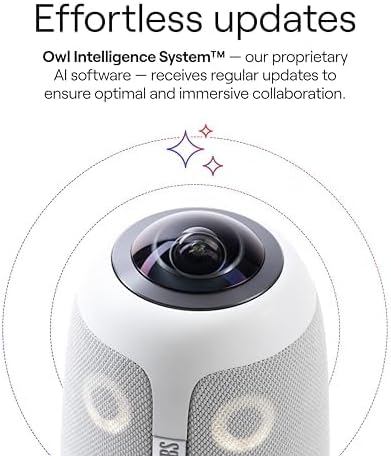
Image 8.1: A close-up view of the Meeting Owl 3's top section, emphasizing the camera lens and the device's sleek design, which benefits from regular, gentle cleaning.
9. Troubleshooting
If you encounter issues with your Meeting Owl 3, try the following troubleshooting steps:
- No Power: Ensure the power adapter is securely plugged into both the Meeting Owl 3 and a working electrical outlet.
- No Video/Audio: Verify that the USB-C cable is firmly connected to both the Meeting Owl 3 and your computer. Check your video conferencing software settings to confirm "Meeting Owl 3" is selected as the camera, microphone, and speaker.
- Poor Video/Audio Quality: Ensure the device is placed centrally in the room and that there are no obstructions. Check your internet connection stability.
- Speaker Tracking Issues: Confirm that the Meeting Owl 3's firmware is up to date. Ensure the room lighting is adequate.
- Restart Device: Disconnect the power cable from the Meeting Owl 3, wait 10 seconds, and then reconnect it.
For persistent issues, refer to the official Owl Labs support resources.
10. Warranty and Support
For detailed warranty information and technical support, please visit the official Owl Labs website. The manufacturer provides resources and assistance for product inquiries and service needs.
Official Support: Visit the Owl Labs Store on Amazon


